🚗 Apple CarPlay und Android Auto für Flutter-Apps. Ziel ist es, die sichere Nutzung von mit Flutter entwickelten Apps im Fahrzeug durch Integration mit CarPlay und Android Auto zu ermöglichen.
Englischer Projektschnappschuss. Aktuelle Inhalte auf GitHub.
CarPlay and Android Auto with Flutter 🚗
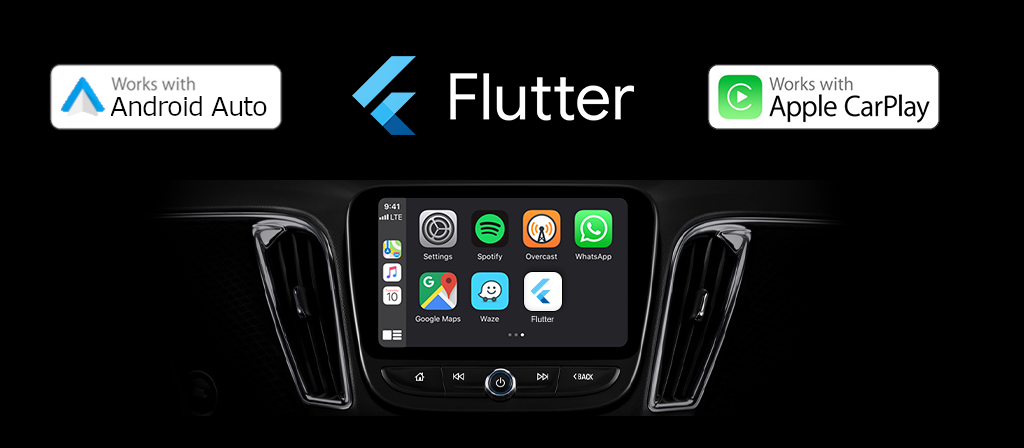
Flutter Apps now on Apple CarPlay and Android Auto ! flutter_carplay aims to make it safe to use apps made with Flutter in the car by integrating with CarPlay and Android Auto. The package takes the things you want to do while driving and puts them on the car's built-in display.
✨ New in v1.5.0: Android Auto alert, grid, and tab bar templates, modal alert APIs, and richer Android Auto list loading states.
✨ New in v1.1.0: CarPlay apps can now launch automatically without requiring the Flutter app to be opened first, supporting true background launch capabilities.
Apple announced some great features in iOS 14, one of which is users download CarPlay apps from the App Store and use them on iPhone like any other app. When an iPhone with a CarPlay app is connected to a CarPlay vehicle, the app icon appears on the CarPlay home screen. CarPlay apps are not separate apps—you add CarPlay support to an existing app.
Your app uses the CarPlay framework to present UI elements to the user. iOS manages the display of UI elements and handles the interface with the car. Your app does not need to manage the layout of UI elements for different screen resolutions, or support different input hardware such as touchscreens, knobs, or touch pads.
Before you begin CarPlay integration, you must carefully read this section.
The official App Programming Guidelines from Apple is the most valuable resource for understanding the needs, limits, and capabilities of CarPlay Apps. This documentation is a 49-page which clearly spells out the some actions required, and you are strongly advised to read it. If you are interested in a CarPlay System, learn more about the MFi Program.
Templates
Car Play Templates
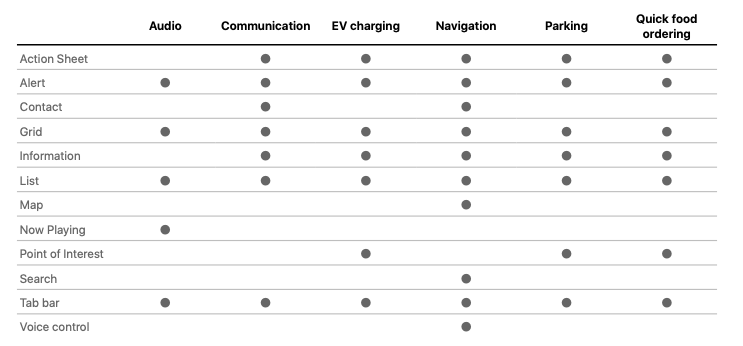
CarPlay apps are built from a fixed set of user interface templates that iOS renders on the CarPlay screen. Each CarPlay app category can only use a restricted number of templates. Your app entitlement determines your access to templates.
Android Auto Templates
Android Auto apps built with the Android for Cars App Library are constructed using a fixed set of vehicle-optimized templates that the host renders on the car screen. Each Android Auto app category (e.g., Navigation, Point-of-Interest, IoT, etc.) can only use a restricted number of templates, and access to the Android for Cars App Library and its templates is generally restricted to supported app categories.
[x] Information Template (contribution from OSch11)
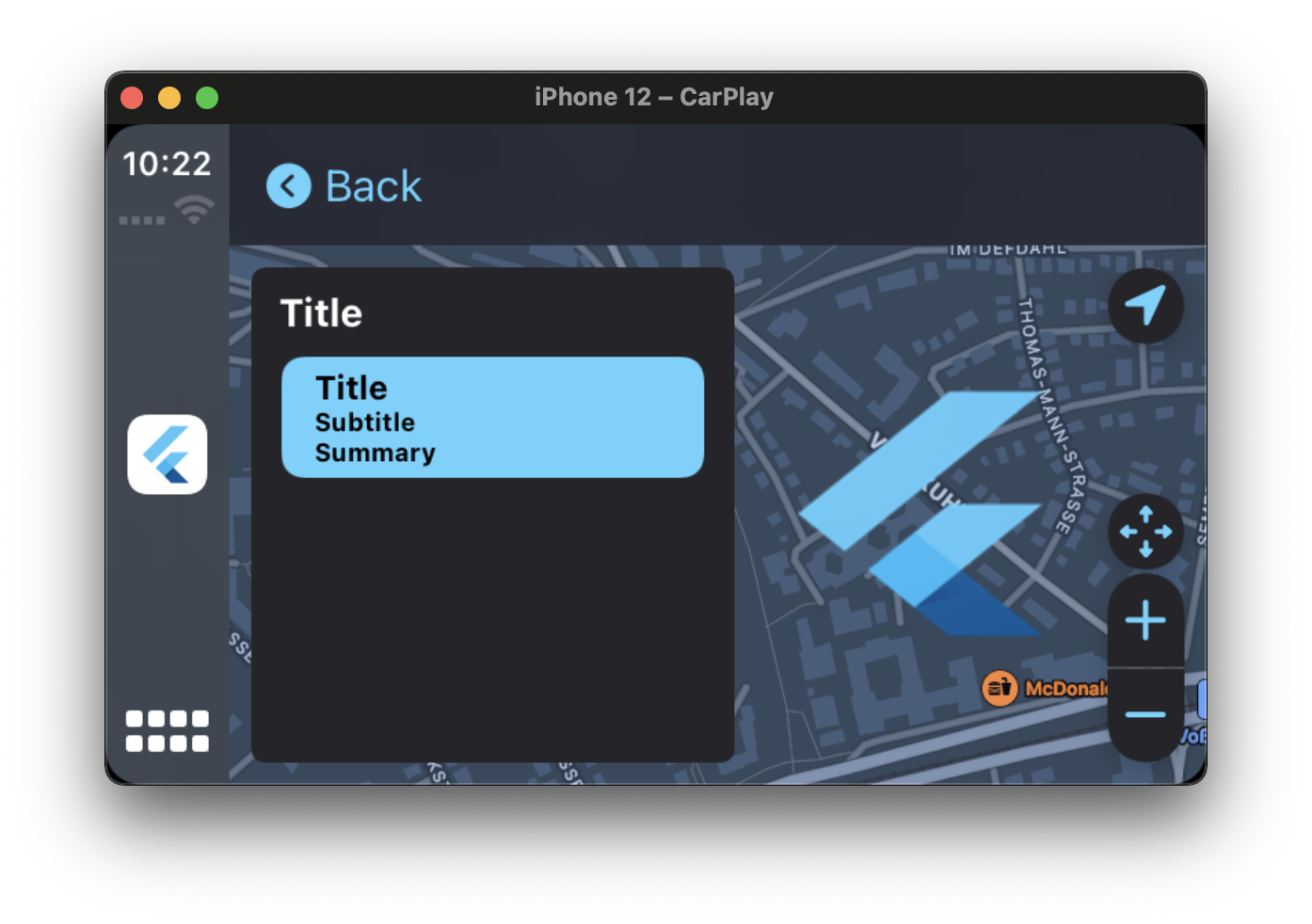
[x] Point of Interest Template (contribution from OSch11)
[x] Search Template
[x] Now Playing Template (v1.1.0)
By evaluating this information, you can request for the relevant entitlement from Apple.
Android Auto Support
[x] List Template (limited support)
[x] Grid Template
[x] Tab Bar Template (requires Car App API level 6+)
[x] Alert Template
[x] Message Template
[x] Long Message Template
[x] Pane Template
[x] Now Playing Template (Automatically handled by Android Auto system)
What's New in latest versions
v1.5.0
🚘 More Android Auto Templates: Added alert, grid, and tab bar templates, including tab selection handling
⚠️ Android Auto Alerts: Added modal alert presentation and dismissal APIs for Android Auto flows
🧾 Better Android Auto Lists: Added loading messages and empty view title support for list templates
v1.4.0
🔎 CarPlay Search Template: Added CPSearchTemplate with search text, result selection, and search button callbacks
🤖 More Android Auto Templates: Added AAMessageTemplate, AALongMessageTemplate, and AAPaneTemplate, including update APIs
🧾 Better Android Auto Lists: Added stable IDs, section selection, toggles, browsable rows, and trailing images
🖼️ Flutter Asset SVG Support: Flutter asset SVGs are rasterized before reaching native CarPlay and Android Auto image fields
📚 Android Auto Docs: Clarified that Android Auto template rendering is different from Android Automotive OS apps
v1.3.0
🖼️ CPListImageRowItem: Added support for image row list items, including element based layouts on newer iOS versions
🔄 Information Template Updates: Added update methods for information items and actions without rebuilding the whole template, thanks to @sINFdorako
🧩 Better Tab Bar Configuration: tabTitle, systemIcon, and showsTabBadge are now exposed consistently on templates
🛠️ API Polish: Added custom ids across models, convenient update helpers, and improved image loading reliability
v1.2.0
🤖 Android Auto Support: Initial support for Android Auto with limited
features (Thanks to @EArminjon)
v1.1.0
🚀 Background Launch Support: CarPlay apps can now start automatically without requiring the Flutter app to be opened first (Thanks to @vanlooverenkoen and @EArminjon)
🎵 Now Playing Template: Navigate to the shared instance of the Now Playing Template with FlutterCarplay.showSharedNowPlaying()
🌐 Flexible Image Sources: Load images from assets, local files (file://), or URLs (https://) (Thanks to @vanlooverenkoen)
🔧 Improved Completion Handlers: Better reliability for list item interactions and template transitions
📱 Flutter 3.32.x Compatibility: Updated for the latest Flutter versions
Other templates will be supported in the future releases by flutter_carplay.
Car Play Road Map
[ ] Map Template
[x] Search Template
[ ] Voice Control & "Hey Siri" for hands-free voice activation
[ ] Contact Template
Android Auto Road Map
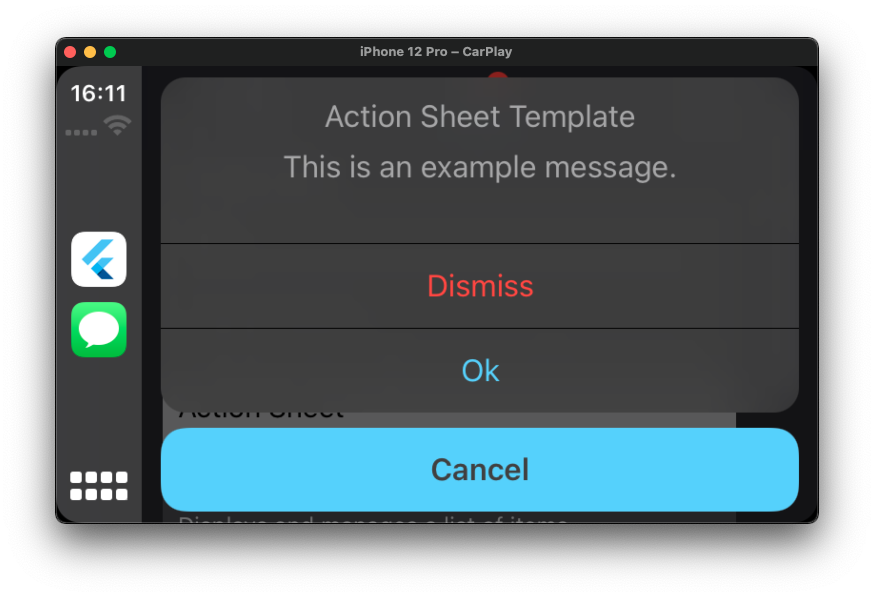
[ ] Action Sheet Template
[x] Information Template via Pane Template
[ ] Point of Interest Template
[ ] Map Template
[ ] Search Template
[ ] Voice Control & "Hey Google" for hands-free voice activation
[ ] Contact Template
Contributing
Pull Requests are always welcome.
Pull Request Reviews are even more welcome! I need help in testing.
If you are interested in contributing more actively, please contact me at info@oguzhanatalay.com Thanks!
If you want to help in coding, join Discord Server, so we can chat over there.
Requesting the CarPlay Entitlements
All CarPlay apps require a CarPlay app entitlement.
If you want to build, run and publish your app on Apple with CarPlay compatibility or test or share the app with others through the TestfFlight or AdHoc, you must first request Apple to approve your Developer account for CarPlay access. The process can take from a few days to weeks or even months. It depends on the type of Entitlement you are requesting.
To request a CarPlay app entitlement from Apple, go to https://developer.apple.com/contact/carplay and provide information about your app, including the CarPlay App Category. You must also agree to the CarPlay Entitlement Addendum.
With this project, you can start developing and testing through Apple's CarPlay Simulator without waiting for CarPlay Entitlements. Apple will review your request. If your app meets the criteria for a CarPlay app, Apple will assign a CarPlay app entitlement to your Apple Developer Account and will notify you.
Whether you are running the app through a simulator or developing it for distribution, you must ensure that the relevant entitlement key is added to the Entitlements.plist file. You must create an Entitlements.plist file if you do not already have one.
After you receive the CarPlay Entitlement
After you receive the entitlement, you need to configure your Xcode project to use it, which involves several steps. You create and import a provisioning profile, and add an Entitlements.plist file. Your project’s code signing settings also require minor changes.
Choose the CarPlay entitlement that matches the app category Apple approved for your project. The example app keeps com.apple.developer.carplay-parking so the Point of Interest demo remains available. If your app uses a different CarPlay category, replace it with the matching entitlement, for example com.apple.developer.carplay-maps for maps and navigation, com.apple.developer.carplay-quick-ordering for quick ordering, com.apple.developer.carplay-charging for EV charging, com.apple.developer.carplay-fueling for fuel stations, com.apple.developer.carplay-driving-task for driving tasks, com.apple.developer.carplay-communication for calling or messaging, or com.apple.developer.carplay-audio for audio playback.
Disclaimer Before The Installation
You are about to make some minor changes to your Xcode project after installing this package. This is due to the fact that It requires bitcode compilation which is missing in Flutter. You will procedure that will relocate (we won't remove or edit) some Flutter and its package engines. If you're planning to add this package to a critical project for you, you should proceed cautiously.
THE INSTALLATION STEPS MAY BE DIFFICULT OR MAY NOT WORK PROPERLY WITH A FEW PACKAGES IN YOUR CURRENT PROJECT THAT COMMUNICATE WITH THE FLUTTER ENGINE. IF YOU ARE NOT COMPLETELY SURE WHAT YOU ARE DOING, PLEASE CREATE AN ISSUE, SO THAT I CAN HELP YOU TO SOLVE YOUR PROBLEM OR EXPLAIN WHAT YOU NEED TO.
WHILE THE INSTALLATION PROGRESS, IF YOU TRY TO CHANGE ANYTHING (E.G. ANYTHING WORKS WITH FLUTTER ENGINE, ANYTHING IN GENERATED PLUGIN REGISTRANT SPECIFICALLY ITS LOCATION, ANY FILE NAME, ANY CLASS NAME, OR ANY OTHER FUNCTION THAT WORKS ON APPDELEGATE CLASS, TEMPLATE OR WINDOW APPLICATION DELEGATE SCENE NAMES USED IN INFO.PLIST, INCLUDED STORYBOARD NAMES, BUT NOT LIMITED TO THESE), YOU ARE MOST LIKELY TO ENCOUNTER IRREVERSIBLE ERRORS AND IT MAY DAMAGE TO YOUR PROJECT. I STRONGLY RECOMMEND THAT YOU SHOULD COPY YOUR EXISTING PROJECT BEFORE THE INSTALLATION.
Get Started
Car Play Get Started
Requirement Actions after Installation of the Package
The iOS platform version must be set to 14.0. To make it global, navigate to ios/Podfile and copy the first two lines:
# Uncomment this line to define a global platform for your project
+ platform :ios, '14.0'- # platform :ios, '9.0'
After changing the platform version, execute the following command in your terminal to update your pod files:
// For Apple Silicon M1 chips:
$ cd ios && arch -x86_64 pod install --repo-update

// For Intel chips:
$ cd ios && pod install --repo-update
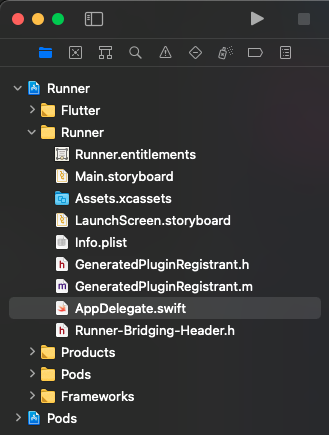
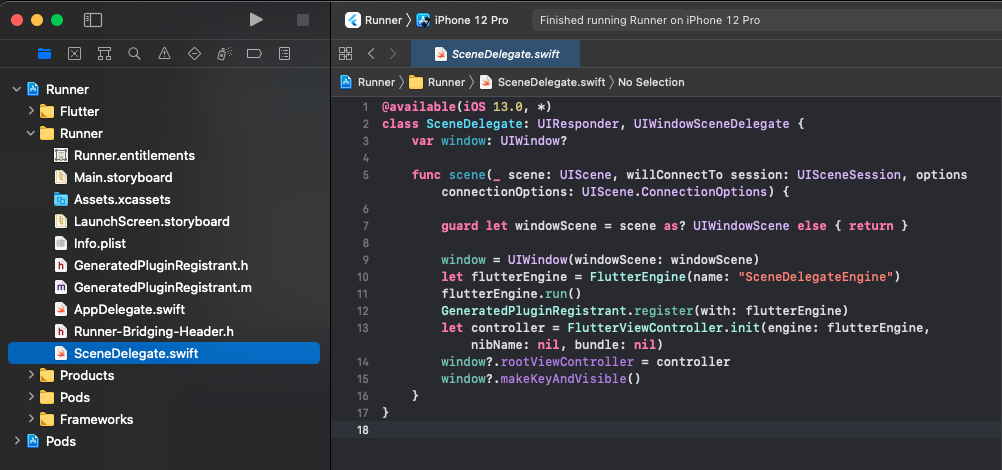
Open ios/Runner.xcworkspace in Xcode. In your project navigator, open AppDelegate.swift.
Delete the specified codes below from the application function in AppDelegate.swift, and change it with the code below:
One more step, open the Info.plist file whether in your favorite code editor or in the Xcode. I'm going to share the base code, so if you open in the Xcode, you can fill with the raw keys with the values.
That's it, you're ready to build your first CarPlay app! 🚀 😎
Android Auto Get Started
Requirement Actions after Installation of the Package
The Android platform version must be set to 21. Update your android/app/build.gradle.kts as below:
# Update to use at minimum api 21
+ minSdk = 21- minSdk = 19
To setup Android Auto, you need to add a metadata tag in your AndroidManifest.xml file. Open android/app/src/main/AndroidManifest.xml and add the following :
Create a new directory named xml inside android/app/src/main/res/ if it doesn't already exist. Then, create a new XML file named automotive_app_desc.xml in the res/xml/ directory and add the following content:
In your MainActivity.kt file, make the necessary to resuse and cache the engine as follow :
On Android Auto Service, use the same engine as the app if the app is already running, otherwise create a new one and cache using the id FAAConstants.flutterEngineId.
To avoid creating multiple engines, you need to override the provideFlutterEngine and configureFlutterEngine methods as below :
package com.example.flutter_carplay_example

import android.content.Context
import io.flutter.embedding.android.FlutterActivity
import io.flutter.embedding.engine.FlutterEngine
import io.flutter.embedding.engine.FlutterEngineCache
import io.flutter.embedding.engine.dart.DartExecutor
import com.oguzhnatly.flutter_android_auto.FAAConstants

class MainActivity : FlutterActivity() {
    override fun provideFlutterEngine(context: Context): FlutterEngine? {
        // Use engine from cache if it has been started by Android Auto.
        return FlutterEngineCache.getInstance().get(FAAConstants.flutterEngineId);
    }

    override fun configureFlutterEngine(flutterEngine: FlutterEngine) {
        // Cache the engine to make it usable by Android Auto.
        FlutterEngineCache.getInstance().put(FAAConstants.flutterEngineId, flutterEngine)
        super.configureFlutterEngine(flutterEngine)
    }
}
Android Auto vs Android Automotive OS
Android Auto and Android Automotive OS (AAOS) are different targets:
Android Auto is a projected experience. The app runs on a phone, and the vehicle display is rendered by an Android Auto host using templates from the Android for Cars App Library. This is what flutter_carplay supports on Android.
Android Automotive OS is Android running directly in the vehicle. A Flutter app can be installed and launched on AAOS like any other Android app, but that opens the app's normal Android activity and shows the regular Flutter UI.
flutter_carplay does not convert a Flutter app into a native AAOS app and does not render Android Auto templates when the app is opened normally on AAOS. The templates are rendered only by a compatible Android Auto host.
In practice:
Use this package for Android Auto template apps.
Do not expect additional behavior for a normal Flutter app installed on AAOS.
If you are building a full native AAOS app, build and test the Flutter Android app UI directly for the vehicle environment instead of relying on Android Auto templates.
For Android Auto testing from a phone emulator or device, use the Android Auto Desktop Head Unit instructions in the official Android Auto testing documentation.
Sets the root template of the navigation hierarchy. If one already exists, it replaces it entirely.
The template must be one of: AATabBarTemplate, AAGridTemplate, AAListTemplate, AAPaneTemplate, AAMessageTemplate, or AALongMessageTemplate.
awaitFlutterAndroidAuto.setRootTemplate(
template: /* Android Auto template */,
);
FlutterAndroidAuto.push
Adds a template to the navigation hierarchy and displays it.
The template must be one of: AAGridTemplate, AAListTemplate, AAPaneTemplate, AAMessageTemplate, or AALongMessageTemplate.
awaitFlutterAndroidAuto.push(
template: /* Android Auto template */,
);
FlutterAndroidAuto.showAlert
Presents an AAAlertTemplate as a full-screen modal. Android Auto does not support true overlay modals, so the alert is pushed onto the navigation stack as a MessageTemplate.
Use AAMessageTemplate for simple empty states, errors, or informational screens.
final template = AAMessageTemplate(
title: 'No saved places',
message: 'Save places on your phone to access them here.',
);
awaitFlutterAndroidAuto.setRootTemplate(template: template);
await template.update(
title: 'Saved places synced',
message: 'Your saved places are now available in Android Auto.',
);
Use AALongMessageTemplate for longer informational text that needs more room
than a simple message template.
final template = AALongMessageTemplate(
title: 'Safety information',
message: 'Keep your attention on the road. This longer Android Auto message ''template is intended for content that needs more space.',
);
awaitFlutterAndroidAuto.push(template: template);
Android Auto Pane Template
Use AAPaneTemplate for compact informational screens on Android Auto. It maps to Android's native PaneTemplate and is the closest Android equivalent for CarPlay-style information screens.
Pane rows are informational on Android and cannot be tapped. Use pane actions for user interaction.
Flutter Asset SVG Images
Flutter asset SVGs can be used in image fields such as CPListItem.image, CPGridButton.image, CPPointOfInterest.image, CPListImageRowItem image collections, AAListItem.imageUrl, and AAPaneTemplate image fields. The package rasterizes local .svg assets to PNG bytes before sending them to the native CarPlay or Android Auto layer. Remote SVG URLs and file:// SVGs are not rasterized.
Basic Usage for Car Play
Import the all classes that you need from just one file:
Use CPSearchTemplate when your CarPlay app needs a native search screen. Your app's CarPlay entitlement controls which templates are available for its approved category. The example app keeps the parking entitlement for Point of Interest support; switch the entitlement in your app target if Apple approved a different category. Return result rows from onUpdatedSearchText, handle row selection in onSelectedResult, and call the provided completion callback after your app finishes handling the selected result.
You can set a root template without initializing the CarPlay Controllers, but some callback functions may not work or most likely you will get an error.
It's recommended that you should set the root template in the first initState of your app.
Basic Usage for Android Auto
Android Auto row/list affordances follow the AndroidX Car App API names. Selectable lists render radio buttons on every row, isBrowsable renders the system navigation affordance, and toggle renders a switch in the row.
You can detect connection changes, such as when CarPlay is connected to iPhone, is in the background, or is completely disconnected.
/// Add the listener
_flutterCarplay.addListenerOnConnectionChange(onCarplayConnectionChange);
voidonCarplayConnectionChange(ConnectionStatusTypes status) {
// Do things when carplay connection status is:// - ConnectionStatusTypes.connected// - ConnectionStatusTypes.background// - ConnectionStatusTypes.disconnected// - ConnectionStatusTypes.unknown
}
/// Remove the listener
_flutterCarplay.removeListenerOnConnectionChange();
CarPlay API Methods
CarPlay.setRootTemplate
Sets the root template of the navigation hierarchy. If a navigation
hierarchy already exists, CarPlay replaces the entire hierarchy.
rootTemplate is a template to use as the root of a new navigation hierarchy. If one exists,
it will replace the current rootTemplate. Must be one of the type:CPTabBarTemplate, CPGridTemplate, CPListTemplate, CPInformationTemplate, CPPointOfInterestTemplate, or CPSearchTemplate. If not, it will throw a TypeError.
If animated is true, CarPlay animates the presentation of the template, but will be ignored
this flag when there isn’t an existing navigation hierarchy to replace.
CarPlay cannot have more than 5 templates on one screen.
FlutterCarplay.setRootTemplate(
  rootTemplate: /* CPTabBarTemplate, CPGridTemplate, CPListTemplate, CPInformationTemplate, CPPointOfInterestTemplate, or CPSearchTemplate */,
  animated: true,
);
// You need to call _flutterCarplay.forceUpdateRootTemplate(); after setting the root template
CarPlay.push
Adds a template to the navigation hierarchy and displays it.
template is to add to the navigation hierarchy. Must be one of the type:CPGridTemplate, CPListTemplate, CPInformationTemplate, CPPointOfInterestTemplate, or CPSearchTemplate. If not, it will throw a TypeError.
If animated is true, CarPlay animates the transition between templates.
There is a limit to the number of templates that you can push onto the screen. All apps are limited to pushing up to 5 templates in depth, including the root template.
Getter for current CarPlay connection status. It will return one of ConnectionStatusTypes as String.
FlutterCarplay.connectionStatus
Templates
CarPlay supports general purpose templates such as alerts, lists, and tab bars. They are used to display contents on the CarPlay screen from the app. The Developer Guide contains more information on the templates that Apple supports.
If you attempt to use a template not supported by your entitlement, an exception will occur at runtime.
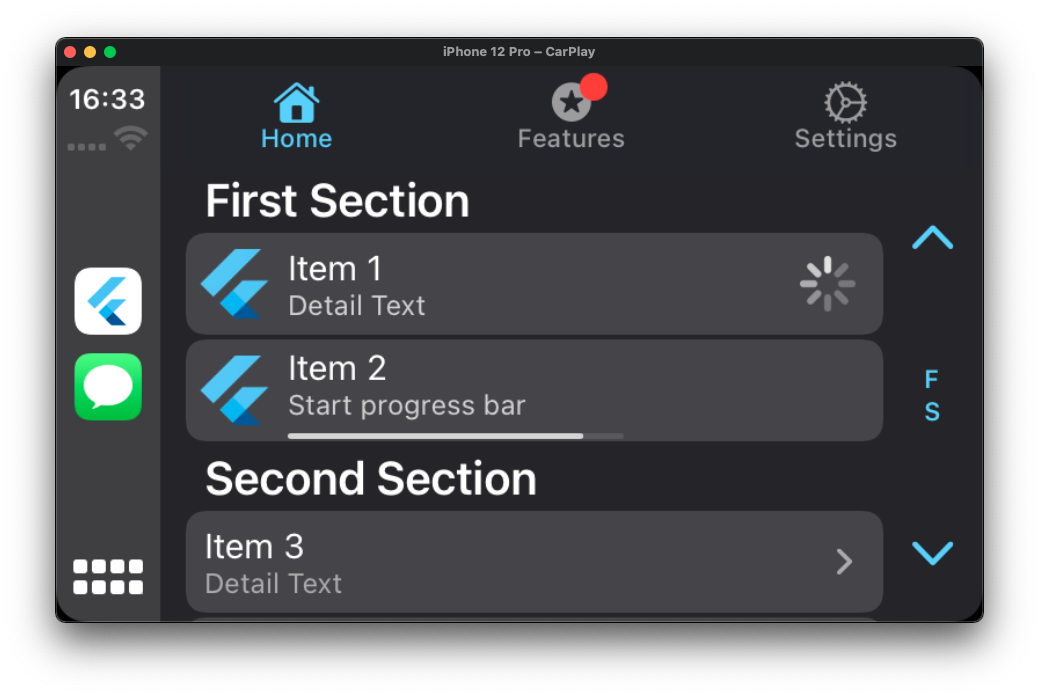
Tab Bar Template
The tab bar is a multi-purpose container for other templates, with each template occupying one tab in the tab bar.
finalCPTabBarTemplate tabBarTemplate = CPTabBarTemplate(
templates: [
CPListTemplate(
sections: [
CPListSection(
items: [
CPListItem(
text: "Item 1",
detailText: "Detail Text",
onPress: (complete, self) {
// Returns the self class so that the item// can be updated within self while loading
self.setDetailText("You can change the detail text.. 🚀");
// complete function stops the loadingcomplete();
},
// Supports three image formats (v1.1.0+):// - Asset: 'images/logo_flutter_1080px_clr.png'// - File: 'file:///path/to/local/image.png'// - URL: 'https://example.com/image.png'
image: 'images/logo_flutter_1080px_clr.png',
),
CPListItem(
text: "Item 2",
detailText: "Start progress bar",
isPlaying: false,
playbackProgress: 0,
// asset name defined in pubspec.yaml
image: 'images/logo_flutter_1080px_clr.png',
onPress: (complete, self) {
complete();
},
),
],
header: "First Section",
),
],
title: "Home",
showsTabBadge: false,
systemIcon: "house.fill",
),
CPListTemplate(
sections: [],
title: "Settings",
// If there is no section in the list template,// empty view title and subtitle variants will be shown
emptyViewTitleVariants: ["Settings"],
emptyViewSubtitleVariants: [
"No settings have been added here yet. You can start adding right away"
],
showsTabBadge: false,
systemIcon: "gear",
),
],
);
FlutterCarplay.setRootTemplate(rootTemplate: tabBarTemplate, animated: true);
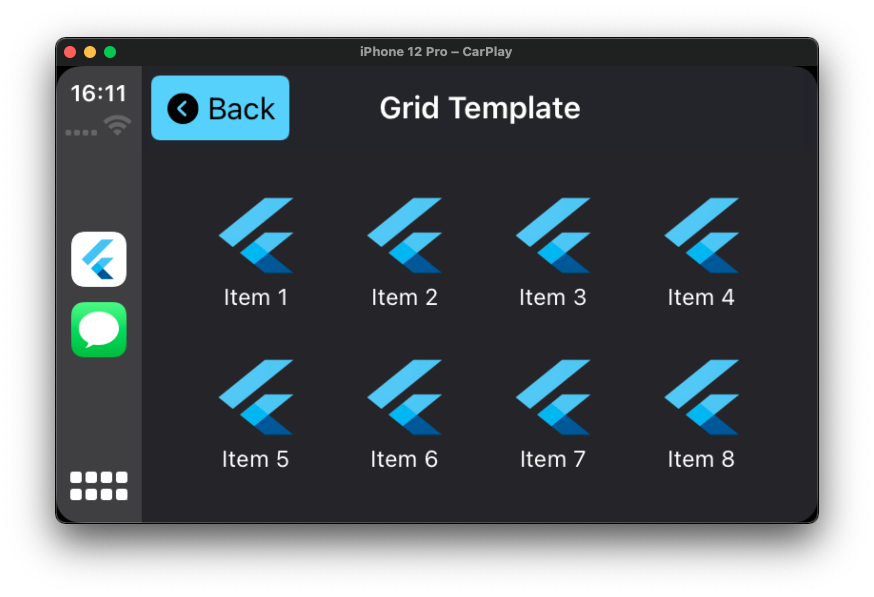
Grid Template
Grid Template is a specific style of menu that presents up to 8 items represented by an image and a title. Use the grid template to let people select from a fixed list of categories.
finalCPGridTemplate gridTemplate = CPGridTemplate(
title: "Grid Template",
buttons: [
for (var i = 1; i < 9; i++)
CPGridButton(
titleVariants: ["Item $i"],
image: 'images/logo_flutter_1080px_clr.png',
onPress: () {
print("Grid Button $i pressed");
},
),
],
);
FlutterCarplay.push(template: gridTemplate, animated: true);
// ORFlutterCarplay.setRootTemplate(rootTemplate: gridTemplate, animated: true);
// You need to call _flutterCarplay.forceUpdateRootTemplate(); after setting the root template
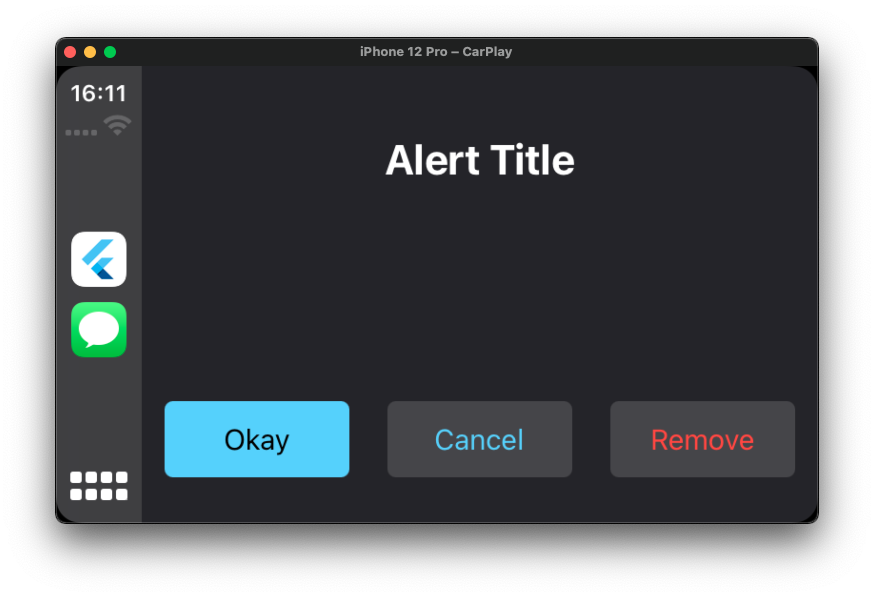
Alert Template
Alerts provide important information about your app's status. An alert consists of a title and one or more buttons, depending on the type.
If underlying conditions permit, alerts can be dismissed programatically.
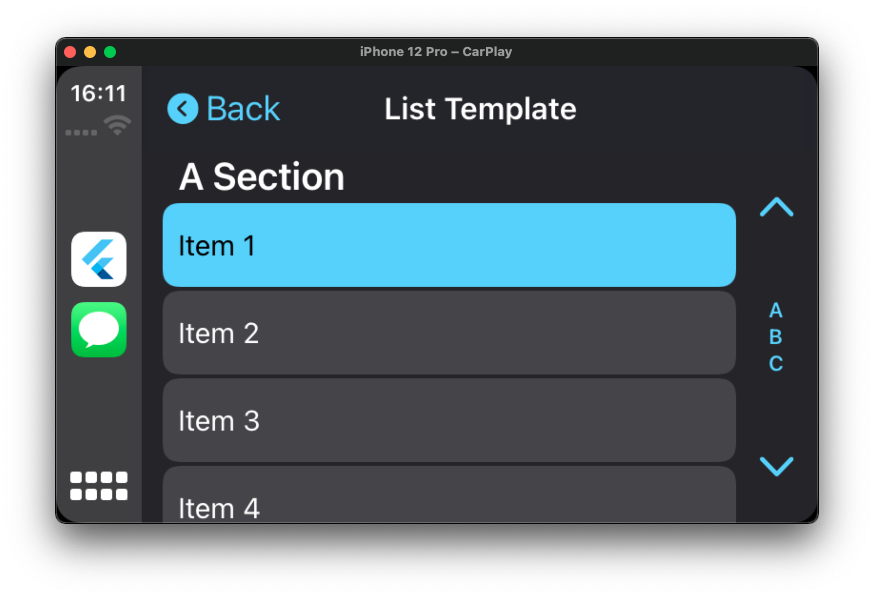
A list presents data as a scrolling, single-column table of rows that can be divided into sections. Lists are ideal for text-based content, and can be used as a means of navigation for hierarchical information. Each item in a list can include attributes such as an icon, title, subtitle, disclosure indicator, progress indicator, playback status, or read status.
Some cars dynamically limit lists to a maximum of 12 items. You always need to be prepared to handle the case where only 12 items can be shown. Items beyond the maximum will not be shown.
finalCPListTemplate listTemplate = CPListTemplate(
sections: [
CPListSection(
items: [
CPListItem(
text: "Item 1",
detailText: "Detail Text",
onPress: (complete, self) {
// Returns the self class so that the item// can be updated within self while loading
self.setDetailText("You can change the detail text.. 🚀");
// complete function stops the loadingcomplete();
},
image: 'images/logo_flutter_1080px_clr.png',
accessoryImage: 'images/logo_flutter_1080px_clr.png',
),
CPListItem(
text: "Item 2",
detailText: "Start progress bar",
isPlaying: false,
playbackProgress: 0,
// asset name defined in pubspec.yaml
image: 'images/logo_flutter_1080px_clr.png',
onPress: (complete, self) {
complete();
},
),
],
header: "First Section",
),
],
title: "Home",
showsTabBadge: false,
systemIcon: "house.fill",
// If there is no section in the list template,// empty view title and subtitle variants will be shown
emptyViewTitleVariants: ["Home"],
emptyViewSubtitleVariants: [
"Nothing has added here yet. You can start adding right away"
],
);
FlutterCarplay.push(template: listTemplate, animated: true);
// ORFlutterCarplay.setRootTemplate(rootTemplate: listTemplate, animated: true);
// You need to call _flutterCarplay.forceUpdateRootTemplate(); after setting the root template
Information Template
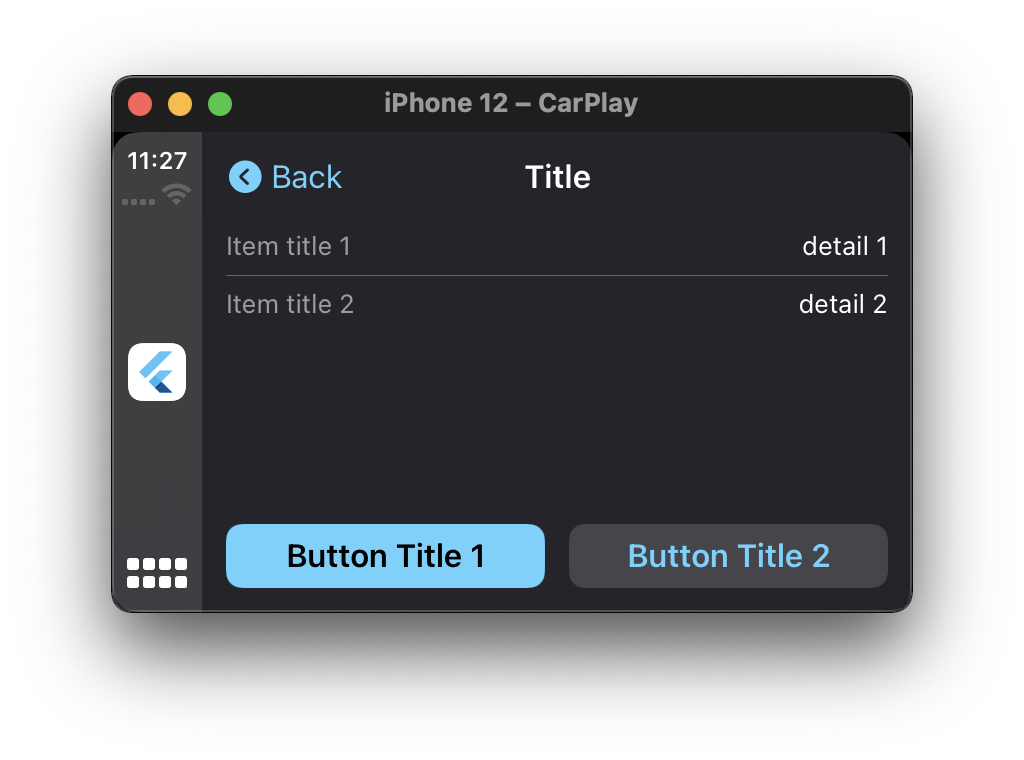
An Information Template shows a list of items, and actions (max. three)) as array of text buttons.
The list is limited to 10 items. Items beyond the maximum will not be shown. Up to three actions are supported.
finalCPInformationTemplate informationTemplate = CPInformationTemplate(
title: "Title",
layout: CPInformationTemplateLayout.twoColumn,
actions: [
CPTextButton(
title: "Button Title 1",
onPress: () {
print("Button 1");
}
),
CPTextButton(
title: "Button Title 2",
onPress: () {
print("Button 2");
}
),
],
informationItems: [
CPInformationItem(title: "Title", detail: "Detail"),
]
);
FlutterCarplay.push(template: informationTemplate, animated: true);
// ORFlutterCarplay.setRootTemplate(rootTemplate: informationTemplate, animated: true);
// You need to call _flutterCarplay.forceUpdateRootTemplate(); after setting the root template
You can also update an existing CPInformationTemplate without rebuilding the full template.
The Now Playing template provides a standardized interface for media playback controls in CarPlay. It uses the system's shared instance and integrates with your app's media session.
// Navigate to the Now Playing templateFlutterCarplay.showSharedNowPlaying(animated: true);
Note: The Now Playing template displays information from your app's active media session. Make sure your app is properly configured with AVAudioSession and media playback controls for the best experience.
Multiple Calls Safe: The showSharedNowPlaying() method can be called multiple times safely without causing issues.
Android Auto Templates
Android Auto templates are built using the Android for Cars App Library. Each template is vehicle-optimized and rendered by the host application on the car screen.
Tab Bar Template (Android Auto)
The Tab Bar Template is a container that displays multiple child templates as tabs. Rendered as TabTemplate from the Car App Library.
Requires Car App API level 6+. On older hosts, the first tab's content is shown as a plain list. Supports between 2 and 4 tabs — extra tabs beyond the limit are discarded with a warning in logcat.
Alerts present important information as a full-screen message with one or more action buttons. Because Android Auto does not support true overlay modals, the alert is pushed onto the navigation stack as a MessageTemplate.
Only one alert can be presented at a time. Use FlutterAndroidAuto.popModal() to dismiss it programmatically.
Permission is hereby granted, free of charge, to any person obtaining a copy
of this software and associated documentation files (the "Software"), to deal
in the Software without restriction, including without limitation the rights
to use, copy, modify, merge, publish, distribute, sublicense, and/or sell
copies of the Software, and to permit persons to whom the Software is
furnished to do so, subject to the following conditions:
The above copyright notice and this permission notice shall be included in all
copies or substantial portions of the Software.
THE SOFTWARE IS PROVIDED "AS IS", WITHOUT WARRANTY OF ANY KIND, EXPRESS OR
IMPLIED, INCLUDING BUT NOT LIMITED TO THE WARRANTIES OF MERCHANTABILITY,
FITNESS FOR A PARTICULAR PURPOSE AND NONINFRINGEMENT. IN NO EVENT SHALL THE
AUTHORS OR COPYRIGHT HOLDERS BE LIABLE FOR ANY CLAIM, DAMAGES OR OTHER
LIABILITY, WHETHER IN AN ACTION OF CONTRACT, TORT OR OTHERWISE, ARISING FROM,
OUT OF OR IN CONNECTION WITH THE SOFTWARE OR THE USE OR OTHER DEALINGS IN THE
SOFTWARE.







 v1.7.1