
 v5.1.2
carousel_slider
Ein Carousel-Slider-Widget, das unendliches Scrollen und benutzerdefinierte Kind-Widgets unterstützt.
6060Likes 859.00030-Tage-Downloads160Pub-Punkte
AndroidiOSWebmacOSWindowsLinux
Ein Flutter-Carousel-Widget, das unendliches Scrollen und benutzerdefinierte Kind-Widgets unterstützt.

{"sdk":"flutter"}{"sdk":"flutter"}Englischer Projektschnappschuss. Aktuelle Inhalte auf GitHub.
A carousel slider widget.
https://serenader2014.github.io/flutter_carousel_slider/#/
Note: this page is built with flutter-web. For a better user experience, please use a mobile device to open this link.
Add carousel_slider: ^5.1.2 to your pubspec.yaml dependencies. And import it:
import 'package:carousel_slider/carousel_slider.dart';
Simply create a CarouselSlider widget, and pass the required params:
CarouselSlider(
  options: CarouselOptions(height: 400.0),
  items: [1,2,3,4,5].map((i) {
    return Builder(
      builder: (BuildContext context) {
        return Container(
          width: MediaQuery.of(context).size.width,
          margin: EdgeInsets.symmetric(horizontal: 5.0),
          decoration: BoxDecoration(
            color: Colors.amber
          ),
          child: Text('text $i', style: TextStyle(fontSize: 16.0),)
        );
      },
    );
  }).toList(),
)
CarouselSlider(
   items: items,
   options: CarouselOptions(
      height: 400,
      aspectRatio: 16/9,
      viewportFraction: 0.8,
      initialPage: 0,
      enableInfiniteScroll: true,
      reverse: false,
      autoPlay: true,
      autoPlayInterval: Duration(seconds: 3),
      autoPlayAnimationDuration: Duration(milliseconds: 800),
      autoPlayCurve: Curves.fastOutSlowIn,
      enlargeCenterPage: true,
      enlargeFactor: 0.3,
      onPageChanged: callbackFunction,
      scrollDirection: Axis.horizontal,
   )
 )
Since v2.0.0, you'll need to pass the options to CarouselOptions. For each option's usage you can refer to carousel_options.dart.
If you pass the height parameter, the aspectRatio parameter will be ignored.
This method will save memory by building items once it becomes necessary. This way they won't be built if they're not currently meant to be visible on screen. It can be used to build different child item widgets related to content or by item index.
CarouselSlider.builder(
  itemCount: 15,
  itemBuilder: (BuildContext context, int itemIndex, int pageViewIndex) =>
    Container(
      child: Text(itemIndex.toString()),
    ),
)
In order to manually control the pageview's position, you can create your own CarouselSliderController, and pass it to CarouselSlider. Then you can use the CarouselSliderController instance to manipulate the position.
class CarouselDemo extends StatelessWidget {
  CarouselSliderController buttonCarouselController = CarouselSliderController();

 @override
  Widget build(BuildContext context) => Column(
    children: <Widget>[
      CarouselSlider(
        items: child,
        carouselController: buttonCarouselController,
        options: CarouselOptions(
          autoPlay: false,
          enlargeCenterPage: true,
          viewportFraction: 0.9,
          aspectRatio: 2.0,
          initialPage: 2,
        ),
      ),
      RaisedButton(
        onPressed: () => buttonCarouselController.nextPage(
            duration: Duration(milliseconds: 300), curve: Curves.linear),
        child: Text('→'),
      )
    ]
  );
}
CarouselSliderController methods.nextPage({Duration duration, Curve curve})Animate to the next page
.previousPage({Duration duration, Curve curve})Animate to the previous page
.jumpToPage(int page)Jump to the given page.
.animateToPage(int page, {Duration duration, Curve curve})Animate to the given page.
Basic text carousel demo:
simple
Basic image carousel demo:
image
A more complicated image carousel slider demo:
complicated image
Fullscreen image carousel slider demo:
fullscreen
Image carousel slider with custom indicator demo:
indicator
Custom CarouselSliderController and manually control the pageview position demo:
manual
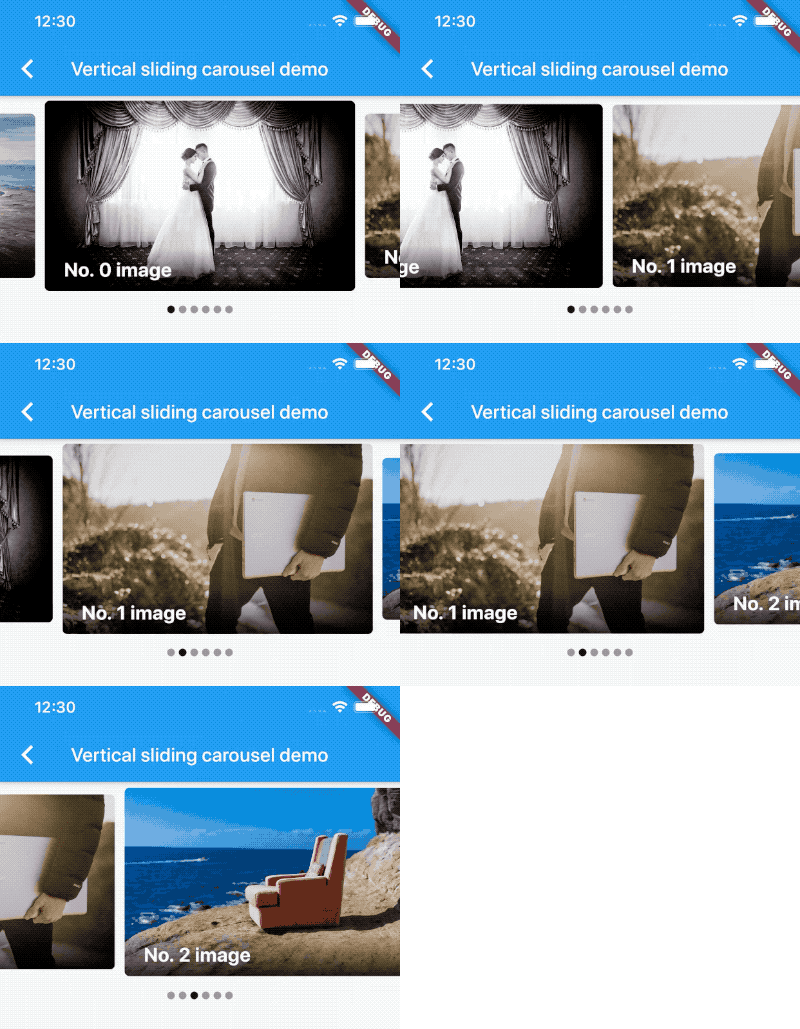
Vertical carousel slider demo:
vertical
Simple on-demand image carousel slider, with image auto prefetch demo:
prefetch
No infinite scroll demo:
noloop
All screenshots above can be found at the example project.
MIT