
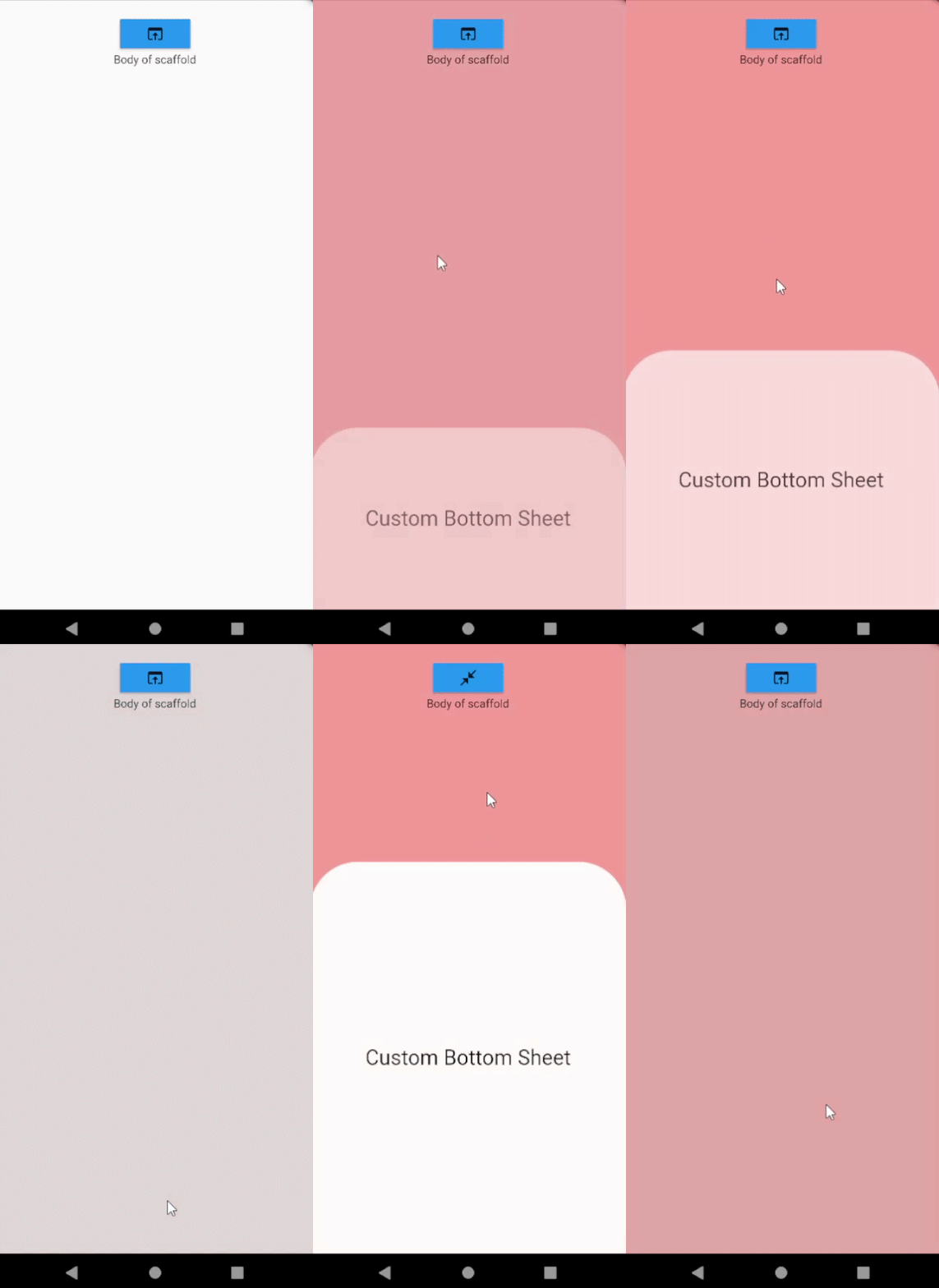
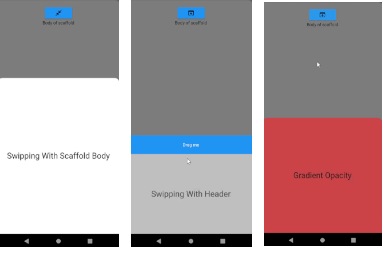
 v0.1.9
bottom_sheet_scaffold
Slide your bottom sheet by sliding the body of the scaffold!. Very simple and customizable bottom sheet to implement.
41Likes 21430-day downloads140Pub points
AndroidiOSWebmacOSWindowsLinux
Slide your bottom sheet by sliding the body of the scaffold!. Very simple and customizable bottom sheet to implement.
English project snapshot. Visit GitHub for the latest content.
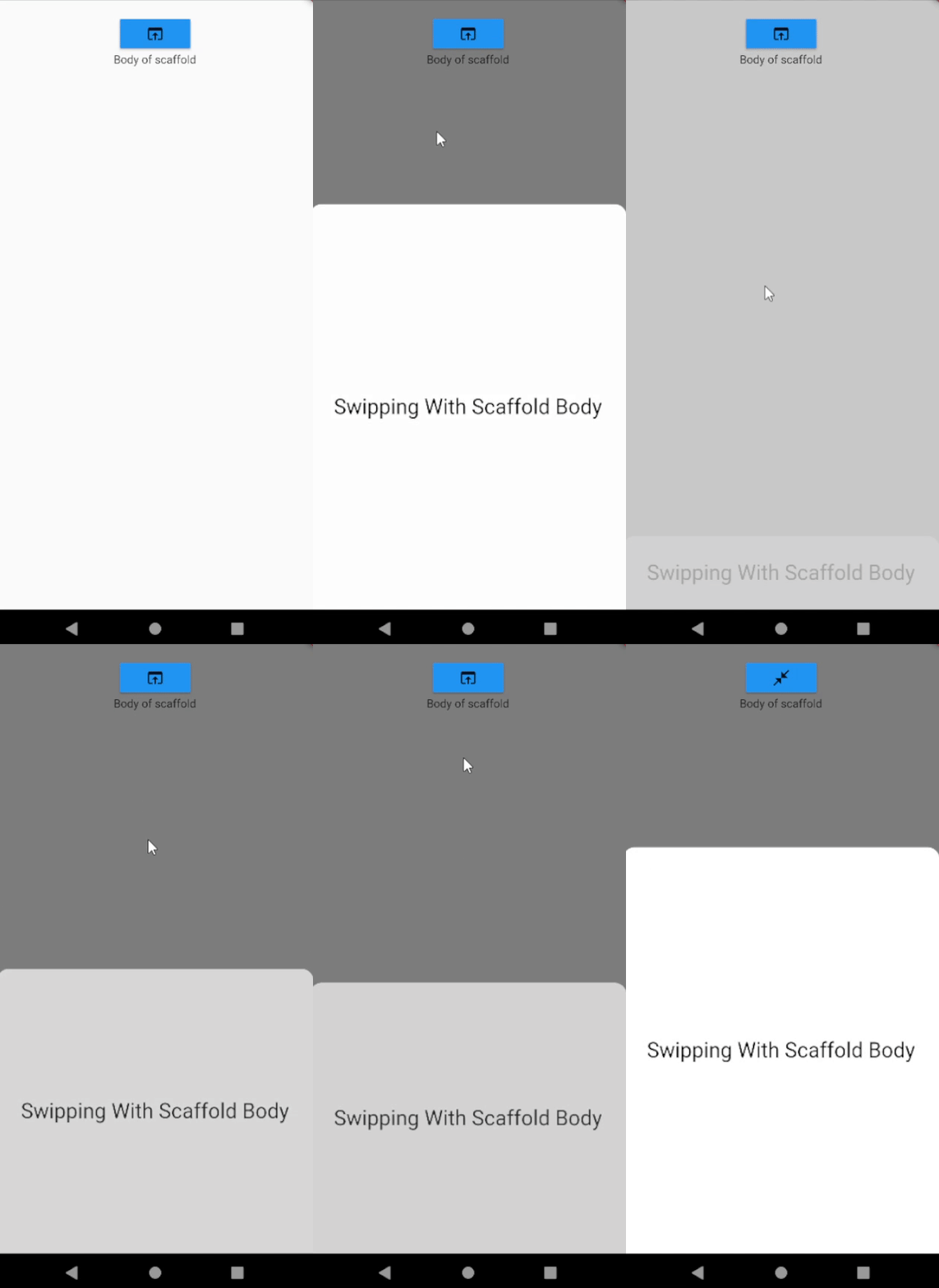
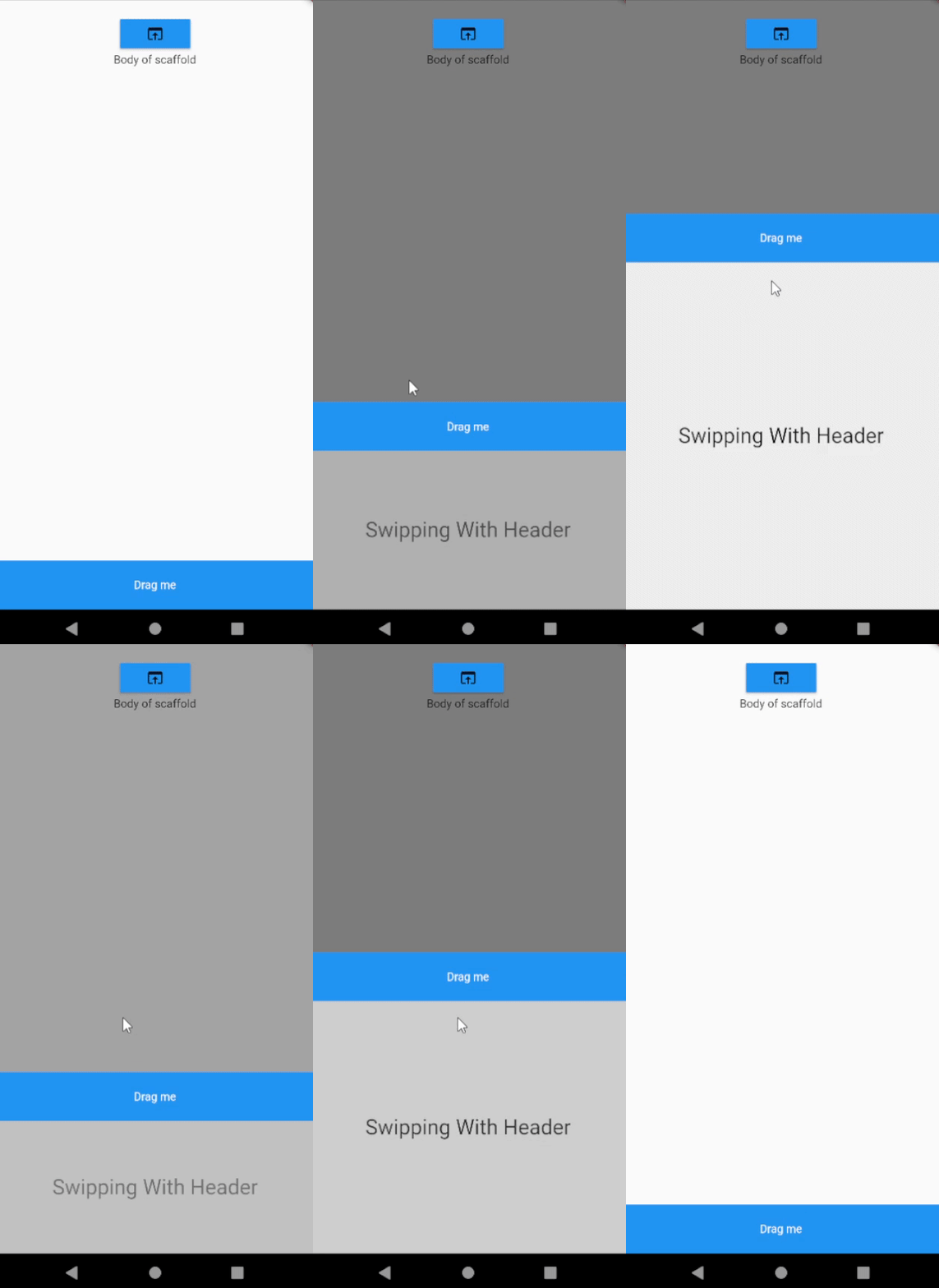
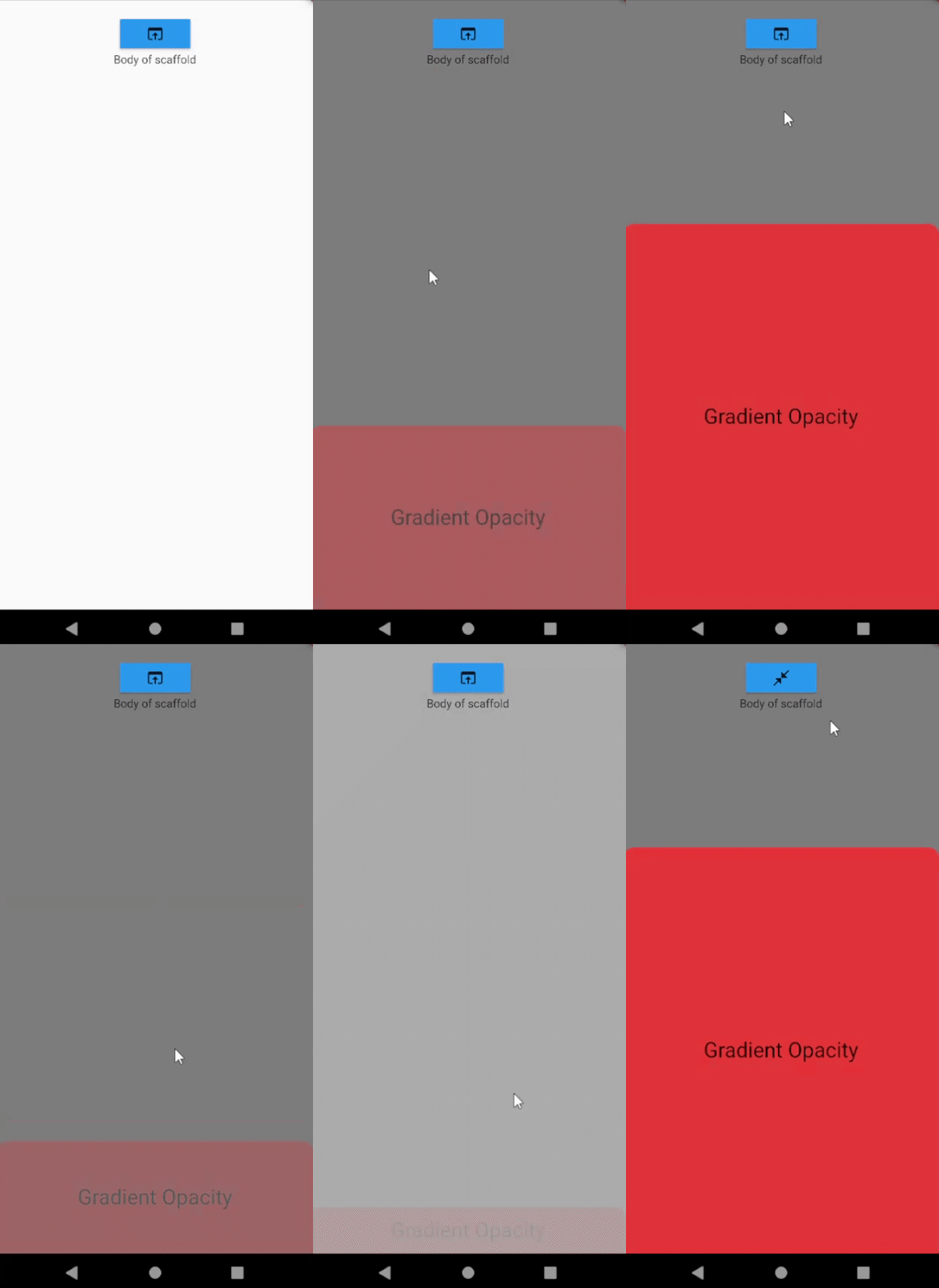
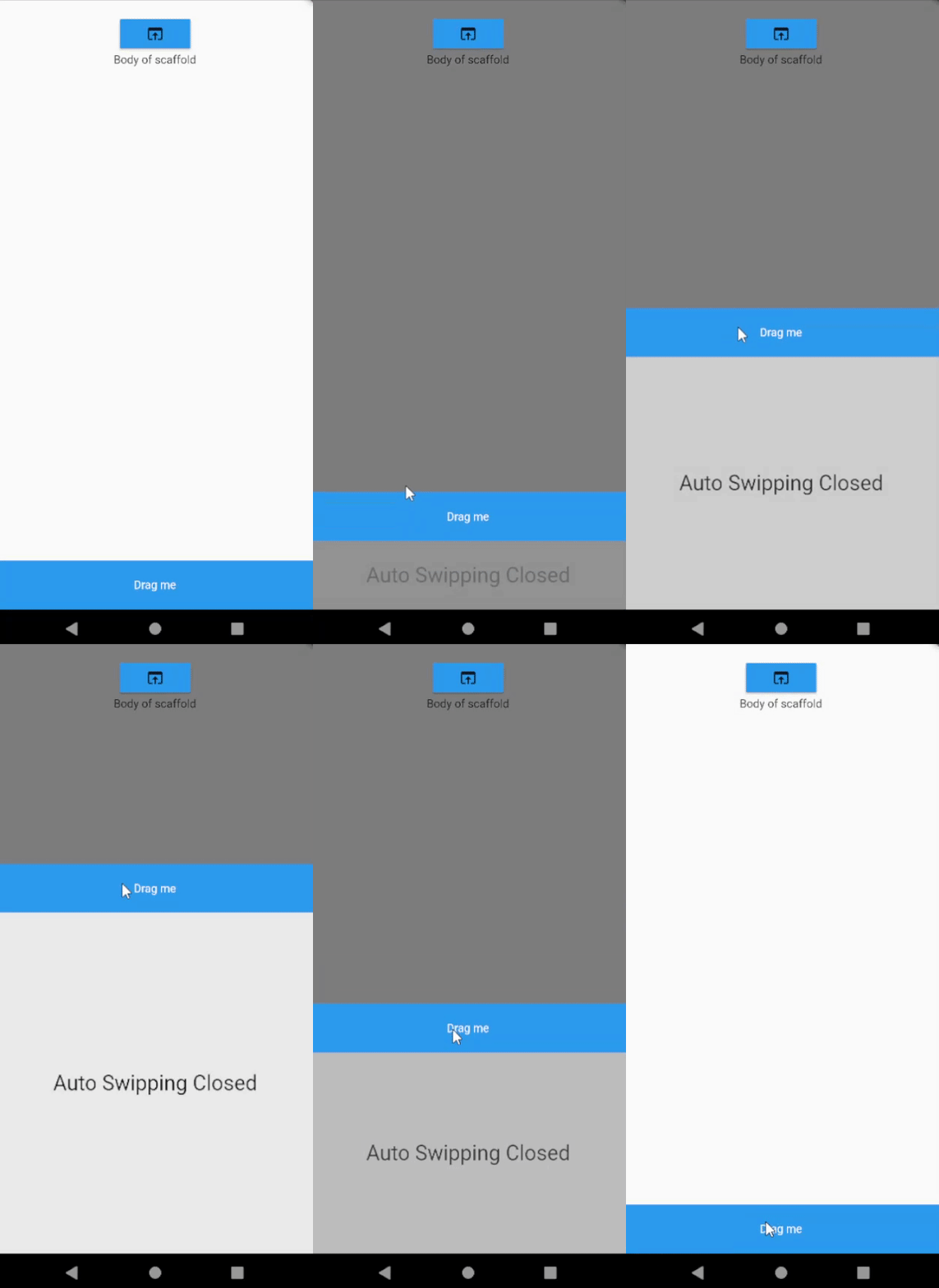
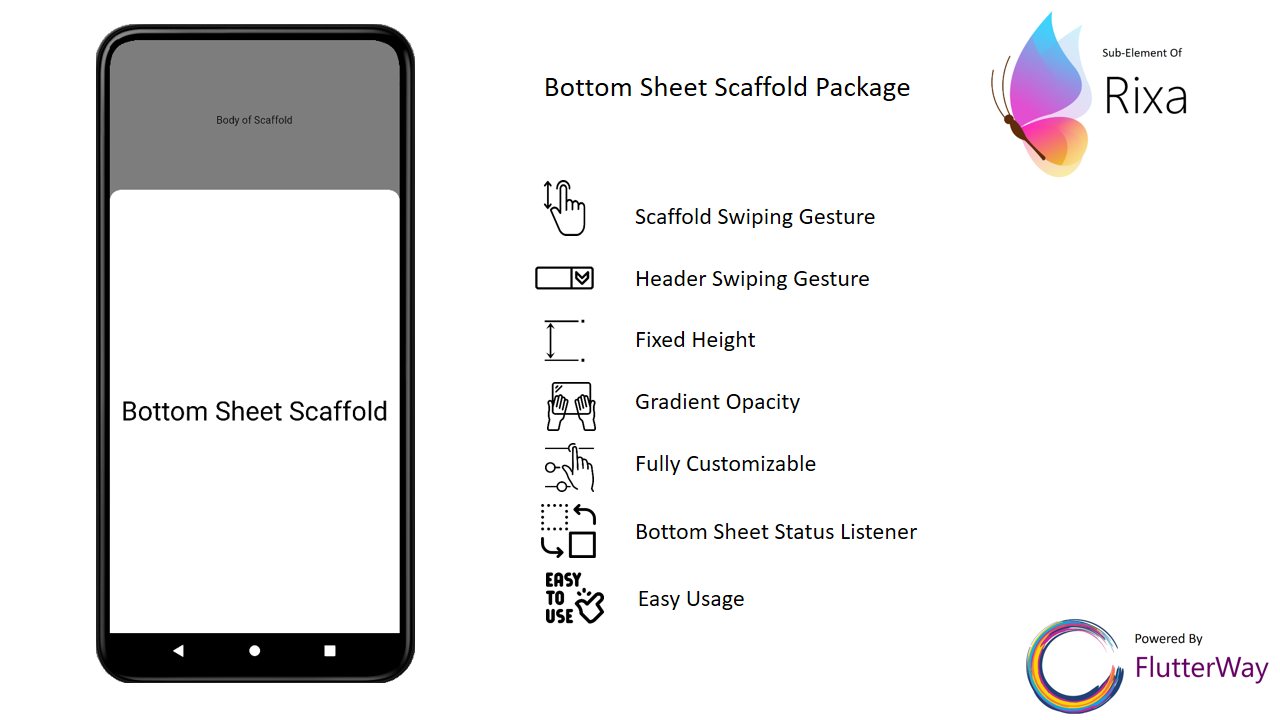
Slide your bottom sheet by sliding the body of the scaffold!. Very simple and customizable bottom sheet implementation.
|
|
|
|
|
|
Change your Scaffold into BottomSheetScaffold.
BottomSheetScaffold(
      draggableBody: true,
      dismissOnClick: true,
      barrierColor: Colors.black54,
      bottomSheet: DraggableBottomSheet(
        animationDuration: Duration(milliseconds: 200),
        body: BottomSheetBody(),
        header: BottomSheetHeader(),//header is not required
      ),
      appBar: AppBar(
        title: Text(widget.title),
      ),
      body: ScaffoldBody(),
    )
BottomSheetScaffold(
      draggableBody: true,
      dismissOnClick: true,
      onWillPop: (() async {
        if (BottomSheetPanel.isOpen) {
          BottomSheetPanel.close();
          return false;
        } else {
          return true;
        }
      }),
      barrierColor: Colors.black54,
      bottomSheet: DraggableBottomSheet(
        animationDuration: Duration(milliseconds: 200),
        body: BottomSheetBody(),
        header: BottomSheetHeader(),//header is not required
      ),
      appBar: AppBar(
        title: Text(widget.title),
      ),
      body: ScaffoldBody(),
    )
If you use Scaffold inside BottomSheetScaffold, you should wrap the body of the Scaffold with BarrierViewer. This way you can display the barrier color you defined when the bottom sheet is opened
return BottomSheetScaffold(
      bottomSheet: DraggableBottomSheet(
        animationDuration: const Duration(milliseconds: 200),
        body: Container(
            width: double.infinity,
            height: 500,
            alignment: Alignment.center,
            child: const Text(
              "Bottom Sheet",
              style: TextStyle(fontSize: 36, color: Colors.black),
            )),
        header: Container(
          height: 60,
          color: Colors.blue,
          child: const Center(
              child: Text(
            "Drag me",
            style: TextStyle(color: Colors.white),
          )),
        ),
      ),
      appBar: AppBar(
        title: const Text(
          "My AppBar",
        ),
      ),
      body: Scaffold(
        body: BarrierViewer(
          child: Center(
            child: Column(
DraggableBottomSheet(
    {super.key,
    this.maxHeight = 500,
    this.minHeight = 0,
    this.header,
    this.animationDuration = const Duration(milliseconds: 200),
    this.autoSwipped = true,
    this.draggableBody = true,
    this.gradientOpacity = true,
    this.headerVisibilityOnTap = true,
    this.backgroundColor = Colors.white60,
    this.onHide,
    this.radius = 30,
    this.onShow,
    required this.body})
Open bottom sheet
BottomSheetPanel.open();
Close bottom sheet
BottomSheetPanel.close();
Update height of bottom sheet
BottomSheetPanel.close();
Check if bottom sheet is opened
BottomSheetPanel.isOpen;
Check if bottom sheet is expanded
BottomSheetPanel.isExpanded;
Check if bottom sheet is collapsed
BottomSheetPanel.isCollapsed;
If you set the parameter "draggableBody" in DraggableBottomSheet to false, you will need the DraggableArea widget to scroll the bottom sheet.
DraggableBottomSheet(
        draggableBody: false,
        body: Column(
          children: [
            DraggableArea(
              child: Container(
                height: 80,
                width: double.infinity,
                color: Colors.blue,
                alignment: Alignment.center,
                child: const Text(
                  "Drag Me",
                  style: TextStyle(color: Colors.white),
                ),
              ),
            ),
            Container(
              height: 500,
              color: Colors.red,
              child: const Center(
                  child: Text(
                "Bottom Sheet",
                style: TextStyle(fontSize: 36, color: Colors.white),
              )),
            )
          ],
        ),
      )
Use BottomSheetBuilder if you need to listen bottom sheet status to change something in your page.
BottomSheetBuilder(
        builder: (status, context) {
          return FloatingActionButton(
            onPressed: () {
              if (BottomSheetPanel.isExpanded) {
                BottomSheetPanel.close();
              } else {
                BottomSheetPanel.open();
              }
            },
            child: Icon(!status.isExpanded
                ? Icons.open_in_browser
                : Icons.close_fullscreen),
          );
        },
      )
class MyHomePage extends StatefulWidget {
  const MyHomePage({super.key});

  @override
  State<MyHomePage> createState() => _MyHomePageState();
}

class _MyHomePageState extends State<MyHomePage> {
  @override
  Widget build(BuildContext context) {
    return BottomSheetScaffold(
      bottomSheet: DraggableBottomSheet(
        body: const Center(
            child: Text(
          "Bottom Sheet",
          style: TextStyle(fontSize: 36, color: Colors.black),
        )),
        header: Container(
          height: 60,
          color: Colors.blue,
          child: const Center(
              child: Text(
            "Drag me",
            style: TextStyle(color: Colors.white),
          )),
        ),
      ),
      appBar: AppBar(
        title: const Text(
          "My AppBar",
        ),
      ),
      body: Center(
        child: Column(
          mainAxisAlignment: MainAxisAlignment.start,
          children: <Widget>[
            const SizedBox(
              height: 100,
            ),
            BottomSheetBuilder(
              builder: (status, context) {
                return MaterialButton(
                  color: Colors.blue,
                  onPressed: () {
                    if (BottomSheetPanel.isExpanded) {
                      BottomSheetPanel.close();
                    } else {
                      BottomSheetPanel.open();
                    }
                  },
                  child: Icon(!status.isExpanded
                      ? Icons.open_in_browser
                      : Icons.close_fullscreen),
                );
              },
            ),
            const Text(
              'Body of scaffold',
            ),
          ],
        ),
      ),
    );
  }
}

Dependency list 4 items
{"sdk":"flutter"}^4.6.5{"sdk":"flutter"}^2.0.0Start with your use case, compare repository activity, and check the original project before adopting it.
“A repository is the most basic element of GitHub.”
GitHub Docs — About repositories ↗