
etch
A Simplified, Declarative Way To Use CustomPaint In Flutter
- Stars
- 58
- Forks
- 0
- Last push (UTC)
- Apr 23, 2022
- Project status
- Active
Original README
English project snapshot. Visit GitHub for the latest content.
✍️ Etch
A Simplified, Declarative Implementation Of CustomPaint For Flutter
Features
- Create your CustomPaint widget declaratively.
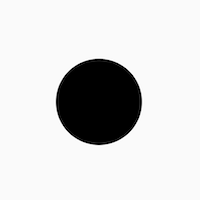
    EtchCanvas(
        etchElements: [
            EtchCircle.alignment(
                centerAlignment: Offset.zero,
                radius: 50.0,
            ),
        ],
        child: SizedBox(
          width: 100.0,
          height: 100.0,
        ),
    ),
- Use either points or alignments to define points everywhere
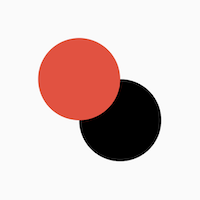
    EtchCanvas(
        etchElements: [
            EtchCircle(
              center: Offset(100, 100),
              radius: 50.0,
            ),
            EtchCircle.alignment(
               centerAlignment: Offset.zero,
               radius: 50.0,
               etchStyle: EtchStyle(
                   color: Colors.red,
               ),
           ),
        ],
        child: SizedBox(
          width: 100.0,
          height: 100.0,
        ),
    ),
- Easy support for Paths
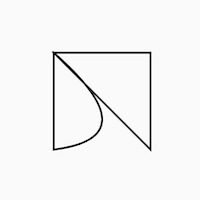
    EtchCanvas(
      etchElements: [
        EtchPath(
          etchPathElements: [
            EtchPathMoveTo(point: Offset(0, 0)),
            EtchPathAddPolygon.alignment(
              pointAlignments: [
                Offset(-1, -1),
                Offset(1, -1),
                Offset(1, 1),
              ],
            ),
            EtchPathQuadraticBezierTo.alignment(
              controlPointAlignment: Offset(1, 0.75),
              endPointAlignment: Offset(-1, 1),
            ),
            EtchPathClose(),
          ],
        ),
      ],
      child: SizedBox(
        width: 100.0,
        height: 100.0,
      ),
    ),
- Work with canvas layers easily
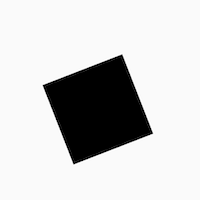
    EtchCanvas(
      etchElements: [
        EtchLayer.rotate(
          rotateZ: 1.2,
          etchElements: [
            EtchRect.alignment(
              topLeftAlignment: Offset(-1, -1),
              bottomRightAlignment: Offset(1, 1),
            ),
          ],
        ),
      ],
      child: SizedBox(
        width: 100.0,
        height: 100.0,
      ),
    ),
- Easy animations with
TweenAnimationBuilder
Add animations easily using TweenAnimationBuilder or using normal animation controllers without
having to pass down progress or other logic.
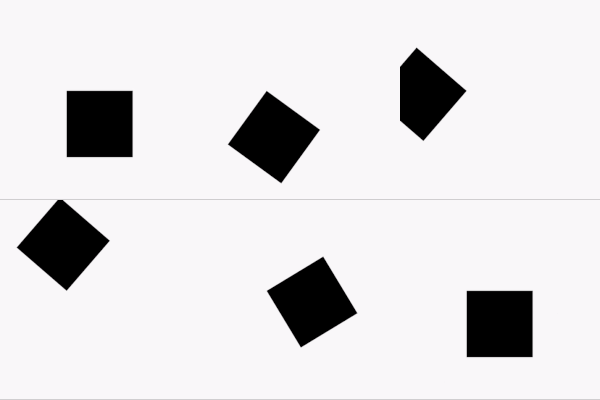
    TweenAnimationBuilder<double>(
      duration: const Duration(seconds: 1),
      tween: Tween(begin: 0, end: 2 * pi),
      builder: (context, val, _) {
        return EtchCanvas(
          etchElements: [
            EtchLayer.rotate(
              rotateZ: val,
              etchElements: [
                EtchRect.alignment(
                  topLeftAlignment: Offset(-1, -1),
                  bottomRightAlignment: Offset(1, 1),
                ),
              ],
            ),
          ],
          child: const SizedBox(
            width: 100.0,
            height: 100.0,
          ),
        );
      }
    ),
Getting started
- To get started, add an
EtchCanvasto your app:
    EtchCanvas(
        etchElements: [],
    ),
Any elements which have the format 'Etch----' can fit into these (EtchParagraph, EtchPath, EtchCircle, etc).
The default constructor arguments usually take in points while the .alignment constructor takes in
alignments. For alignments (-1, -1) is the top left while (1, 1) is the bottom right.
    EtchCanvas(
        etchElements: [
            EtchRect.alignment(
              topLeftAlignment: Offset.zero,
              bottomRightAlignment: Offset(1, 1),
            ),
            EtchOval.alignment(
              topLeftAlignment: Offset(-1, -1),
              bottomRightAlignment: Offset(0, 0),
            ),
            EtchArc.alignment(
              topLeftAlignment: Offset(-1, -1),
              bottomRightAlignment: Offset(1, 1),
              startAngle: 0,
              sweepAngle: 2,
            ),
        ],
    ),
- Use
EtchStyleto modify paint properties.
    EtchPath(
      etchPathElements: [
        //...
      ],
      etchStyle: EtchStyle(
        style: PaintingStyle.stroke,
      ),
    ),
You can also supply your own Paint object using EtchStyle.raw().
    EtchPath(
      etchPathElements: [
        //...
      ],
      etchStyle: EtchStyle.raw(
        Paint()..color = Colors.black..// add your props,
      ),
    ),
- To add a path to the elements, use
EtchPath. Etch path elements have the naming formatEtchPath---(EtchPathAddPolygon,EtchPathAddArc,EtchPathCubicTo, etc)
    EtchCanvas(
        etchElements: [
             EtchPath(
                 etchPathElements: [
                     EtchPathMoveTo(point: Offset(0, 0)),
                     EtchPathLine(point: Offset(110, 0)),
                     EtchPathLine(point: Offset(110, 110)),
                     EtchPathClose(),
                 ],
                 etchStyle: EtchStyle(
                     style: PaintingStyle.stroke,
                 ),
             ),
        ],
    ),
- To add a layer, use the
EtchLayerelement. This can have numerous EtchElements inside just like the normalEtchCanvas. Layers can have individual transformations without affecting the rest of the canvas - so you can rotate or scale one layer without affecting the others.EtchLayer, like theTransformwidget, has multiple inbuilt transformations - but you can pass in your ownMatrix4using the default constructor.
    EtchCanvas(
        etchElements: [
            EtchLayer.rotate(
              rotateX: 1.2,
              etchElements: [
                EtchRect.alignment(
                  topLeftAlignment: Offset(-1, -1),
                  bottomRightAlignment: Offset(1, 1),
                ),
              ],
            ),
            EtchLayer.scale(
              scale: Offset(1, 2),
              etchElements: [
                EtchRect.alignment(
                  topLeftAlignment: Offset(-1, -1),
                  bottomRightAlignment: Offset(1, 1),
                ),
              ],
            ),
            EtchLayer(
              transform: Matrix4.identity(),
              etchElements: [
                EtchRect.alignment(
                  topLeftAlignment: Offset(-1, -1),
                  bottomRightAlignment: Offset(1, 1),
                ),
              ],
            ),
        ],
    ),
Additional information
Note: This package is currently in an experimental stage and full metrics are not yet ascertained. Please feel free to launch issues or PRs if you face something unexpected while using it.

Deven Joshi ↗
Categories
Dependencies used
Dependency list 3 items
- flutter
{"sdk":"flutter"} - flutter_testDevelopment
{"sdk":"flutter"} - flutter_lintsDevelopment
^1.0.4
How do I choose a repository?
Start with your use case, compare repository activity, and check the original project before adopting it.
- Search by repository name, owner or description, then narrow the results by topic.
- Compare stars, forks and recent pushes. Stars show community interest, not a guarantee of quality.
- Read the README, license and issues on GitHub before using a project.
Sources and maintenance
“A repository is the most basic element of GitHub.”
GitHub Docs — About repositories ↗
- d3xvn/etch · GitHub ↗
- GitHub Docs — Saving repositories with stars ↗
- Directory maintained by Ducafecat ↗