

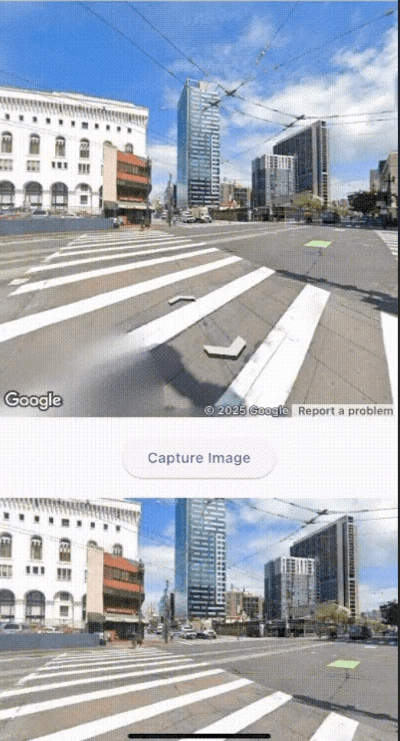
 v0.0.2
flutter_screenshot_google_street_view
A Flutter package for capturing Google Street View screenshots
1Likes 3430-day downloads150Pub points
AndroidiOSWeb
lualbertovargas/flutter_screenshot_google_street_view open-source repository details.

English project snapshot. Visit GitHub for the latest content.

For accurate testing and functionality validation, it is essential to test this package on a physical device rather than an emulator.
This package allows capturing and displaying Google Street View images in Flutter applications.
To start using this package, make sure you have a Google Maps API key enabled for the Street View service.
<uses-permission android:name="android.permission.INTERNET"/>
<uses-permission android:name="android.permission.ACCESS_FINE_LOCATION"/>
<uses-permission android:name="android.permission.ACCESS_COARSE_LOCATION"/>
<meta-data
    android:name="com.google.android.geo.API_KEY"
    android:value="API_KEY"/>
GMSServices.provideAPIKey("API_KEY")
Here's an example of how to use the StreetViewCapture and StreetViewPreview widgets:
import 'package:flutter/material.dart';
import 'package:google_maps_flutter/google_maps_flutter.dart';
import 'package:flutter_screenshot_google_street_view/flutter_screenshot_google_street_view.dart';

void main() {
  runApp(MyApp());
}

class MyApp extends StatelessWidget {
  @override
  Widget build(BuildContext context) {
    return MaterialApp(
      home: Scaffold(
        appBar: AppBar(title: Text('Street View Example')),
        body: StreetViewExample(),
      ),
    );
  }
}

class StreetViewExample extends StatefulWidget {
  @override
  _StreetViewExampleState createState() => _StreetViewExampleState();
}

class _StreetViewExampleState extends State<StreetViewExample> {
  String? _imageUrl;

  @override
  Widget build(BuildContext context) {
    return Column(
      children: [
        StreetViewCapture(
          initialPosition: LatLng(37.7749, -122.4194), // San Francisco
          config: StreetViewConfig(apiKey: 'API_KEY'),
          onImageCaptured: (imageUrl, position) {
            setState(() {
              _imageUrl = imageUrl;
            });
          },
        ),
        if (_imageUrl != null)
          StreetViewPreview(
            imageUrl: _imageUrl!,
            fit: BoxFit.cover,
          ),
      ],
    );
  }
}
For more information about contributing to the package or reporting issues, visit the project repository.
Dependency list 4 items
{"sdk":"flutter"}^3.1.4^2.5.3{"sdk":"flutter"}Start with your use case, compare repository activity, and check the original project before adopting it.
“A repository is the most basic element of GitHub.”
GitHub Docs — About repositories ↗