
 v0.6.0
patterns_canvas
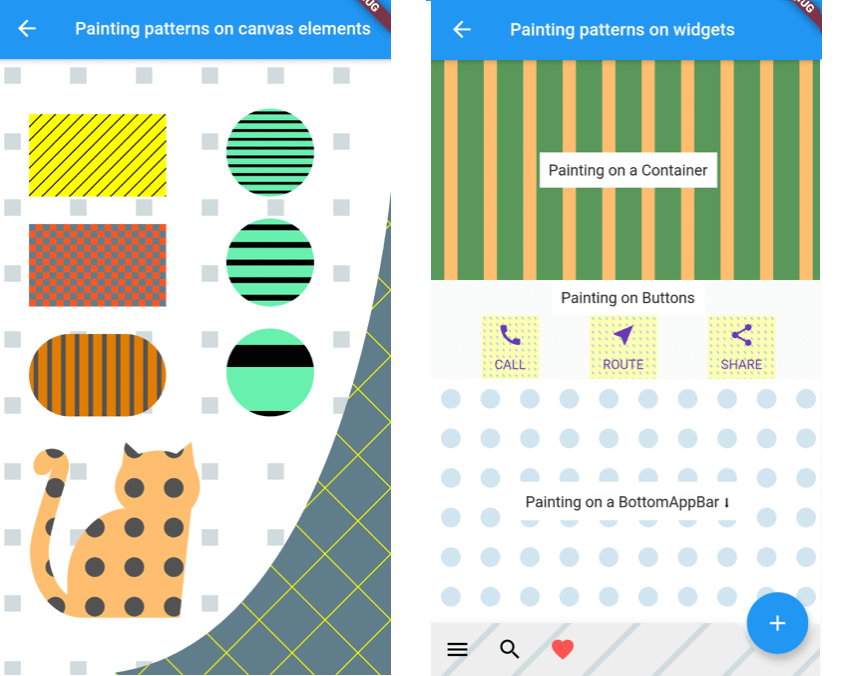
Draw patterns like stripes or dots on canvas elements or widgets.
115Likes 66.3K30-day downloads160Pub points
AndroidiOSWebmacOSWindowsLinux
A Flutter package that lets you draw patterns like stripes or dots on canvas elements.

{"sdk":"flutter"}{"sdk":"flutter"}^6.1.0English project snapshot. Visit GitHub for the latest content.
https://user-images.githubusercontent.com/9117427/123286546-ad64e700-d516-11eb-92fe-ef6c3b459676.png
https://user-images.githubusercontent.com/9117427/123286549-ad64e700-d516-11eb-8d0f-d9a8a8e37ecd.jpg https://user-images.githubusercontent.com/9117427/123286554-adfd7d80-d516-11eb-9d1a-358c1b95d2d4.jpg https://user-images.githubusercontent.com/9117427/123286556-af2eaa80-d516-11eb-8277-374035854ecb.jpg
Inside your CustomPainter class's paint method, create a Pattern class with background (bgColor) and foreground (fgColor) colors and use one of its paintOn methods:
class MyPainter extends CustomPainter {
  @override
  void paint(Canvas canvas, Size size) {

    // Prepare a rectangle shape to draw the pattern on.
    final rect = Rect.fromLTWH(80, 50, 200, 100);

    // Create a Pattern object of diagonal stripes with the colors we want.
    final Pattern pattern = DiagonalStripesThick(bgColor: Colors.lightGreenAccent, fgColor: Colors.black);

    // Paint the pattern on the rectangle.
    pattern.paintOnRect(canvas, size, rect);

  }
}
Results in this pattern drawn:
https://user-images.githubusercontent.com/9117427/123286559-afc74100-d516-11eb-8fba-3e8285d76a45.jpg
Pattern constructors and types:You can construct a Pattern with three different ways:
Pattern type constructor:final Pattern p1 = DiagonalStripesLight(bgColor: Colors.yellowAccent, fgColor: Colors.black);
Pattern.fromValues factory constructor:final Pattern p2 = Pattern.fromValues(patternType: PatternType.diagonalLight, bgColor: Colors.yellowAccent, fgColor: Colors.black);
patternType_backgroundHex_foregroundHex:final Pattern p3 = Pattern.fromString("diagonalLight_ffff00_000000");
Canvas shape:Canvas element inside the paint function of your CustomPaint.Pattern object with the desired type and colors.// In the build method of your screen:
...
body: Center(
child: CustomPaint(
size: const Size(double.infinity, double.infinity),
painter: MyPainter(),
),
),
...
// In your CustomPainter:
class MyPainter extends CustomPainter {
@override
void paint(Canvas canvas, Size size) {
final rect = Rect.fromLTWH(80, 50, 200, 100);
DiagonalStripesLight(bgColor: Colors.lightGreenAccent, fgColor: Colors.black).paintOnRect(canvas, size, rect);
final path = Path();
path.moveTo(120, 200);
path.lineTo(300, 280);
path.quadraticBezierTo(20, 400, 40, 300);
path.close();
Crosshatch(bgColor: Colors.yellow, fgColor: Colors.black).paintOnPath(canvas, size, path);
}
}
You can use the below methods to draw on Canvas shapes:
pattern.paintOnPath(canvas, size, path);
pattern.paintOnRect(canvas, size, rect);
pattern.paintOnRRect(canvas, size, rRect);
pattern.paintOnCircle(canvas, size, center, radius);
Check the Scale behavior setting section for more info on how the Pattern can be drawn.
Canvas:As above, but you can use the paintOnCanvas method to draw the pattern on the whole Canvas:
TexturePattern(bgColor: Colors.white, fgColor: Colors.blueGrey).paintOnCanvas(canvas, size);
The result of the above paints:
https://user-images.githubusercontent.com/9117427/123286564-b0f86e00-d516-11eb-86e8-8f02db35e036.jpg
To draw patterns on a Widget, you need to:
CustomPaint:CustomPaint(
painter: ContainerPatternPainter(),
child: Container(
width: 600,
height: 200,
child: Center(
child: Text("Painting on a Container"),
),
),
),
CustomPainter, create a Pattern and use its paintOnWidget method to paint with it:class ContainerPatternPainter extends CustomPainter {
@override
void paint(Canvas canvas, Size size) {
VerticalStripesThick(bgColor: Color(0xff0509050), fgColor: Color(0xfffdbf6f)).paintOnWidget(canvas, size);
}
@override
bool shouldRepaint(CustomPainter oldDelegate) => true;
}
https://user-images.githubusercontent.com/9117427/123286556-af2eaa80-d516-11eb-8277-374035854ecb.jpg
Rectangular widgets, like Containers, Rows, Columns, IconButtons, etc. can be painted directly with the above method. For widgets that have a custom shape, like a BottomAppbar, you need to provide a different clipBehavior property, e.g. Clip.antiAlias, to make sure the pattern is clipped to the special shape. Check the second screen in the example app for more.
All Patterns require a background and foreground color on instantiation. The currently available patterns are:
https://user-images.githubusercontent.com/9117427/123286554-adfd7d80-d516-11eb-9d1a-358c1b95d2d4.jpg
| Description | Class | PatternType enum |
|---|---|---|
| Horizontal Stripes Light | HorizontalStripesLight(Color bgColor, Color fgColor) |
PatternType.horizontalLight |
| Horizontal Stripes Thick | HorizontalStripesThick(Color bgColor, Color fgColor) |
PatternType.horizontalThick |
| Vertical Stripes Light | VerticalStripesLight(Color bgColor, Color fgColor) |
PatternType.verticalLight |
| Vertical Stripes Thick | VerticalStripesThick(Color bgColor, Color fgColor) |
PatternType.verticalThick |
| Diagonal Stripes Light | DiagonalStripesLight(Color bgColor, Color fgColor) |
PatternType.diagonalLight |
| Diagonal Stripes Thick | DiagonalStripesThick(Color bgColor, Color fgColor) |
PatternType.diagonalThick |
| Checkers | Checkers(Color bgColor, Color fgColor) |
PatternType.checkers |
| Crosshatch | Crosshatch(Color bgColor, Color fgColor) |
PatternType.crosshatch |
| Dots | Dots(Color bgColor, Color fgColor) |
PatternType.dots |
| Raindrops | Raindrops(Color bgColor, Color fgColor) |
PatternType.raindrops |
| Subtle Patch | SubtlePatch(Color bgColor, Color fgColor) |
PatternType.subtlepatch |
| Texture | TexturePattern(Color bgColor, Color fgColor) |
PatternType.texture |
You can pass a featuresCount argument when creating a Pattern, to set how many features, e.g. how many stripes, you want to be drawn.
DiagonalStripesThick(bgColor: bgColor, fgColor: fgColor, featuresCount: 40).paintOnRect(canvas, size, rect1);
Dots(bgColor: bgColor, fgColor: fgColor, featuresCount: 5).paintOnRect(canvas, size, rect2);
All patterns are by default scaled to their container (patternScaleBehavior = PatternScaleBehavior.container). This means that, regardless of its size, a Rectangle will contain 15 diagonal stripes or 10 dots.
DiagonalStripesThick(bgColor: bgColor, fgColor: fgColor).paintOnRect(canvas, size, rect1);
Dots(bgColor: bgColor, fgColor: fgColor).paintOnRect(canvas, size, rect2);
https://user-images.githubusercontent.com/9117427/123286570-b1910480-d516-11eb-9985-e74c2303f672.jpg
You can change this behavior by providing a different argument to the paintOn method:
Pass patternScaleBehavior: PatternScaleBehavior.canvas to scale the pattern to the whole Canvas area. Now the Canvas will contain 15 diagonal stripes or 10 dots, so, a Rectangle will contain as many dots or stripes as it can fit:
DiagonalStripesThick(bgColor: bgColor, fgColor: fgColor).paintOnRect(canvas, size, rect1, patternScaleBehavior: PatternScaleBehavior.canvas);
Dots(bgColor: bgColor, fgColor: fgColor).paintOnRect(canvas, size, rect2, patternScaleBehavior: PatternScaleBehavior.canvas);
https://user-images.githubusercontent.com/9117427/123286574-b1910480-d516-11eb-9a08-6da768645236.jpg
Pass patternScaleBehavior: PatternScaleBehavior.customRect and a customRect (e.g. a Rectangle with half the Canvas height) to further customize the Pattern size:
final Rect halfCanvas = Rect.fromLTWH(0, size.height / 2, size.width, size.height / 2); // a Rectangle with half the Canvas height.
DiagonalStripesThick(bgColor: bgColor, fgColor: fgColor).paintOnRect(canvas, size, rect1, patternScaleBehavior: PatternScaleBehavior.customRect, customRect: halfCanvas );
Dots(bgColor: bgColor, fgColor: fgColor).paintOnRect(canvas, size, rect2, patternScaleBehavior: PatternScaleBehavior.customRect, customRect: halfCanvas );
https://user-images.githubusercontent.com/9117427/123286529-aa69f680-d516-11eb-8f8f-366440416b13.jpg
https://user-images.githubusercontent.com/9117427/123286536-ab028d00-d516-11eb-8463-b89adc84e5cc.jpg