
 v0.2.1
nice_intro
轻松让您的用户了解您的应用!此包将帮助您为您的应用创建精美的介绍页面。
93喜欢 22近 30 天下载60Pub 分数
平台暂无数据
让用户轻松了解您的应用

{"sdk":"flutter"}^2.3.2{"sdk":"flutter"}以下为英文项目原文快照,最新内容请访问 GitHub。
Get your users to know your app with ease
Onboarding is a great way to introduce your app to newcomers, to help them quickly adapt to the new conditions so that they can get the most out of your app
Pub Version Donate
A Flutter package to build awesome intro slides for your apps.
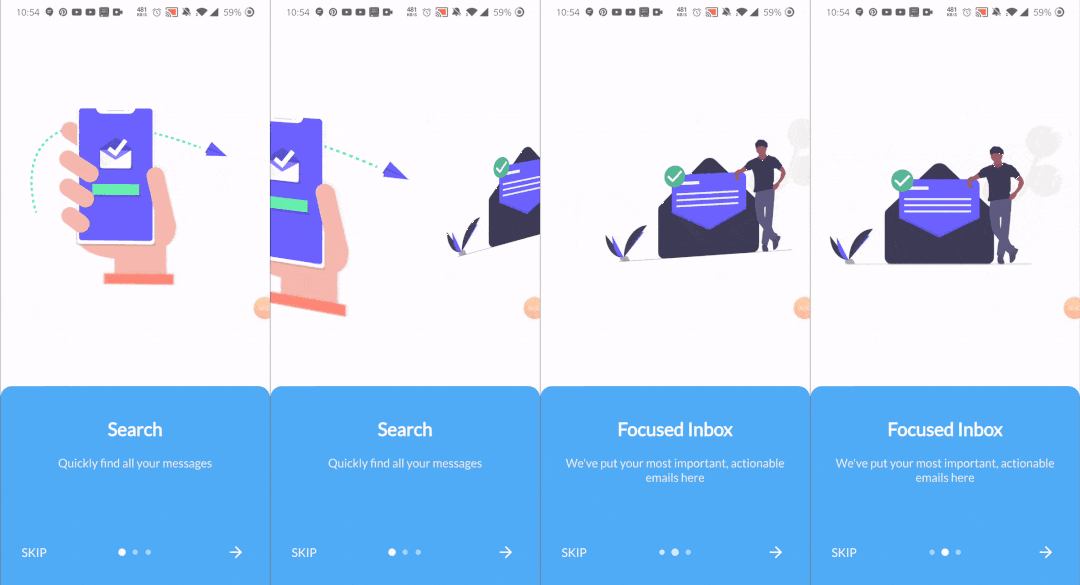
This is somehow what you can expect from this package :)
Package Demo package demo
Add the following to pubspec.yaml:
dependencies:
  nice_intro: ^0.2.0
First, import the following files
import 'package:nice_intro/intro_screen.dart';
import 'package:nice_intro/intro_screens.dart';
Then, create a list of screens each one with the IntroSreen class:
List<IntroScreen> pages =  [
        IntroScreen(
          title: 'Search',
          imageAsset: 'assets/img/1.png',
          description: 'Quickly find all your messages',
          headerBgColor: Colors.white,
        ),
        IntroScreen(
          title: 'Focused Inbox',
          headerBgColor: Colors.white,
          imageAsset: 'assets/img/2.png',
          description: "We've put your most important, actionable emails here",
        ),
        IntroScreen(
          title: 'Social',
          headerBgColor: Colors.white,
          imageAsset: 'assets/img/3.png',
          description: "Keep talking with your mates",
        ),
      ];
You'll come up with a list of nice slides screens.
Finally, pass the pages to an instance of IntroScreens class:
IntroScreens introScreens = IntroScreens(
      footerBgColor: TinyColor(Colors.blue).lighten().color,
      activeDotColor: Colors.white,
      footerRadius: 18.0,
      indicatorType: IndicatorType.CIRCLE,
      pages:pages

    return Scaffold(
      body: introScreens,
    );
And pass it to your scaffold widget.
| Name | Type | Default | Description |
|---|---|---|---|
| title | String |
required | Set the title of your slide screen |
| description | String |
required | Set the description of your slide screen |
| header | String |
Container() | Set the widget to use as the header part of your screen |
| imageAsset | String |
null | Set the image path of your slide screen |
| textStyle | TextStyle |
null | Set the style of the title and description of your slide |
| headerBgColor | Color |
Colors.white |
Set the background color of the slide |
| headerPadding | EdgeInsets |
EdgeInsets.all(12) |
Set the padding of the header part of your slide screen |
| containerBg | Color |
Colors.white |
Set the wrapper container's background color |
| Name | Type | Default | Description |
|---|---|---|---|
| slides | List<IntroScreen> |
required | list of your slides |
| onDone | Function |
required | Set the action to do when the last slide is reached |
| onSkip | Function |
required | Set the action to do when the user skips the slides |
| footerRadius | double |
12.0 | Set the radius of the footer part of your slides |
| footerBgColor | Color |
Color(0xff51adf6) |
Set the background color of the footer part of your slides |
| footerGradients | List<Color> |
[] | Set the list of colors for the gradient of the footer part of your slides |
| footerPadding | EdgeInsets |
EdgeInsets.all(24) |
Set the padding of the footer part of your slides |
| indicatorType | IndicatorType |
IndicatorType.CIRCLE |
Set the type of indicator for your slides |
| activeDotColor | Color |
Colors.white |
Set the color of the active indicator color |
| inactiveDotColor | Color |
null | Set the color of an inactive indicator color |
| skipText | String |
"Skip" | Set the text of the skip widget |
| nextWidget | Widget |
Set the widget to use for next interaction of your slides | |
| doneWidget | Widget |
Set the widget to display when the last slide is reached | |
| viewPortFraction | double |
1.0 | Set the viewport fraction of your slides |
| textColor | Color |
Colors.white |
Set the text color of the footer part of your slides |
| physics | ScrollPhysics |
BouncingScrollPhysics |
Set the physics for the page view |
Now enjoy!
Refer to example folder and the source code for more information.