
etch
在 Flutter 中使用 CustomPaint 的一种简化、声明式方法
- 星标
- 58
- 复刻
- 0
- 最近推送(UTC)
- 2022年4月23日
- 项目状态
- 未归档
原始 README
以下为英文项目原文快照,最新内容请访问 GitHub。
✍️ Etch
A Simplified, Declarative Implementation Of CustomPaint For Flutter
Features
- Create your CustomPaint widget declaratively.
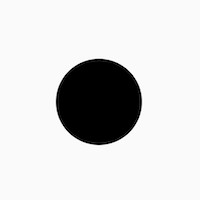
    EtchCanvas(
        etchElements: [
            EtchCircle.alignment(
                centerAlignment: Offset.zero,
                radius: 50.0,
            ),
        ],
        child: SizedBox(
          width: 100.0,
          height: 100.0,
        ),
    ),
- Use either points or alignments to define points everywhere
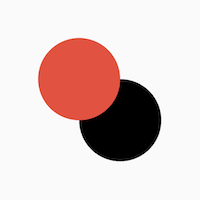
    EtchCanvas(
        etchElements: [
            EtchCircle(
              center: Offset(100, 100),
              radius: 50.0,
            ),
            EtchCircle.alignment(
               centerAlignment: Offset.zero,
               radius: 50.0,
               etchStyle: EtchStyle(
                   color: Colors.red,
               ),
           ),
        ],
        child: SizedBox(
          width: 100.0,
          height: 100.0,
        ),
    ),
- Easy support for Paths
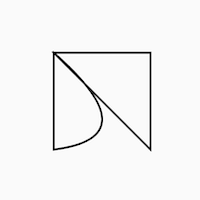
    EtchCanvas(
      etchElements: [
        EtchPath(
          etchPathElements: [
            EtchPathMoveTo(point: Offset(0, 0)),
            EtchPathAddPolygon.alignment(
              pointAlignments: [
                Offset(-1, -1),
                Offset(1, -1),
                Offset(1, 1),
              ],
            ),
            EtchPathQuadraticBezierTo.alignment(
              controlPointAlignment: Offset(1, 0.75),
              endPointAlignment: Offset(-1, 1),
            ),
            EtchPathClose(),
          ],
        ),
      ],
      child: SizedBox(
        width: 100.0,
        height: 100.0,
      ),
    ),
- Work with canvas layers easily
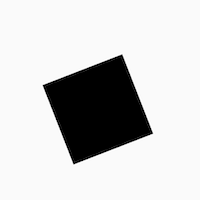
    EtchCanvas(
      etchElements: [
        EtchLayer.rotate(
          rotateZ: 1.2,
          etchElements: [
            EtchRect.alignment(
              topLeftAlignment: Offset(-1, -1),
              bottomRightAlignment: Offset(1, 1),
            ),
          ],
        ),
      ],
      child: SizedBox(
        width: 100.0,
        height: 100.0,
      ),
    ),
- Easy animations with
TweenAnimationBuilder
Add animations easily using TweenAnimationBuilder or using normal animation controllers without
having to pass down progress or other logic.
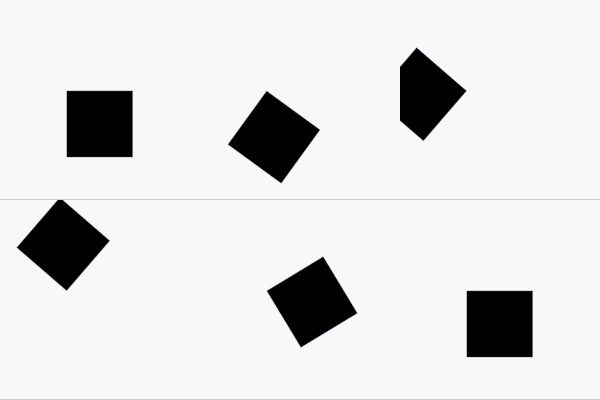
    TweenAnimationBuilder<double>(
      duration: const Duration(seconds: 1),
      tween: Tween(begin: 0, end: 2 * pi),
      builder: (context, val, _) {
        return EtchCanvas(
          etchElements: [
            EtchLayer.rotate(
              rotateZ: val,
              etchElements: [
                EtchRect.alignment(
                  topLeftAlignment: Offset(-1, -1),
                  bottomRightAlignment: Offset(1, 1),
                ),
              ],
            ),
          ],
          child: const SizedBox(
            width: 100.0,
            height: 100.0,
          ),
        );
      }
    ),
Getting started
- To get started, add an
EtchCanvasto your app:
    EtchCanvas(
        etchElements: [],
    ),
Any elements which have the format 'Etch----' can fit into these (EtchParagraph, EtchPath, EtchCircle, etc).
The default constructor arguments usually take in points while the .alignment constructor takes in
alignments. For alignments (-1, -1) is the top left while (1, 1) is the bottom right.
    EtchCanvas(
        etchElements: [
            EtchRect.alignment(
              topLeftAlignment: Offset.zero,
              bottomRightAlignment: Offset(1, 1),
            ),
            EtchOval.alignment(
              topLeftAlignment: Offset(-1, -1),
              bottomRightAlignment: Offset(0, 0),
            ),
            EtchArc.alignment(
              topLeftAlignment: Offset(-1, -1),
              bottomRightAlignment: Offset(1, 1),
              startAngle: 0,
              sweepAngle: 2,
            ),
        ],
    ),
- Use
EtchStyleto modify paint properties.
    EtchPath(
      etchPathElements: [
        //...
      ],
      etchStyle: EtchStyle(
        style: PaintingStyle.stroke,
      ),
    ),
You can also supply your own Paint object using EtchStyle.raw().
    EtchPath(
      etchPathElements: [
        //...
      ],
      etchStyle: EtchStyle.raw(
        Paint()..color = Colors.black..// add your props,
      ),
    ),
- To add a path to the elements, use
EtchPath. Etch path elements have the naming formatEtchPath---(EtchPathAddPolygon,EtchPathAddArc,EtchPathCubicTo, etc)
    EtchCanvas(
        etchElements: [
             EtchPath(
                 etchPathElements: [
                     EtchPathMoveTo(point: Offset(0, 0)),
                     EtchPathLine(point: Offset(110, 0)),
                     EtchPathLine(point: Offset(110, 110)),
                     EtchPathClose(),
                 ],
                 etchStyle: EtchStyle(
                     style: PaintingStyle.stroke,
                 ),
             ),
        ],
    ),
- To add a layer, use the
EtchLayerelement. This can have numerous EtchElements inside just like the normalEtchCanvas. Layers can have individual transformations without affecting the rest of the canvas - so you can rotate or scale one layer without affecting the others.EtchLayer, like theTransformwidget, has multiple inbuilt transformations - but you can pass in your ownMatrix4using the default constructor.
    EtchCanvas(
        etchElements: [
            EtchLayer.rotate(
              rotateX: 1.2,
              etchElements: [
                EtchRect.alignment(
                  topLeftAlignment: Offset(-1, -1),
                  bottomRightAlignment: Offset(1, 1),
                ),
              ],
            ),
            EtchLayer.scale(
              scale: Offset(1, 2),
              etchElements: [
                EtchRect.alignment(
                  topLeftAlignment: Offset(-1, -1),
                  bottomRightAlignment: Offset(1, 1),
                ),
              ],
            ),
            EtchLayer(
              transform: Matrix4.identity(),
              etchElements: [
                EtchRect.alignment(
                  topLeftAlignment: Offset(-1, -1),
                  bottomRightAlignment: Offset(1, 1),
                ),
              ],
            ),
        ],
    ),
Additional information
Note: This package is currently in an experimental stage and full metrics are not yet ascertained. Please feel free to launch issues or PRs if you face something unexpected while using it.

Deven Joshi ↗
分类
使用的依赖
依赖清单 3 项
- flutter
{"sdk":"flutter"} - flutter_test开发依赖
{"sdk":"flutter"} - flutter_lints开发依赖
^1.0.4
如何选择适合项目的代码仓?
先按使用场景筛选,再比较项目活跃情况,最后到原始仓库核对使用要求。
- 通过仓库名、作者或描述搜索,再按技术分类缩小范围。
- 结合星标、复刻与最近推送比较项目;星标反映社区关注,不代表质量保证。
- 使用前在 GitHub 核对 README、许可证与 Issues。
来源与维护
“A repository is the most basic element of GitHub.”
GitHub Docs — About repositories ↗