
responsive_scaffold
响应式 Scaffold - 在移动设备上显示列表并推送到详细信息,在平板电脑上同时显示列表和所选项目。维护者:@rodydavis

- 星标
- 360
- 复刻
- 43
- 最近推送(UTC)
- 2021年9月27日
- 项目状态
- 已归档
原始 README
以下为英文项目原文快照,最新内容请访问 GitHub。




responsive_scaffold
View the online demo here!
On mobile it shows a list and pushes to details and on tablet it shows the List and the selected item.
Online Demo: https://fluttercommunity.github.io/responsive_scaffold/
Getting Started
3 Column Layout
Responsive Layout
Follows Material Design Layout Docs.
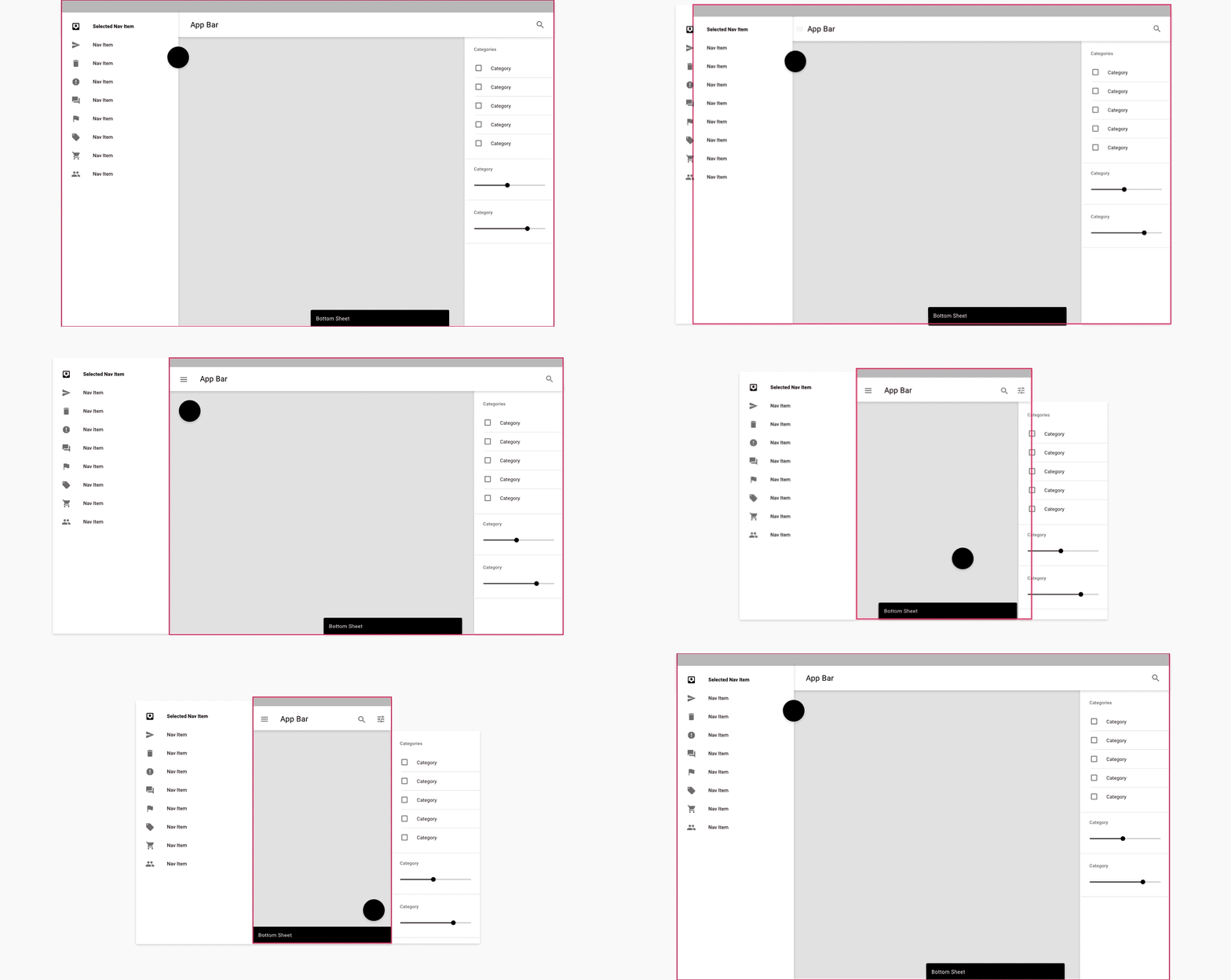
Here is a demo on various sizes.
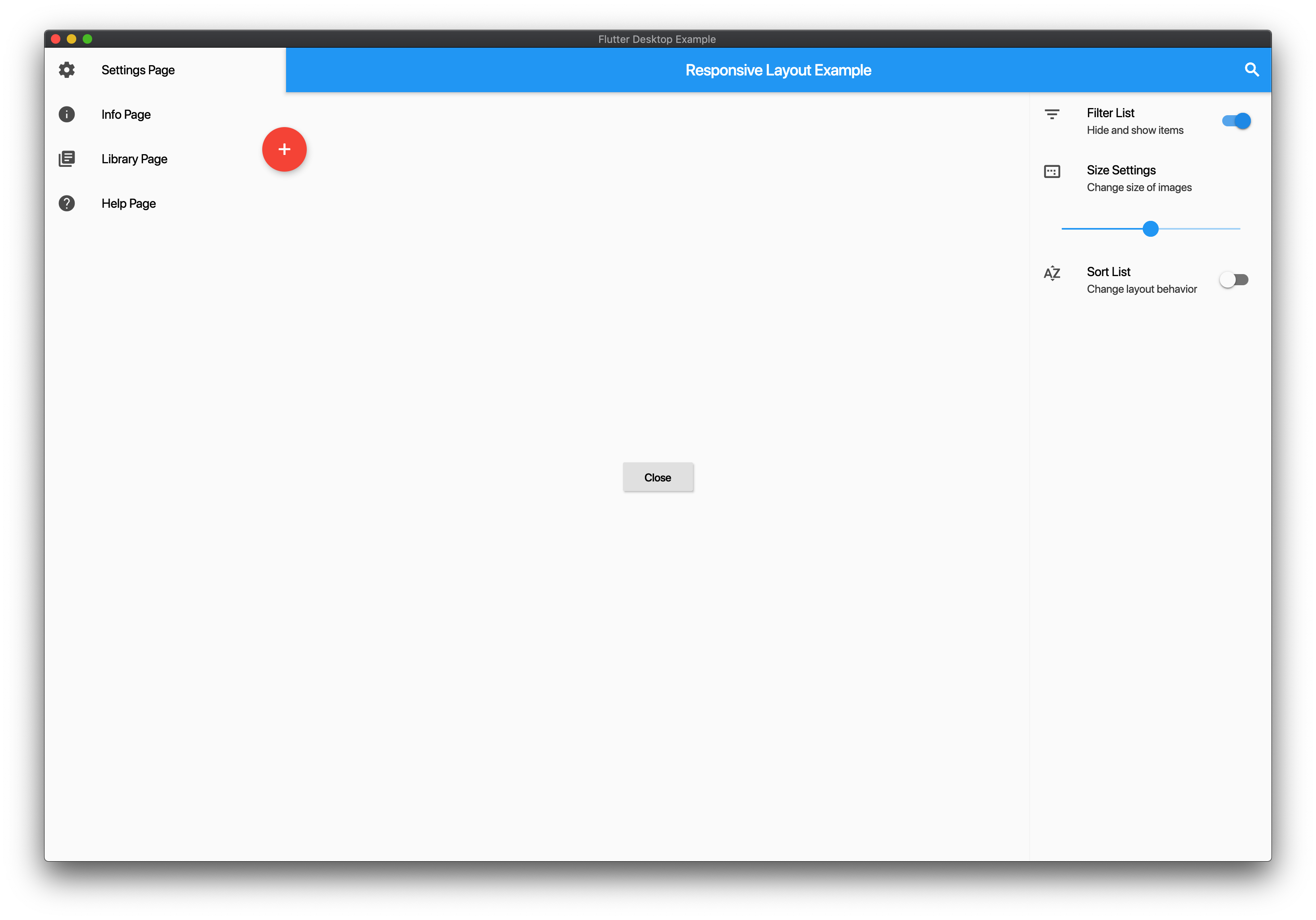
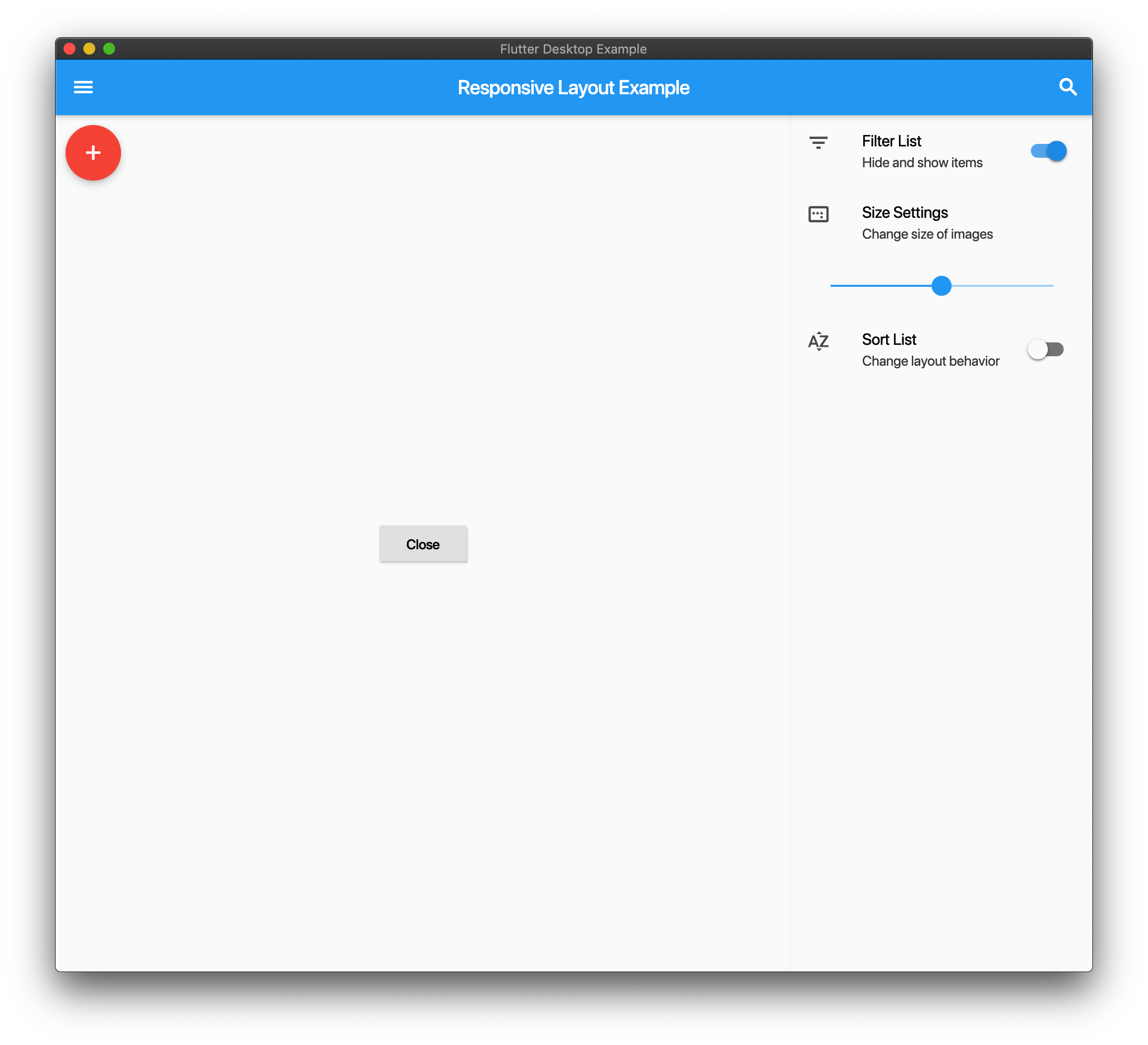
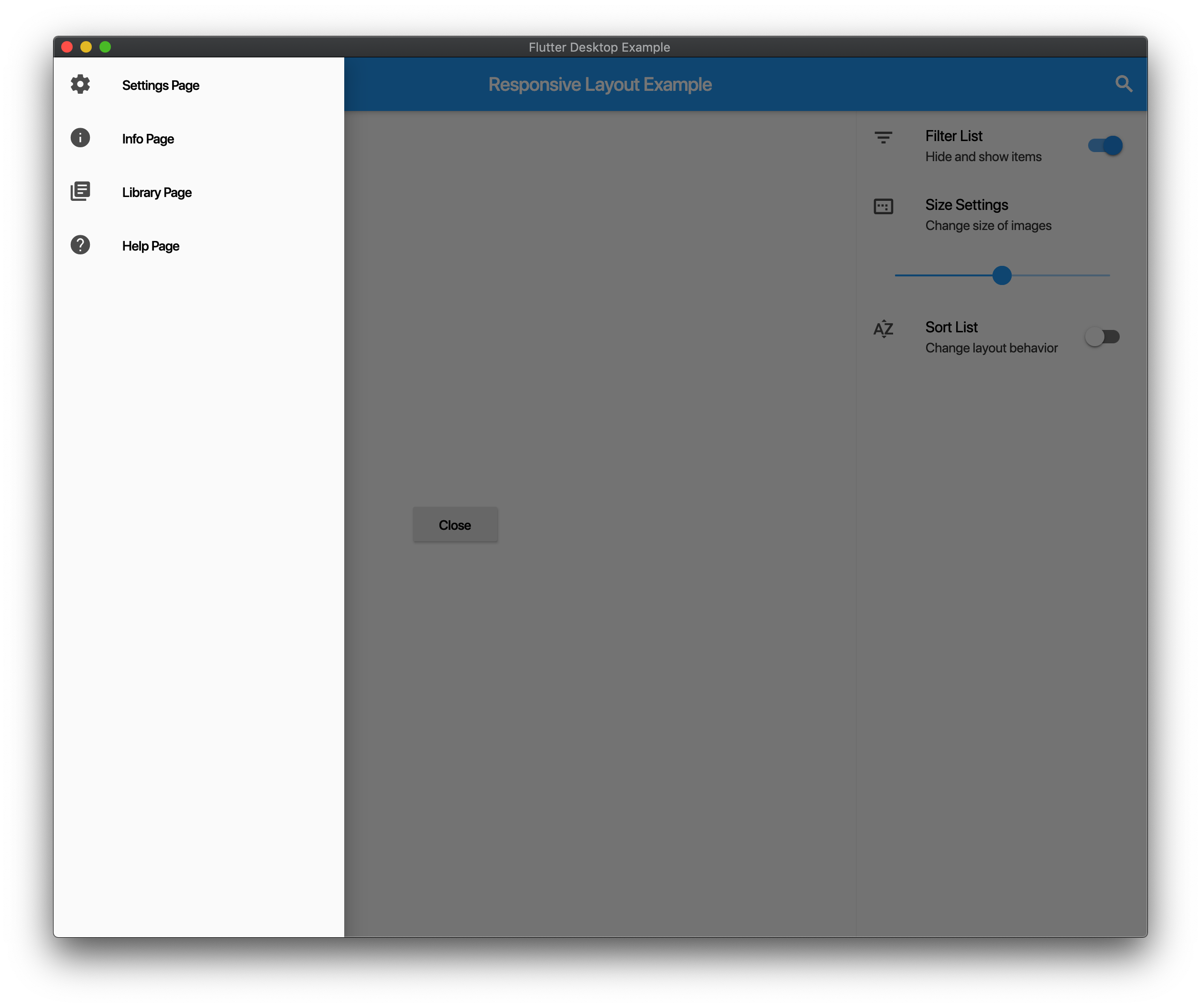
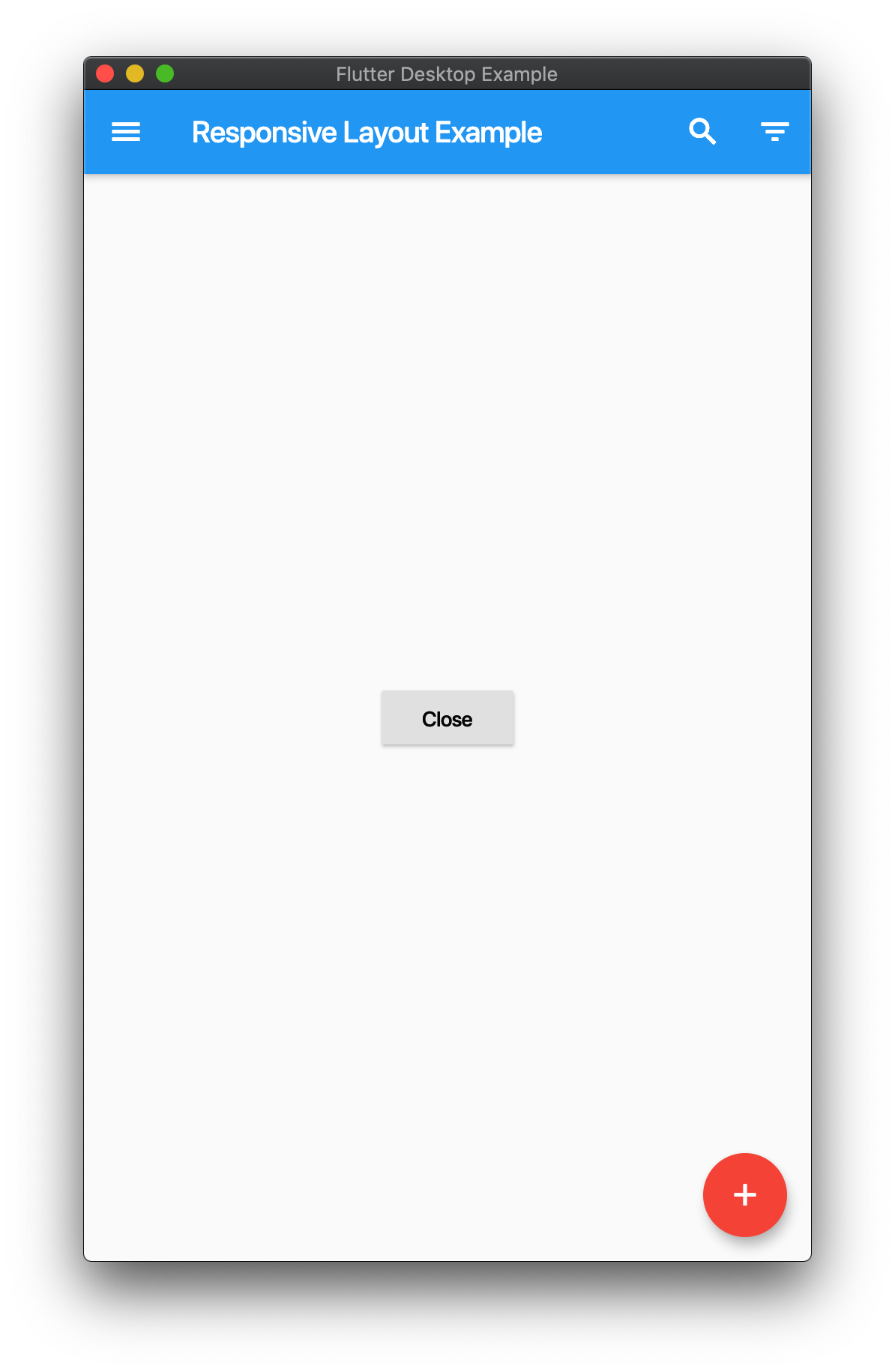
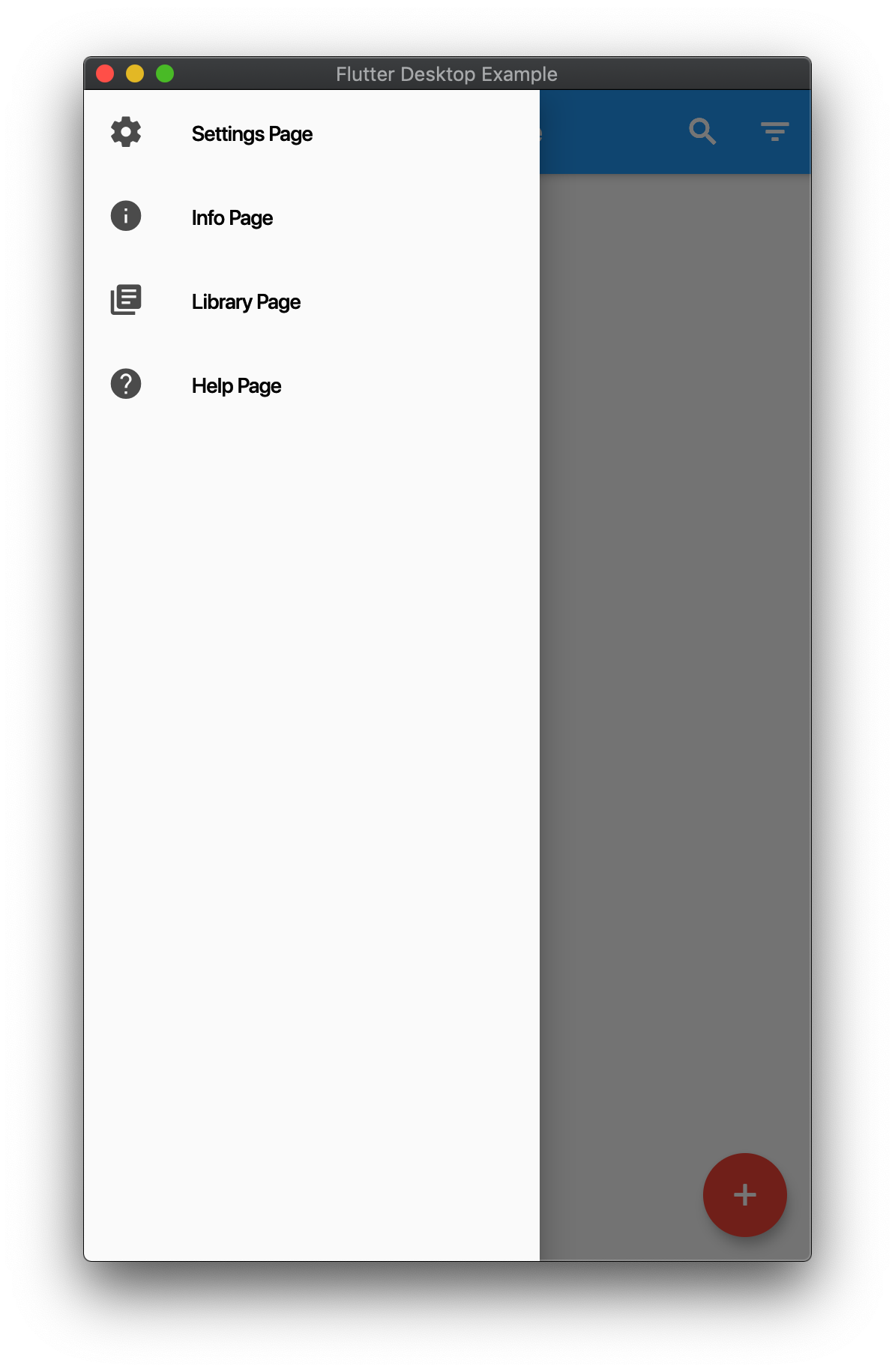
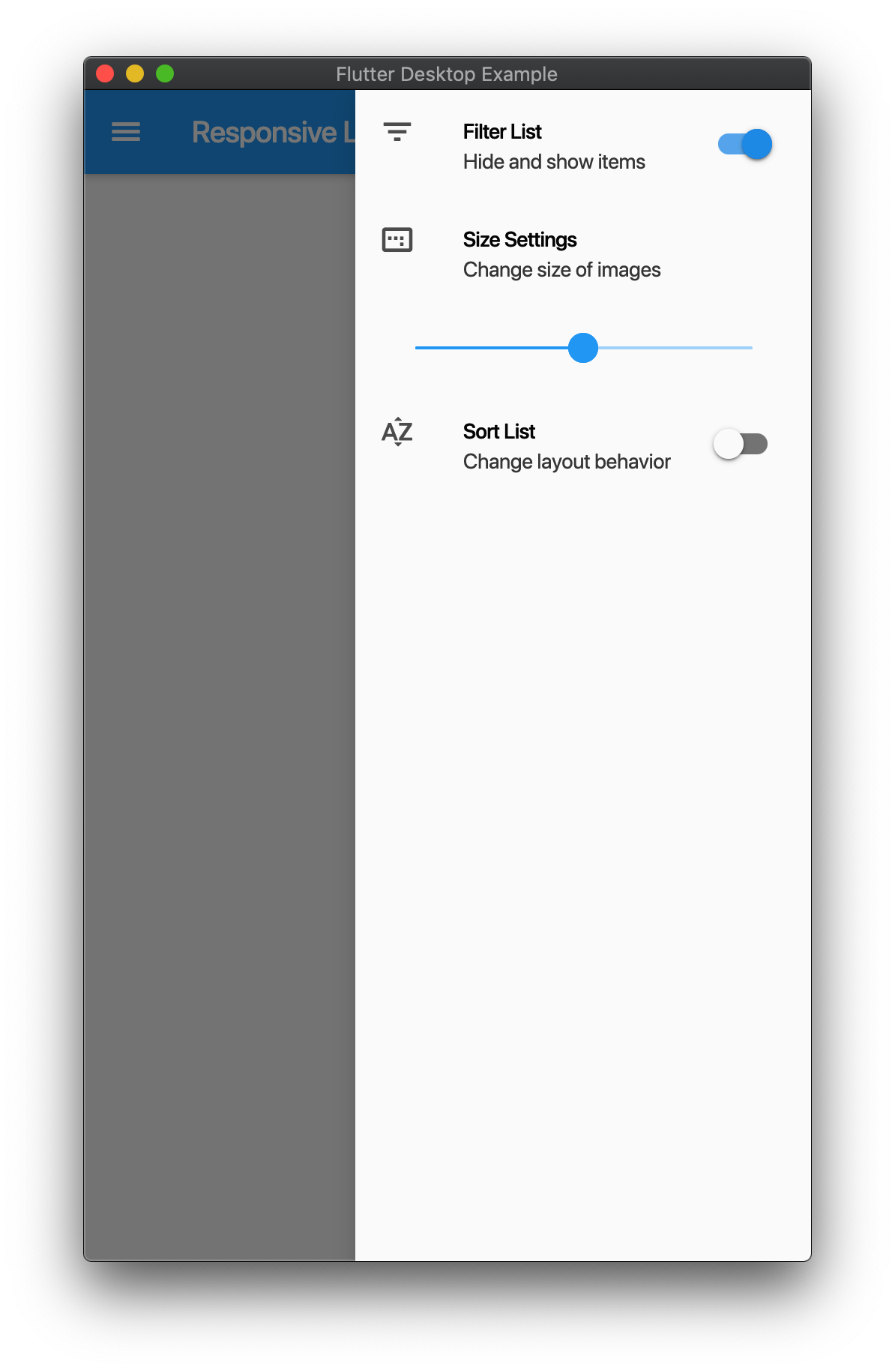
Example
import 'package:flutter/material.dart';
import 'package:responsive_scaffold/responsive_scaffold.dart';

class LayoutExample extends StatelessWidget {
  @override
  Widget build(BuildContext context) {
    return ResponsiveScaffold(
      title: Text('Responsive Layout Example'),
      drawer: ListView(
        children: <Widget>[
          ListTile(
            leading: Icon(Icons.settings),
            title: Text('Settings Page'),
          ),
          ListTile(
            leading: Icon(Icons.info),
            title: Text('Info Page'),
          ),
          ListTile(
            leading: Icon(Icons.library_books),
            title: Text('Library Page'),
          ),
          ListTile(
            leading: Icon(Icons.help),
            title: Text('Help Page'),
          ),
        ],
      ),
      endIcon: Icons.filter_list,
      endDrawer: ListView(
        children: <Widget>[
          ListTile(
            leading: Icon(Icons.filter_list),
            title: Text('Filter List'),
            subtitle: Text('Hide and show items'),
            trailing: Switch(
              value: true,
              onChanged: (val) {},
            ),
          ),
          ListTile(
            leading: Icon(Icons.image_aspect_ratio),
            title: Text('Size Settings'),
            subtitle: Text('Change size of images'),
          ),
          ListTile(
            title: Slider(
              value: 0.5,
              onChanged: (val) {},
            ),
          ),
          ListTile(
            leading: Icon(Icons.sort_by_alpha),
            title: Text('Sort List'),
            subtitle: Text('Change layout behavior'),
            trailing: Switch(
              value: false,
              onChanged: (val) {},
            ),
          ),
        ],
      ),
      trailing: IconButton(
        icon: Icon(Icons.search),
        onPressed: () {},
      ),
      body: Center(
        child: RaisedButton(
          child: Text('Close'),
          onPressed: () {
            Navigator.pop(context);
          },
        ),
      ),
      floatingActionButton: FloatingActionButton(
        child: Icon(Icons.add),
        backgroundColor: Theme.of(context).accentColor,
        onPressed: () {},
      ),
    );
  }
}
Responsive List
- You can use this in two modes
ResponsiveListScaffoldandResponsiveListScaffold.builder. - On Mobile the ListView will push to the details screen
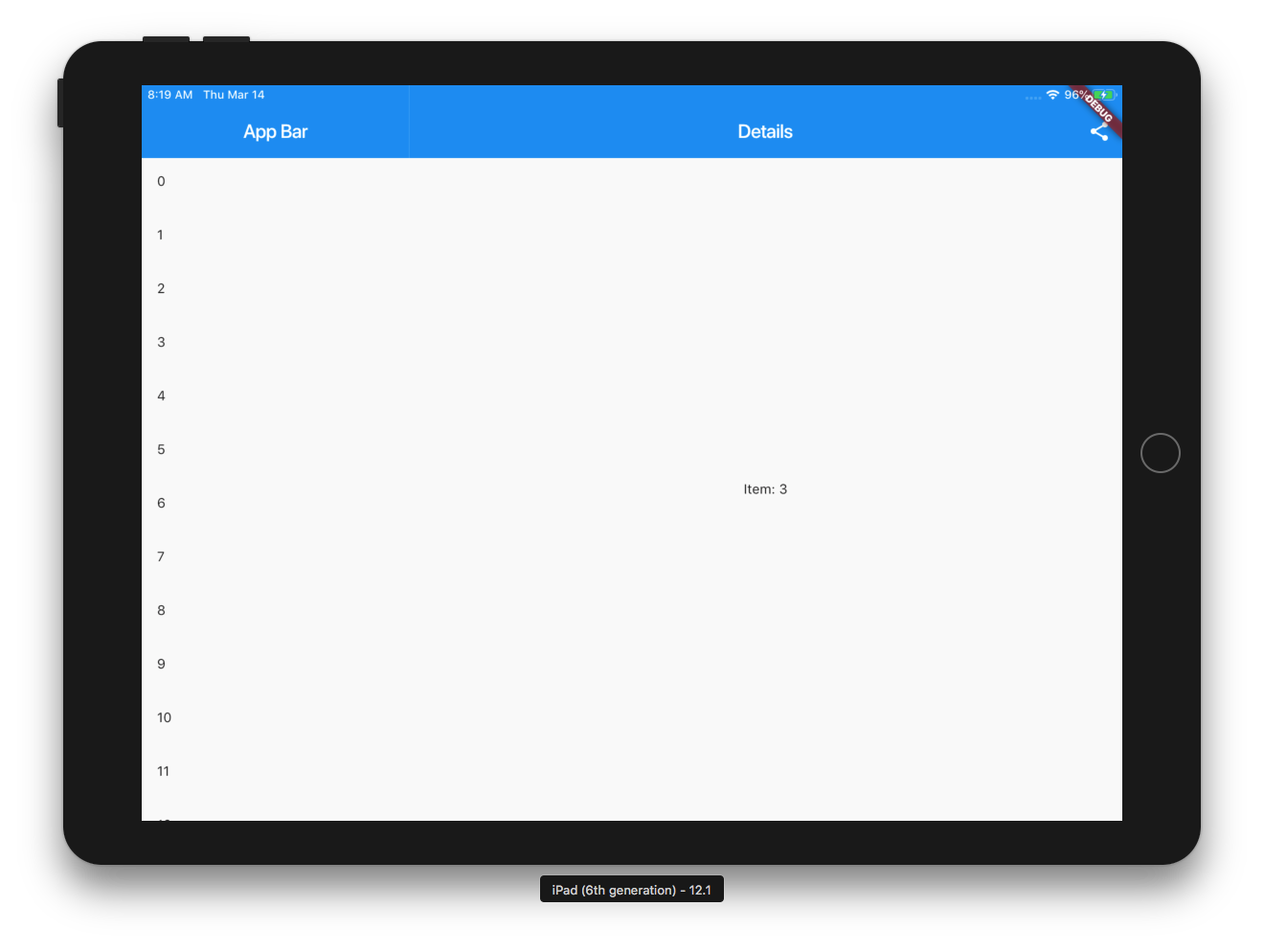
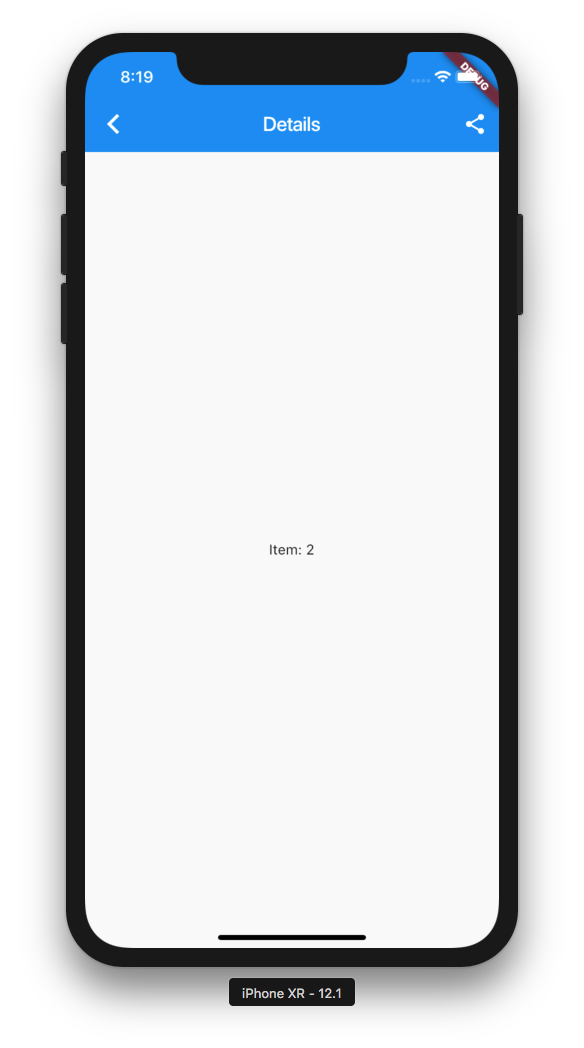
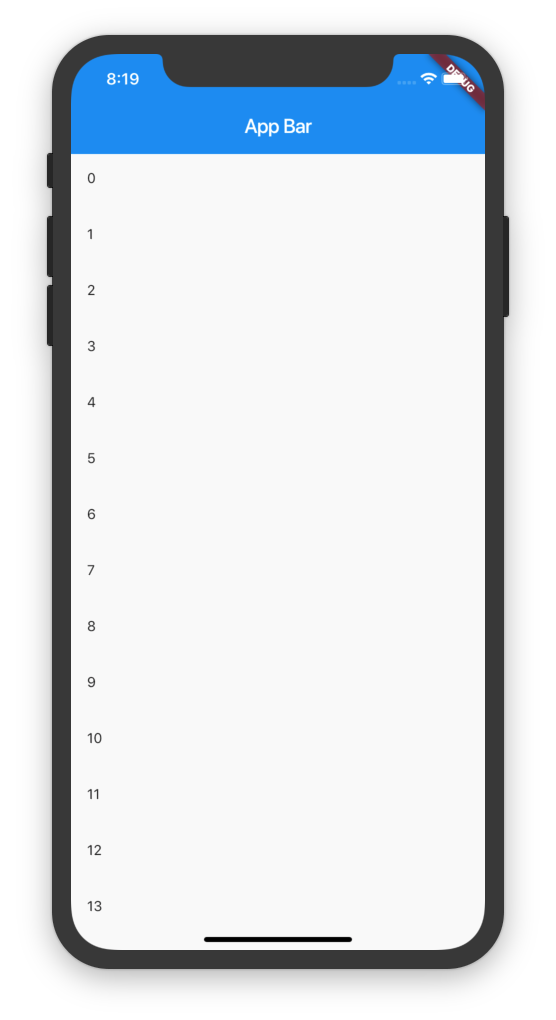
- On Tablet it will show a Master Detail View.
- You can add additional Slivers to the Scrollview and the AppBar is optional.
Example
import 'package:flutter/material.dart';

import 'package:responsive_scaffold/responsive_scaffold.dart';

void main() => runApp(MyApp());

class MyApp extends StatefulWidget {
  @override
  _MyAppState createState() => _MyAppState();
}

class _MyAppState extends State<MyApp> {
  var _scaffoldKey = new GlobalKey<ScaffoldState>();

  @override
  Widget build(BuildContext context) {
    return MaterialApp(
      home: ResponsiveListScaffold.builder(
        scaffoldKey: _scaffoldKey,
        detailBuilder: (BuildContext context, int index, bool tablet) {
          return DetailsScreen(
            // appBar: AppBar(
            //   elevation: 0.0,
            //   title: Text("Details"),
            //   actions: [
            //     IconButton(
            //       icon: Icon(Icons.share),
            //       onPressed: () {},
            //     ),
            //     IconButton(
            //       icon: Icon(Icons.delete),
            //       onPressed: () {
            //         if (!tablet) Navigator.of(context).pop();
            //       },
            //     ),
            //   ],
            // ),
            body: Scaffold(
              appBar: AppBar(
                elevation: 0.0,
                title: Text("Details"),
                automaticallyImplyLeading: !tablet,
                actions: [
                  IconButton(
                    icon: Icon(Icons.share),
                    onPressed: () {},
                  ),
                  IconButton(
                    icon: Icon(Icons.delete),
                    onPressed: () {
                      if (!tablet) Navigator.of(context).pop();
                    },
                  ),
                ],
              ),
              bottomNavigationBar: BottomAppBar(
                elevation: 0.0,
                child: Container(
                  child: IconButton(
                    icon: Icon(Icons.share),
                    onPressed: () {},
                  ),
                ),
              ),
              body: Container(
                child: Center(
                  child: Text("Item: $index"),
                ),
              ),
            ),
          );
        },
        nullItems: Center(child: CircularProgressIndicator()),
        emptyItems: Center(child: Text("No Items Found")),
        slivers: <Widget>[
          SliverAppBar(
            title: Text("App Bar"),
          ),
        ],
        itemCount: 100,
        itemBuilder: (BuildContext context, int index) {
          return ListTile(
            leading: Text(index.toString()),
          );
        },
        bottomNavigationBar: BottomAppBar(
          elevation: 0.0,
          child: Container(
            child: IconButton(
              icon: Icon(Icons.share),
              onPressed: () {},
            ),
          ),
        ),
        floatingActionButton: FloatingActionButton(
          child: Icon(Icons.add),
          onPressed: () {
            _scaffoldKey.currentState.showSnackBar(SnackBar(
              content: Text("Snackbar!"),
            ));
          },
        ),
      ),
    );
  }
}

GitHub 作者
Flutter Community ↗
语言DartC++MakefileBatchfileSwiftHTMLKotlinObjective-C
分类
使用的依赖
依赖清单 3 项
- flutter
{"sdk":"flutter"} - scroll_to_index
^1.0.5 - flutter_test开发依赖
{"sdk":"flutter"}
如何选择适合项目的代码仓?
先按使用场景筛选,再比较项目活跃情况,最后到原始仓库核对使用要求。
- 通过仓库名、作者或描述搜索,再按技术分类缩小范围。
- 结合星标、复刻与最近推送比较项目;星标反映社区关注,不代表质量保证。
- 使用前在 GitHub 核对 README、许可证与 Issues。
来源与维护
“A repository is the most basic element of GitHub.”
GitHub Docs — About repositories ↗