
 v3.1.1
pull_to_refresh_notification
PullToRefreshNotification और PullToRefreshContainer के साथ त्वरित रूप से पुल टू रिफ्रेश प्रभाव बनाने के लिए फ्लटर प्लगइन।
79लाइक 5.6 हज़ार30-दिन डाउनलोड150Pub अंक
AndroidiOSWebmacOSWindowsLinux
PullToRefreshNotification और PullToRefreshContainer के साथ त्वरित रूप से पुल टू रिफ्रेश प्रभाव बनाने के लिए फ्लटर प्लगइन।

{"sdk":"flutter"}{"sdk":"flutter"}यह अंग्रेज़ी मूल स्नैपशॉट है। नवीनतम सामग्री GitHub पर देखें।
pub package GitHub stars GitHub forks GitHub license GitHub issues FlutterCandies QQ 群
widget to build pull to refresh effects.
Web demo for PullToRefreshNotification
enum RefreshIndicatorMode {
  drag, // Pointer is down.
  armed, // Dragged far enough that an up event will run the onRefresh callback.
  snap, // Animating to the indicator's final "displacement".
  refresh, // Running the refresh callback.
  done, // Animating the indicator's fade-out after refreshing.
  canceled, // Animating the indicator's fade-out after not arming.
  error, //refresh failed
}
build appbar to pull to refresh with PullToRefreshContainer
https://github.com/fluttercandies/Flutter_Candies/tree/master/gif/pull_to_refresh/appbar.gif
   Widget build(BuildContext context) {
 return PullToRefreshNotification(
      color: Colors.blue,
      pullBackOnRefresh: true,
      onRefresh: onRefresh,
      child: CustomScrollView(
        slivers: <Widget>[
          PullToRefreshContainer(buildPulltoRefreshAppbar),
          SliverList(
              delegate:
                  SliverChildBuilderDelegate((BuildContext context, int index) {
            return Container(
                padding: EdgeInsets.only(bottom: 4.0),
                child: Column(
                  children: <Widget>[
                    Text(
                      "List item : ${listlength - index}",
                      style: TextStyle(fontSize: 15.0, inherit: false),
                    ),
                    Divider(
                      color: Colors.grey,
                      height: 2.0,
                    )
                  ],
                ));
          }, childCount: listlength)),
        ],
      ),
    );
}

     Widget buildPulltoRefreshAppbar(PullToRefreshScrollNotificationInfo info) {
        var action = Padding(
          child: info?.refreshWidget ?? Icon(Icons.more_horiz),
          padding: EdgeInsets.all(15.0),
        );
        var offset = info?.dragOffset ?? 0.0;
        return SliverAppBar(
            pinned: true,
            title: Text("PullToRefreshAppbar"),
            centerTitle: true,
            expandedHeight: 200.0 + offset,
            actions: <Widget>[action],
            flexibleSpace: FlexibleSpaceBar(
                //centerTitle: true,
                title: Text(
                  info?.mode?.toString() ?? "",
                  style: TextStyle(fontSize: 10.0),
                ),
                collapseMode: CollapseMode.pin,
                background: Image.asset(
                  "assets/467141054.jpg",
                  //fit: offset > 0.0 ? BoxFit.cover : BoxFit.fill,
                  fit: BoxFit.cover,
                )));
      }
build header to pull to refresh with PullToRefreshContainer. and you can easy to handle the status in pulling.
https://github.com/fluttercandies/Flutter_Candies/tree/master/gif/pull_to_refresh/header.gif
  Widget build(BuildContext context) {
    return PullToRefreshNotification(
       color: Colors.blue,
       onRefresh: onRefresh,
       maxDragOffset: 80.0,
       child: CustomScrollView(
         slivers: <Widget>[
           SliverAppBar(
             pinned: true,
             title: Text("PullToRefreshHeader"),
           ),
           PullToRefreshContainer(buildPulltoRefreshHeader),
           SliverList(
               delegate:
                   SliverChildBuilderDelegate((BuildContext context, int index) {
             return Container(
                 padding: EdgeInsets.only(bottom: 4.0),
                 child: Column(
                   children: <Widget>[
                     Text(
                       "List item : ${listlength - index}",
                       style: TextStyle(fontSize: 15.0, inherit: false),
                     ),
                     Divider(
                       color: Colors.grey,
                       height: 2.0,
                     )
                   ],
                 ));
           }, childCount: listlength)),
         ],
       ),
     );
   }

   Widget buildPulltoRefreshHeader(PullToRefreshScrollNotificationInfo info) {
     var offset = info?.dragOffset ?? 0.0;
     var mode = info?.mode;
     Widget refreshWidget = Container();
     //it should more than 18, so that RefreshProgressIndicator can be shown fully
     if (info?.refreshWidget != null &&
         offset > 18.0 &&
         mode != RefreshIndicatorMode.error) {
       refreshWidget = info.refreshWidget;
     }

     Widget child = null;
     if (mode == RefreshIndicatorMode.error) {
       child = GestureDetector(
           onTap: () {
             // refreshNotification;
             info?.pullToRefreshNotificationState?.show();
           },
           child: Container(
             color: Colors.grey,
             alignment: Alignment.bottomCenter,
             height: offset,
             width: double.infinity,
             //padding: EdgeInsets.only(top: offset),
             child: Container(
               padding: EdgeInsets.only(left: 5.0),
               alignment: Alignment.center,
               child: Text(
                 mode?.toString() + "  click to retry" ?? "",
                 style: TextStyle(fontSize: 12.0, inherit: false),
               ),
             ),
           ));
     } else {
       child = Container(
         color: Colors.grey,
         alignment: Alignment.bottomCenter,
         height: offset,
         width: double.infinity,
         //padding: EdgeInsets.only(top: offset),
         child: Row(
           mainAxisAlignment: MainAxisAlignment.center,
           children: <Widget>[
             refreshWidget,
             Container(
               padding: EdgeInsets.only(left: 5.0),
               alignment: Alignment.center,
               child: Text(
                 mode?.toString() ?? "",
                 style: TextStyle(fontSize: 12.0, inherit: false),
               ),
             )
           ],
         ),
       );
     }

     return SliverToBoxAdapter(
       child: child,
     );
   }
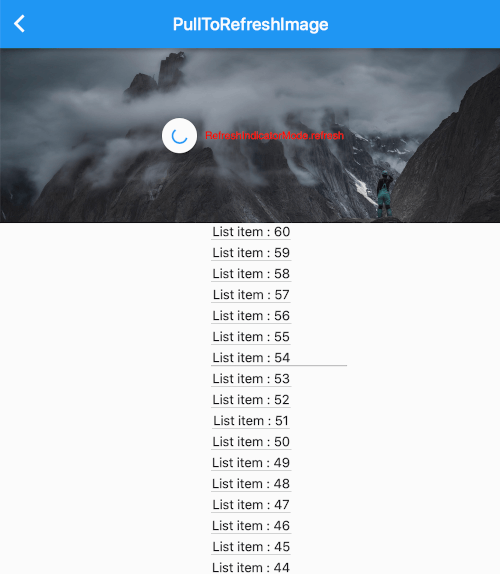
build zoom image to pull to refresh with using PullToRefreshContainer.
https://github.com/fluttercandies/Flutter_Candies/tree/master/gif/pull_to_refresh/image.gif
 Widget build(BuildContext context) {
     return PullToRefreshNotification(
       color: Colors.blue,
       pullBackOnRefresh: true,
       onRefresh: onRefresh,
       child: CustomScrollView(
         slivers: <Widget>[
           SliverAppBar(
             title: Text("PullToRefreshImage"),
           ),
           PullToRefreshContainer(buildPulltoRefreshImage),
           SliverList(
               delegate:
                   SliverChildBuilderDelegate((BuildContext context, int index) {
             return Container(
                 padding: EdgeInsets.only(bottom: 4.0),
                 child: Column(
                   children: <Widget>[
                     Text(
                       "List item : ${listlength - index}",
                       style: TextStyle(fontSize: 15.0, inherit: false),
                     ),
                     Divider(
                       color: Colors.grey,
                       height: 2.0,
                     )
                   ],
                 ));
           }, childCount: listlength)),
         ],
       ),
     );
   }

   Widget buildPulltoRefreshImage(PullToRefreshScrollNotificationInfo info) {
     var offset = info?.dragOffset ?? 0.0;
     Widget refreshWidget = Container();
     if (info?.refreshWidget != null) {
       refreshWidget = Material(
         type: MaterialType.circle,
         color: Theme.of(context).canvasColor,
         elevation: 2.0,
         child: Padding(
           padding: EdgeInsets.all(12),
           child: info.refreshWidget,
         ),
       );
     }

     return SliverToBoxAdapter(
       child: Stack(
         alignment: Alignment.center,
         children: <Widget>[
           Container(
               height: 200.0 + offset,
               width: double.infinity,
               child: Image.asset(
                 "assets/467141054.jpg",
                 //fit: offset > 0.0 ? BoxFit.cover : BoxFit.fill,
                 fit: BoxFit.cover,
               )),
           Center(
             child: Row(
               mainAxisAlignment: MainAxisAlignment.center,
               children: <Widget>[
                 refreshWidget,
                 Container(
                   padding: EdgeInsets.only(left: 5.0),
                   alignment: Alignment.center,
                   child: Text(
                     info?.mode?.toString() ?? "",
                     style: TextStyle(fontSize: 12.0, inherit: false),
                   ),
                 )
               ],
             ),
           )
         ],
       ),
     );
   }
build candies animation to pull to refresh with using PullToRefreshContainer.
https://github.com/fluttercandies/Flutter_Candies/tree/master/gif/pull_to_refresh/candies.gif
  Widget build(BuildContext context) {
    return Material(
      child: Stack(
        children: <Widget>[
          PullToRefreshNotification(
            color: Colors.blue,
            onRefresh: onRefresh,
            maxDragOffset: maxDragOffset,
            armedDragUpCancel: false,
            key: key,
            child: CustomScrollView(
              ///in case list is not full screen and remove ios Bouncing
              physics: AlwaysScrollableClampingScrollPhysics(),
              slivers: <Widget>[
                SliverAppBar(
                  title: Text("PullToRefreshCandies"),
                ),
                PullToRefreshContainer((info) {
                  var offset = info?.dragOffset ?? 0.0;
                  Widget child = Container(
                    alignment: Alignment.center,
                    height: offset,
                    width: double.infinity,
                    child: RefreshLogo(
                      mode: info?.mode,
                      offset: offset,
                    ),
                  );

                  return SliverToBoxAdapter(
                    child: child,
                  );
                }),
                SliverList(
                    delegate: SliverChildBuilderDelegate(
                        (BuildContext context, int index) {
                  return Container(
                      padding: EdgeInsets.only(bottom: 4.0),
                      child: Column(
                        children: <Widget>[
                          Text(
                            "List item : ${listlength - index}",
                            style: TextStyle(fontSize: 15.0),
                          ),
                          Divider(
                            color: Colors.grey,
                            height: 2.0,
                          )
                        ],
                      ));
                }, childCount: listlength)),
              ],
            ),
          ),
          Positioned(
            right: 20.0,
            bottom: 20.0,
            child: FloatingActionButton(
              child: Icon(Icons.refresh),
              onPressed: () {
                key.currentState.show(notificationDragOffset: maxDragOffset);
              },
            ),
          )
        ],
      ),
    );
  }
Show how to use pull to refresh notification for reverse list like chat list.
        PullToRefreshNotification(
          onRefresh: onRefresh,
          maxDragOffset: 48,
          armedDragUpCancel: false,
          reverse: true,
          child: Column(
            children: <Widget>[
              PullToRefreshContainer(
                  (PullToRefreshScrollNotificationInfo info) {
                final double offset = info?.dragOffset ?? 0.0;

                //loading history data
                return Container(
                  height: offset,
                  child: const RefreshProgressIndicator(
                    valueColor: AlwaysStoppedAnimation<Color>(Colors.blue),
                    strokeWidth: 2.0,
                  ),
                );
              }),
              Expanded(
                child: ExtendedListView.builder(
                  ///in case list is not full screen and remove ios Bouncing
                  physics: const AlwaysScrollableClampingScrollPhysics(),
                  reverse: true,
                  extendedListDelegate:
                      const ExtendedListDelegate(closeToTrailing: true),
                  itemBuilder: (BuildContext context, int index) {
                    List<Widget> children = <Widget>[
                      Text('$index. ${chats[index]}'),
                      Image.asset(
                        'assets/avatar.jpg',
                        width: 30,
                        height: 30,
                      ),
                    ];
                    if (index % 2 == 0) {
                      children = children.reversed.toList();
                    }
                    return Row(
                      mainAxisAlignment: index % 2 == 0
                          ? MainAxisAlignment.start
                          : MainAxisAlignment.end,
                      children: children,
                    );
                  },
                  itemCount: chats.length,
                ),
              )
            ],
          ),
        ),
  final GlobalKey<PullToRefreshNotificationState> key =
      new GlobalKey<PullToRefreshNotificationState>();

        PullToRefreshNotification(
          key: key,
if you define pull Container hegith with dragOffset, you need set notificationDragOffset when refresh.
key.currentState.show(notificationDragOffset: maxDragOffset);