

 v0.0.1
animated_radial_menu
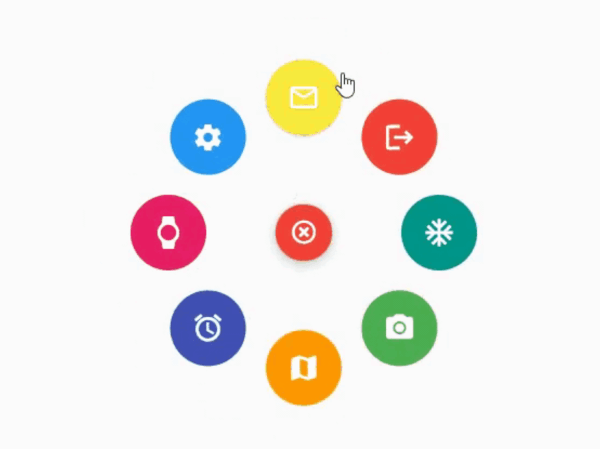
कोई भी बॉयलरप्लेट कोड के बिना बहुत अनुकूलित जटिल रेडियल एनीमेशन।
34लाइक 8130-दिन डाउनलोड130Pub अंक
AndroidiOSWebmacOSWindowsLinux
कोई भी बॉयलरप्लेट कोड के बिना बहुत अनुकूलित जटिल रेडियल एनीमेशन।

यह अंग्रेज़ी मूल स्नैपशॉट है। नवीनतम सामग्री GitHub पर देखें।
The package provides an easy way to work with radial menu along with animations.

You can check out the example here
To use this package : add the dependency to your pubspec.yaml file
   dependencies:
     flutter:
       sdk: flutter
     animated_radial_menu:
Import it to your project file
import 'package:animated_radial_menu/animated_radial_menu.dart';
Similar to column or row widget, simply pass in buttons as children and you are done
  RadialMenu(
     children: [
         RadialButton(
           icon: Icon(Icons.ac_unit),
           onPress: () => print("ac unit"),
         )
     ]
 ),
Eventhough you can use this widget anywhere, it's recommended to use RadialMenu with Stack Widget if your page contains tons of UI elements
     body: Stack(
          children: [
            RadialMenu(
              children: [
                RadialButton(
                  icon: Icon(Icons.ac_unit),
                  buttonColor: Colors.teal,
                  onPress: () => Get.to(TargetScreen())),
                RadialButton(
                    icon: Icon(Icons.camera_alt),
                    buttonColor: Colors.green,
                    onPress: () => Get.to(TargetScreen())),
                RadialButton(
                    icon: Icon(Icons.map),
                    buttonColor: Colors.orange,
                    onPress: () => Get.to(TargetScreen())),

                /* you can add any number of buttons, although it's
                  not recommended to insert beyond 8-9 buttons. */
              ],
            ),

            // rest of the widgets....

          ],
        ),
You can manually position the widget wherever you wish
   RadialMenu(
    centerButtonAlignment: Alignment(0.3,0.5) // by default alignment is set to Alignment.center
   )
You can also customize the main centered button(more customizations will be made available soon)
   RadialMenu(
        centerButtonSize: 0.5, // size ranging from 0.0 to 1.0
   )
निर्भरता सूची 4 आइटम
{"sdk":"flutter"}^9.1.0^2.1.0{"sdk":"flutter"}उपयोग के अनुसार छाँटें, गतिविधि की तुलना करें और अपनाने से पहले मूल प्रोजेक्ट की आवश्यकताएँ जाँचें।
“A repository is the most basic element of GitHub.”
GitHub Docs — About repositories ↗