
 v1.2.5
sketch_flow
강력하고 유연한 Flutter 스케치 플러그인입니다. 우아한 UI와 포괄적인 내보내기 기능을 갖춘 그림 애플리케이션을 쉽게 구축할 수 있습니다.
13좋아요 4030일 다운로드150Pub 점수
AndroidiOSWebmacOSWindowsLinux
강력하고 유연한 Flutter 스케치 플러그인

{"sdk":"flutter"}{"sdk":"flutter"}^5.0.0아래는 영문 원문 스냅샷입니다. 최신 내용은 GitHub에서 확인하세요.
https://github.com/user-attachments/assets/0b9a60b3-9bc4-4ea4-b917-a4cd25d12c9b
English / 한국어
A powerful and flexible Flutter sketching plugin
Easily build drawing applications with elegant UI and comprehensive export features.
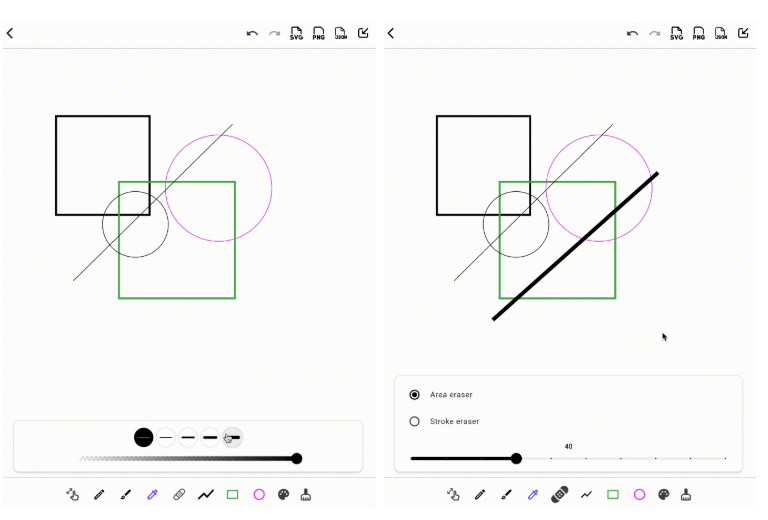
SketchController. Manage tools, undo/redo, and export effortlessly.PNG: For high-resolution image renderingSVG: For scalable vector graphicsJSON: For precise stroke data and replaying pathsTest it live!: Try it
View example code: main.dart
Check out an example project using sketch_flow: sketch_flow_example
https://github.com/user-attachments/assets/92eff9fe-c1f0-435a-970a-b0bf78f24b34 https://github.com/user-attachments/assets/22cbdbbd-86e8-47a7-9880-2d48bbdb0e0f https://github.com/user-attachments/assets/d455aa41-d42c-456f-9011-fdc03e279aa7 https://github.com/user-attachments/assets/81e68979-80dc-4b7e-88b2-12fe60c66435
| Components | Description |
|---|---|
SketchController |
(Required) Key controller that manages drawing status and can be extracted in various formats such as JSON/SVG/PNG |
SketchBoard |
(Required) Main canvas widget to handle user input (draw/er, etc.) |
SketchTopBar / SketchBottomBar |
(Optional) Preferred UI components |
https://github.com/user-attachments/assets/248da299-3e7b-4585-b7f0-f534daa731e4
sketch_flowpubspec.yaml: Check latest versiondependencies:
sketch_flow: ^latest_version
SketchController and SketchBoardfinal SketchController _controller = SketchController();
final GlobalKey _repaintKey = GlobalKey();
SketchBoard:SketchBoard(
controller: _controller,
repaintKey: _repaintKey,
)
SketchTopBar and SketchBottomBarScaffold(
appBar: SketchTopBar(controller: _controller),
body: SketchBoard(controller: _controller),
bottomNavigationBar: SketchBottomBar(controller: _sketchController),
)
💡 Of course, you can freely configure the UI.
If you connect the Sketch Controller properly, you can design the UI any way you want without the top and bottom bars.
final json = _controller.toJson(); // Serialization

_controller.fromJson(json: json); // Deserialization
SketchController.pixelRatio parameter:final Uint8List? image = await _controller.extractPNG(
repaintKey: _repaintKey,
pixelRatio: 2.0, // Customize resolution
);
SketchController.final String svgCode = await _controller.extractSVG(
width: 300.0, // Define canvas width
height: 400.0, // Define canvas height
);
| Tool Type | Description |
|---|---|
| Move | Enables panning and zooming of the canvas without affecting the drawings. |
| Pencil | Draws a continuous line based on user input. Configurable stroke thickness, color, and opacity. |
| Brush | Simulates a brush-like stroke with smooth edges. Supports color and thickness customization. |
| Highlighter | Draws semi-transparent strokes resembling a highlighter. Comes with predefined low opacity and medium thickness to simulate real highlighter effects. |
| Palette | Allows users to select colors for drawing tools. |
| Eraser | Erases drawings either by stroke or by area. |
| Line | Draws a straight line between the first and last touch point. Line color and thickness are customizable. |
| Rectangle | Draws a rectangle defined by the first and last touch points. |
| Circle | Draws a circle or ellipse bounded by the first and last touch points. |