
 v1.0.0
gauges
사용자 정의 가능한 게이지(현재는 반경형 게이지만)를 위한 라이브러리입니다.
41좋아요 35430일 다운로드70Pub 점수
플랫폼 정보 없음
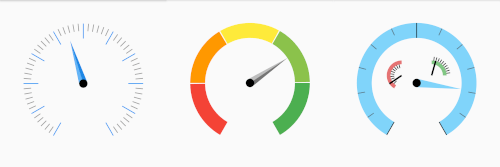
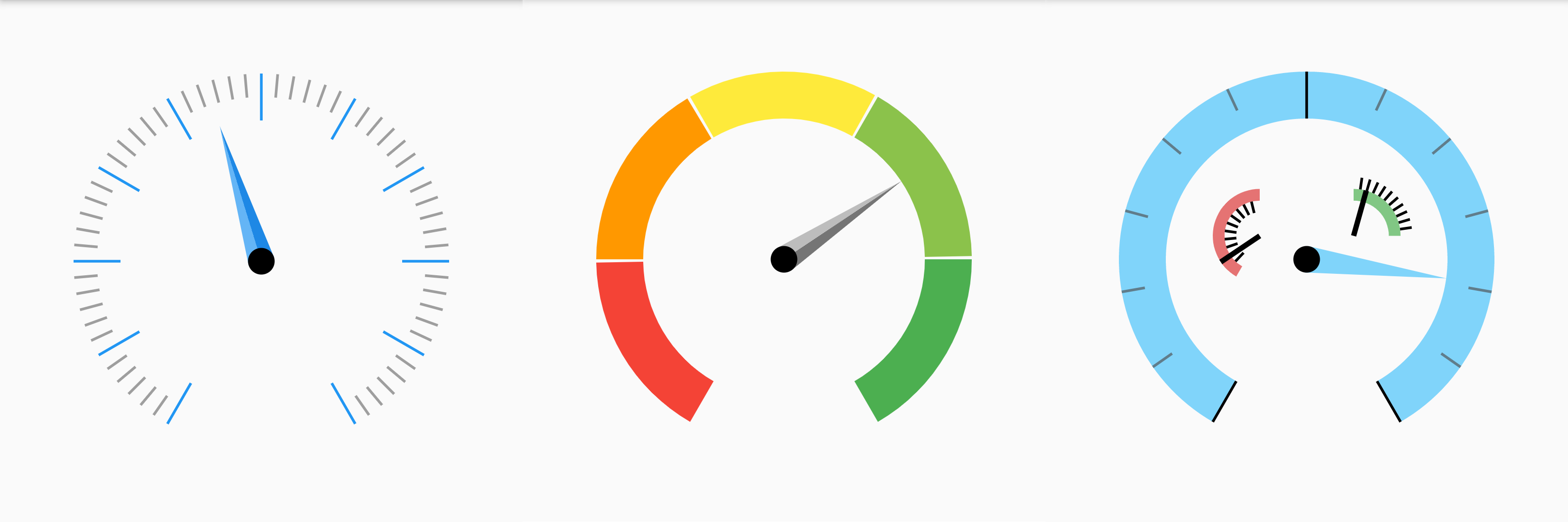
Flutter용 완전히 사용자 정의 가능한 게이지 위젯 라이브러리
아래는 영문 원문 스냅샷입니다. 최신 내용은 GitHub에서 확인하세요.

Note: This project serves as a training exercise for myself in order to better understand the inner workings of Flutter and learn how to write custom Widgets, Elements and RenderObjects from scratch. As a result, the API might change heavily and I may not know about best practices or optimal solutions for many problems. So if you have any suggestions of improvement, please feel free to open an issue.
To use this plugin, add [flutter_gauges] as a dependency in your pubspec.yaml file.
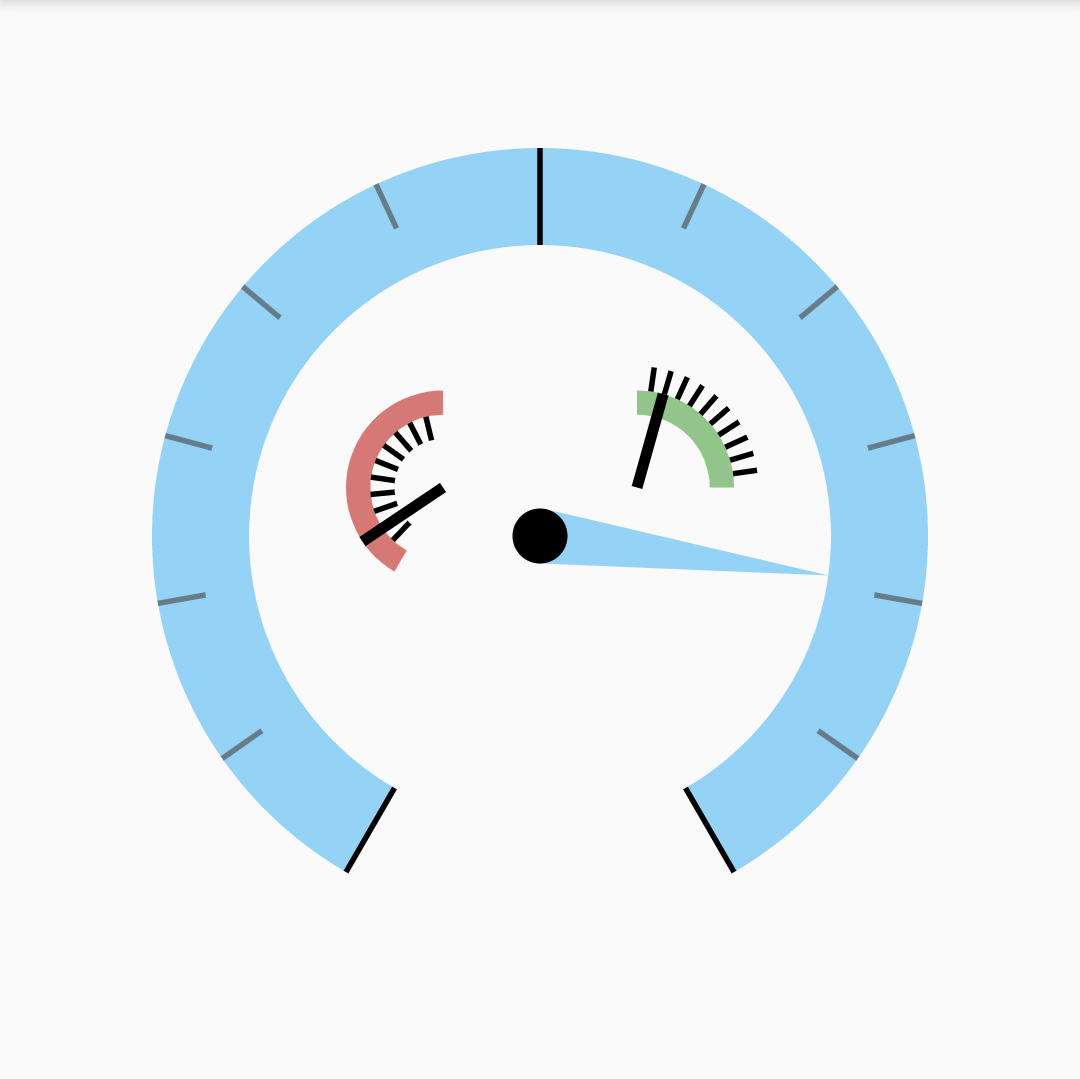
The basic widget for radial gauges is the RadialGauge. Multiple axes can be added. E. g. this is a gauge with three axes:
This is the basic structure of a RadialGauge. See the following sections for more info on each of them.
RadialGauge(
  axes: [
    RadialGaugeAxis(
        segments: [
            RadialGaugeSegment(),
            RadialGaugeSegment(),
            // ...
        ],
        pointers: [
            RadialNeedlePointer(),
            RadialNeedlePointer(),
            // ...
        ],
        ticks: [
            RadialTicks(
                children: [
                    RadialTick(),
                    RadialTick(),
                ],
            ),
            RadialTick(),
            // ...
    ),
    RadialGaugeAxis(
    ),
  ],
)
An axes has a few important properties:
min: The minimum value of this axismax: The maximum value of this axisminAngle: The angle in degrees min is mapped tomaxAngle: The angle in degrees max is mapped toradius: The radius of the axes as a fraction of the RadialGauge's sizewidth: The width of the axes as a fraction of the RadialGauge's sizeoffset: The offset of the axes in respect to the middle of the RadialGaugecolor: The color of the axes (gradients are also available, see examples)For more, take a look at the examples.
RadialGauge(
  axes: [
    RadialGaugeAxis(
      minValue: -100,
      maxValue: 100,
      minAngle: -150,
      maxAngle: 150,
      radius: 0.6,
      width: 0.2,
    ),
  ],
)
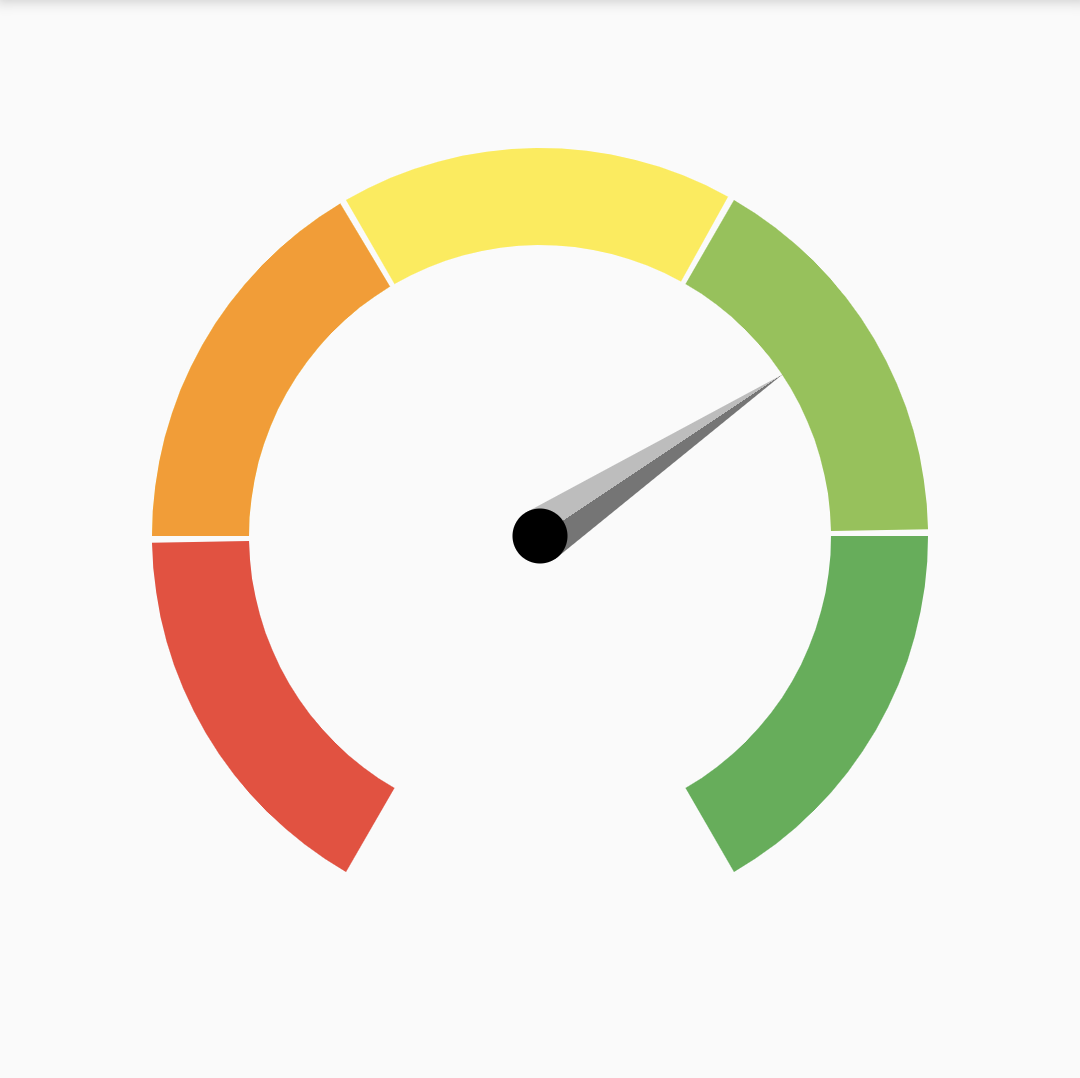
Each axes can consist of multiple segments (it is, in fact, a segment itself). Each of the segments has a properties similiar to the RadialGaugeAxis. The segments are listed in the segments property of an axes:
RadialGauge(
  axes: [
    RadialGaugeAxis(
      color: Colors.transparent,
      // ...
      segments: [
        RadialGaugeSegment(
          minValue: 0,
          maxValue: 20,
          minAngle: -150,
          maxAngle: -130,
          color: Colors.red,
        ),
        RadialGaugeSegment(
          minValue: 20,
          maxValue: 40,
          minAngle: -120,
          maxAngle: -90,
          color: Colors.orange,
        ),
          // ...
      ],
    ),
  ],
)
Each axes can have multiple ticks of type RadialTick. They are listed in the ticks property.
There are multiple possibilities to create ticks.
interval.ticksInBetween to the desired number of ticks in between the parent ticks or the axes limits.values to the desired values you want the ticks to appear at.valuesBuilder and/or anglesBuilder to a custom function calculating the values and/or angles at which the ticks should be displayed.Every RadialTick can have RadialTicks as children, which is especially useful when setting the ticksInBetween on a children tick.
RadialGaugeAxis(
  // ...
  color: Colors.transparent,
  ticks: [
    RadialTicks(
        interval: 20,
        alignment: RadialTickAxisAlignment.inside,
        color: Colors.blue,
        length: 0.2,
        children: [
          RadialTicks(
              ticksInBetween: 5,
              length: 0.1,
              color: Colors.grey[500]),
        ])
  ],
)
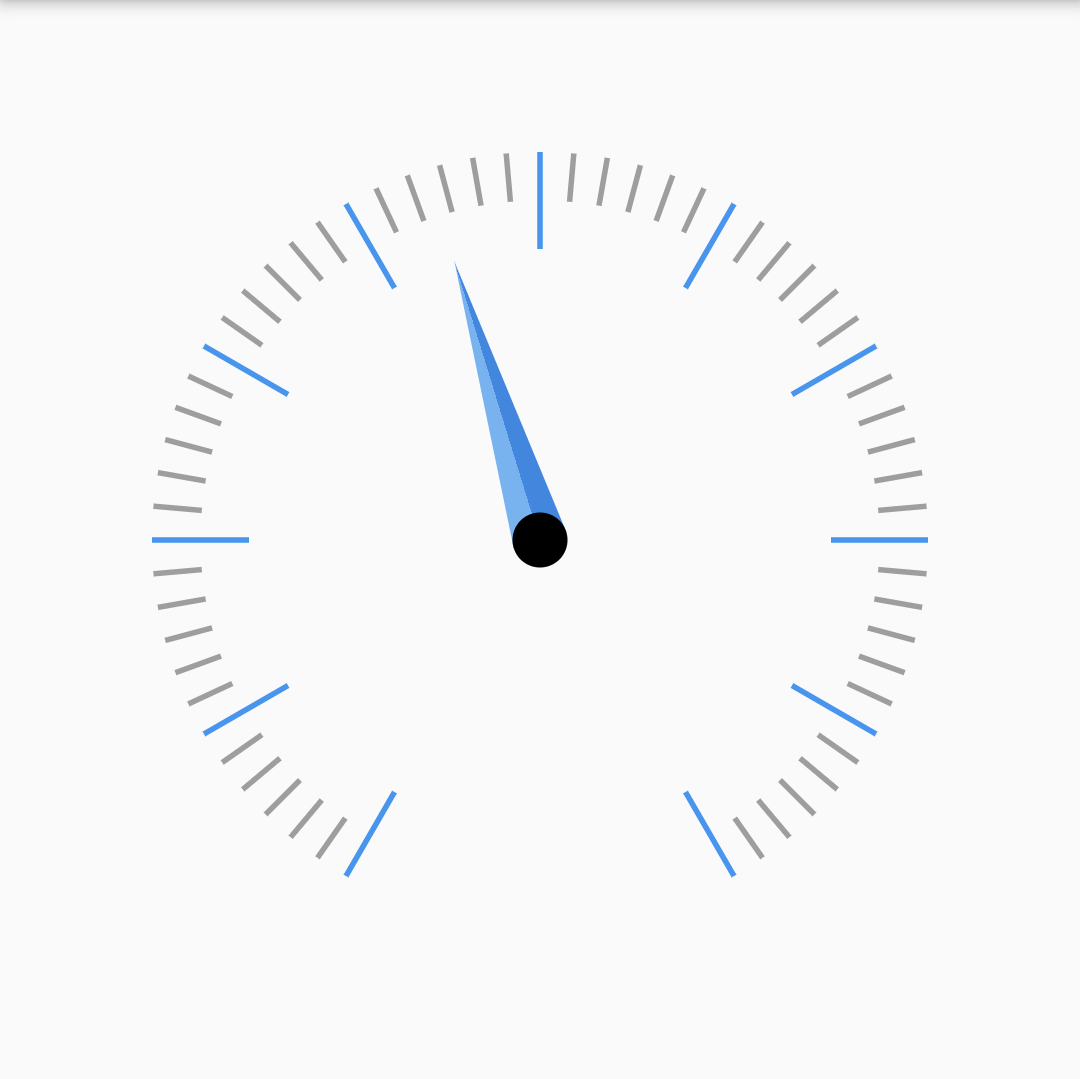
Each axis can have multiple pointers. Currently, there is only one type of pointer available, the RadialNeedlePointer with the following properties:
value: The value the pointer is pointing toticknessStart: The thickness of the pointer at the start of the pointer (in the middle of the axis)ticknessEnd: The thickness of the pointer at the end of the pointerlength: The length of the pointer in fractions of the axis.knobRadiusAboslute: The radius of the pointer's knob in absolute pixels.color/gradient: The color/gradient filling the pointer.The following code results in the knob shown above. For more, take a look at the examples.
RadialGaugeAxis(
    pointers: [
        RadialNeedlePointer(
            value: _pointerValue,
            thicknessStart: 20,
            thicknessEnd: 0,
            length: 0.6,
            knobRadiusAbsolute: 10,
            gradient: LinearGradient(...),
        )
    ],
)
Not available yet

의존성 목록 2 개
{"sdk":"flutter"}{"sdk":"flutter"}사용 목적에 따라 검색하고 개발 활동을 비교한 뒤 원본 저장소에서 요구 사항을 확인하세요.
“A repository is the most basic element of GitHub.”
GitHub Docs — About repositories ↗