
키보드 회피
화면의 소프트웨어 키보드를 피하기 위한 Scaffold 위젯의 가벼운 대안입니다. 포커스 시 가려진 TextField 자식 위젯을 자동으로 보기 좋게 스크롤합니다.

- 스타
- 124
- 포크
- 41
- 최근 푸시(UTC)
- 2024. 5. 15.
- 프로젝트 상태
- 활성
원본 README
아래는 영문 원문 스냅샷입니다. 최신 내용은 GitHub에서 확인하세요.
keyboard_avoider
A lightweight alternative to the Scaffold widget for avoiding the on-screen software keyboard. Automatically scrolls obscured TextField child widgets into view on focus.
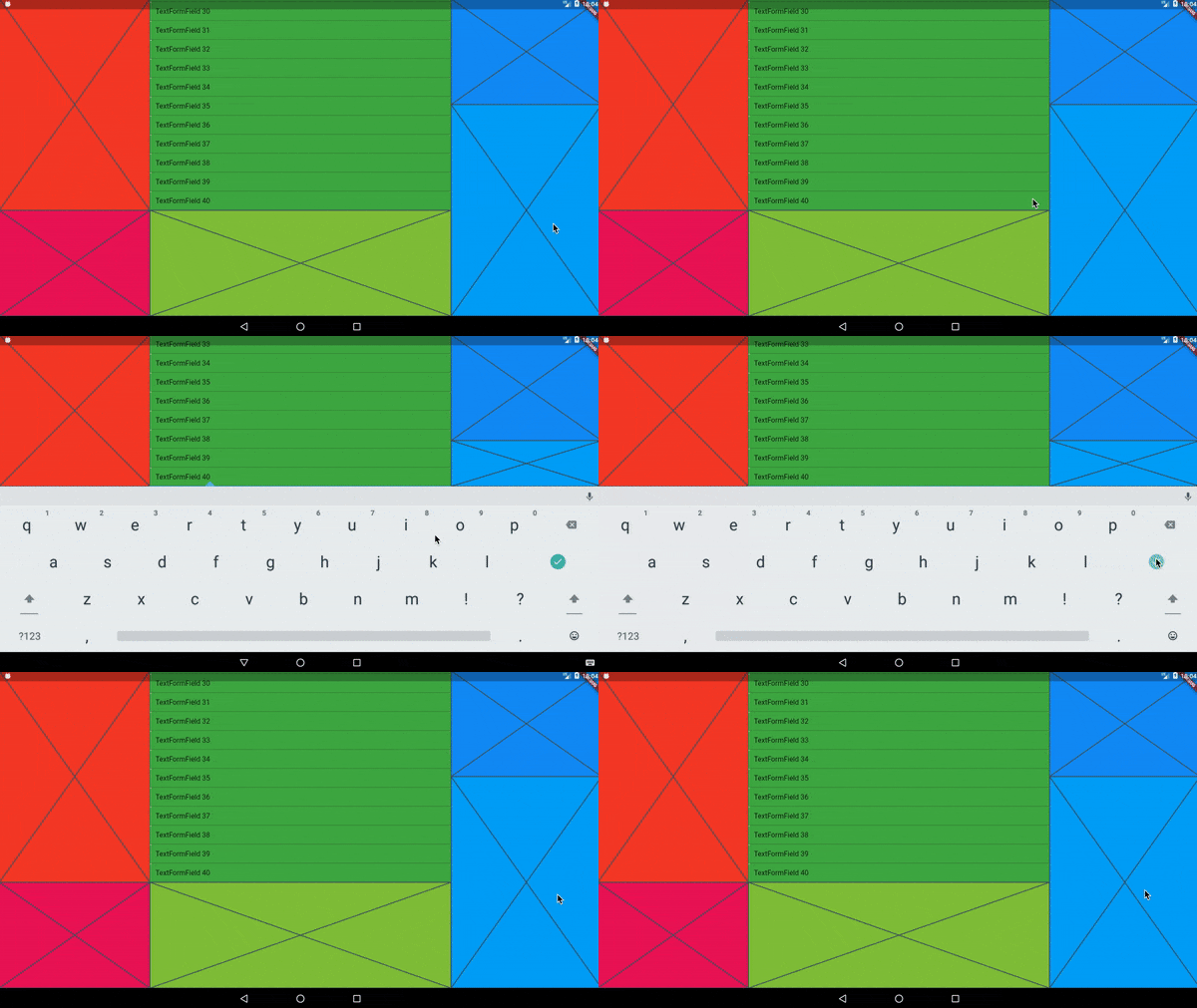
In the video above, every colored area is wrapped in its own KeyboardAvoider.
Examples
A basic Placeholder:
import 'package:keyboard_avoider/keyboard_avoider.dart';

class MyWidget extends StatelessWidget {
  @override
  Widget build(BuildContext context) {
    return KeyboardAvoider(
      child: Placeholder(),
    );
  }
}
A ListView containing multiple TextFields, with auto-scroll enabled:
import 'package:keyboard_avoider/keyboard_avoider.dart';

class MyWidget extends StatelessWidget {
  final ScrollController _scrollController = ScrollController();

  @override
  Widget build(BuildContext context) {
    return KeyboardAvoider(
      autoScroll: true,
      child: ListView.builder(
        controller: _scrollController,
        itemCount: 40,
        itemBuilder: (context, index) {
          return TextFormField(
            initialValue: 'TextFormField ${index + 1}',
          );
        },
      ),
    );
  }
}
Why not use a Scaffold?
Flutter comes with a built-in Scaffold widget that automatically adjusts the bottom padding of its body widget to accomodate the on-screen keyboard. However, it comes with 2 major caveats:
- It pushes all content up, which you may not want.
- It assumes that it fills the whole screen, which it may not.
In contrast, you can apply the KeyboardAvoider selectively to only certain widgets, and it only insets its bottom padding by the actual amount obscured by the keyboard.
Auto Scroll
To auto-scroll to a focused widget such as a TextField, set the autoScroll property to true. If child is not a ScrollView, it is automatically embedded in a SingleChildScrollView to make it scrollable.

Martin Rybak ↗
사용 중인 의존성
의존성 목록 3 개
- flutter
{"sdk":"flutter"} - flutter_test개발 의존성
{"sdk":"flutter"} - flutter_lints개발 의존성
^4.0.0
프로젝트에 맞는 저장소를 선택하려면?
사용 목적에 따라 검색하고 개발 활동을 비교한 뒤 원본 저장소에서 요구 사항을 확인하세요.
- 이름, 작성자 또는 설명으로 검색하고 기술 주제로 범위를 좁힙니다.
- 스타, 포크, 최근 푸시를 함께 비교하세요. 스타는 관심의 지표이며 품질을 보장하지 않습니다.
- 사용하기 전에 GitHub에서 README, 라이선스, Issues를 확인하세요.
출처 및 관리
“A repository is the most basic element of GitHub.”
GitHub Docs — About repositories ↗