
ez_animation
Animações Fáceis - Sem Controladores, Sem Tickes, Apenas as partes necessárias.

- Estrelas
- 69
- Forks
- 6
- Último push (UTC)
- 4 de nov. de 2021
- Status do projeto
- Ativo
README original
Texto original em inglês. Visite o GitHub para a versão atual.
ezanimation
Easy Animations - No Controllers, No Tickers, Only the necessary parts.
Easily add Curves and ReverseCurves
Introduction
Normal animations involve a fair amount of complexity: AnimationControllers, Tweens, Animation, Tickers are not familiar concepts to many. Not just to beginners - when creating an explicit animation, even advanced users experience hardships dealing with the many components involved.
Announcing EzAnimation: A set of tools to make animations easier
With EzAnimation, there is no need to burden your code with TickerProviders, the complicated logic of curves, different components of animation, etc.
Here is a simple example to create an animation with an expanding box:
-
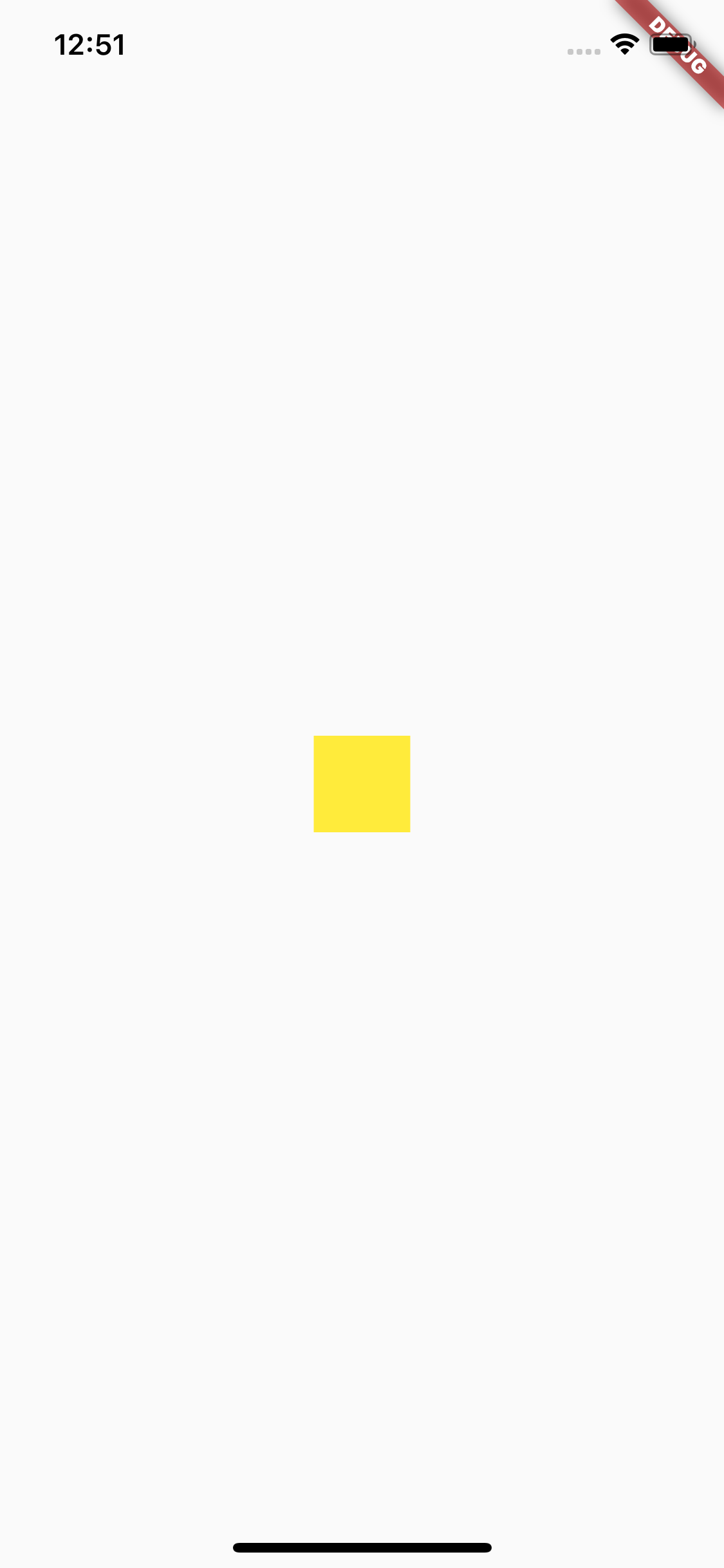
First, we define a Container with a starting size of 50.0
return Scaffold(
  body: Center(
    child: Container(
      color: Colors.yellow,
      height: 50.0,
      width: 50.0,
    ),
  ),
);
-
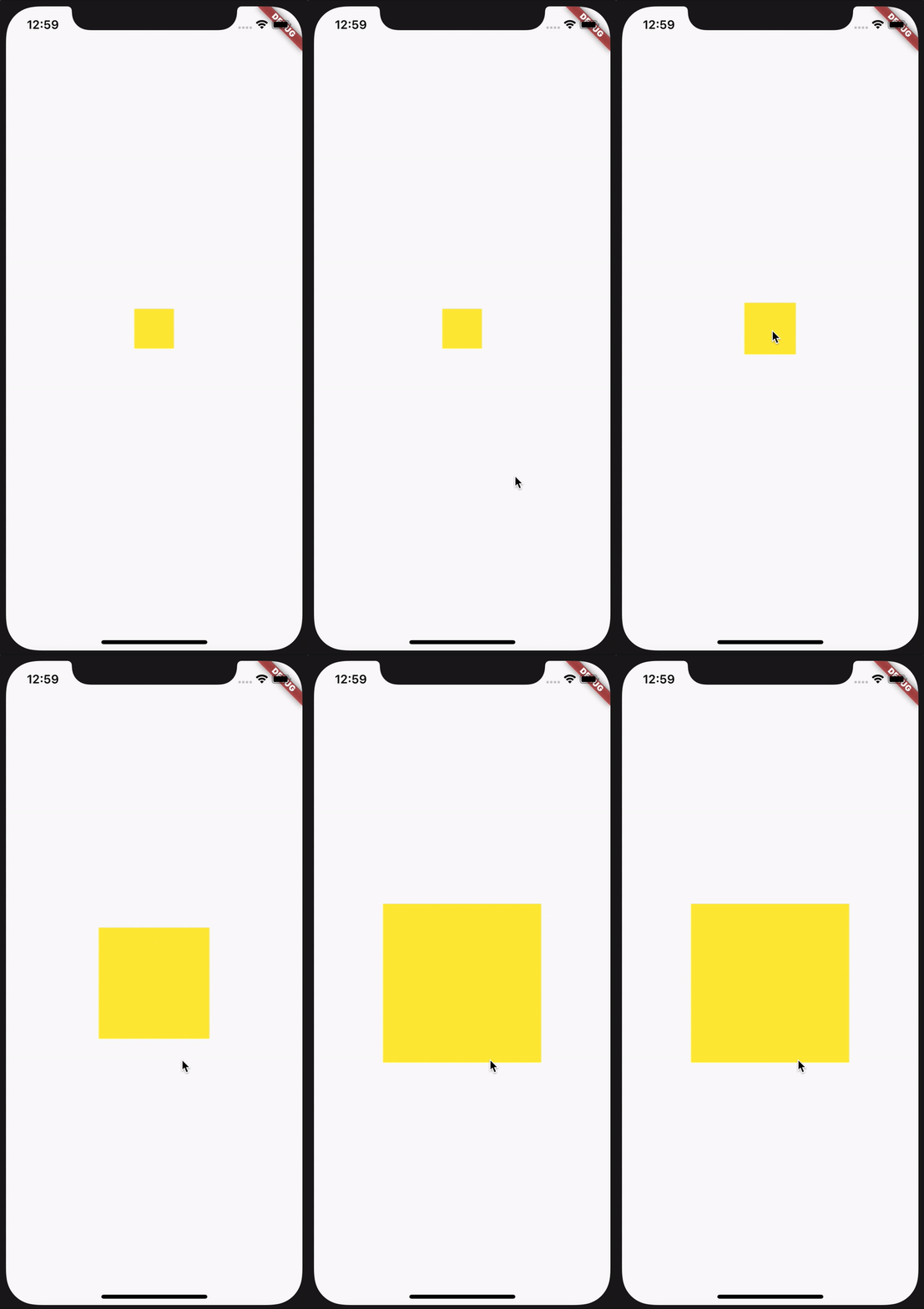
Next, we define an animation to increase size
EzAnimation ezAnimation = EzAnimation(50.0, 200.0, Duration(seconds: 2)); -
Then, we simply plugin in values and start the animation when we need to - in this case we will do it when the box is tapped
return Scaffold(
  body: Center(
    child: InkWell(
      onTap: () {
        ezAnimation.start();
      },
      child: AnimatedBuilder(
        animation: ezAnimation,
        builder: (context, snapshot) {
          return Container(
            color: Colors.yellow,
            height: ezAnimation.value,
            width: ezAnimation.value,
          );
        }
      ),
    ),
  ),
);
-
And that's it!
TO USE:
DEFINE EzAnimation
(RECOMMENDED METHOD 1) Passing context:
EzAnimation animation = EzAnimation(10.0, 100.0, Duration(seconds: 1), context: context);

// This animation needs to be manually restarted when another page is pushed and then Navigator comes back
// The onNavigate param helps define the behaviour when another page is pushed
(RECOMMENDED METHOD 2) Passing vsync:
EzAnimation animation = EzAnimation(10.0, 100.0, Duration(seconds: 1), context: context);

// Here the state class needs to add SingleTickerProviderMixin or TickerProviderMixin
// onNavigate does not work in this case as the page ticker defines the state of the animation
A SIMPLE METHOD (LESS PERFORMANT): No context or vsync
EzAnimation animation = EzAnimation(10.0, 100.0, Duration(seconds: 1));

// Note that this animation needs to be manually stopped if you intend to push another page as it will go to completion without it.
(Notice that you can define this outside of initState, unlike normal animation controllers)
START ANIMATION
animation.start();

// OR

animation.start(from: 0.2);
END ANIMATION
animation.stop();
REPEAT ANIMATION
animation.repeat();
RESET ANIMATION
animation.reset();
REVERSE ANIMATION
animation.reverse();

// OR

animation.reverse(from: 0.5);
DEFINE WHAT HAPPENS WHEN NAVIGATOR PUSHES ANOTHER PAGE ON TOP
EzAnimation animation = EzAnimation(10.0, 100.0, Duration(seconds: 1), context: context, onNavigate: OnNavigate.pauseAnimation);
An animation can either reset or pause when the navigator pushes another page on top. Use the onNavigate page to achieve this.
NOTE: A PAUSED ANIMATION NEEDS TO BE MANUALLY RESTARTED AFTER COMING BACK TO THE MAIN PAGE
onPressed: () async {
    await Navigator.of(context).push(MaterialPageRoute(builder: (context) => DemoPage()));
    animation.start();
}

resetAnimation -> Resets animation to the start
pauseAnimation -> Pauses animation at that instant (You need to manually restart this when it comes back)
letItRun -> Animation will go to completion unless animation.stop() is called.
takeToEnd -> Takes animation to final value instantly
REBUILD UI
You can use normal listeners and rebuild UI with AnimatedBuilder as usual.
animation.addListener(() {
  setState(() {});
});

//OR

AnimatedBuilder(
    animation: animation,
    builder: (context, snapshot) {
      return Center(
        child: Container(
          width: animation.value,
          height: animation.value,
          color: Colors.blue,
        ),
      );
    }
  ),
ADD CURVES EASILY
var animation = EzAnimation(10.0, 100.0, Duration(seconds: 1), curve: Curves.bounceInOut, reverseCurve: Curves.linear);
LISTEN TO STATUS
animation.addStatusListener((status) {
  if (status == AnimationStatus.completed) {
    animation.reverse();
  }
});
USE ANIMATION SEQUENCES
You can have multiple animations running in series with weights with EzAnimation.sequence()
EzAnimation ezAnimation = EzAnimation.sequence([
  SequenceItem(0.0, 100.0, weight: 2),
  SequenceItem(100.0, 50.0),
  SequenceItem(50.0, 100.0),
], Duration(seconds: 2), context: context);

ezAnimation.start();
USE SPECIALIZED TWEENS
Use the EzAnimation.tween() to pass in other Tween types such as ColorTween
EzAnimation ezAnimation = EzAnimation.tween(ColorTween(begin: Colors.red, end: Colors.blue), Duration(seconds: 2), context: context);

ezAnimation.start();
Similarly, the EzAnimation.tweenSequence allows you to create a sequence with ColorTweens and other tweens
EzAnimation ezAnimation = EzAnimation.tweenSequence(TweenSequence([
    TweenSequenceItem(tween: ColorTween(begin: Colors.red, end: Colors.blue), weight: 1.0),
    TweenSequenceItem(tween: ColorTween(begin: Colors.red, end: Colors.blue), weight: 2.0),
]), Duration(seconds: 2), context: context);

Deven Joshi ↗
Dependências usadas
Lista de dependências 2 itens
- flutter
{"sdk":"flutter"} - flutter_testDesenvolvimento
{"sdk":"flutter"}
Como escolher um repositório para seu projeto?
Filtre pelo caso de uso, compare a atividade e confira o projeto original antes de adotá-lo.
- Busque por nome, autor ou descrição e filtre por tema.
- Compare estrelas, forks e envios recentes. Estrelas indicam interesse, mas não garantem qualidade.
- Confira o README, a licença e as issues no GitHub antes de usar o projeto.
Fontes e manutenção
“A repository is the most basic element of GitHub.”
GitHub Docs — About repositories ↗
- d3xvn/ez_animation · GitHub ↗
- GitHub Docs — Saving repositories with stars ↗
- Diretório mantido por Ducafecat ↗