
 v1.1.11
line_chart
Um pacote simples do Flutter para criar um gráfico de linha personalizado
28Curtidas 102Downloads em 30 dias140Pontos Pub
AndroidiOSWebmacOSWindowsLinux
Um pacote simples do Flutter para criar um gráfico de linha personalizado

^1.0.6{"sdk":"flutter"}{"sdk":"flutter"}Texto original em inglês. Visite o GitHub para a versão atual.
A simple flutter package to create a custom line chart
LineChart
Add line_chart: ^1.0.9 in your pubspec.yaml dependencies. And import it:
import 'package:line_chart/charts/line-chart.widget.dart';
Simply create a LineChart widget and pass the required params:
LineChart(
  width: 300, // Width size of chart
  height: 180, // Height size of chart
  data: [], // The value to the chart
  linePaint: Paint()
      ..strokeWidth = 3
      ..style = PaintingStyle.stroke
      ..color = Colors.black, // Custom paint for the line
),
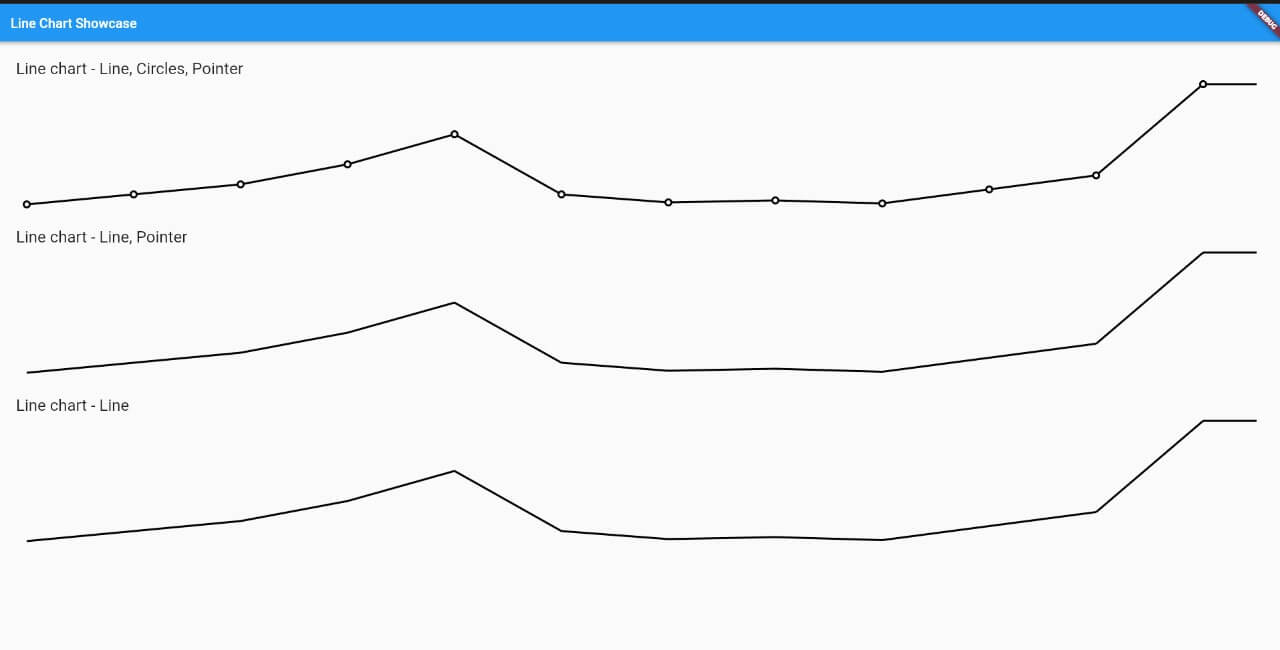
Here is the widget with all options for use.
LineChart(
  width: 300, // Width size of chart
  height: 180, // Height size of chart
  data: [], // The value to the chart
  linePaint: Paint()
      ..strokeWidth = 3
      ..style = PaintingStyle.stroke
      ..color = Colors.black, // Custom paint for the line
  circlePaint: Paint()..color = Colors.black, // Custom paint for the line
  showPointer: true, // When press or pan update the chart, create a pointer in approximated value (The default is true)
  showCircles: true, // Show the circle in every value of chart
  customDraw: (Canvas canvas, Size size) {}, // You can draw anything in your chart, this callback is called when is generating the chart
  circleRadiusValue: 6, // The radius value of circle
  linePointerDecoration: BoxDecoration(
    color: Colors.black,
  ) // Your line pointer decoration,
  pointerDecoration: BoxDecoration(
    shape: BoxShape.circle,
    color: Colors.black,
  ) // Your decoration of circle pointer,
  insideCirclePaint: Paint()..color = Colors.white // On your circle of the chart, have a second circle, which is inside and a slightly smaller size.
  onValuePointer: (MonthChartModel value) {
    print('onValuePointer');
  } // This callback is called when change the pointer,
  onDropPointer: () {
    print('onDropPointer');
  }, // This callback is called when it is on the pointer and removes your finger from the screen
),
For a more detail example please take a look at the example folder.
If something is missing, feel free to open a ticket or contribute!