

 v3.1.0
multi_screen_layout
一組小部件,可輕鬆建立多螢幕使用者體驗
26喜歡 43近 30 天下載140Pub 分數
Android
一組 Flutter 小部件,讓建立多螢幕使用者體驗變得輕鬆

以下為英文專案原文快照,最新內容請造訪 GitHub。

A collection of Widgets that make multi screen user experiences easy to build
If you know of other devices that could support multi screen layouts, please submit a PR and add them to this list.
In your pubspec.yaml
dependencies:
  multi_screen_layout: ^3.1.0
In your app build.gradle
dependencies {
    implementation "androidx.window:window:1.0.0-rc01"
    implementation 'androidx.window:window-java:1.0.0-rc01'
}
For testing without access to these physical devices you can use some specific emulators.
Displays two Widgets, one per screen.
On a Microsoft dual screen device when the app is being spanned across two screens, TwoPageLayout displays both widgets, one per screen. This is designed to help you build Two Page, Dual View, and Companion Pane dual screen app patterns from Microsoft.
On a folding screen device when the display could be utilized to split content areas, TwoPageLayout displays both widgets, one per content area. This is designed to help you build Flex Mode user experiences. You can read more about how when to split content is decided in the AndroidX WindowManager documentation.
On a single screen device, or when the app is only running on a single screen, only child will be displayed.
class MyApp extends StatelessWidget {
  @override
  Widget build(BuildContext context) {
    return TwoPageLayout(
      child: Scaffold(body: Center(child: Text('Hello from page 1!'))),
      secondChild: Scaffold(body: Center(child: Text('Hello from page 2!'))),
    );
  }
}
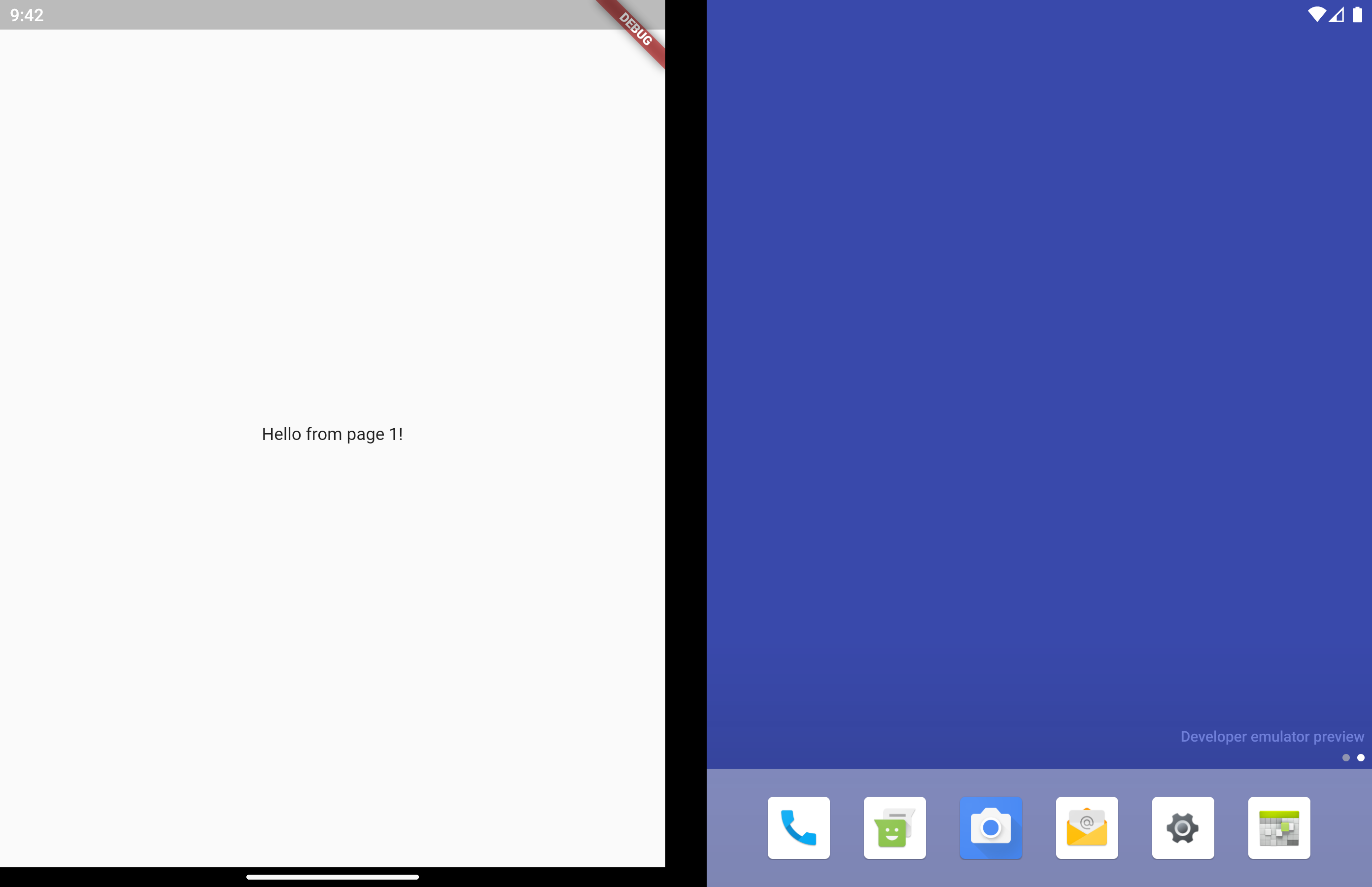
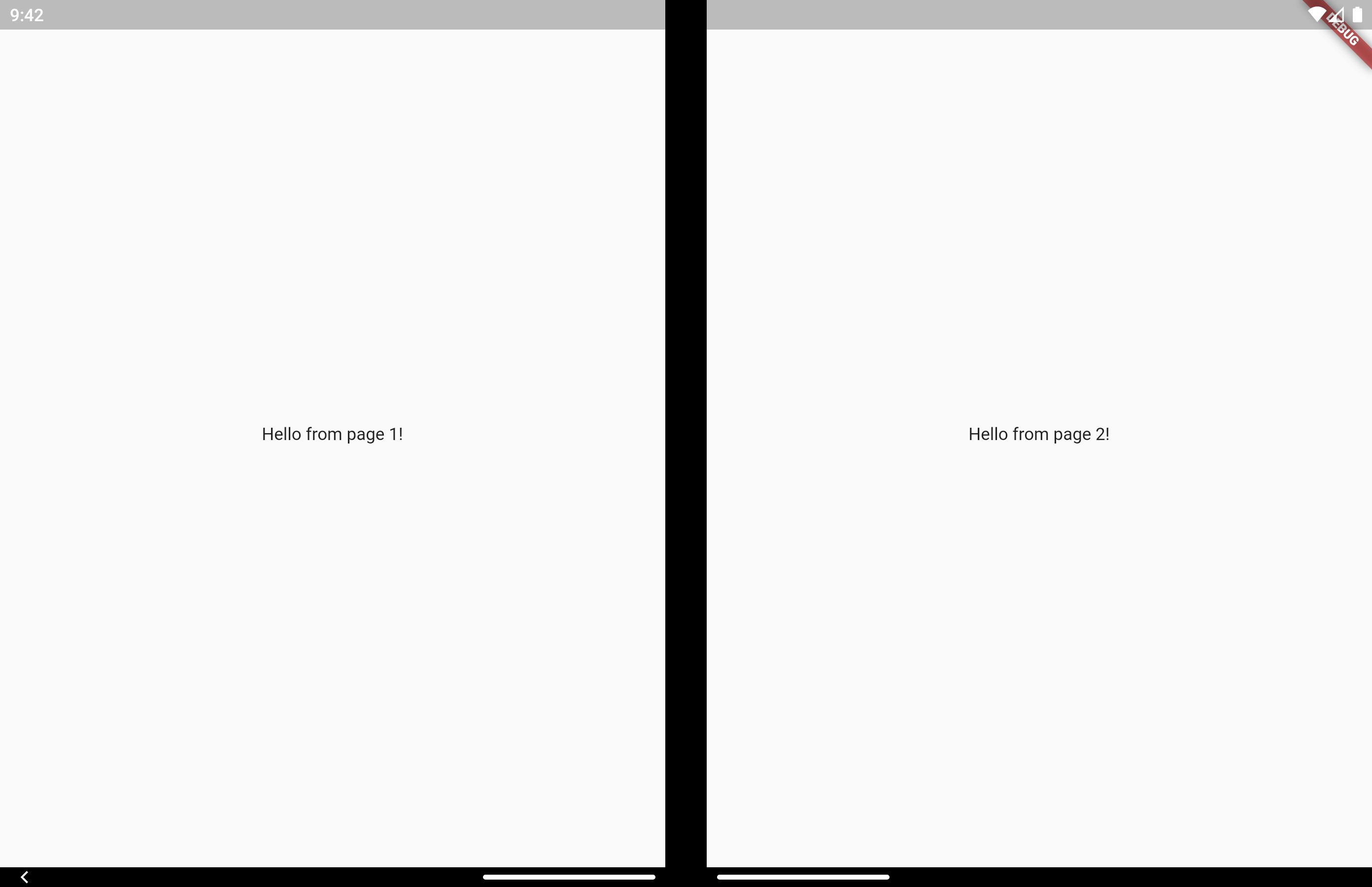
Very similar to TwoPageLayout. This layout has better support for having related, "deeper", content in the second page that would usually be accessed by navigating to a new page.
It's common to use this type of layout when you have a list of items that when tapped let you view a detailed view of the item. Email and instant messaging apps are good examples of this.
On a single screen device, or when the app is only running on a single screen, master will display first. When isSelected is true, detail is displayed as a new page on top of master, similar to using Navigator.push.
When displaying on 2 screens, both master and detail display at the same time and no navigation occurs. Even when isSelected is false.
Similar to TwoPageLayout, on a folding screen device when the screen is half opened the screen is treated as a dual screen device.
MasterDetailLayout also handles switching between spanned and non-spanned modes appropriately, so the UI will be the same if you select and then span, or span and then select.
class MasterDetailLayoutExample extends StatefulWidget {
  @override
  _MasterDetailLayoutExampleState createState() =>
      _MasterDetailLayoutExampleState();
}

class _MasterDetailLayoutExampleState extends State<MasterDetailLayoutExample> {
  int selectedItem;

  @override
  Widget build(BuildContext context) {
    return MasterDetailLayout(
      master: EmailList(onItemSelected: (selected) {
        setState(() {
          selectedItem = selected;
        });
      }),
      detail: EmailDetail(itemNumber: selectedItem),
      isSelected: selectedItem != null,
    );
  }
}
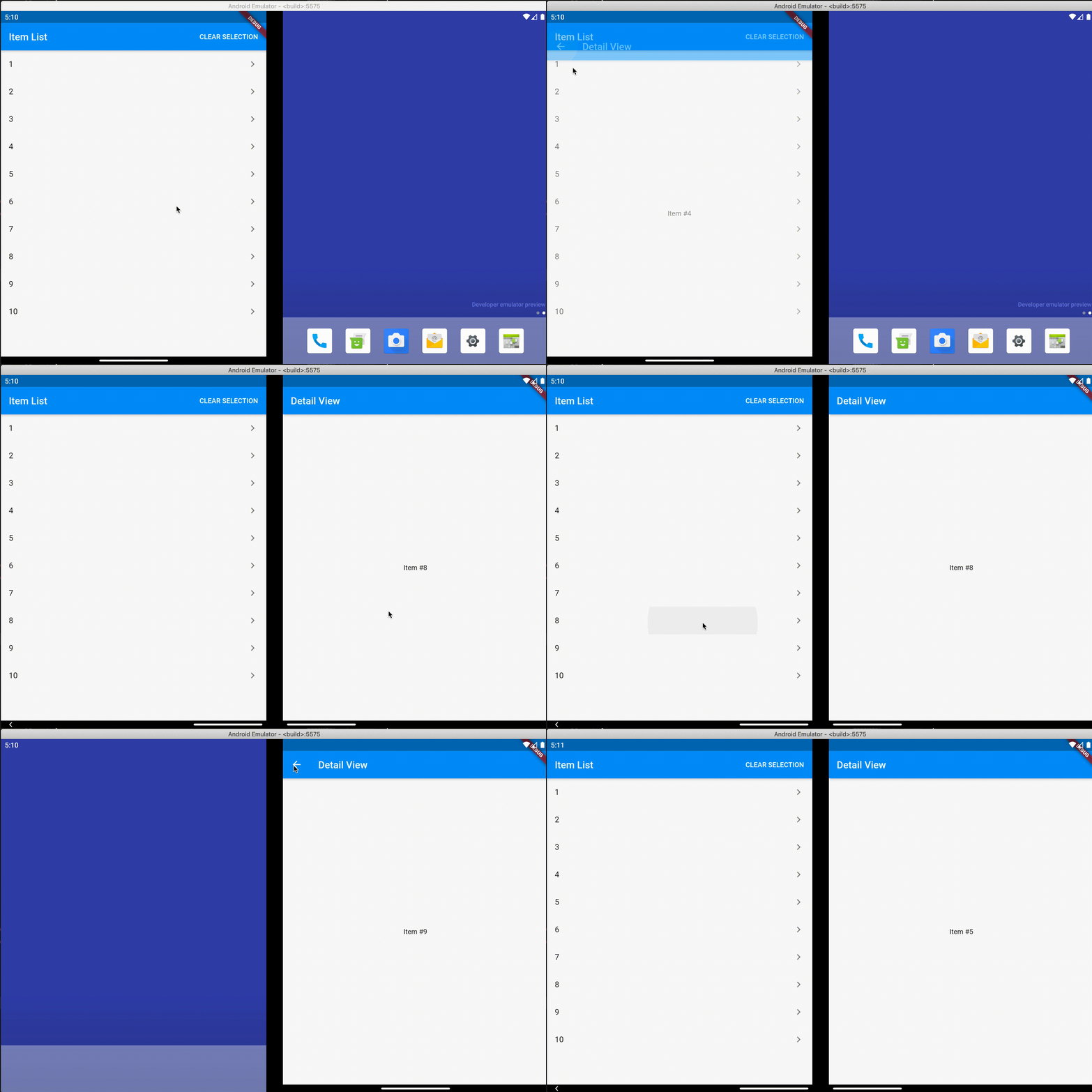
Direct access is for advanced uses cases. The above layouts should be suitable for most apps.
There may be cases where you want to access multi screen information instead of just using the above layout widgets. Here is how to do that.
MultiScreenInfo is a Widget that lets you access information about the device directly in your Widget tree, it will rebuild when the data changes.
class MyApp extends StatelessWidget {
  @override
  Widget build(BuildContext context) {
    return Scaffold(
      body: MultiScreenInfo(
        builder: (info) {
          return Column(
            children: <Widget>[
              Text('The below information is from the Surface Duo SDK'),
              Text('isAppSpanned: ${info.surfaceDuoInfoModel.isSpanned}'),
              Text('hingeAngle: ${info.surfaceDuoInfoModel.hingeAngle}'),
            ],
          );
        },
      ),
    );
  }
}
If you need access to information about the device outside of the Widget tree, you can also make platform calls yourself.
Future getSurfaceDuoInfo() async {
    var hingeAngle = await SurfaceDuoPlatformHandler.getHingeAngle();
    var isDual = await SurfaceDuoPlatformHandler.getIsDual();
    var isSpanned = await SurfaceDuoPlatformHandler.getIsSpanned();
    var nonFunctionalBounds = await SurfaceDuoPlatformHandler.getNonFunctionalBounds();
  }
依賴清單 2 項
{"sdk":"flutter"}{"sdk":"flutter"}先依使用情境篩選,再比較專案活躍情況,最後到原始儲存庫確認使用要求。
“A repository is the most basic element of GitHub.”
GitHub Docs — About repositories ↗