
 v0.5.0
flutter_overlay_window
用於在螢幕上顯示您的 Flutter 應用程式覆蓋其他應用程式的 Flutter 插件
529喜歡 1.7萬近 30 天下載160Pub 分數
Android
在螢幕上顯示 Flutter 應用程式覆蓋其他應用程式的 Flutter 插件

{"sdk":"flutter"}{"sdk":"flutter"}^1.0.0以下為英文專案原文快照,最新內容請造訪 GitHub。
auto_route_logo
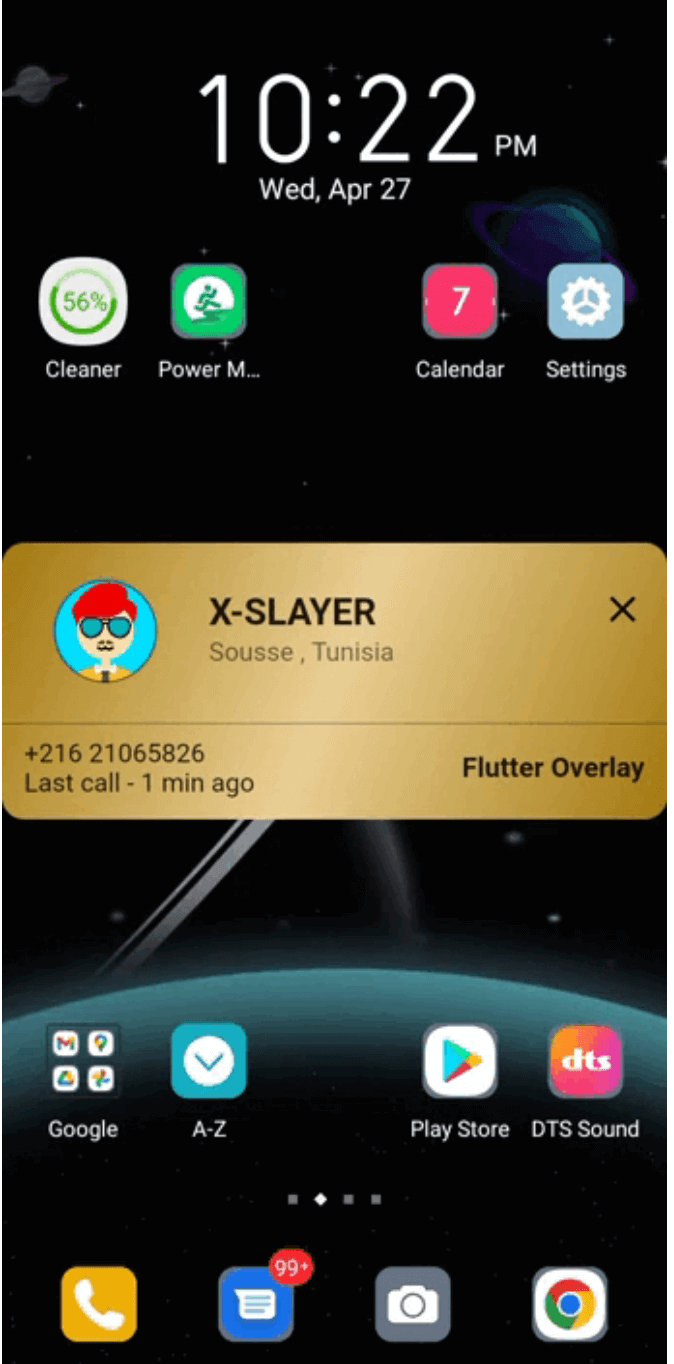
Flutter plugin for displaying your Flutter app over other apps on the screen
| TrueCaller overlay example | click-through overlay example | Messanger chat-head example |
|---|---|---|
| https://user-images.githubusercontent.com/22800380/165636217-8957396b-dc54-4e6d-aa50-e8bfdb9383cf.gif | https://user-images.githubusercontent.com/22800380/165636120-dcd9ee13-5fca-4f8a-a562-b2f53c0b5e24.gif | https://user-images.githubusercontent.com/22800380/178730917-40f267bb-63a2-4ad3-ba69-f7c1285a1882.gif |
Add package to your pubspec:
dependencies:
  flutter_overlay_window: any # or the latest version on Pub
You'll need to add the SYSTEM_ALERT_WINDOW permission and OverlayService to your Android Manifest.
Replace explanation_for_special_use with your custom explanation.
    <uses-permission android:name="android.permission.SYSTEM_ALERT_WINDOW" />
    <uses-permission android:name="android.permission.FOREGROUND_SERVICE"/>
    <uses-permission android:name="android.permission.FOREGROUND_SERVICE_SPECIAL_USE" />

    <application>
        ...
        <service android:name="flutter.overlay.window.flutter_overlay_window.OverlayService"
            android:exported="false"
            android:foregroundServiceType="specialUse">
            <property android:name="android.app.PROPERTY_SPECIAL_USE_FGS_SUBTYPE"
                android:value="explanation_for_special_use"/>
        </service>
    </application>
Inside main.dart create an entry point for your Overlay widget;
// overlay entry point
@pragma("vm:entry-point")
void overlayMain() {
  runApp(const MaterialApp(
    debugShowCheckedModeBanner: false,
    home: Material(child: Text("My overlay"))
  ));
}
 /// check if overlay permission is granted
 final bool status = await FlutterOverlayWindow.isPermissionGranted();

 /// request overlay permission
 /// it will open the overlay settings page and return `true` once the permission granted.
 final bool status = await FlutterOverlayWindow.requestPermission();

  /// Open overLay content
  ///
  /// - Optional arguments:
  ///
  /// `height` the overlay height and default is [WindowSize.fullCover]
  ///
  /// `width` the overlay width and default is [WindowSize.matchParent]
  ///
  /// `alignment` the alignment postion on screen and default is [OverlayAlignment.center]
  ///
  /// `visibilitySecret` the detail displayed in notifications on the lock screen and default is [NotificationVisibility.visibilitySecret]
  ///
  /// `OverlayFlag` the overlay flag and default is [OverlayFlag.defaultFlag]
  ///
  /// `overlayTitle` the notification message and default is "overlay activated"
  ///
  /// `overlayContent` the notification message
  ///
  /// `enableDrag` to enable/disable dragging the overlay over the screen and default is "false"
  ///
  /// `positionGravity` the overlay postion after drag and default is [PositionGravity.none]
  ///
  /// `startPosition` the overlay start position and default is null
 await FlutterOverlayWindow.showOverlay();

 /// closes overlay if open
 await FlutterOverlayWindow.closeOverlay();

 /// broadcast data to and from overlay app
 await FlutterOverlayWindow.shareData("Hello from the other side");

 /// streams message shared between overlay and main app
  FlutterOverlayWindow.overlayListener.listen((event) {
      log("Current Event: $event");
    });

 /// use [OverlayFlag.focusPointer] when you want to use fields that show keyboards
 await FlutterOverlayWindow.showOverlay(flag: OverlayFlag.focusPointer);


 /// update the overlay flag while the overlay in action
 await FlutterOverlayWindow.updateFlag(OverlayFlag.defaultFlag);

 /// Update the overlay size in the screen
 await FlutterOverlayWindow.resizeOverlay(80, 120);

 /// Update the overlay position in the screen
 ///
 /// `position` the new position of the overlay
 ///
 /// `return` true if the position updated successfully
 await FlutterOverlayWindow.moveOverlay(OverlayPosition(0, 156))

 /// Get the current overlay position
 ///
 /// `return` the current overlay position
 await FlutterOverlayWindow.getOverlayPosition()
enum OverlayFlag {
  /// Window flag: this window can never receive touch events.
  /// Usefull if you want to display click-through overlay
  clickThrough,

  /// Window flag: this window won't ever get key input focus
  /// so the user can not send key or other button events to it.
  defaultFlag,

  /// Window flag: allow any pointer events outside of the window to be sent to the windows behind it.
  /// Usefull when you want to use fields that show keyboards.
  focusPointer,
}
  /// Type of dragging behavior for the overlay.
  enum PositionGravity {
    /// The `PositionGravity.none` will allow the overlay to postioned anywhere on the screen.
    none,

    /// The `PositionGravity.right` will allow the overlay to stick on the right side of the screen.
    right,

    /// The `PositionGravity.left` will allow the overlay to stick on the left side of the screen.
    left,

    /// The `PositionGravity.auto` will allow the overlay to stick either on the left or right side of the screen depending on the overlay position.
    auto,
  }