
 v0.2.2
flutter_mapbox_navigation
使用 MapBox 向您的 Flutter 應用新增逐向導航。當您需要將使用者導向某個位置時,無需離開應用程式。
305喜歡 783近 30 天下載120Pub 分數
AndroidiOS
適用於您 Flutter 應用程式的逐向導航

{"sdk":"flutter"}{"sdk":"flutter"}^2.0.2^5.0.0+1^2.0.0{"sdk":"flutter"}以下為英文專案原文快照,最新內容請造訪 GitHub。
Add Turn By Turn Navigation to Your Flutter Application Using MapBox. Never leave your app when you need to navigate your users to a location.
Go to your Mapbox account dashboard and create an access token that has the DOWNLOADS:READ scope. PLEASE NOTE: This is not the same as your production Mapbox API token. Make sure to keep it private and do not insert it into any Info.plist file. Create a file named .netrc in your home directory if it doesn’t already exist, then add the following lines to the end of the file:
machine api.mapbox.com
  login mapbox
  password PRIVATE_MAPBOX_API_TOKEN
where PRIVATE_MAPBOX_API_TOKEN is your Mapbox API token with the DOWNLOADS:READ scope.
Mapbox APIs and vector tiles require a Mapbox account and API access token. In the project editor, select the application target, then go to the Info tab. Under the “Custom iOS Target Properties” section, set MBXAccessToken to your access token. You can obtain an access token from the Mapbox account page.
In order for the SDK to track the user’s location as they move along the route, set NSLocationWhenInUseUsageDescription to:
Shows your location on the map and helps improve OpenStreetMap.
Users expect the SDK to continue to track the user’s location and deliver audible instructions even while a different application is visible or the device is locked. Go to the Capabilities tab. Under the Background Modes section, enable “Audio, AirPlay, and Picture in Picture” and “Location updates”. (Alternatively, add the audio and location values to the UIBackgroundModes array in the Info tab.)
mapbox_access_token.xml with it's full path being <YOUR_FLUTTER_APP_ROOT>/android/app/src/main/res/values/mapbox_access_token.xml. Then add a string resource with name "mapbox_access_token" and your token as it's value as shown below. You can obtain an access token from the Mapbox account page.<?xml version="1.0" encoding="utf-8"?>
<resources xmlns:tools="http://schemas.android.com/tools">
<string name="mapbox_access_token" translatable="false" tools:ignore="UnusedResources">ADD_MAPBOX_ACCESS_TOKEN_HERE</string>
</resources>
<manifest>
    ...
    <uses-permission android:name="android.permission.ACCESS_COARSE_LOCATION" />
    <uses-permission android:name="android.permission.ACCESS_FINE_LOCATION" />
    <uses-permission android:name="android.permission.ACCESS_NETWORK_STATE" />
    ...
</manifest>
downloads:read scope to your gradle.properties file in Android folder to enable downloading the MapBox binaries from the repository. To secure this token from getting checked into source control, you can add it to the gradle.properties of your GRADLE_HOME which is usually at $USER_HOME/.gradle for Mac. This token can be retrieved from your MapBox Dashboard. You can review the Token Guide to learn more about download tokensMAPBOX_DOWNLOADS_TOKEN=sk.XXXXXXXXXXXXXXX
After adding the above, your gradle.properties file may look something like this:
org.gradle.jvmargs=-Xmx1536M
android.useAndroidX=true
android.enableJetifier=true
MAPBOX_DOWNLOADS_TOKEN=sk.epe9nE9peAcmwNzKVNqSbFfp2794YtnNepe9nE9peAcmwNzKVNqSbFfp2794YtnN.-HrbMMQmLdHwYb8r
MainActivity.kt to extends FlutterFragmentActivity vs FlutterActivity. Otherwise you'll get Caused by: java.lang.IllegalStateException: Please ensure that the hosting Context is a valid ViewModelStoreOwner.//import io.flutter.embedding.android.FlutterActivity
import io.flutter.embedding.android.FlutterFragmentActivity
class MainActivity: FlutterFragmentActivity() {
}
implementation platform("org.jetbrains.kotlin:kotlin-bom:1.8.0") to android/app/build.gradle MapBoxNavigation.instance.setDefaultOptions(MapBoxOptions(
initialLatitude: 36.1175275,
initialLongitude: -115.1839524,
zoom: 13.0,
tilt: 0.0,
bearing: 0.0,
enableRefresh: false,
alternatives: true,
voiceInstructionsEnabled: true,
bannerInstructionsEnabled: true,
allowsUTurnAtWayPoints: true,
mode: MapBoxNavigationMode.drivingWithTraffic,
mapStyleUrlDay: "https://url_to_day_style",
mapStyleUrlNight: "https://url_to_night_style",
units: VoiceUnits.imperial,
simulateRoute: true,
language: "en"))
  MapBoxNavigation.instance.registerRouteEventListener(_onRouteEvent);
  Future<void> _onRouteEvent(e) async {

        _distanceRemaining = await _directions.distanceRemaining;
        _durationRemaining = await _directions.durationRemaining;

        switch (e.eventType) {
          case MapBoxEvent.progress_change:
            var progressEvent = e.data as RouteProgressEvent;
            _arrived = progressEvent.arrived;
            if (progressEvent.currentStepInstruction != null)
              _instruction = progressEvent.currentStepInstruction;
            break;
          case MapBoxEvent.route_building:
          case MapBoxEvent.route_built:
            _routeBuilt = true;
            break;
          case MapBoxEvent.route_build_failed:
            _routeBuilt = false;
            break;
          case MapBoxEvent.navigation_running:
            _isNavigating = true;
            break;
          case MapBoxEvent.on_arrival:
            _arrived = true;
            if (!_isMultipleStop) {
              await Future.delayed(Duration(seconds: 3));
              await _controller.finishNavigation();
            } else {}
            break;
          case MapBoxEvent.navigation_finished:
          case MapBoxEvent.navigation_cancelled:
            _routeBuilt = false;
            _isNavigating = false;
            break;
          default:
            break;
        }
        //refresh UI
        setState(() {});
      }
    final cityhall = WayPoint(name: "City Hall", latitude: 42.886448, longitude: -78.878372);
    final downtown = WayPoint(name: "Downtown Buffalo", latitude: 42.8866177, longitude: -78.8814924);

    var wayPoints = List<WayPoint>();
    wayPoints.add(cityHall);
    wayPoints.add(downtown);

    await MapBoxNavigation.instance.startNavigation(wayPoints: wayPoints);
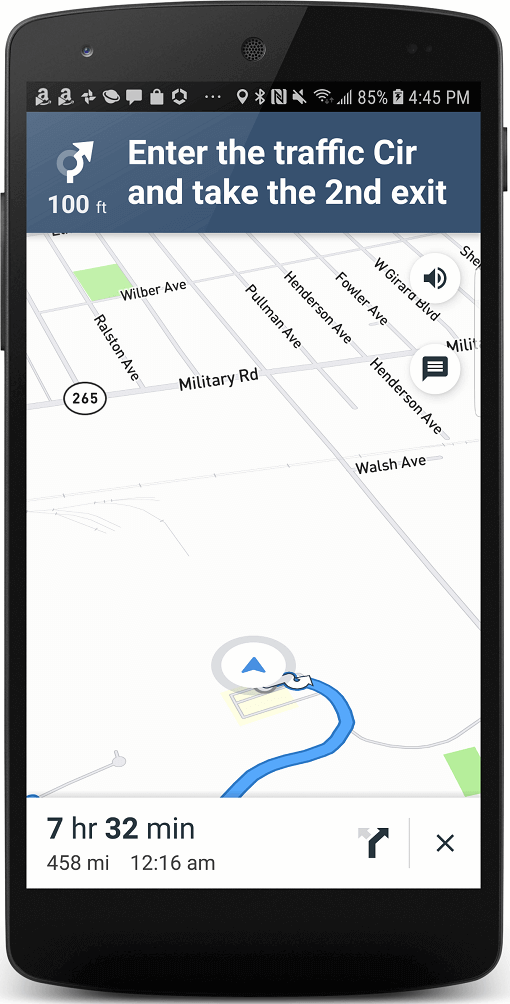
| Navigation View | Android View |
|---|---|
| iOS View | Android View |
MapBoxNavigationViewController _controller;
            Container(
                color: Colors.grey,
                child: MapBoxNavigationView(
                    options: _options,
                    onRouteEvent: _onRouteEvent,
                    onCreated:
                        (MapBoxNavigationViewController controller) async {
                      _controller = controller;
                    }),
              ),
        var wayPoints = List<WayPoint>();
                            wayPoints.add(_origin);
                            wayPoints.add(_stop1);
                            wayPoints.add(_stop2);
                            wayPoints.add(_stop3);
                            wayPoints.add(_stop4);
                            wayPoints.add(_origin);
                            _controller.buildRoute(wayPoints: wayPoints);
_controller.startNavigation();
Add the following to your info.plist file
    <dict>
        ...
        <key>io.flutter.embedded_views_preview</key>
        <true/>
        ...
    </dict>
| Navigation View | Navigation View |
|---|---|
| Embedded iOS View | Embedded Android View |