

 v2.3.1
flutter_animation_progress_bar
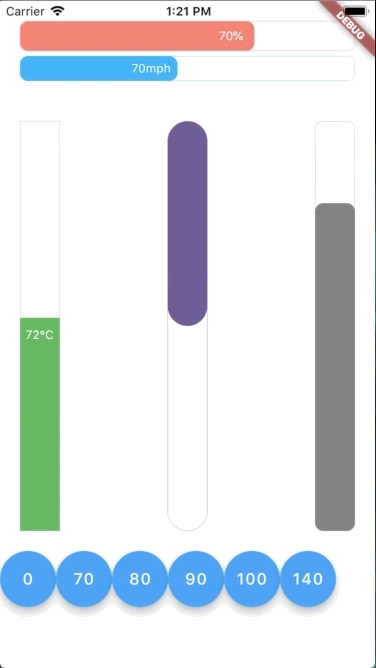
這個色彩豐富的Flutter組件包旨在以反應式風格顯示動畫進度條。它也支援垂直和水平條。
237喜歡 2.8萬近 30 天下載125Pub 分數
AndroidiOSWebmacOSWindowsLinux
Flutter 動畫進度條

以下為英文專案原文快照,最新內容請造訪 GitHub。
This colorful Flutter widget package aims to show an animation progress bar in reactive style. It also supports both vertical and horizontal bar.

This package is also a submission to Flutter Create contest. The basic rule of this contest is to measure the total Dart file size less or equal 5KB.
After unzipping the compressed file, run following command to update dependencies:
flutter packages get
To evaluate the total size of all Dart files:
find . -name "*.dart" ! -name "*test*" | xargs cat | wc -c
To evaluate only the package Dart code:
find . -name "*.dart" ! -name "*test*" ! -path "*example*" | xargs cat | wc -c
To run simple example app with a total size of dart code less or equal 5KB:
cd example
flutter clean
flutter run
Hot restart app with "R" to replay the animation
To run the full example app:
cd example
mv lib/main.dart tmp && mv lib/main.dart.bk lib/main.dart && mv tmp lib/main.dart.bk
flutter clean
flutter run
Using built-in float action buttons to change value and see the effect
In order to use this package, do import
import 'package:flutter_animation_progress_bar/flutter_animation_progress_bar.dart';
Basic implementation can be done like below code:
import 'package:flutter/widgets.dart';
import 'package:flutter_animation_progress_bar/flutter_animation_progress_bar.dart';

void main() {
  runApp(
    Center(
        child: FAProgressBar(
      currentValue: 80,
      displayText: '%',
    )),
  );
}
You can find more examples from Example App
In this table, you can find all attributes provided by this package:
| Attribute | Default value | Description |
|---|---|---|
| currentValue | 0 | Set the current value for progress bar. This value should be in stateful so that whenever setState() has been called, the progress bar will trigger an animation from latest currentValue to new currentValue |
| maxValue | 100 | Max value to be displayed as progress bar. Current value can be greater than max value |
| size | 30 | The bar height if direction in Axis.horizontal. The bar width if direction in Axis.vertical |
| animatedDuration | const Duration(milliseconds: 300) | Set the duration for an animation cycle |
| direction | Axis.horizontal | The bar can be in Axis.horizontal or Axis.vertical direction |
| verticalDirection | VerticalDirection.down | With vertical direction, the bar can be VerticalDirection.up or VerticalDirection.down direction |
| borderRadius | 8 | Set the bar border radius |
| border | null |
Set the bar border style by BoxBorder |
| backgroundColor | const Color(0x00FFFFFF) | Set the bar background color |
| progressColor | const Color(0xFFFA7268) | Set the bar progressing color |
| progressGradient | null |
Set the bar progressing gradient. Overrides progressColor |
| changeColorValue | null |
Set a value that progress color should be changed to [0---blue----[70]-red-100] |
| changeProgressColor | const Color(0xFF5F4B8B) | Color that progressing color will be changed to, whenever currentValue greater than changeColorValue |
| displayText | null |
Text to display belonging with currentValue. Examples: % -> 20%°F -> 80°F |
| displayTextStyle | ... | TextStyle of displayText |
class FAProgressBar {

  final double currentValue;
  final double maxValue;
  final double size;
  final Duration animatedDuration;
  final Axis direction;
  final VerticalDirection verticalDirection;
  final double borderRadius;
  final BoxBorder border;
  final Color backgroundColor;
  final Color progressColor;
  final Gradient progressGradient;
  final int changeColorValue;
  final Color changeProgressColor;
  final String displayText;
  final TextStyle displayTextStyle;
}
Feel free to leave any feedback for helping support this package 🍻

依賴清單 2 項
{"sdk":"flutter"}{"sdk":"flutter"}先依使用情境篩選,再比較專案活躍情況,最後到原始儲存庫確認使用要求。
“A repository is the most basic element of GitHub.”
GitHub Docs — About repositories ↗