

 v1.1.0
show_fps
一個 Flutter 套件,可讓您使用 FPS 標籤檢查應用程式效能。
43喜歡 2360近 30 天下載160Pub 分數
AndroidiOSWebmacOSWindowsLinux
在您的 Flutter 應用中顯示 FPS。

以下為英文專案原文快照,最新內容請造訪 GitHub。


Use ShowFPS to monitor your app's FPS (Frames Per Second) in real time with advanced performance metrics.
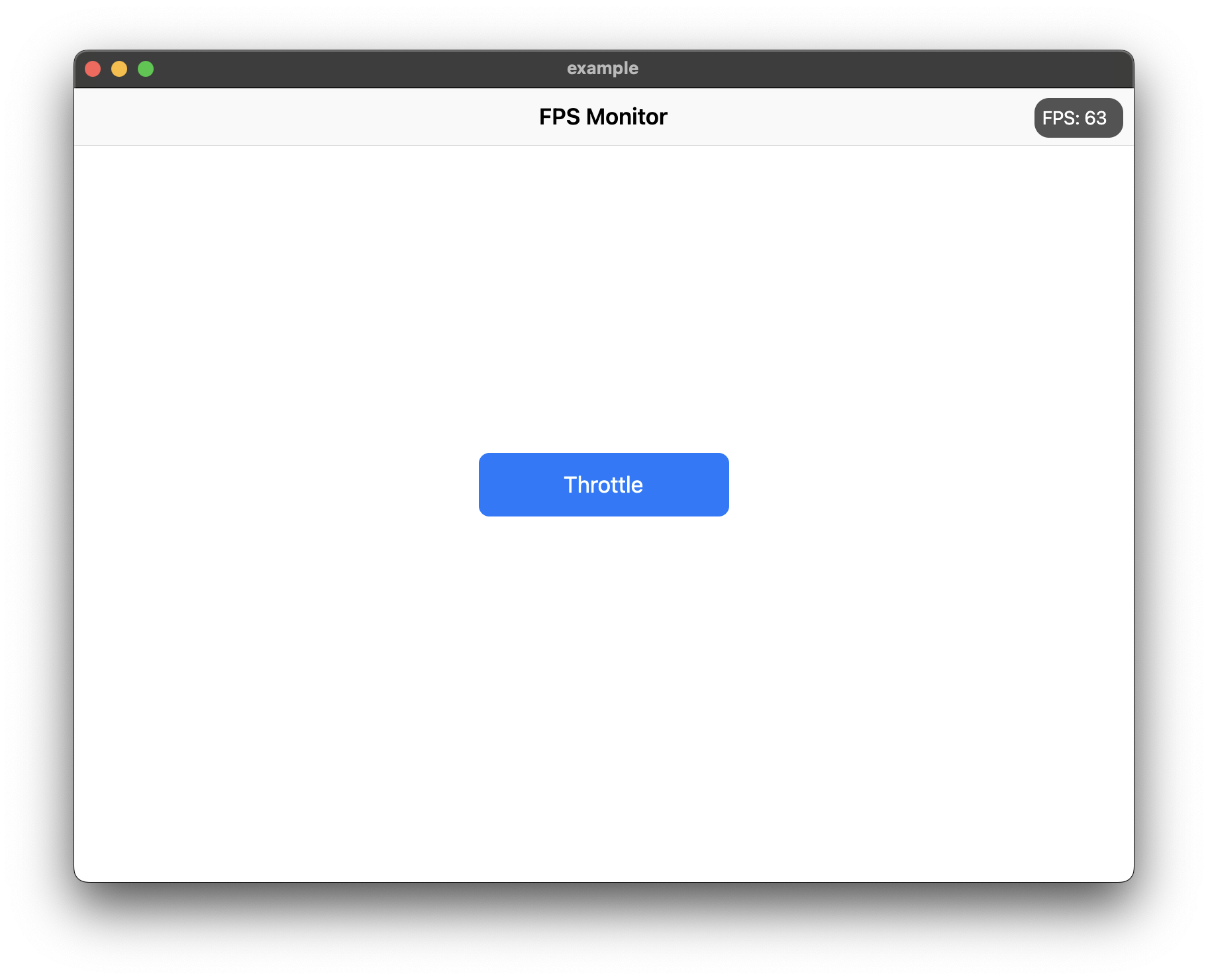
Add show_fps: ^1.1.0 in your project's pubspec.yaml:
dependencies:
  show_fps: ^1.1.0
Import show_fps in your dart file:
import 'package:show_fps/show_fps.dart';
Wrap your main widget with ShowFPS widget:
import 'package:flutter/material.dart';
import 'package:show_fps/show_fps.dart';

void main() {
  runApp(const MyApp());
}

class MyApp extends StatelessWidget {
  const MyApp({super.key});

  @override
  Widget build(BuildContext context) {
    return MaterialApp(
      title: 'FPS Monitor',
      debugShowCheckedModeBanner: false,
      home: ShowFPS(
        alignment: Alignment.topRight,
        visible: true,
        showChart: true,
        child: const MyHomePage(),
      ),
    );
  }
}
import 'package:flutter/foundation.dart';

ShowFPS(
  visible: !kReleaseMode,
  child: MyHomePage(),
)
ShowFPS(
  showChart: false,
  child: MyHomePage(),
)
ShowFPS(
  alignment: Alignment.topRight,
  visible: true,
  showChart: true,
  borderRadius: const BorderRadius.all(Radius.circular(11)),

  // Display options
  showAverage: true,           // Show rolling average FPS
  showMinMax: true,            // Show min/max FPS values
  showFrameTime: true,         // Show frame time in ms
  colorCodedText: true,        // Color FPS based on performance

  // Chart options
  targetFps: 60,               // Target FPS for calculations
  showTargetLine: true,        // Show target line on chart
  showJankIndicators: true,    // Highlight slow frames
  jankThreshold: 1.5,          // Frames 1.5x slower than avg are jank
  chartMaxFps: 60,             // Max FPS for chart scale

  // Advanced metrics
  showFrameBudget: true,       // Show % of frame budget used
  showDroppedFrames: true,     // Show dropped frame count

  // Interaction options
  draggable: true,             // Allow dragging the widget
  collapsible: true,           // Tap to collapse/expand
  doubleTapToHide: true,       // Double-tap to temporarily hide
  hideDuration: const Duration(seconds: 3),

  // Performance options
  sampleRate: 1,               // Update every N frames

  // Customization
  backgroundColor: const Color(0xaa000000),
  goodColor: const Color.fromARGB(255, 0, 162, 255),
  poorColor: const Color(0xfff44336),
  textStyle: const TextStyle(
    color: Colors.white,
    fontSize: 14,
  ),

  // Alert callback
  alertThreshold: 30,          // Alert when FPS drops below 30
  onAlertTriggered: () {
    print('FPS dropped below threshold!');
  },

  child: MyHomePage(),
)
| Parameter | Type | Default | Description |
|---|---|---|---|
child |
Widget |
required | The main widget to monitor |
alignment |
Alignment |
Alignment.topRight |
Position of the FPS widget |
visible |
bool |
true |
Whether to show the FPS widget |
showChart |
bool |
true |
Whether to show the FPS chart |
borderRadius |
BorderRadius |
BorderRadius.circular(11) |
Border radius of the widget |
showAverage |
bool |
false |
Show average FPS instead of instantaneous |
showMinMax |
bool |
false |
Show min/max FPS values |
showFrameTime |
bool |
false |
Show frame time in milliseconds |
colorCodedText |
bool |
true |
Color FPS text based on performance |
targetFps |
double |
60 |
Target FPS for calculations |
showTargetLine |
bool |
false |
Show target FPS line on chart |
showJankIndicators |
bool |
true |
Highlight jank frames on chart |
jankThreshold |
double |
1.5 |
Multiplier for jank detection |
textStyle |
TextStyle? |
null |
Custom text style |
draggable |
bool |
false |
Allow dragging the widget |
collapsible |
bool |
false |
Allow tap to collapse/expand |
sampleRate |
int |
1 |
Update every N frames |
chartMaxFps |
double |
60 |
Maximum FPS for chart scale |
showFrameBudget |
bool |
false |
Show frame budget percentage |
showDroppedFrames |
bool |
false |
Show dropped frame counter |
alertThreshold |
double? |
null |
FPS threshold for alerts |
doubleTapToHide |
bool |
false |
Double-tap to temporarily hide |
hideDuration |
Duration |
3 seconds |
Duration to hide after double-tap |
backgroundColor |
Color |
Color(0xaa000000) |
Background color |
goodColor |
Color |
Color(0xff00a2ff) |
Color for good performance |
poorColor |
Color |
Color(0xfff44336) |
Color for poor performance |
onAlertTriggered |
VoidCallback? |
null |
Callback when FPS drops below threshold |
依賴清單 3 項
{"sdk":"flutter"}{"sdk":"flutter"}^2.0.0先依使用情境篩選,再比較專案活躍情況,最後到原始儲存庫確認使用要求。
“A repository is the most basic element of GitHub.”
GitHub Docs — About repositories ↗