Englischer Projektschnappschuss. Aktuelle Inhalte auf GitHub.
animated_icon_button
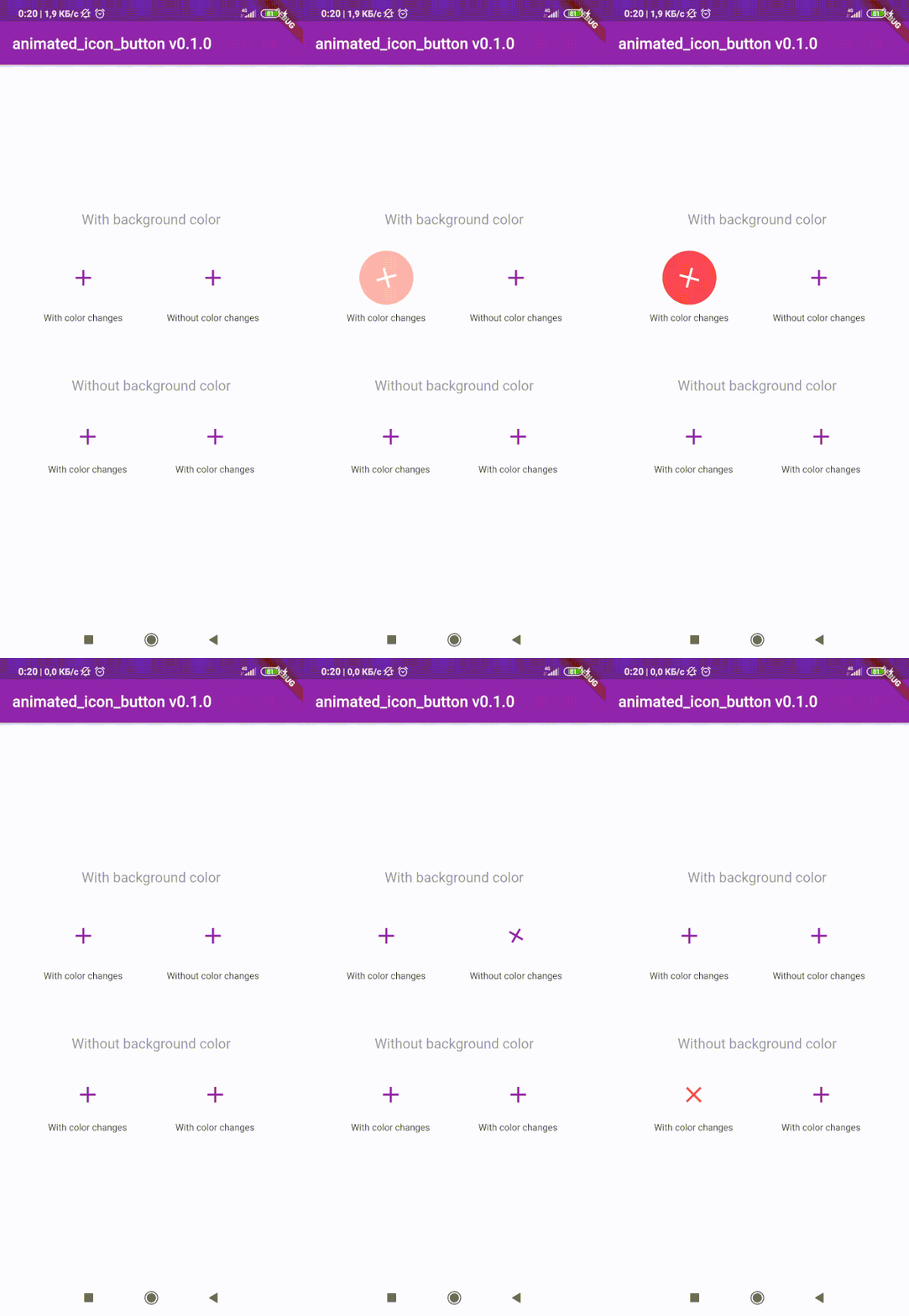
😊 Flutter package to create custom animated IconButton.
😵 Includes all available icons. Based on native IconButton.


Breaking Change
After 1.0.2 version you can use multiple icons.
Getting Started
Follow these steps to use this library
Add dependency
dependencies:
animated_icon_button: ^1.0.2
Add import package
import 'package:animated_icon_button/animated_icon_button.dart';
Easy to use
Simple example of use AnimatedIconButton
Put this code in your project at an screen and wait for magic 😊
    AnimatedIconButton(
        onPressed: () => print('all icons pressed'),
        icons: [
            AnimatedIconButtonEntry(
                icon: Icon(Icons.add),
                onPressed: () => print('add pressed'),
            ),
            AnimatedIconButtonEntry(
                icon: Icon(Icons.close),
            ),
        ],
    ),
More icons
Now you can use more than 2 icons
Add new icons to your list and they will change one by one
    AnimatedIconButton(
        size: 35,
        onPressed: () {
            print('all icons pressed');
        },
        duration: const Duration(milliseconds: 200),
        icons: <AnimatedIconButtonEntry>[
            AnimatedIconButtonEntry(
                icon: Icon(
                    Icons.mic,
                    color: Colors.purple,
                ),
                onPressed: () => print('mic pressed'),
                backgroundColor: Colors.white,
            ),
            AnimatedIconButtonEntry(
                icon: Icon(
                    Icons.g_translate,
                    color: Colors.purple,
                ),
                backgroundColor: Colors.white,
            ),
            AnimatedIconButtonEntry(
                icon: Icon(
                    Icons.collections_sharp,
                    color: Colors.purple,
                ),
                backgroundColor: Colors.white,
            ),
        ],
    ),
Custom animation controller
In order to animate your icons in a custom way, like on text changed or when pressing a button, just use the animationController property as follows.
    var animationController = AnimationController(
        vsync: this,
        duration: Duration(milliseconds: 200),
        reverseDuration: Duration(milliseconds: 200),
    );

    AnimatedIconButton(
        animationController: animationController,
        size: 35,
        onPressed: () {
            print('all icons pressed');
        },
        duration: const Duration(milliseconds: 200),
        icons: <AnimatedIconButtonEntry>[
            AnimatedIconButtonEntry(
                icon: Icon(
                    Icons.mic,
                    color: Colors.purple,
                ),
                onPressed: () => print('mic pressed'),
                backgroundColor: Colors.white,
            ),
            AnimatedIconButtonEntry(
                icon: Icon(
                    Icons.g_translate,
                    color: Colors.purple,
                ),
                backgroundColor: Colors.white,
            ),
            AnimatedIconButtonEntry(
                icon: Icon(
                    Icons.collections_sharp,
                    color: Colors.purple,
                ),
                backgroundColor: Colors.white,
            ),
        ],
    ),
Then, whenever you want, execute your animationController.forward() and animationController.reverse() methods to get your icons animated.
Don't forget when you use this property duration is not used, so it can be emitted.


 v1.0.2