
 v10.0.0
fluttertoast
Toast-Bibliothek für Flutter, erstellen Sie einfach Toast-Nachrichten in einer einzigen Codezeile
4130Likes 588.00030-Tage-Downloads140Pub-Punkte
AndroidiOSWeb
Toast-Plugin für Flutter

{"sdk":"flutter"}{"sdk":"flutter"}>=1.0.0 <2.0.0Englischer Projektschnappschuss. Aktuelle Inhalte auf GitHub.
Toast Library for Flutter
Build Checks
Now this toast library supports two kinds of toast messages one which requires BuildContext other with No BuildContext
Supported Platforms
- Android
- IOS
- Web (Uses Toastify-JS)
This one has limited features and no control over UI
Supported Platforms
- ALL
# add this line to your dependencies
fluttertoast: ^10.0.0
import 'package:fluttertoast/fluttertoast.dart';
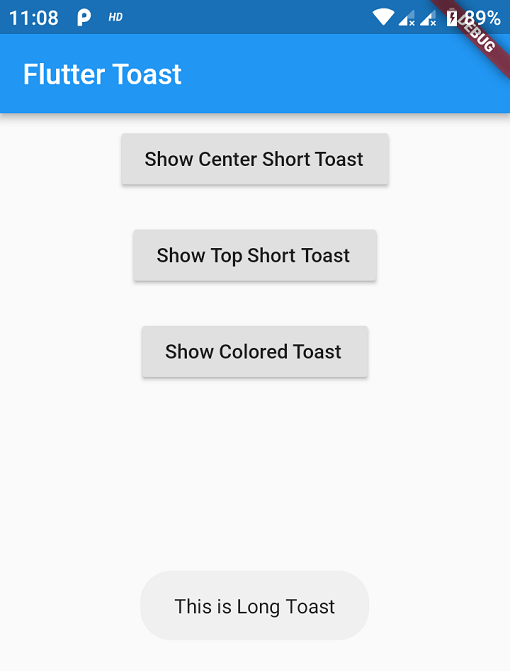
Fluttertoast.showToast(
        msg: "This is Center Short Toast",
        toastLength: Toast.LENGTH_SHORT,
        gravity: ToastGravity.CENTER,
        timeInSecForIosWeb: 1,
        backgroundColor: Colors.red,
        textColor: Colors.white,
        fontSize: 16.0
    );
| property | description | default |
|---|---|---|
| msg | String (Not Null)(required) | required |
| toastLength | Toast.LENGTH_SHORT or Toast.LENGTH_LONG (optional) | Toast.LENGTH_SHORT |
| gravity | ToastGravity.TOP (or) ToastGravity.CENTER (or) ToastGravity.BOTTOM (Web Only supports top, bottom) | ToastGravity.BOTTOM |
| timeInSecForIosWeb | int (for ios & web) | 1 (sec) |
| backgroundColor | Colors.red | null |
| textcolor | Colors.white | null |
| fontSize | 16.0 (float) | null |
| fontAsset | Path to a font file in the Flutter app assets folder, e.g. 'assets/path/to/some-font.ttf' (String) | null |
| webShowClose | false (bool) | false |
| webBgColor | String (hex Color) | linear-gradient(to right, #00b09b, #96c93d) |
| webPosition | String (left, center or right) |
right |
Fluttertoast.cancel()
Custom Toast will not work on android 11 and above, it will only use msg and toastLength remaining all properties are ignored
Create a file named toast_custom.xml in your project app/res/layout folder and do custom styling
<?xml version="1.0" encoding="utf-8"?>
<FrameLayout xmlns:android="http://schemas.android.com/apk/res/android"
    xmlns:tools="http://schemas.android.com/tools"
    android:layout_width="wrap_content"
    android:layout_height="wrap_content"
    android:layout_gravity="center_horizontal"
    android:layout_marginStart="50dp"
    android:background="@drawable/corner"
    android:layout_marginEnd="50dp">

    <TextView
        android:id="@+id/text"
        android:layout_width="wrap_content"
        android:layout_height="wrap_content"
        android:background="#CC000000"
        android:paddingStart="16dp"
        android:paddingTop="10dp"
        android:paddingEnd="16dp"
        android:paddingBottom="10dp"
        android:textStyle="bold"
        android:textColor="#FFFFFF"
        tools:text="Toast should be short." />
</FrameLayout>
Update your MaterialApp with builder like below for the use of Context globally check doc section Use NavigatorKey for Context(to access context globally)
MaterialApp(
    builder: FToastBuilder(),
    home: MyApp(),
    navigatorKey: navigatorKey,
),
FToast fToast;

@override
void initState() {
    super.initState();
    fToast = FToast();
    // if you want to use context from globally instead of content we need to pass navigatorKey.currentContext!
    fToast.init(context);
}

_showToast() {
    Widget toast = Container(
        padding: const EdgeInsets.symmetric(horizontal: 24.0, vertical: 12.0),
        decoration: BoxDecoration(
        borderRadius: BorderRadius.circular(25.0),
        color: Colors.greenAccent,
        ),
        child: Row(
        mainAxisSize: MainAxisSize.min,
        children: [
            Icon(Icons.check),
            SizedBox(
            width: 12.0,
            ),
            Text("This is a Custom Toast"),
        ],
        ),
    );


    fToast.showToast(
        child: toast,
        gravity: ToastGravity.BOTTOM,
        toastDuration: Duration(seconds: 2),
    );

    // Custom Toast Position
    fToast.showToast(
        child: toast,
        toastDuration: Duration(seconds: 2),
        positionedToastBuilder: (context, child) {
          return Positioned(
            child: child,
            top: 16.0,
            left: 16.0,
          );
        });
}
Now Call _showToast()
For more details check example project
| property | description | default |
|---|---|---|
| child | Widget (Not Null)(required) | required |
| toastDuration | Duration (optional) | |
| gravity | ToastGravity.* | |
| positionedToastBuilder | PositionedToastBuilder | |
| fadeDuration | Duration | Duration(milliseconds: 350) |
| ignorePointer | boolean | false |
| isDismissible | boolean | false |
To use NavigatorKey for Context first define the GlobalKey<NavigatorState> at top level in your main.dart file
GlobalKey<NavigatorState> navigatorKey = GlobalKey<NavigatorState>();
At the time of initializing the FToast we need to use context from globally defined GlobalKey<NavigatorState>
FToast fToast = FToast();
fToast.init(yourNavKey.currentContext!);
// To remove present shwoing toast
fToast.removeCustomToast()

// To clear the queue
fToast.removeQueuedCustomToasts();
...