
v2.18.2
google_maps_flutter
A Flutter plugin for integrating Google Maps in iOS and Android applications.
4.6KLikes 933K30-day downloads150Pub points
AndroidiOSWeb
The Reforestation Assistant & Simulator idea is to create an app to help on reforestation of degraded areas of the planet by drone or manually

A Flutter plugin for integrating Google Maps in iOS and Android applications.
 v35.1.37
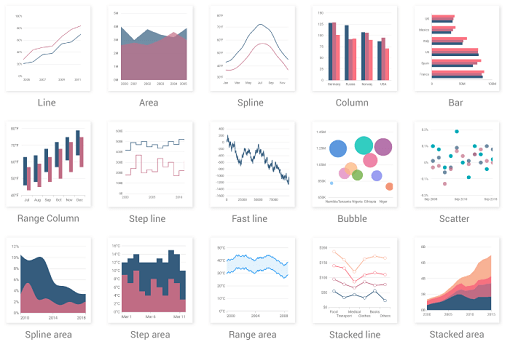
A Flutter Charts library which includes data visualization widgets such as cartesian and circular charts, to create real-time, interactive, high-performance, animated charts.
NoSQL persistent embedded file system document-based database for Dart VM and Flutter with encryption support.
Auto-generated client libraries for accessing Google APIs described through the API discovery service.
Flutter Screenshot Package (Runtime). Capture any Widget as an image.
A pluggable, mockable platform information abstraction for Dart.
Flutter plugin to get the download directory for Android.
SSH and SFTP client for Flutter. Wraps iOS library NMSSH and Android library JSch.
English project snapshot. Visit GitHub for the latest content.
License github-languages-image github-language-count-image Issues forks github-repo-size-image
The Reforestation Assistant & Simulator is an app that helps in reforestation of degraded areas by drones or manual human effort. The project consists of an Android App where users can plan the reforesting missions, by defining areas of seeding, specific seed/tree location, drone landing points, fly zones and other helpful metrics. All the gathered information is then dynamically displayed on the Liquid Galaxy cluster using KMLs and also on the app giving users an immersive overview of the reforestation mission.
This is being started as a Google Summer of Code 2021 project and has been continued in Google Summer of Code 2022 with the Liquid Galaxy Organization alongside the Dronecoria team.
Download the apk file from this repository or the Google Play Store
Follow the instructions for installation on your Android device.
Obs.: If prompted with the message of Host is not reachable, it means the LG master can't be accessed. So check out if you are in the same network of the Liquid Galaxy and that the master can be accessed via SSH.
https://raw.githubusercontent.com/LiquidGalaxyLAB/reforestation-assistant-simulator/HEAD/resources/images/screenshot13.pngDocumentation on how to set up Flutter SDK and its environment can be found here.
The full code is located in this GitHub repository. To clone the project via terminal use:
git clone https://github.com/LiquidGalaxyLAB/reforestation-assistant.git
RAS uses Google Maps Android API as the map service. To use Google Maps you required an API KEY. To get this key you need to:
With the key in hands, the next step is placing the key inside the app. Go to android/app/main and edit the AndroidManifest.xml.
Replace the PLACE_HERE_YOUR_API_KEY with the key you just created.
<application
        android:label="RAS"
        android:icon="@mipmap/ic_launcher">
        <meta-data android:name="com.google.android.geo.API_KEY"
            android:value="PLACE_HERE_YOUR_API_KEY"/>
Open a terminal and navigate to the project root directory. First you need to install the packages by running:
flutter pub get
After successfully installing all the packages, make sure you have a device connected, either a real mobile phone or an emulator. You can run flutter doctor to check out the connected devices and if all the environment is correct.
flutter doctor
With everything ready to go, it is time to run the project. Since dart is moving up versions to offer null safety, some packages that are being used still haven’t migrated to the new null safety policies, so we need to run the project with the following command:
flutter run --no-sound-null-safety
If you followed all the steps till now you have your app up and running. The next step is to click on the gear icon, where the settings of the Liquid Galaxy and Google Drive are.
To connect with your Liquid Galaxy, type de IP Address, separating the numbers using dot and the password of the cluster. Hit connect so the ip and password will be saved on the device and you’ll be prompted if the connection could be established or not.
The next step is logging with a Google Account so all the information can be saved there. Hit the Connect to drive button and add your credentials. If everything went well you will be prompted.
There you go! You are now ready to enjoy the app and make the modifications you want.
The app comes with some mock data to serve as demonstration, so you can start exploring different types of reforestation projects and seeds.
Fill up issues, bugs or feature requests in our issue tracker. Please be very descriptive and clear so it is easier to help you.
If you want to contribute to this project you can open a pull request at time you like.
This software is under the MIT License
Copyright 2021-2022 Karine Aparecida Pistili Rodrigues