

v0.0.1+2
pip_plugin
Flutter plugin for displaying customizable text overlays in Picture-in-Picture mode across all platforms.
21Likes 630-day downloads130Pub points
AndroidiOSWebmacOSWindowsLinux
gyoussef55/pip_plugin open-source repository details.

English project snapshot. Visit GitHub for the latest content.
⚠️ Experimental
A Flutter plugin that enables a customizable Picture-in-Picture window displaying text.
pip_plugin is an experimental Flutter plugin that lets you display text overlays in Picture-in-Picture mode on Android, iOS, Web, and Desktop. It exposes a simple Dart API to configure the PiP window’s appearance and control its lifecycle.
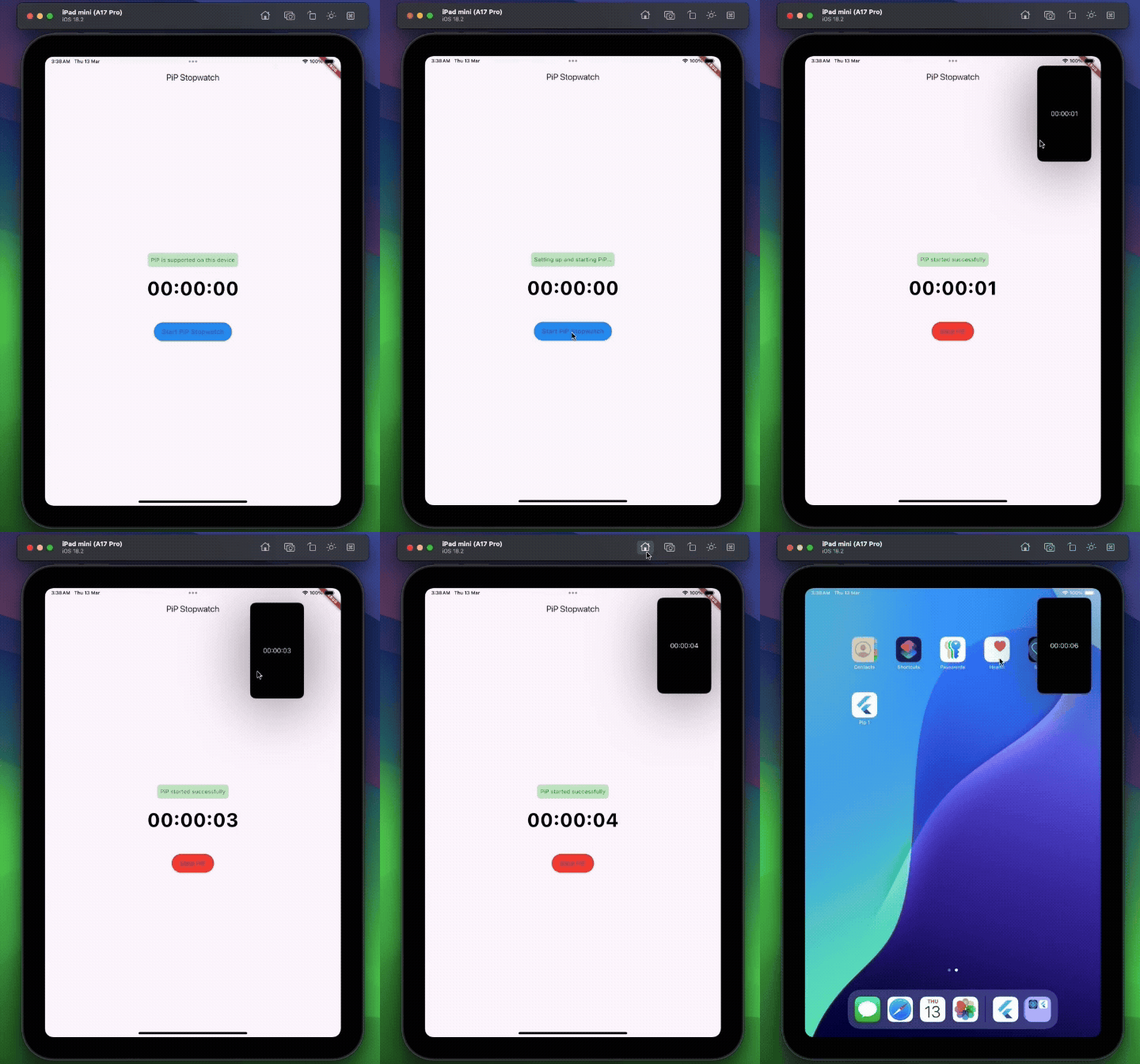
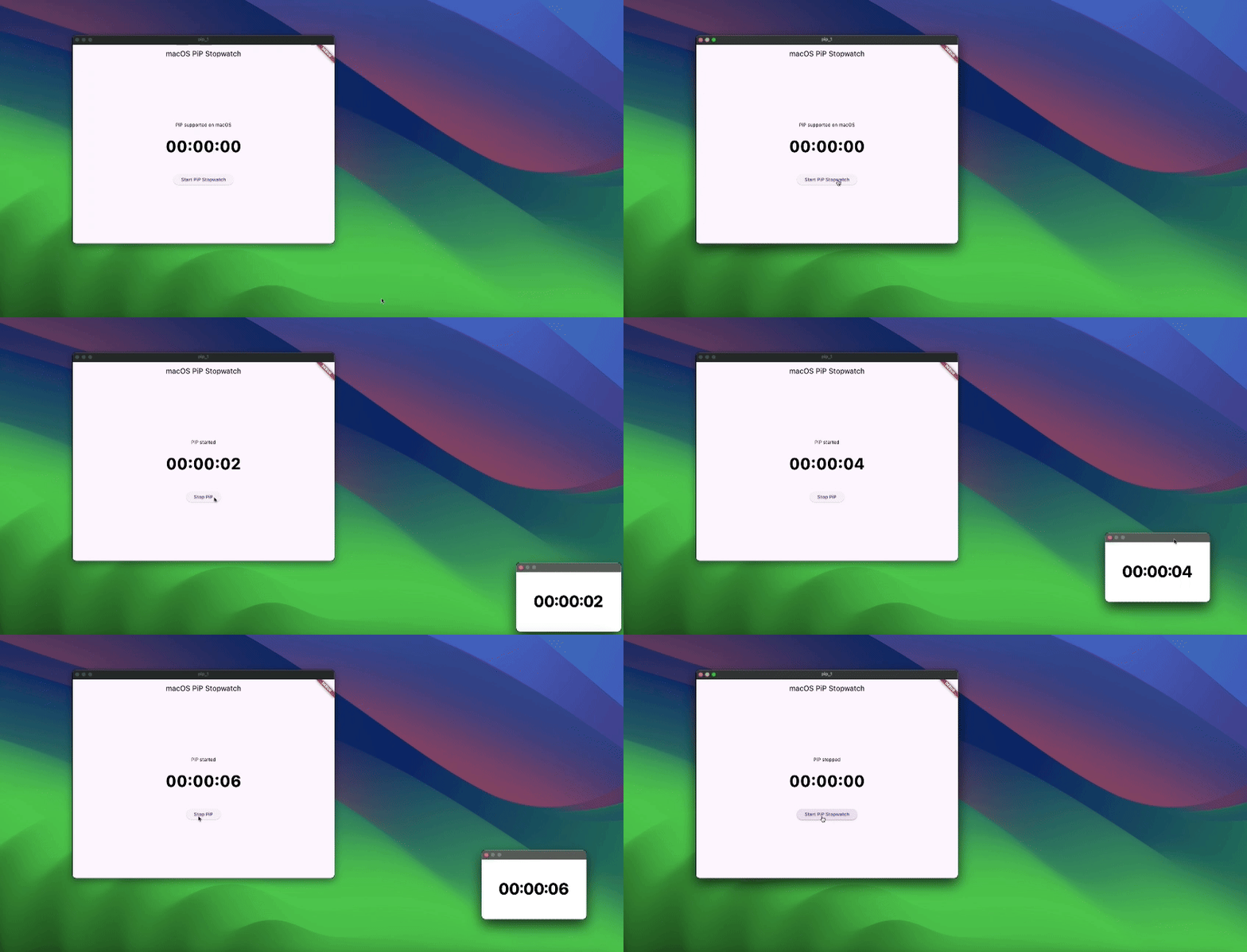

Add the plugin to your pubspec:
dependencies:
  pip_plugin: ^<latest_version>
Then run:
flutter pub get
In your AndroidManifest.xml, enable PiP support:
<application
    android:supportsPictureInPicture="true"
    …>
    …
</application>
Enable PiP callbacks there are two approaches:
Wrap your main activity with the provided helper—this is the simplest integration.
Kotlin
import cl.puntito.simple_pip_mode.PipCallbackHelperActivityWrapper

class MainActivity: PipCallbackHelperActivityWrapper() {
    // No additional code needed
}
Java
import cl.puntito.simple_pip_mode.PipCallbackHelperActivityWrapper;

public class MainActivity extends PipCallbackHelperActivityWrapper {
    // No additional code needed
}
Once inherited, PiP callbacks and the PiP widget become available automatically.
If you prefer not to subclass your activity, you can manually wire up the callbacks:
Kotlin
import cl.puntito.simple_pip_mode.PipCallbackHelper
import io.flutter.embedding.engine.FlutterEngine
import io.flutter.embedding.android.FlutterActivity
import android.content.res.Configuration

class MainActivity: FlutterActivity() {
  private val pipHelper = PipCallbackHelper()

  override fun configureFlutterEngine(flutterEngine: FlutterEngine) {
    super.configureFlutterEngine(flutterEngine)
    pipHelper.configureFlutterEngine(flutterEngine)
  }

  override fun onPictureInPictureModeChanged(
    isInPipMode: Boolean,
    newConfig: Configuration?
  ) {
    super.onPictureInPictureModeChanged(isInPipMode, newConfig)
    pipHelper.onPictureInPictureModeChanged(isInPipMode)
  }
}
Java
import cl.puntito.simple_pip_mode.PipCallbackHelper;
import io.flutter.embedding.engine.FlutterEngine;
import io.flutter.embedding.android.FlutterActivity;
import android.content.res.Configuration;

public class MainActivity extends FlutterActivity {
    private final PipCallbackHelper pipHelper = new PipCallbackHelper();

    @Override
    public void configureFlutterEngine(@NonNull FlutterEngine flutterEngine) {
        super.configureFlutterEngine(flutterEngine);
        pipHelper.configureFlutterEngine(flutterEngine);
    }

    @Override
    public void onPictureInPictureModeChanged(
      boolean isInPipMode,
      Configuration newConfig
    ) {
        super.onPictureInPictureModeChanged(isInPipMode, newConfig);
        pipHelper.onPictureInPictureModeChanged(isInPipMode);
    }
}
In your Info.plist, add PiP to the background modes:
<key>UIBackgroundModes</key>
<array>
  <string>audio</string>
  <string>airplay</string>
  <string>picture-in-picture</string>
</array>
Import the main plugin class and manage PiP mode:
⚠️ Initialize first: call setupPip(...) before using other PiP methods.
/// Prepares PiP with an optional title and configuration.
Future<bool> setupPip({
  /// On desktop platforms, you can optionally set a `windowTitle`.
  String? windowTitle,
  PipConfiguration? configuration,
});

/// Enters Picture-in-Picture mode.
Future<bool> startPip();

/// Exits Picture-in-Picture mode.
/// (On Android this is a no-op, as PiP closes automatically.)
Future<bool> stopPip();

/// Returns whether PiP is supported on the current platform.
Future<bool> isPipSupported();

/// Dynamically updates the PiP window’s appearance:
/// - backgroundColor, textColor, textSize, textAlign, ratio
Future<bool> update({
  Color? backgroundColor,
  Color? textColor,
  double? textSize,
  /// Only `left`, `right`, and `center` are supported.
  TextAlign? textAlign,
  /// ignored on Web platforms.
  (int, int)? ratio,
});

/// Changes the displayed text in PiP.
Future<bool> updateText(String text);

/// Emits `true`/`false` whenever PiP becomes active/inactive.
Stream<bool> get pipActiveStream;

/// Whether the plugin has been initialized.
bool get isInitialized;

/// Releases any resources held by the plugin.
void dispose();
TextPipWidget to render the PiP text overlay, then drive it with the plugin API.PipPlugin methods directly.import 'package:flutter/material.dart';
import 'package:pip_plugin/pip_plugin.dart';
import 'package:pip_plugin/text_pip_widget.dart';
class HomePage extends StatefulWidget {
const HomePage({super.key});
@override
State<HomePage> createState() => _HomePageState();
}
class _HomePageState extends State<HomePage> {
final pip = PipPlugin();
@override
void initState() {
super.initState();
_initPlugin();
}
void _initPlugin() async {
final supported = await pip.isPipSupported();
if (supported) {
await pip.setupPip();
await pip.updateText('inside PiP');
}
}
@override
Widget build(BuildContext context) {
return TextPipWidget(
child: Scaffold(
body: const Center(child: Text('outside PiP')),
floatingActionButton: FloatingActionButton(
onPressed: () async {
await pip.startPip();
},
child: const Icon(Icons.picture_in_picture),
),
),
);
}
}
| Platform | Minimum Version / Notes |
|---|---|
| Android | API 26+ |
| iOS | iOS 15+ (for Simulator testing, use an iPad simulator) |
| Web | Follows the Document Picture-in-Picture API. |
| Desktop | All major versions (macOS, Windows, Linux) |
Dependency list 7 items
{"sdk":"flutter"}{"sdk":"flutter"}^2.1.8^1.1.0^1.1.1{"sdk":"flutter"}^4.0.0Start with your use case, compare repository activity, and check the original project before adopting it.
“A repository is the most basic element of GitHub.”
GitHub Docs — About repositories ↗