
AIRP
一个圣诞节休息期间的副项目 - 利用 Gemini 模型、OpenRouter 及其他更多提供商的 AI 聊天机器人 - 一个简单的对话界面,具有针对我个人使用的自定义功能

- 星标
- 3
- 复刻
- 0
- 最近推送(UTC)
- 2026年9月16日
- 项目状态
- 未归档
原始 README
以下为英文项目原文快照,最新内容请访问 GitHub。
AIRP - Roleplay Chatbot
AIRP is a highly customizable, privacy-focused AI chat client built with Flutter. It serves as a unified interface for Google's Gemini models, the OpenRouter ecosystem (Claude, DeepSeek, Llama, and more), and six other backends including a local Ollama server. It features a SillyTavern-compatible roleplay engine with input-driven lore recognition, built on importable character cards with V2 spec parity. Includes a BYOK web search system with 6 backends, full light/dark mode theming, deep visual customization, and persistent local history with search capabilities.



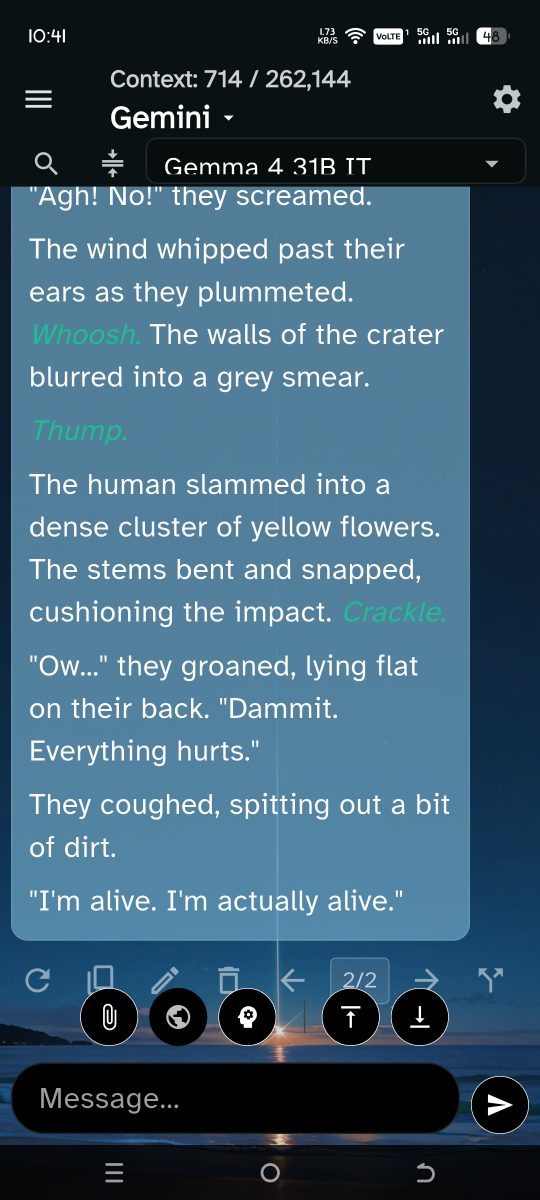
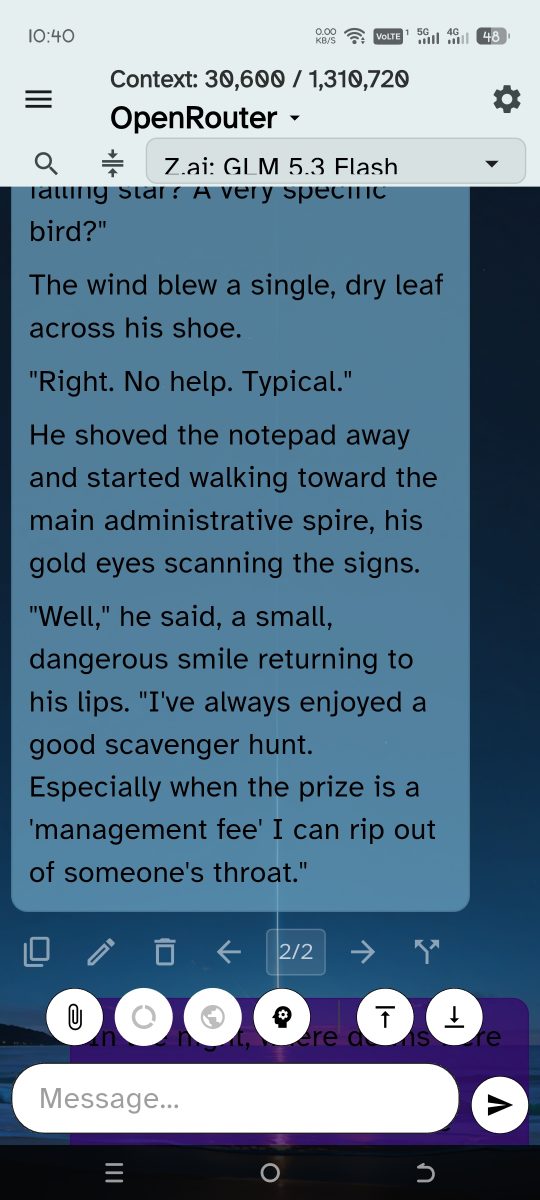
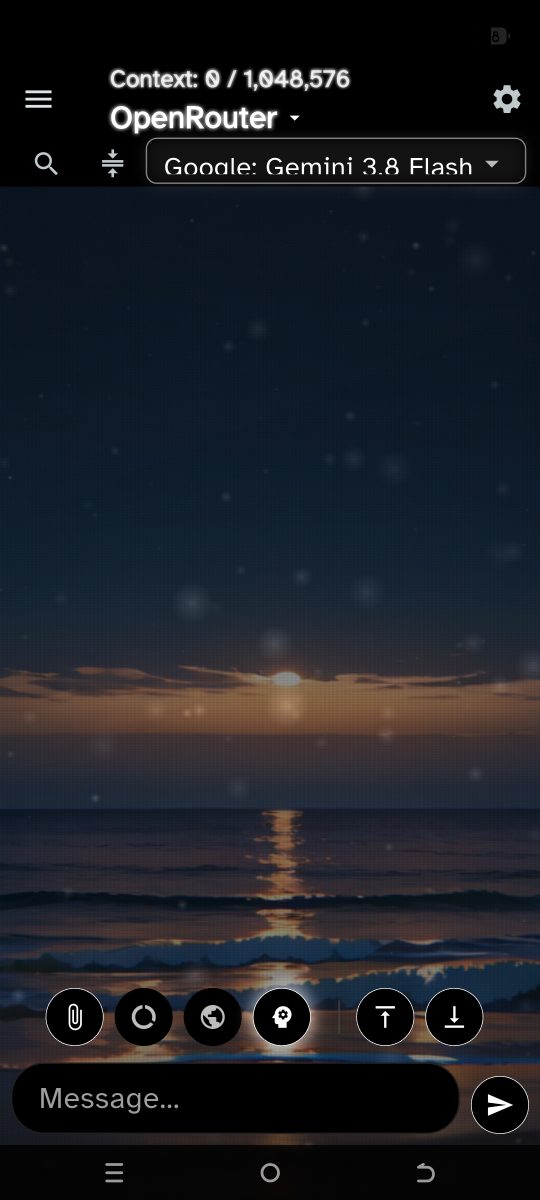
Key Features
- Multi-Provider Support: Seamlessly switch between Google Gemini, OpenRouter, NanoGPT, NVIDIA, DeepSeek, Ollama, any OpenAI Compatible endpoint, or a Local server.
- High-Performance Streaming: Optimized streaming engine eliminates UI lag by updating only the active message bubble, ensuring silky-smooth performance even on lower-end devices.
- Background Streaming: Send a message, switch to another conversation, and the response continues generating in the background. The conversation drawer shows a spinner on active streams and displays a notification card when the background stream completes.
- Dynamic Model Lists: Entering a key or endpoint fetches that provider's model list automatically, with pricing metadata where the provider reports it (OpenRouter, NanoGPT) and parameter size / quantization for local Ollama models. A failed fetch says why instead of silently doing nothing.
- Intelligent Model Selector: A powerful, searchable dialog with a Bookmarking System, real-time model counters per provider, raw API ID subtitles, and cost sorting.
- BYOK Web Search: Provider-agnostic web search with 6 backends natively injected as context blocks across all AI providers.
- Light & Dark Mode: Full toggle with 20+ semantic color getters that adapt the entire UI.
- Response Versioning & Forking: Regenerated responses are preserved as versions. Fork a conversation from any message to create a new branch.
- Usage Stats: Per-message token usage display (prompt + completion = total).
- Character Cards (V2 & V3): Import character cards from PNG or JSON files with full V2 and V3 schema support, in-app editing, and embedded lorebook loading.
- Lore Recognition: Character-card lorebooks are matched against your current input and injected into the system prompt, with a live glow preview of the entry about to fire.
- Reasoning / Thinking: Normalized across providers and shown per bubble behind a "Show Thought Process" chip. Reasoning is persisted for redisplay and stripped only from the outbound payload. The request format follows each provider's own spec, including Gemini's
thinkingConfig, which is not the OpenAIreasoning_effortfield. - Conversation Summarize: Compress a long roleplay into a narrative summary plus per-character voice samples, then branch into a fresh conversation seeded with both and the last N turns. The original is left intact.
- In-Chat Find: Ctrl/Cmd+F opens a find bar with match counts and prev/next navigation; the current match is highlighted and scrolled into view.
- Full Backup (Library): Export and import your entire AIRP configuration as
.airpfiles with intelligent merging. - Searchable History: Query past conversations or star them to pin them at the top of the drawer.
- Message Management: Edit, copy, delete, or regenerate specific messages, featuring full Markdown support and syntax highlighting. Reasoning blocks are shown read-only while editing, so a thought process cannot be accidentally rewritten as dialogue.
- Text Designer & Atmosphere Controls: Independent text styling, bubble opacities, 42 fonts across seven categories, markdown color controls, atmospheric particle effects (Rain, Fireflies, Motes), and a CRT screen post-process.
- Advanced Prompting Engine: A layered system instruction assembled from the main prompt, the active character card, persona, recognized lore, and depth prompts, all built in one place.
- Multimodal & File Support: Attach images, PDFs, and text-based files for AI analysis.
- Token Counting & Safety: Real-time context boundary indicators and toggles to disable API-side safety filters.
- Scalability & Multi-Device Support: Optimized for Phones, Tablets, and Desktops with granular layout controls and gesture zooming.
- Modular Architecture: Core logic is split into specialized services (Session, Model Registry, API Key management, Streaming Coordinator) to keep provider integration cheap and behavior testable.
Modular Architecture
To maintain high performance and reliability, AIRP's core engine has been decomposed into focused, testable units:
- Session Service: Manages asynchronous conversation persistence, auto-saves, and intelligent message history merging.
- Model Registry: Centrally handles discovery, metadata parsing, caching, loading states, and fetch errors for every provider.
- API Key Service: Provides secure, encrypted storage for credentials with automated migration from legacy formats.
- Prompt Pipeline: A dedicated orchestration layer that handles character card injection, lore recognition, and multi-layered system instructions.
Scalability & Multi-Device Support
AIRP is designed to be your companion across all your devices. Whether you are on a mobile phone, a large tablet, or a desktop computer, the interface adapts to provide the best experience.
- Auto-Detection: On first install, AIRP detects your device type and applies optimized scaling presets.
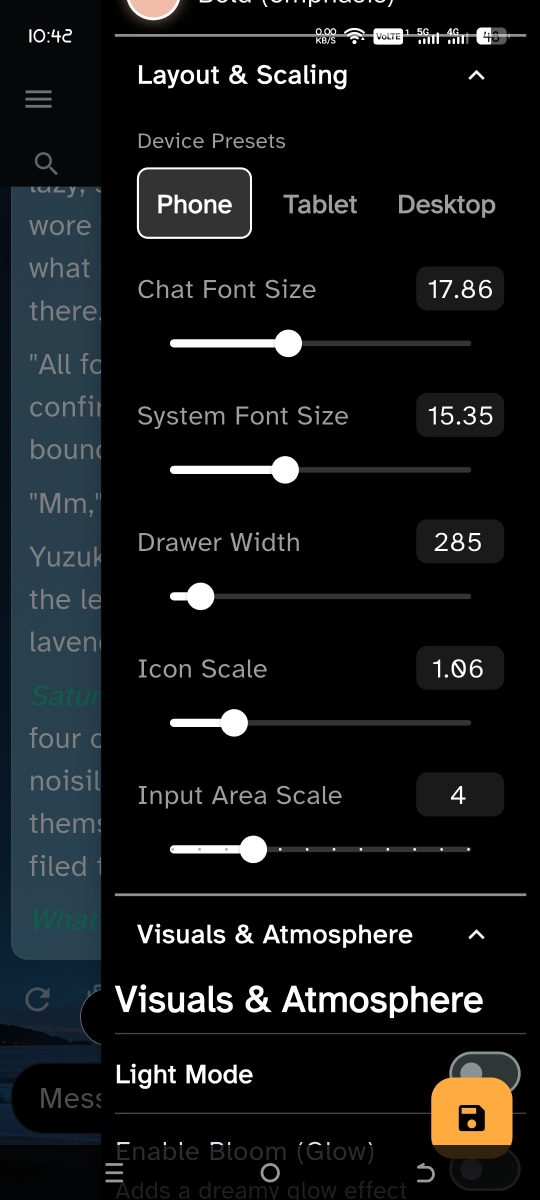
- Scale Settings: Located in the Settings Drawer, the Scale Settings panel allows for granular control:
- Presets: Quickly switch between Phone, Tablet, and Desktop layouts.
- Granular Controls: Manually adjust Font Sizes, Icon Sizes, Drawer Widths, and the Chat Input Area height to perfectly fit your screen and preferences.
Getting Started
Prerequisites
- Flutter SDK installed.
- An IDE (VS Code or Android Studio).
Installation
-
Clone the repository:
git clone https://github.com/JCDC0/AIRP cd AIRP -
Install dependencies:
flutter pub get -
Run the app:
flutter run
Configuration & API Keys
This app follows a BYOK (Bring Your Own Key) architecture. API keys are stored in platform-encrypted secure storage on your device.
Supported Providers at a Glance
- Google Gemini: Google AI Studio
- OpenRouter: OpenRouter
- NanoGPT: NanoGPT
- NVIDIA NIM: build.nvidia.com
- DeepSeek: DeepSeek Platform
- Ollama: Ollama — a local server; no API key needed
- OpenAI Compatible: any self-hosted or third-party OpenAI-compatible endpoint
- Local: LM Studio or any OpenAI-compatible local server
Retired in 0.7.30 / 0.7.30.1. ArliAI, Blackbox AI, Groq, HuggingFace, Minimax, Mistral, OpenAI, Qwen, Vertex AI, xAI, Xiaomi MiMo and Z.ai were removed. Existing conversations saved under a retired provider still open; they fall back to Gemini rather than failing. Any of those services can still be reached through the OpenAI Compatible provider by pasting its base URL.
General Setup
- Choose a provider from the top dropdown.
- Open the Settings Drawer (slide from the right or click the gear icon).
- Paste your key or endpoint into the relevant field.
- The model list is fetched automatically a moment after you finish typing the key or endpoint. Load Models / Refresh Models under the field re-runs it on demand and reports the result.
- Click the Floating Save Button at the bottom right.
Provider Notes
- Ollama: start
ollama serve, then enter the server root in the endpoint field —http://localhost:11434, or your machine's LAN address if the server runs elsewhere. A trailing/v1is accepted and normalized away. AIRP chats over Ollama's OpenAI-compatible route and lists models over its native/api/tags, so the picker shows family, parameter size, quantization, and on-disk size. No API key is required. - Local Network AI (LM Studio and similar): start your local server, make
sure it is reachable on your network, then enter a URL like
http://<YOUR_PC_IP>:<PORT>/v1in the local server field. - OpenAI Compatible: enter your base URL ending before
/chat/completions. - NVIDIA NIM: the catalogue also lists embedding, reranking and image similarity models that have no chat route. Those are filtered out of the picker, because selecting one returns a 404 that reads like a bad API key.
- Gemini, OpenRouter, NanoGPT, NVIDIA, DeepSeek: paste the provider key in the API Key field and save.
Interface & Controls
Top Bar & Status
The header area is interactive and displays vital session info:
- Context Monitor: Token usage pinned to the top (e.g.,
Context: 2,048 / 1,048,576). It is anchored to theprompt_tokensyour provider actually reported on the last turn and estimates only what has been added since, scaled by a per-provider calibration ratio, so it converges on the provider's own accounting rather than guessing from scratch. - Provider Switcher: Tap the main title ("AIRP - Provider") to switch providers. Star the ones you use to pin them to the top of the list.
- Current Model: The active model's name is displayed in the subtitle.
Conversation Management (Left Drawer)
Slide from the left edge of the screen or tap the Menu icon to access your history.
- Search: Use the text field at the top of the drawer to filter conversations by title in real-time.
- Starred Conversations: Tap the star icon on any conversation to pin it to a dedicated "Starred" section at the top of the drawer.
- Navigation: Tap any conversation to load it immediately.
- Background Activity: Conversations with active background streams display a spinner indicator.
- Deletion: Long-press any conversation tile to bring up the delete confirmation dialog.
- New Chat: Tap "New Conversation" to clear the current context and start fresh.
Chat Controls (Main Screen)
Interact with the message stream using gestures.
- Message Options: Long-press any message bubble (User or AI) to open the context menu:
- Copy: Copies the message text to the clipboard.
- Edit: Modify the message content.
- Retry: Regenerate the response. Previous versions are preserved and navigable with prev/next arrows and a version counter (e.g., "2/3").
- Fork: Create a new conversation branching from any AI message, preserving all prior context.
- Delete: Remove the message from the history.
- Model Identification: The specific model used to generate a response is displayed in a tag above the AI's message bubble.
- Zoom & Pan: Pinch-to-zoom anywhere on the chat history to get a closer look at text or images. On desktop, a floating zoom button toggles zoom mode; on mobile, the reset button appears when zoomed.
- Scroll Navigation: Scroll-to-top and scroll-to-bottom buttons for quick jumps in long conversations.
- Quick Toggles: The input bar provides one-tap access to Web Search, Usage Stats, and Reasoning Mode without opening the settings drawer. The input placeholder dynamically updates ("Search web...", "Add a caption...", "Message...").
- Typing Feedback: During generation waits (with border/loading animations disabled), the AI bubble shows an inline animated three-dots typing state and removes it once output starts.
- Keyboard Send Shortcut: Use Ctrl+Enter / Cmd+Enter to send messages from supported hardware keyboards.
Model Selection (Right Drawer)
Slide from the right edge or tap the Settings icon.
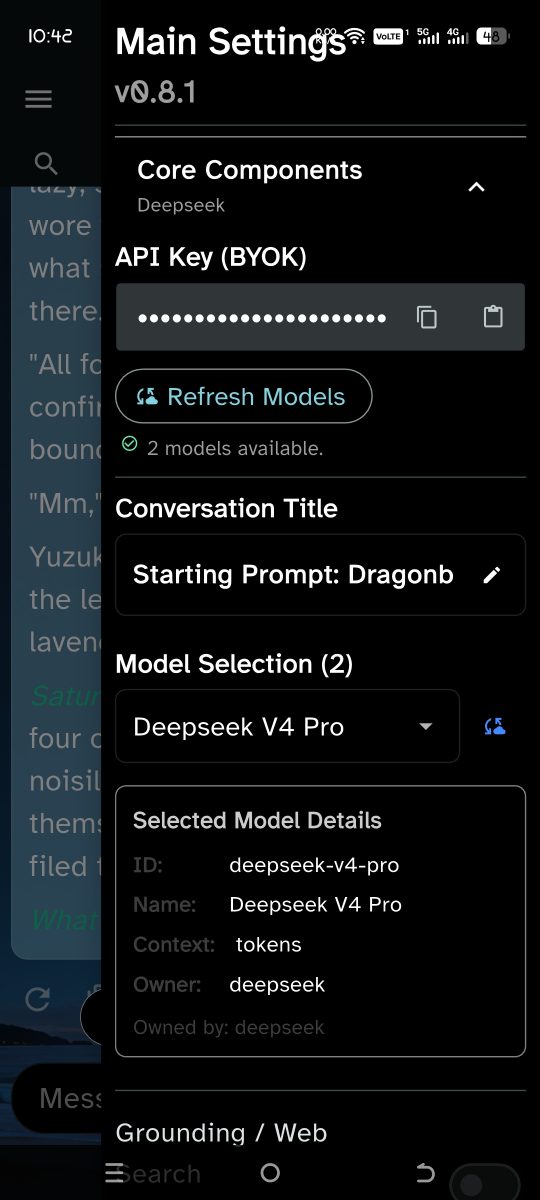
- Enter your API key or endpoint in the API panel.
- Locate the Model Selection section.
- The list is fetched for you shortly after a key or endpoint is entered. Load Models / Refresh Models under the API Key field re-runs it and reports the outcome underneath — a model count on success, or an actionable reason on failure (a rejected key, a wrong endpoint, an unreachable host). A counter beside the section heading shows the total found.
- Tap the Selector: This opens the Model Manager Dialog.
- Search: Type in the top bar to filter instantly (e.g., "flash", "llama").
- Bookmark: Tap the bookmark icon on the right of any model to pin it to the top of the list forever.
- Refresh: The refresh icon at the top of the dialog re-fetches the live model list from the provider — the dialog updates in place, no need to close and reopen.
- Subtitles: Every model displays its raw API ID underneath the clean name, so you know exactly what you are selecting (crucial for OpenRouter).
- Details: Owner, context window, pricing, modality, tokenizer and per-request limits are pulled from whatever the provider reports, and long descriptions scroll instead of being cut off.
- Select your desired model. The list automatically cleans raw IDs (e.g.,
models/gemini-3-pro-preview) into readable titles (e.g.,Gemini 3 Pro Preview). - The Floating Save Button will appear. Click it to confirm your selection.
System Prompting & Personas
AIRP features a layered prompting system designed for complex roleplay and character consistency.
In the Settings Drawer, Generation Parameters and Web Search are placed directly under Main System Prompt for consistency.
Changed in 0.7.22. Per-rule "Advanced Tweaks" were removed. Reusable settings bundles are handled by Config Packs, and reusable prompt text by the system-prompt library below.
-
Main System Prompt:
- Toggle: Enable or disable the entire System Prompt section with a single switch.
- This is your "World Rulebook" or "Main Persona".
- Type directly into the large text box in the settings drawer.
- Save/Load: Use the dropdown menu to save your prompt to a local library for later use.
-
Character Cards (V3 Base & V2 Compatibility):
- Import: Load character cards from PNG files (V1/V2 tEXt/iTXt compressed chunk parsing) or JSON files. The system intelligently decompiles the newer V3 standard wrapper schemas back into flat V2 properties preventing breakages, and retains full SillyTavern V2 parsing. Embedded
character_booklorebooks are auto-loaded. - In-App Editor: Edit 11+ character fields — Name, Description, Personality, Scenario, First Message, Example Dialogue, System Prompt, Post-History Instructions, Creator Notes, Creator, and Character Version.
- Alternate Greetings: Manage multiple first messages that can be cycled.
- Depth Prompt: Configure text injected at a specific depth in the message history with role assignment (system/user/assistant).
- Tags: View and manage character tags for organization.
- Embedded Lorebook: View the character's embedded lorebook entries within the character card panel. Entries are read-only; author them in a card editor and re-import.
- Export: Save character cards to JSON, seamlessly packaging them via the native
kCharacterCardV3Schemastructure. - Clear Card: Remove the active character card without touching your system prompt or global lorebook.
- Import: Load character cards from PNG files (V1/V2 tEXt/iTXt compressed chunk parsing) or JSON files. The system intelligently decompiles the newer V3 standard wrapper schemas back into flat V2 properties preventing breakages, and retains full SillyTavern V2 parsing. Embedded
Web Search (BYOK)
AIRP includes a provider-agnostic web search system that works across all AI backends, not just Gemini. Accessed via the Web Search toggle in the input bar or configured in the Settings Drawer under Web Search.
- Provider (default): Delegates to the AI provider's native grounding feature (Gemini Search, OpenRouter web plugin, NanoGPT). Uses the provider's own billing. Providers without native grounding disable the toggle and say so, rather than silently doing nothing.
- Brave Search: High-quality search results with a BYOK API key. ~2,000 free queries/month.
- Tavily: AI-optimized search with pre-summarized results. 1,000 free searches/month. Best for AI/RAG use cases.
- Serper.dev: Google Search results in clean JSON. 2,500 free searches included.
- SearXNG: Connect to a self-hosted SearXNG instance. Supports IP:port URL format with a live validation button. Completely free and private.
- DuckDuckGo (Scraping): Free fallback using DuckDuckGo's main HTML endpoint. No API key required, but result quality may still vary.
Search results are formatted as a [WEB_CONTEXT] block and prepended to your message before sending to the AI. This ensures per-message freshness and works uniformly across all backends. A Max Results slider (1-10) controls how many results are injected per query.
The exact query the model used is shown inline in the assistant bubble (e.g. 🔍 Searched the web for "Radobaan Monster Hunter"), together with a round counter, so you always know when a search happened and why. A Max Searches Per Message slider bounds how many times the model may call the tool per turn.
Conversation Summarize
Long roleplays outgrow any context window. The Summarize drawer (the compress icon in the header) compresses one into a fresh conversation you can keep playing.
- Two editable prompts drive it: a Compress prompt that asks for a third-person narrative summary of events, decisions, relationships and unresolved threads, and a Voice Samples prompt that extracts 3-5 characteristic speech snippets per character. Both are editable and persist.
- A slider (1-20, default 5) chooses how many trailing turn pairs to carry over verbatim.
- Running it issues two one-shot calls against your active provider and model, appends both results to the current chat, then creates a new conversation seeded with the summary, the voice samples, and the last N pairs.
The original conversation is only appended to, never rewritten.
In-Chat Find
Press Ctrl+F / Cmd+F, or the magnifying glass in the header, to open the
find bar. It reports x / y matches, steps through them with prev/next or
Ctrl+G / Cmd+G, highlights every match, scrolls the current one into
view, and closes on Esc.
Text Designer
The Text Designer panel in Settings centralizes text presentation controls with its own expandable section:
-
Global Interface Font: 42 faces grouped by category (Interface, Serif, Monospace, Handwriting, Display, Japanese). Faces are fetched on first use rather than bundled, so a newly picked font needs one network fetch before it renders.
-
Chat Customization: Tune User/AI bubble and text colors plus opacity.
-
Markdown Colors: Three pickers, shown as easy-to-scan rows (
color circle - label): Narration, Italic (actions) and Bold (emphasis). Those are the only elements roleplay prose uses — narration in plain text,"dialogue"in quotes,*actions*in asterisks, and bold for emphasis.Changed in 0.7.30.3. The other ten pickers were retired. Headings, lists, blockquotes, links, strikethrough and code still render exactly as before; they follow the bubble's text colour instead of each carrying a picker. Three of the retired ones (Bold Italic, Inline Code, Code Block) had never been wired to the renderer at all.
Full Backup (Save & Load Library)
Export and import your entire AIRP configuration using .airp files. Located in the Settings Drawer under Library.
Changed in 0.7.22 / 0.7.23. Per-category export toggles were removed. Settings are now handled by named Config Packs, and
.airpfiles carry conversations.
- Conversations: export a single conversation or all of them from the Snapshots
tab, and re-import with
Import .airp. Conversations are merged by ID and system prompts by title, so re-importing never duplicates. - Config Packs: named bundles capturing every settings-drawer value except conversations and API keys. Save, apply, rename, delete, export to file, or import from file. SillyTavern Chat-Completion presets can be imported (import only).
- Character card and world lore are restored from an imported file when present.
Lore Recognition
AIRP recognizes world-lore entries from what you are currently typing and injects the matching entries into the system instruction for that message.
Changed in 0.6.11.1. Earlier versions scanned conversation history and injected entries at eight SillyTavern-style prompt positions. That path was replaced by current-input recognition, and
0.7.27removed the machinery it left behind. Positional injection, timed effects (sticky / cooldown / delay), and evaluation tracing no longer exist. Seedocs/audits/DEAD-CODE-AND-DOCS.md.
How it works
- As you type, AIRP scans the input box against the entries of the active
character card's embedded
character_bookand the global lorebook. - Entries whose keywords match become candidates.
- Matching entries are appended to the system instruction under a single
--- Recognized World Lore ---heading, ordered by each entry's insertion order. - The first match is previewed as a glow strip under the input box, so you can see that lore is about to fire before you send.
Only the message you are typing is scanned. Something a character said three messages ago will not trigger an entry.
What activates an entry
Entries come from imported character cards. AIRP honours these fields when matching:
- Keys (primary): comma-separated keywords. Example:
dragon, wyrm, drake. Any one match triggers the entry. - Secondary keys: an additional filter with AND or NOT logic. AND requires both primary and secondary to match; NOT excludes the entry when the secondary key is found.
- Strategy:
Triggered(activates on keyword match) orConstant(always active regardless of keywords). - Probability: chance of activation per match (0-100%), for variety.
- Inclusion groups: within a group only the highest-weight entry activates, preventing conflicting information.
- Character filter: restricts an entry to (or excludes it from) named characters.
- Recursion: when a card enables
recursive_scanning, an activated entry's content is rescanned to trigger further entries. - Token budget: entries are added in order until the card's budget is exhausted.
Getting lore into AIRP
- From character cards: importing a SillyTavern PNG or JSON card with an embedded
character_bookloads its entries automatically. They are visible read-only under Settings > Character Card > World Lore. - From a config pack or
.airpbackup: a global lorebook is restored if the imported file contains one.
There is no in-app editor for creating lore entries from scratch. Author them in SillyTavern (or another card editor) and import the card.
Round-trip fidelity
Fields AIRP no longer acts on (insertion position, depth, role, sticky, cooldown, delay, scan depth) are still parsed and re-exported unchanged, so a card imported into AIRP and exported again keeps its full SillyTavern V2 data.
Customization
- Recognizer Glow: the colour of the input-box lore preview, under Settings > Character Card.
Advanced Generation Controls
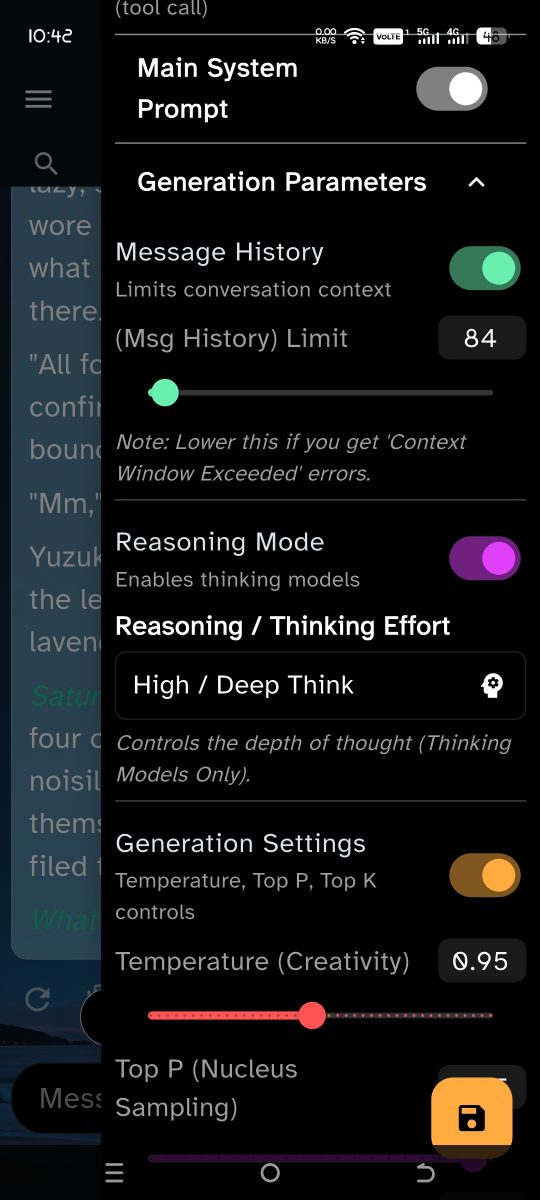
Fine-tune how the AI behaves using the Settings Drawer. Each section can be toggled ON or OFF to simplify the interface or disable specific behaviors. All sliders support manual numeric input for precision.
-
Message History:
- Toggle: Enable or disable sending past messages to the AI.
- Context Memory Limit: Adjusts the truncation window (e.g., last 20 messages). Lower this if you encounter "Context Window Exceeded" errors.
-
Reasoning Mode:
-
Toggle: Enable "Thinking" models. While this is off, AIRP sends no reasoning parameter at all, so every model keeps its own default.
-
Effort: Set the depth of thought. The dropdown only offers levels the active provider actually accepts, and a level it does not accept steps down to the nearest one rather than silently reading as Disabled.
-
Request format: sent per each provider's own specification, which is not the same field everywhere:
Provider Field sent Gemini / Gemma generationConfig.thinkingConfig—thinkingLevelon Gemini 3+,thinkingBudgeton Gemini 2.x, plusincludeThoughts. Gemini does not usereasoning_effort.OpenRouter reasoning_effort, plusreasoning: {effort}for the Max levelNanoGPT reasoning_effort,nonethroughxhigh, always sentNVIDIA NIM reasoning_effort,low/medium/highonlyDeepSeek thinking: {type: enabled|disabled}plus alow/high/maxladderOllama reasoning_effort, always sent, mapped onto its nativethinkOpenAI Compatible / Local reasoning_effort, omitted when disabled -
Reasoning output is wrapped in
<think>tags internally, shown per bubble behind a Show Thought Process chip, persisted with the conversation for redisplay, and stripped only from the outbound payload.
-
-
Generation Settings:
- Toggle: Enable or disable manual control over Temperature, Top P, and Top K.
- Temperature (Creativity): Controls randomness. High (1.0 - 2.0) for creativity, Low (0.0 - 0.5) for logic.
- Top P (Nucleus Sampling): Limits token selection to top cumulative probability.
- Top K (Vocabulary Size): Restricts the AI to the top
Kmost likely next words.
-
Max Output Tokens:
- Toggle: Enable or disable the output token limit.
- Slider: Sets the hard limit on response length (up to 8192 tokens).
-
Safety Settings:
- Disable Safety: Toggle to remove Gemini harm category safety filters (harassment, hate speech, sexually explicit, dangerous content) for unrestricted creative writing.
Customization
Visuals & Atmosphere
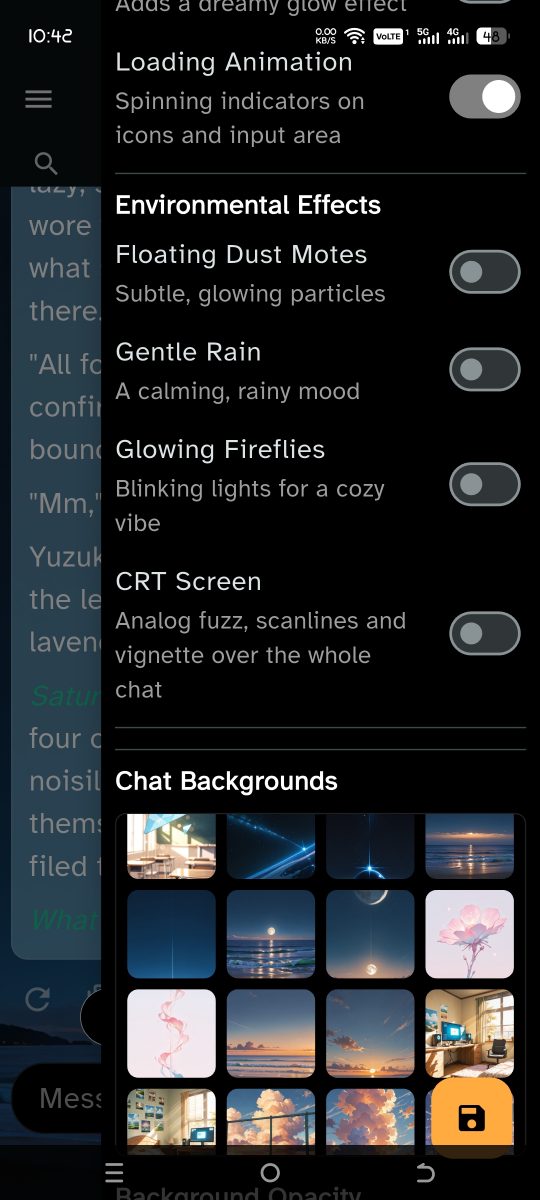
Located in the Settings Drawer under Visuals & Atmosphere. You have full control over the app's "Vibe":
- Global Theme: Change the primary accent color of the entire application (borders, icons, glow effects).
- Light / Dark Mode: Toggle between light and dark themes. The entire UI adapts via 20+ semantic color getters.
- Thematic Fonts: 42 faces across seven categories, chosen in the Text Designer panel: Interface (Inter, Open Sans, Nunito, Montserrat, Poppins, Atkinson Hyperlegible, Lexend, Quicksand, Raleway), Serif (Source Serif 4, Lora, EB Garamond, Crimson Pro, Merriweather, Libre Baskerville, Cormorant Garamond, Spectral, Bitter, Playfair Display), Monospace (Space Mono, JetBrains Mono, IBM Plex Mono, Fira Code, Special Elite), Handwriting (Caveat, Dancing Script, Indie Flower, Patrick Hand, Shadows Into Light), Display (Orbitron, Cinzel, Cinzel Decorative, MedievalSharp, Uncial Antiqua, Pirata One, Comic Neue) and Japanese (Kosugi Maru, Noto Sans JP, M PLUS Rounded 1c, Sawarabi Mincho), plus the system default.
- Bubble Colors: Independent color pickers for user bubble background, user text, AI bubble background, and AI text — 4 separate controls plus individual opacity sliders for each bubble type.
- Bloom & Effects: Toggle the "Bloom" switch for a dreamy glow effect on text and icons.
- Loading/Border Animations: Toggle orbiting border/loading animations globally. Affects input field borders, toggle buttons, reasoning headers, and the zoom button. Each uses distinct animated arc patterns.
- Weather & Particles: Dynamic overlays driven by a single ticker and one
draw call, so enabling them costs far less than it looks. Each slider is a
percentage of a fixed particle pool, meaning raising it only adds particles
instead of reseeding the field:
- Floating Motes: dusty ambient specks with depth parallax and twinkle.
- Rain: one shared wind slant across the field, with depth layering.
- Fireflies: incommensurate-sine flight with a discrete blink envelope.
- CRT Screen: a fragment-shader post-process over the whole chat surface — horizontal smear, bloom bleed, chromatic aberration, rolling scanlines, aperture grille, grain and vignette. CRT Scanlines controls raster structure independently of master intensity, and CRT Fisheye gates the barrel warp (off by default). Falls back to a plain image if the platform cannot compile the shader.
- Opacity Control: Fine-tune the transparency of the background dimmer and message bubbles independently.
- Custom Backgrounds: Choose from 26 built-in AI-generated backgrounds or add custom images from your gallery. Long-press custom images to remove them. Backgrounds persist per-session.
- Reset to Defaults: One-click reset for all visual settings with a confirmation dialog.
Disclaimer
This project was developed with the assistance of AI tools. It is intended as a personal project and possibly as a portfolio piece. Use at your own risk; I am not responsible for API costs incurred via OpenRouter, Google Cloud, or other supporting platforms.
License
This project is open-source and available under the MIT License. See LICENSE.

Juan Carlo De Castro ↗
分类
使用的依赖
依赖清单 21 项
- flutter
{"sdk":"flutter"} - cupertino_icons
^1.0.8 - flutter_markdown
^0.7.7+1 - markdown
^7.3.0 - shared_preferences
^2.5.4 - http
^1.6.0 - async
^2.11.0 - google_fonts
^6.1.0 - image_picker
^1.0.7 - provider
^6.1.1 - flutter_colorpicker
^1.1.0 - file_picker
^10.3.10 - simple_animations
^5.0.2 - flutter_secure_storage
^9.2.2 - package_info_plus
^9.0.0 - intl
^0.19.0 - path_provider
^2.1.5 - url_launcher
^6.3.0 - flutter_test开发依赖
{"sdk":"flutter"} - flutter_lints开发依赖
^6.0.0 - dartdoc开发依赖
^9.0.2
如何选择适合项目的代码仓?
先按使用场景筛选,再比较项目活跃情况,最后到原始仓库核对使用要求。
- 通过仓库名、作者或描述搜索,再按技术分类缩小范围。
- 结合星标、复刻与最近推送比较项目;星标反映社区关注,不代表质量保证。
- 使用前在 GitHub 核对 README、许可证与 Issues。
来源与维护
“A repository is the most basic element of GitHub.”
GitHub Docs — About repositories ↗