

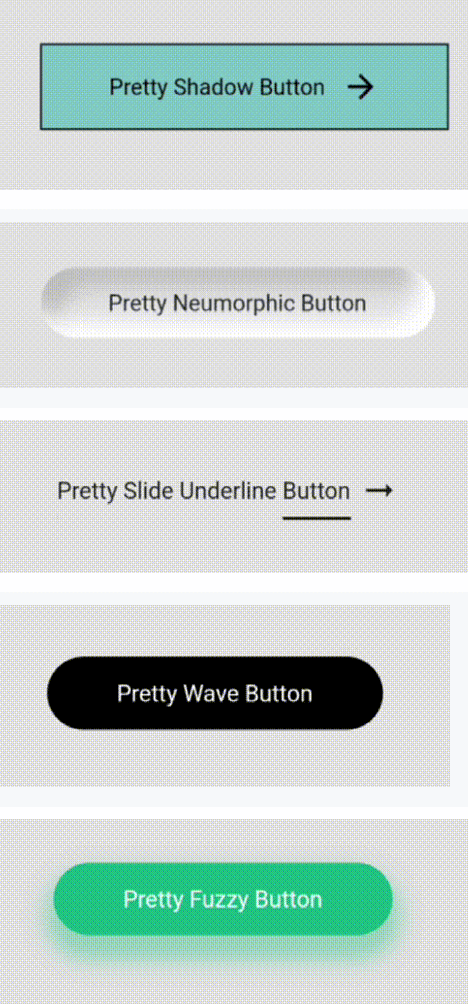
 v0.0.2
pretty_animated_buttons
一组花哨的动画按钮包
91喜欢 493近 30 天下载130Pub 分数
AndroidiOSWebmacOSWindowsLinux
一组现成的、流畅动画的精美按钮,使用 Flutter 编写

以下为英文项目原文快照,最新内容请访问 GitHub。
| Index | Pretty Buttons | Example |
|---|---|---|
| 1 | Pretty Shadow Button | 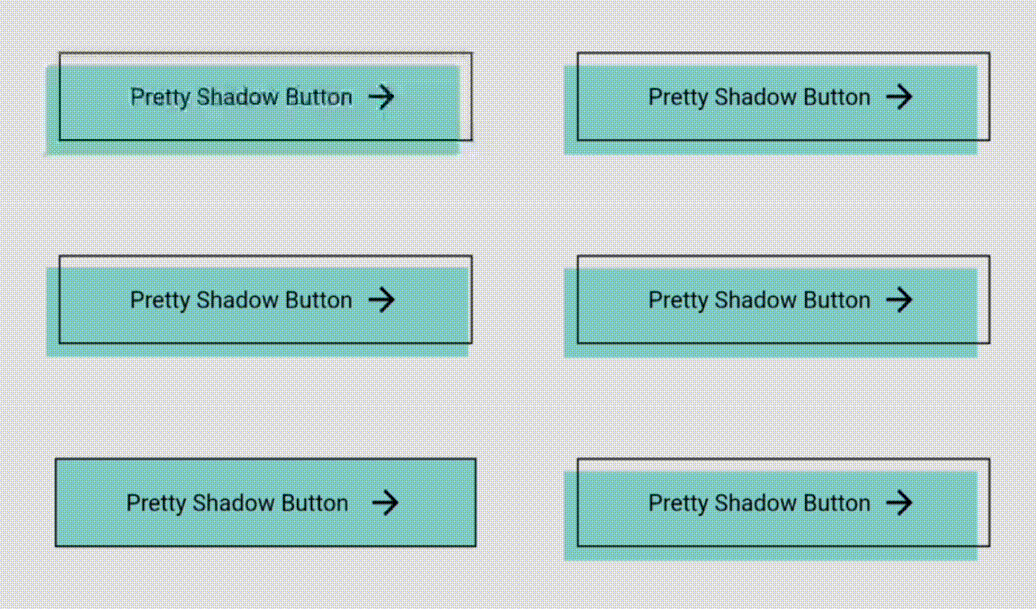 |
| 2 | Pretty Neumorphic Button | 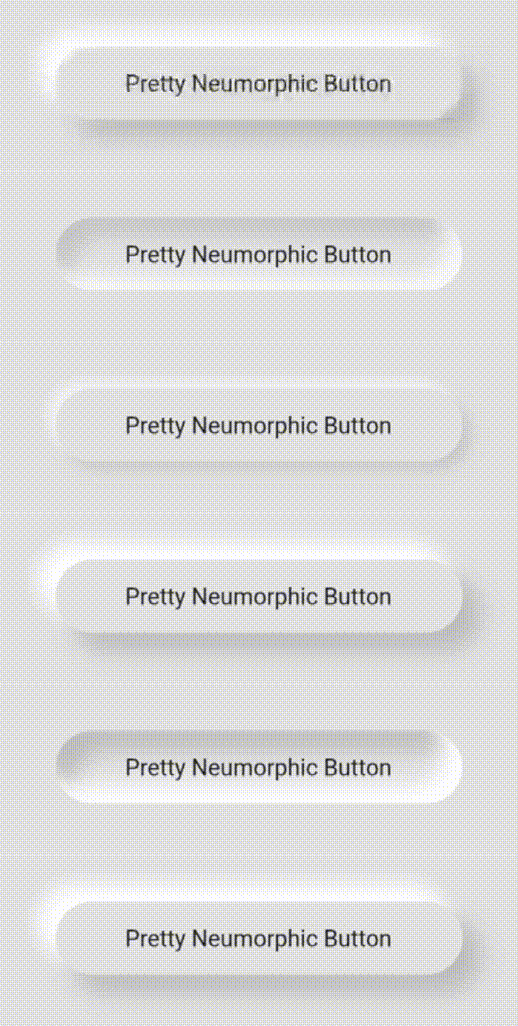 |
| 3 | Pretty Slide Underline Button | 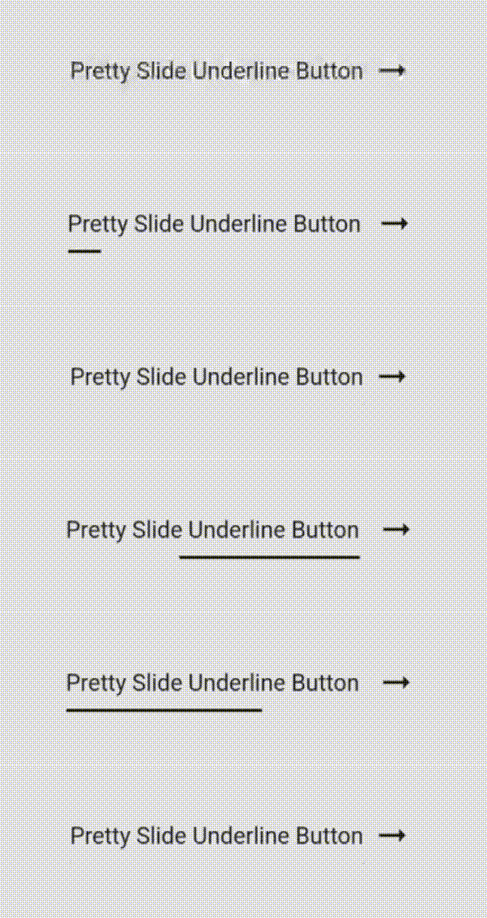 |
| 4 | Pretty Wave Button | 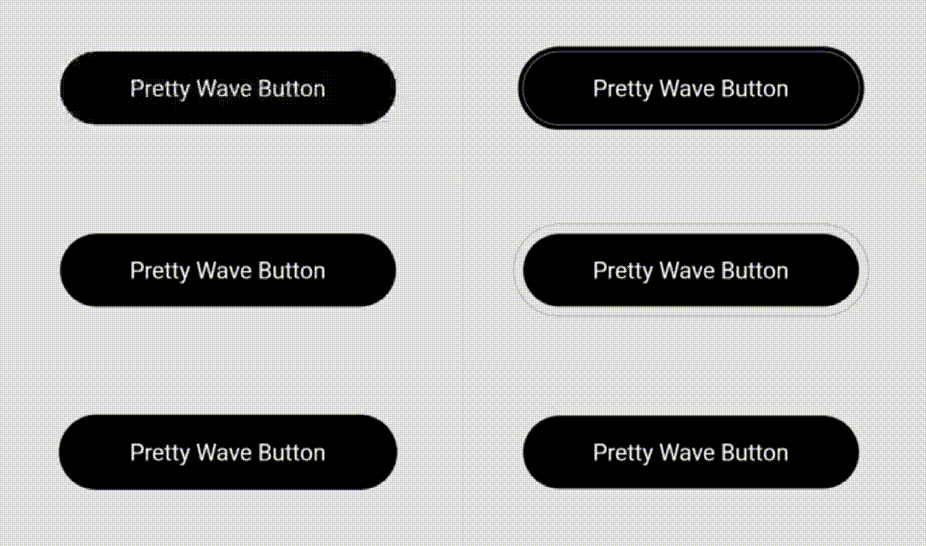 |
| 5 | Pretty Fuzzy Button | 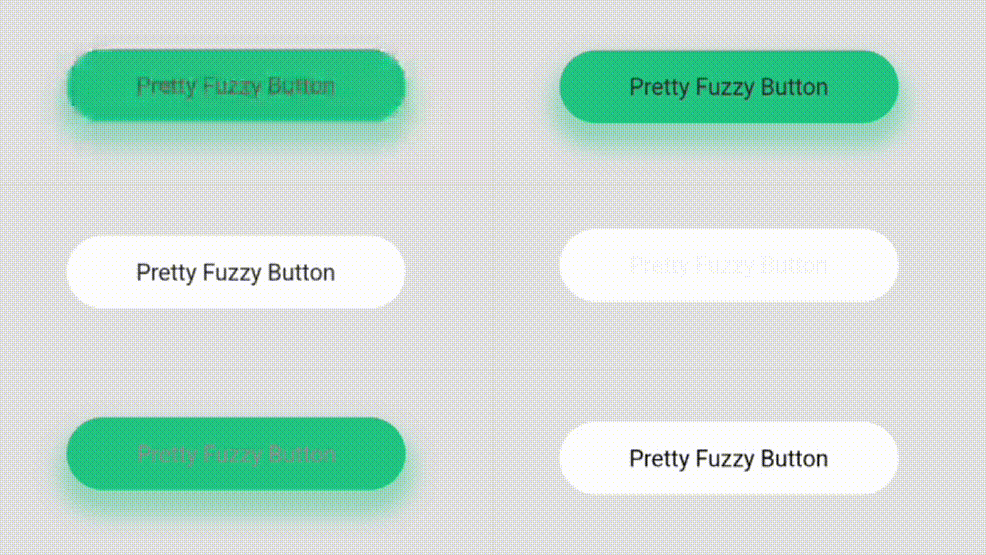 |
| 6 | Pretty Slide Icon Button |  |
| 7 | Pretty Slide Up Button | 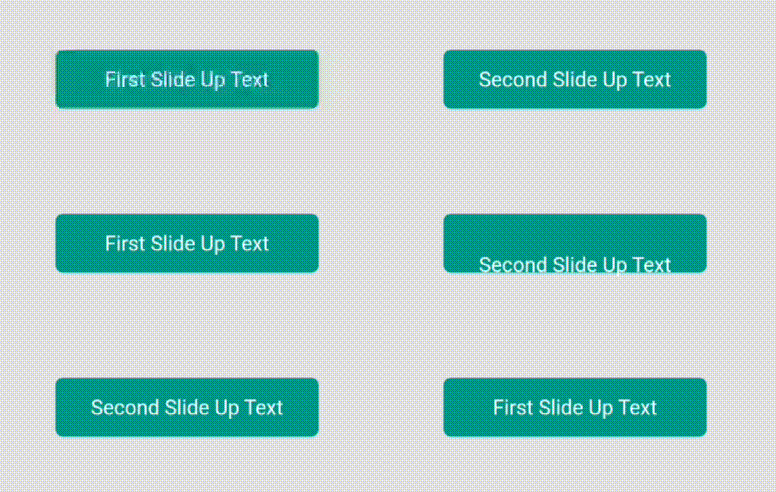 |
| 8 | Pretty Color Slide Button | 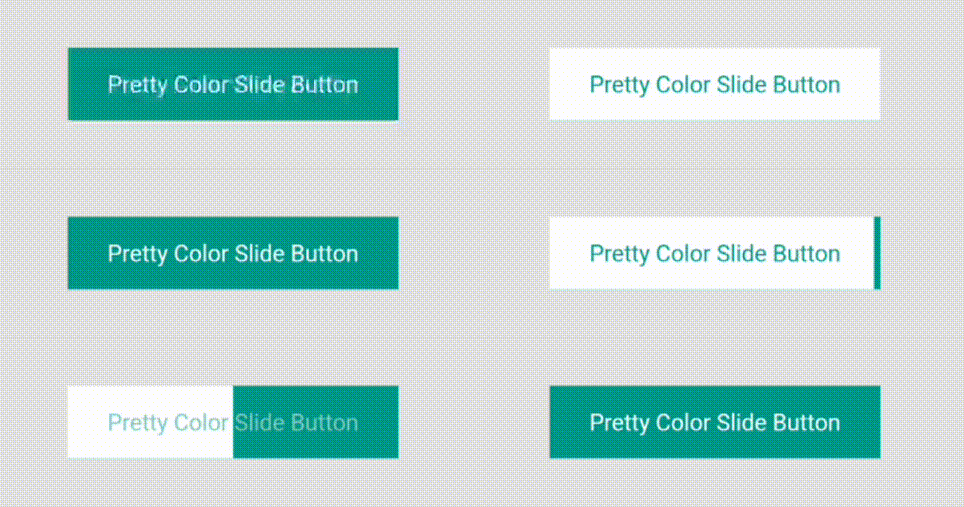 |
| 9 | Pretty Skew Button | 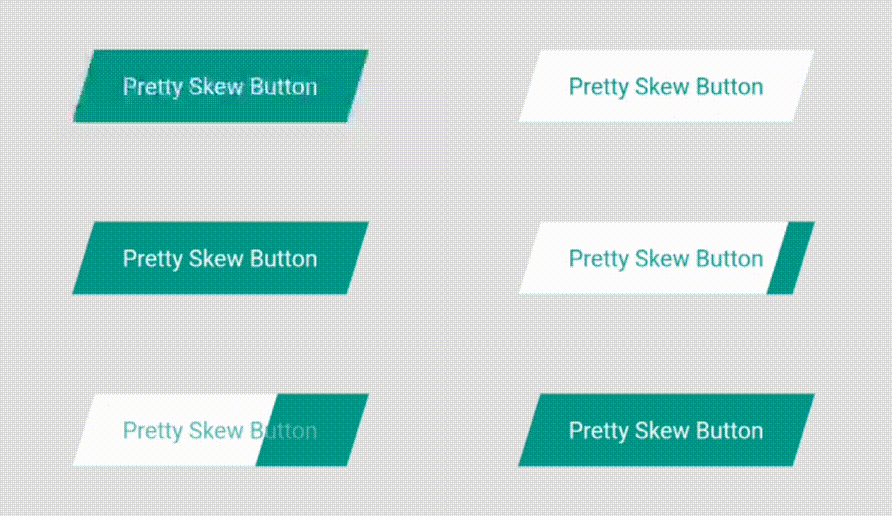 |
| 10 | Pretty Border Button | 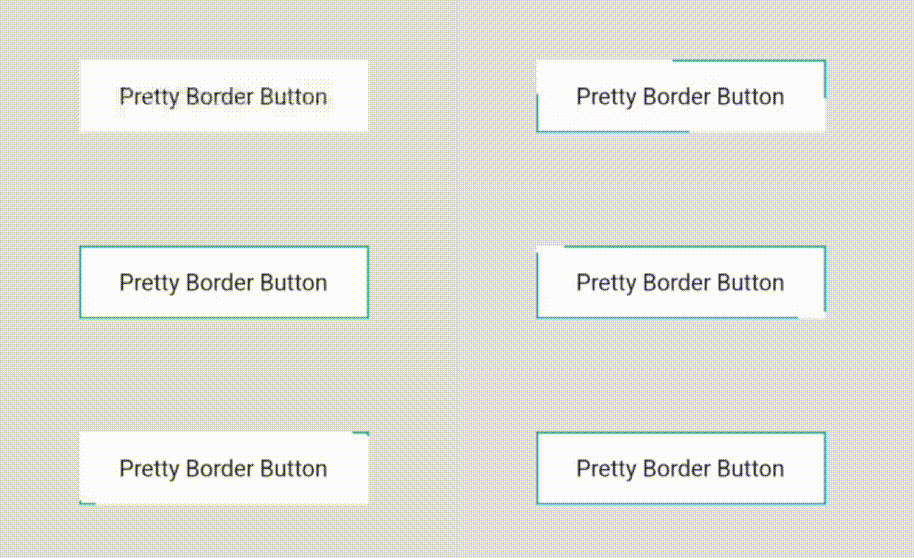 |
| 11 | Pretty Bar Button | 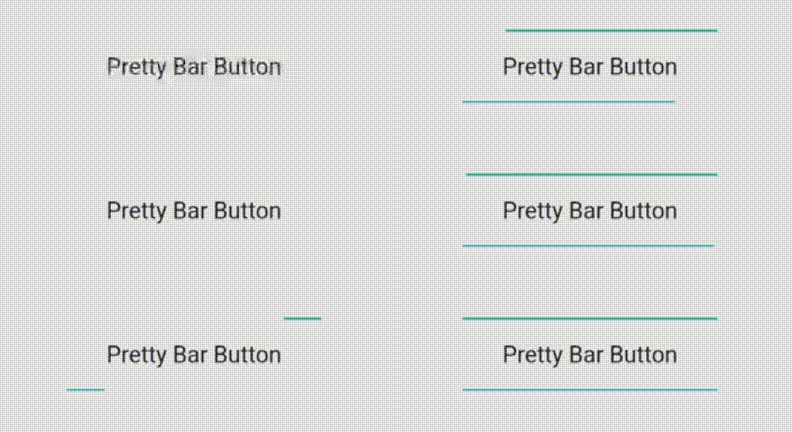 |
| 12 | Pretty Capsule Button | 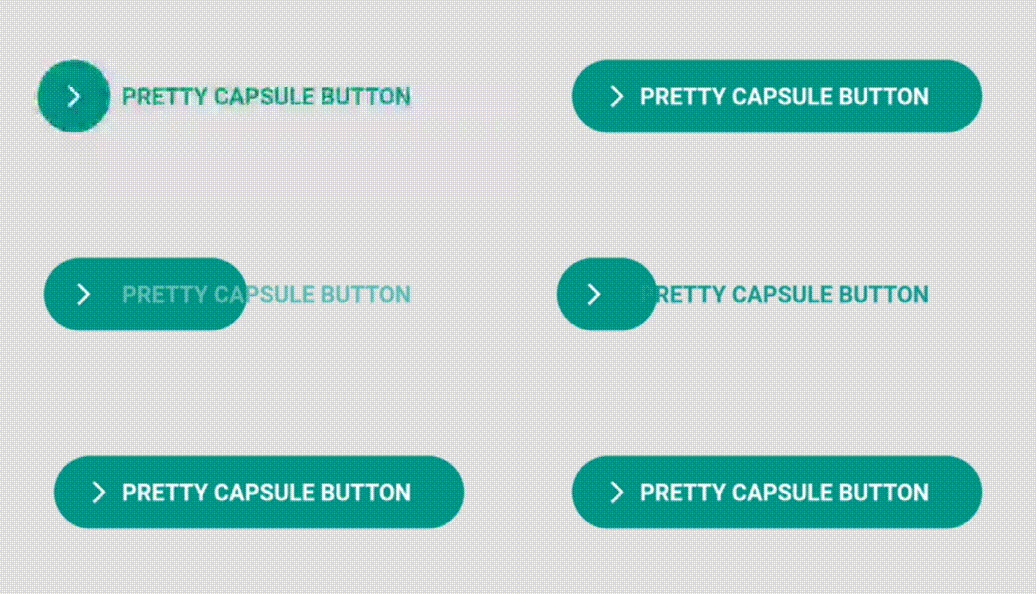 |
The usage is pretty simple. Just use the button's name in Pascal Case.
Eg. For Pretty Shadow Button, use like this.
    PrettyShadowButton(
      label: "Pretty Shadow Button",
      onPressed: () {},
      icon: Icons.arrow_forward,
      shadowColor: Colors.green,
    ),
You can play around with tons of parameters.
PrettySlideIconButton has two icon slide positions - left or right.
From left to right slide,
slidePosition: SlidePosition.left,
From right to left slide,
slidePosition: SlidePosition.right,
PrettyColorSlideButton has special parameter for sliding direction which is position parameter.
For left to right slide,
position: SlidePosition.left
For right to left slide,
position: SlidePosition.right
For top to bottom slide,
position: SlidePosition.top
For bottom to top slide,
position: SlidePosition.bottom
PrettySkewButton also has left & right slide positions which can be tweaked via skewPosition parameter.
For left to right slide,
skewPosition: SkewPositions.left,
For right to left slide,
skewPosition: SkewPositions.right,
🚧🏗️ The project is under development.
Feel free to try this out and give it a ⭐.
More button suggestions are warmly welcome!.
依赖清单 4 项
{"sdk":"flutter"}^2.0.3{"sdk":"flutter"}^2.0.0先按使用场景筛选,再比较项目活跃情况,最后到原始仓库核对使用要求。
“A repository is the most basic element of GitHub.”
GitHub Docs — About repositories ↗