
 v0.1.1
custom_image_crop
一个可自定义的图像裁剪器。您可以通过手势或控制器进行旋转、缩放和移动。
89喜欢 8560近 30 天下载150Pub 分数
AndroidiOSWebmacOSWindowsLinux
一个支持可自定义图像裁剪的 Flutter 包。

{"sdk":"flutter"}^1.0.0^2.1.0{"sdk":"flutter"}以下为英文项目原文快照,最新内容请访问 GitHub。
An Image cropper that is customizable
pub package Build Status Coverage Status MIT license
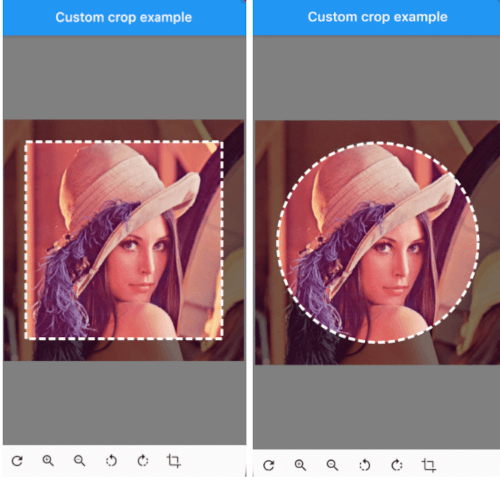
customcropcircle customcropsquare customcropcircle
CustomImageCrop(
  cropController: controller,
  image: const AssetImage('assets/test.png'),
),
You can provide the image using any Imageprovider.
The image that needs to be cropped
The controller used to adjust the image and crop it.
The color above the image that will be cropped
The color behind the image. This color will also be used when there are gaps/empty space after the cropping
The shape of the cropping path.
The shape of the UI masking.
How big the crop should be in regards to the width and height available to the cropping widget.
How the border of the crop should be painted. default DottedCropPathPainter.drawPath and SolidCropPathPainter.drawPath are provided, but you can create/provide any CustomPaint.
Custom painting for the crop area border style.
Whether to allow the image to be rotated.
Custom widget for progress indicator.
Ratio of the cropping area.
If shape`` is set to CustomCropShape.Ratio, this property is required. For example, to create a square crop area, use [Ratio(width: 1, height: 1).
To create a rectangular crop area with a 16:9 aspect ratio, use [Ratio(width: 16, height: 9)`.
The radius for rounded corners of the cropping area.
Whether image area must cover clip path.
void addTransition(CropImageData transition)
Add the position, angle and scale to the current state. This can be used to adjust the image with sliders, buttons, etc.
void setData(CropImageData data)
Set the position, angle and scale to the specified values. This can be used to center the image by pressing a button for example.
void reset()
Reset the image to its default state
Future<MemoryImage> onCropImage()
Crops the image in its current state, this will return a MemoryImage that contains the cropped image
See example/lib
class MyHomePage extends StatefulWidget {
  final String title;

  MyHomePage({
    required this.title,
    Key? key,
  }) : super(key: key);

  @override
  _MyHomePageState createState() => _MyHomePageState();
}

class _MyHomePageState extends State<MyHomePage> {
  late CustomImageCropController controller;

  @override
  void initState() {
    super.initState();
    controller = CustomImageCropController();
  }

  @override
  void dispose() {
    controller.dispose();
    super.dispose();
  }

  @override
  Widget build(BuildContext context) {
    return Scaffold(
      appBar: AppBar(
        title: Text(widget.title),
        brightness: Brightness.dark,
      ),
      body: Column(
        children: [
          Expanded(
            child: CustomImageCrop(
              cropController: controller,
              image: const AssetImage('assets/test.png'), // Any Imageprovider will work, try with a NetworkImage for example...
            ),
          ),
          Row(
            children: [
              IconButton(icon: const Icon(Icons.refresh), onPressed: controller.reset),
              IconButton(icon: const Icon(Icons.zoom_in), onPressed: () => controller.addTransition(CropImageData(scale: 1.33))),
              IconButton(icon: const Icon(Icons.zoom_out), onPressed: () => controller.addTransition(CropImageData(scale: 0.75))),
              IconButton(icon: const Icon(Icons.rotate_left), onPressed: () => controller.addTransition(CropImageData(angle: -pi / 4))),
              IconButton(icon: const Icon(Icons.rotate_right), onPressed: () => controller.addTransition(CropImageData(angle: pi / 4))),
              IconButton(
                icon: const Icon(Icons.crop),
                onPressed: () async {
                  final image = await controller.onCropImage();
                  if (image != null) {
                    Navigator.of(context).push(MaterialPageRoute(builder: (BuildContext context) => ResultScreen(image: image)));
                  }
                },
              ),
            ],
          ),
          SizedBox(height: MediaQuery.of(context).padding.bottom),
        ],
      ),
    );
  }
}