

 v4.0.2
image_pixels
让您扩展图像的背景颜色,或者构建任何依赖于图像宽度/高度或像素颜色的控件。
102喜欢 3750近 30 天下载150Pub 分数
AndroidiOSWebmacOSWindowsLinux
Flutter 包:可扩展图像的背景颜色,或构建依赖于图像宽高及像素颜色的任何控件。

以下为英文项目原文快照,最新内容请访问 GitHub。







This package allows you to build a widget that depends on, or uses the values of:
Try running the Example.
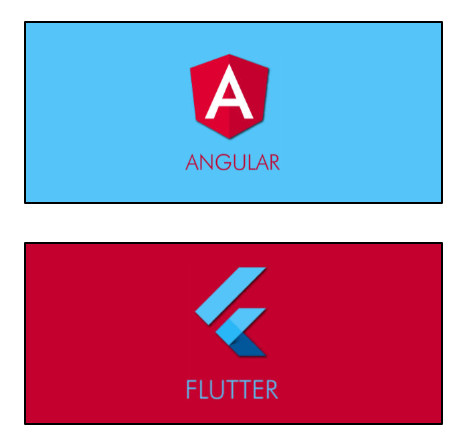
The ImagePixels.container() constructor adds a background-color that is the same color
as the
image pixel at the colorAlignment position.
For example, suppose you put an image inside a Container, like this:
Container(
    width: 250,
    height: 100,
    alignment: Alignment.center,
    child:
        Container(
            width: 40.0,
            height: 60.0,
            child: Image(image: myImageProvider),
        ),
);
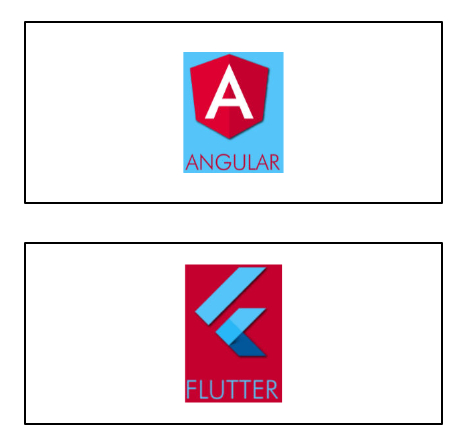
Now, if you wrap it with an ImagePixels.container:
ImagePixels.container(
    imageProvider: myImageProvider,
    colorAlignment: Alignment.topLeft,
    child:
        Container(
            width: 250,
            height: 100,
            alignment: Alignment.center,
            child:
                Container(
                    width: 40.0,
                    height: 60.0,
                    child: Image(image: myImageProvider),
                ),
        );
);
The ImagePixels constructor lets you define an image through an imageProvider, and
then use a builder to build a child widget that depends on the image dimensions and the
color of its pixels.
The default constructor lets you provide the imageProvider, the builder, as well as
a defaultColor to be used when reading pixels outside the image bounds or while the
image is still downloading.
For example, this will display the size of the image as a Text widget:
ImagePixels(
    imageProvider: imageProvider,
    defaultColor: Colors.grey,
    builder: (context, img) => Text("Img size is: ${img.width} × ${img.height}"),
    );
The builder function gives you access to an img parameter of type ImgDetails, with
the following information:
If the image is already available, img.hasImage is true, and img.width
and img.height indicate the image dimensions.
While the image is not yet available,
img.hasImage is false, and img.width and img.height are null.
The functions img.pixelColorAt() and img.pixelColorAtAlignment()
can be used in the builder body to read the color of the image pixels.
If the coordinates point to outside the image, or if the image is not yet available (is
still being downloaded or failed to download), then these functions will return
the defaultColor provided in the ImagePixels constructor.
The img.uiImage parameter contains the image as a ui.Image type. It will be null
while the image is still downloading.
The img.byteData parameter contains the image as a ByteData type. It will be null
while the image is still downloading.
Getting the tapped pixel color: By wrapping the child of the ImagePixel with
a GestureDetector you can obtain the x/y position where the user tapped the image.
From this information, you can then determine the color of the tapped pixel.
Try running
the
Example.
Modifying the image: The child of the ImagePixel can be a CustomPainter. Then,
you can use a canvas to paint whatever you want on top of the image, or else create
an entirely new image from the pixels of the original image.
glasberg.dev
github.com/marcglasberg
linkedin.com/in/marcglasberg/
twitter.com/glasbergmarcelo
stackoverflow.com/users/3411681/marcg
medium.com/@marcglasberg
My article in the official Flutter documentation:
The Flutter packages I've authored:
My Medium Articles:
依赖清单 2 项
{"sdk":"flutter"}{"sdk":"flutter"}先按使用场景筛选,再比较项目活跃情况,最后到原始仓库核对使用要求。
“A repository is the most basic element of GitHub.”
GitHub Docs — About repositories ↗