


 v7.0.0
pinput
PINコード入力(OTP)テキストフィールド、iOS SMSオートフィル、Android SMSオートフィルワンタイムコード、パスワード、パスコード、キャプチャ、セキュリティ、クーポン、Wowcher、2FA、二段階認証
3510いいね 58.4万30日間ダウンロード160Pub ポイント
AndroidiOSWebmacOSWindowsLinux
すべてのピクセルをカスタマイズ可能なPINコード入力テキストフィールドを作成するFlutterパッケージ 🎨 美しいアニメーション、iOS自動入力、Android自動入力に対応。

以下は英語原文のスナップショットです。最新版は GitHub をご覧ください。
Flutter Pinput is a package that provides an easy-to-use and customizable Pin code input field. It offers several features such as animated decoration switching, form validation, SMS autofill, custom cursor, copying from clipboard, and more. It also provides beautiful examples that you can choose from.
PRs Welcome
Discord Channel
Examples app on Github has multiple templates to choose from
Don't forget to give it a star ⭐
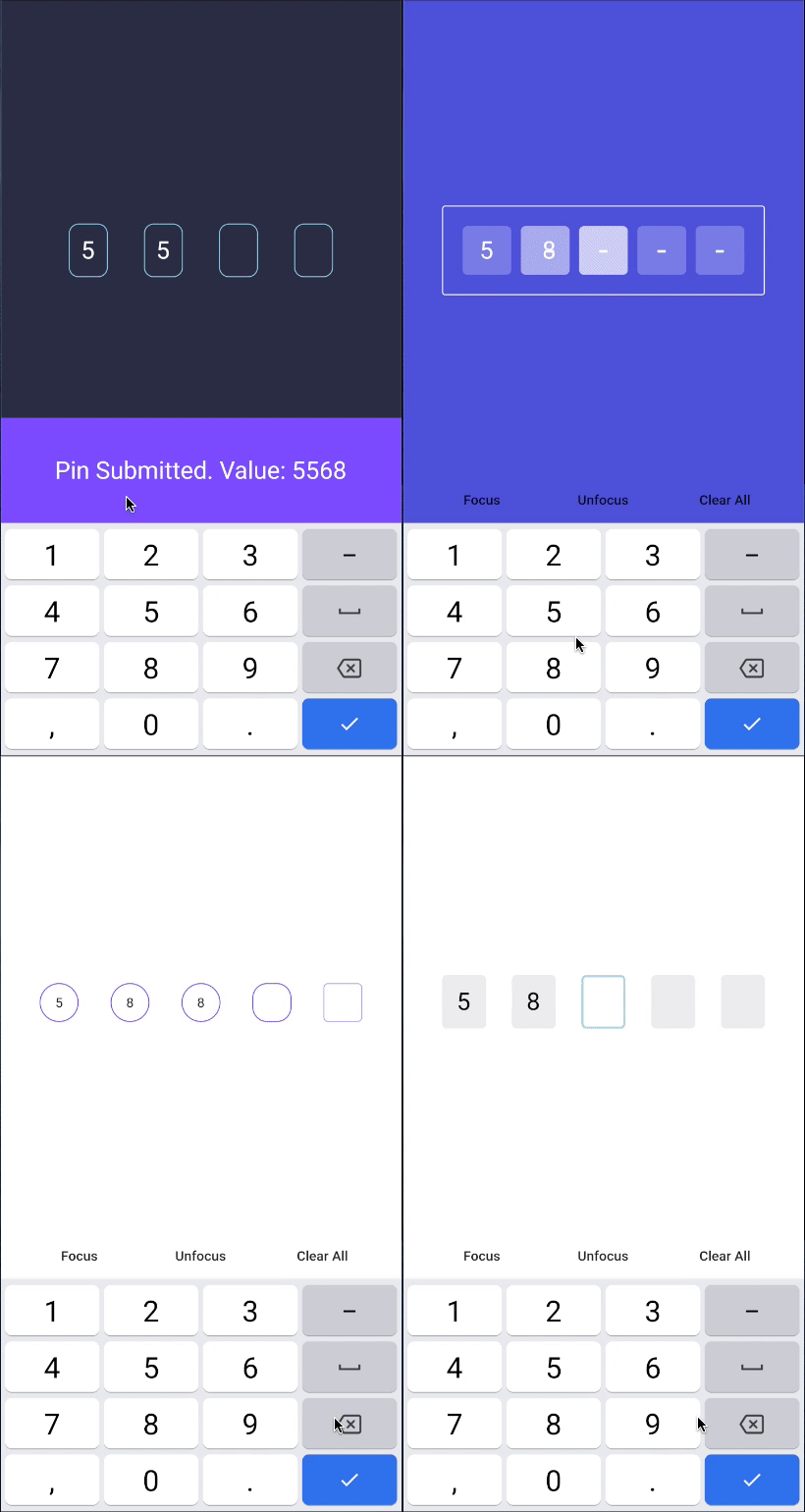
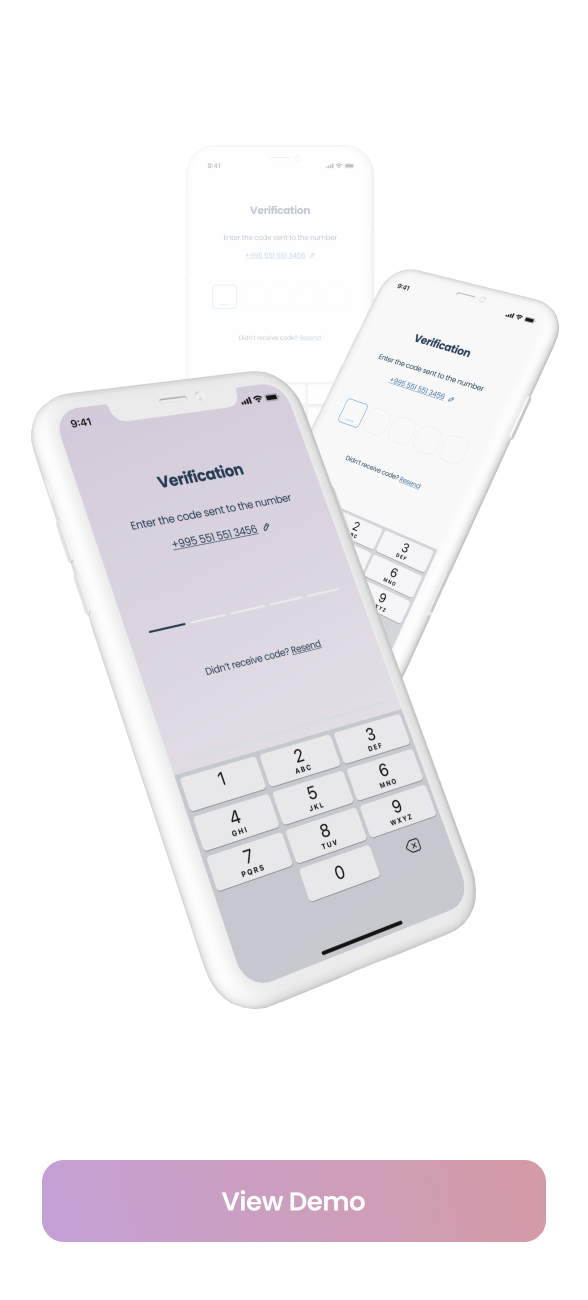
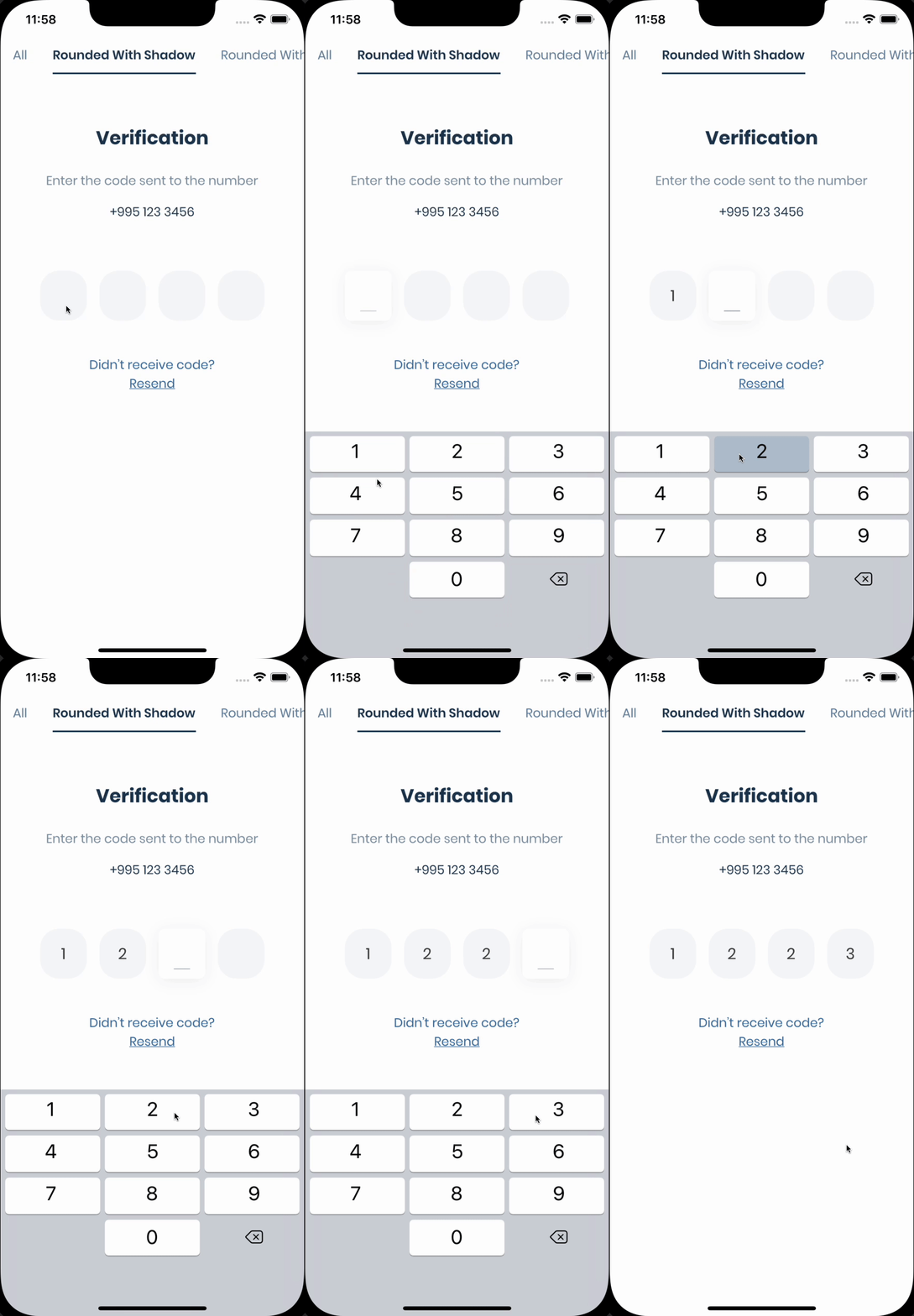
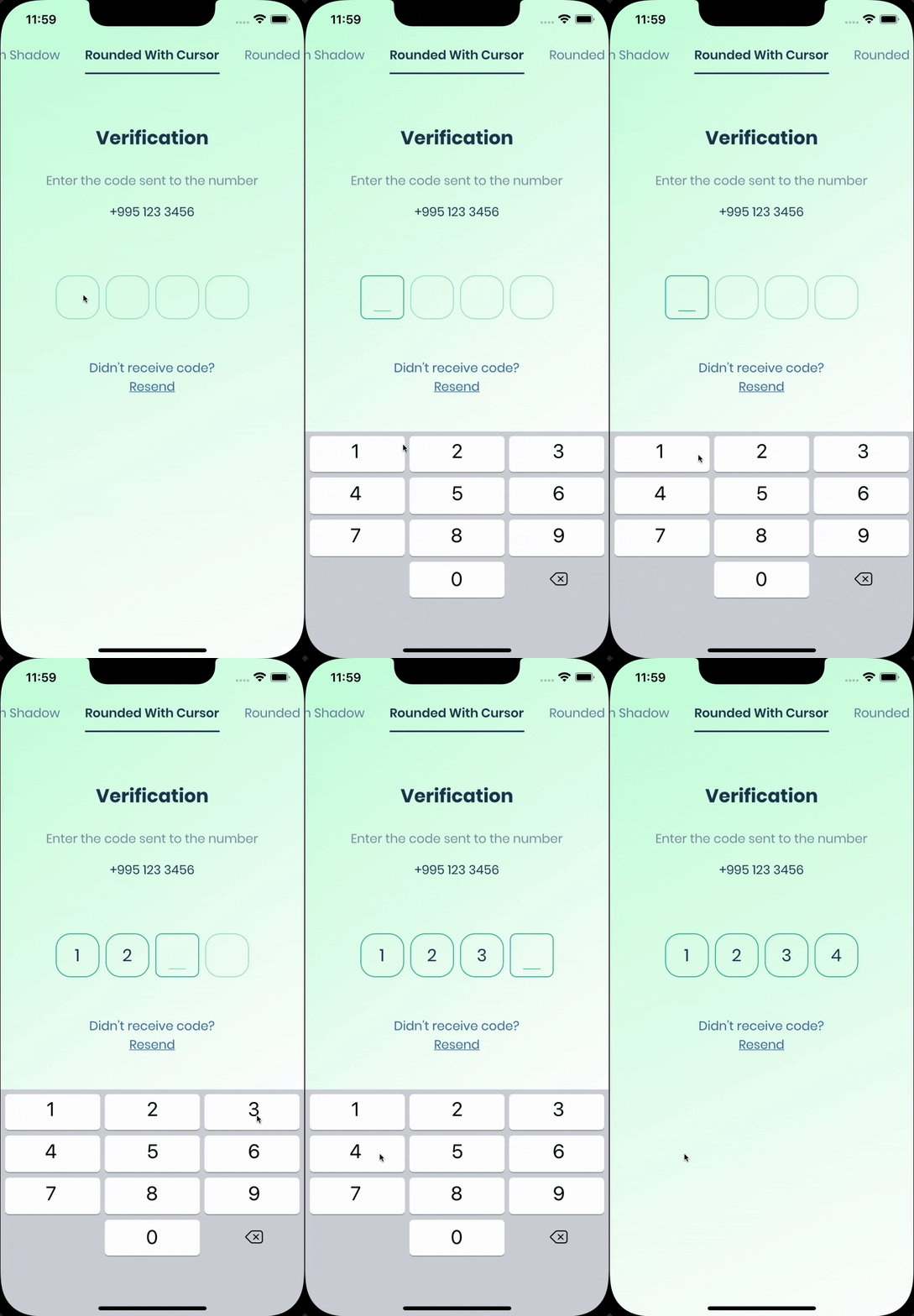
| Live Demo | Rounded With Shadows | Rounded With Cursor |
|---|---|---|
 |
 |
 |
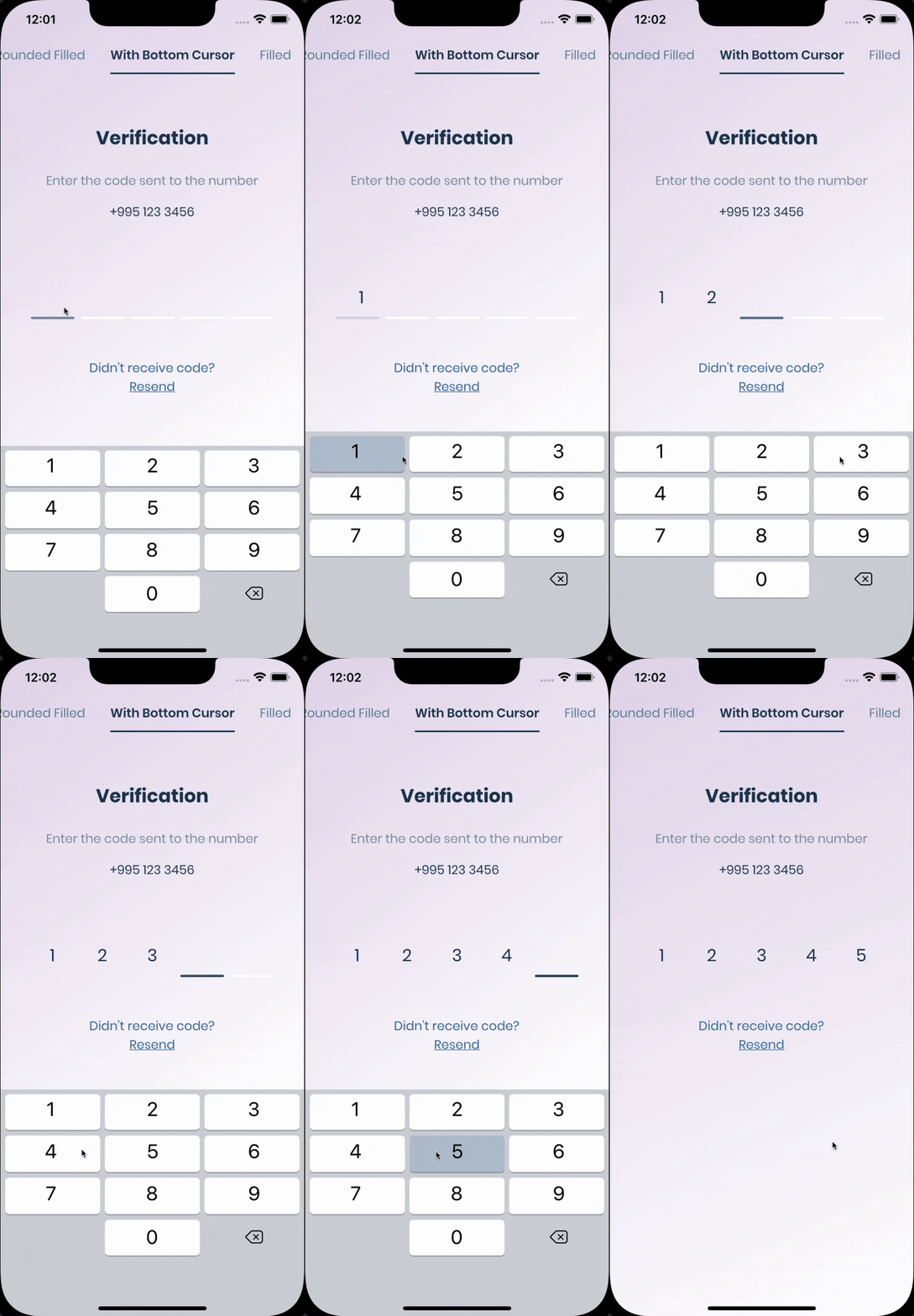
| Rounded Filled | With Bottom Cursor | Filled |
|---|---|---|
 |
 |
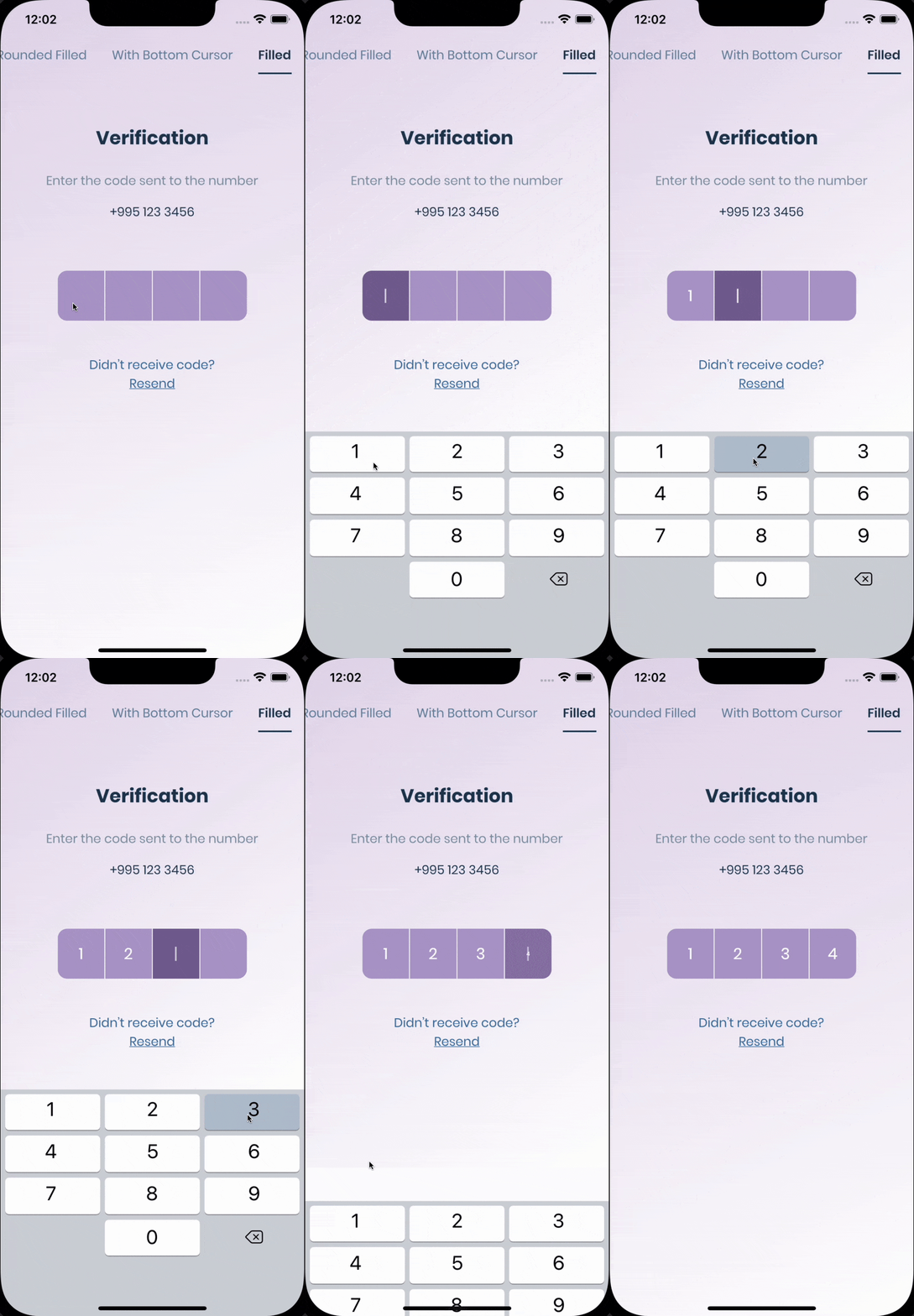 |
The pin has 6 states default focused, submitted, following, disabled, error, you can customize each state by specifying theme parameter.
Pin smoothly animates from one state to another automatically.
PinTheme Class
| Property | Default/Type |
|---|---|
| width | 56.0 |
| height | 60.0 |
| textStyle | TextStyle() |
| margin | EdgeInsetsGeometry |
| padding | EdgeInsetsGeometry |
| constraints | BoxConstraints |
You can use standard Pinput like so
Widget buildPinPut() {
  return Pinput(
    onCompleted: (pin) => print(pin),
  );
}
If you want to customize it, create defaultPinTheme first.
final defaultPinTheme = PinTheme(
  width: 56,
  height: 56,
  textStyle: TextStyle(fontSize: 20, color: Color.fromRGBO(30, 60, 87, 1), fontWeight: FontWeight.w600),
  decoration: BoxDecoration(
    border: Border.all(color: Color.fromRGBO(234, 239, 243, 1)),
    borderRadius: BorderRadius.circular(20),
  ),
);
if you want all pins to be the same don't pass other theme parameters,
If not, create focusedPinTheme, submittedPinTheme, followingPinTheme, errorPinTheme from defaultPinTheme
final focusedPinTheme = defaultPinTheme.copyDecorationWith(
  border: Border.all(color: Color.fromRGBO(114, 178, 238, 1)),
  borderRadius: BorderRadius.circular(8),
);

final submittedPinTheme = defaultPinTheme.copyWith(
  decoration: defaultPinTheme.decoration.copyWith(
    color: Color.fromRGBO(234, 239, 243, 1),
  ),
);
Put everything together
final defaultPinTheme = PinTheme(
  width: 56,
  height: 56,
  textStyle: TextStyle(fontSize: 20, color: Color.fromRGBO(30, 60, 87, 1), fontWeight: FontWeight.w600),
  decoration: BoxDecoration(
    border: Border.all(color: Color.fromRGBO(234, 239, 243, 1)),
    borderRadius: BorderRadius.circular(20),
  ),
);

final focusedPinTheme = defaultPinTheme.copyDecorationWith(
  border: Border.all(color: Color.fromRGBO(114, 178, 238, 1)),
  borderRadius: BorderRadius.circular(8),
);

final submittedPinTheme = defaultPinTheme.copyWith(
  decoration: defaultPinTheme.decoration.copyWith(
    color: Color.fromRGBO(234, 239, 243, 1),
  ),
);

return Pinput(
defaultPinTheme: defaultPinTheme,
focusedPinTheme: focusedPinTheme,
submittedPinTheme: submittedPinTheme,
validator: (s) {
return s == '2222' ? null : 'Pin is incorrect';
},
pinputAutovalidateMode: PinputAutovalidateMode.onSubmit,
showCursor: true,
onCompleted: (pin) => print(pin),
);
Works out of the box, by tapping the code on top of the keyboard
If you are using firebase_auth you have to set controller's value in verificationCompleted callback, here is an example code:
    Pinput(
      controller: pinController,
    );
And set pinController's value in verificationCompleted callback:
    await FirebaseAuth.instance.verifyPhoneNumber(
      verificationCompleted: (PhoneAuthCredential credential) {
        pinController.setText(credential.smsCode);
      },
      verificationFailed: (FirebaseAuthException e) {},
      codeSent: (String verificationId, int? resendToken) {},
      codeAutoRetrievalTimeout: (String verificationId) {},
    );
If you aren't using firebase_auth, you have two options, SMS Retriever API and SMS User Consent API,
SmartAuth is a wrapper package for Flutter for these APIs, so go ahead and add it as a dependency.
To use Retriever API you need the App signature - guide
Note that The App Signature might be different for debug and release mode
Once you get the app signature, you should include it in the SMS message in you backend like so:
SMS example:
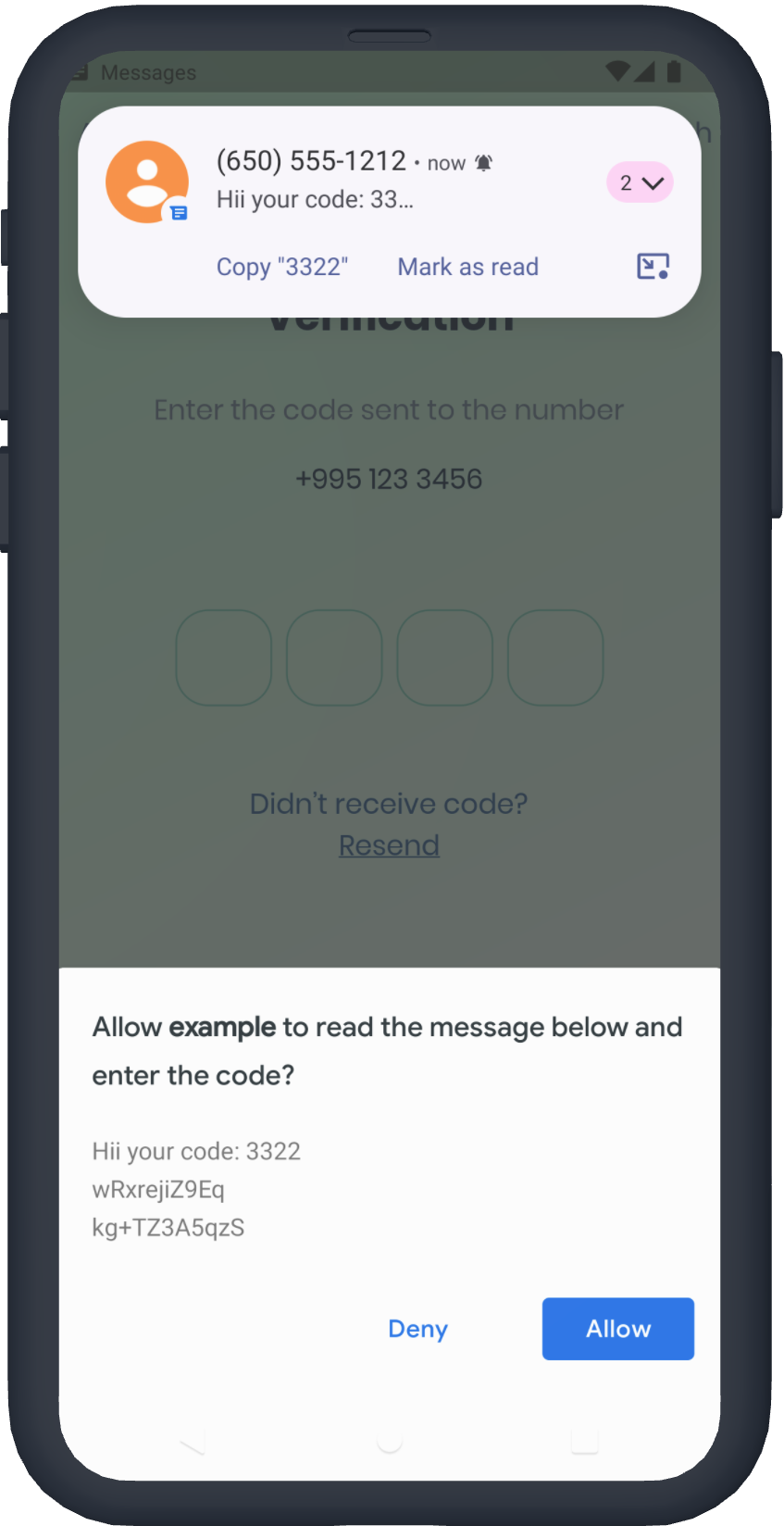
Your ExampleApp code is: 123456
kg+TZ3A5qzS
Sms code will be automatically applied, without user interaction.
You don't need the App signature, the user will be prompted to confirm reading the message Example Code
/// Create Controller
final pinController = TextEditingController();

/// Set text programmatically
pinController.setText('1222');

/// Append typed character, useful if you are using custom keyboard
pinController.append('1', 4);

/// Delete last character
pinController.delete();

/// Don't call setText, append, delete in build method, this is just illustration.

return Pinput(
  controller: pinController,
);
/// Create FocusNode
final pinputFocusNode = FocusNode();

/// Focus pinput
pinputFocusNode.requestFocus();

/// UnFocus pinput
pinputFocusNode.unfocus();

/// Don't call requestFocus, unfocus in build method, this is just illustration.

return Pinput(
  focusNode: pinputFocusNode,
);
/// Create key
final formKey = GlobalKey<FormState>();

/// Validate manually
/// Don't call validate in build method, this is just illustration.
formKey.currentState!.validate();

return Form(
  key: formKey,
  child: Pinput(
  // Without Validator
  // If true error state will be applied no matter what validator returns
  forceErrorState: true,
  // Text will be displayed under the Pinput
  errorText: 'Error',

  /// ------------
  /// With Validator
  /// Auto validate after user tap on keyboard done button, or completes Pinput
  pinputAutovalidateMode: PinputAutovalidateMode.onSubmit,
  validator: (pin) {
    if (pin == '2224') return null;

    /// Text will be displayed under the Pinput
    return 'Pin is incorrect';
    },
  ),
);
You should set controller's value in verificationCompleted callback, here is an example code:
    Pinput(
      controller: pinController,
    );

    await FirebaseAuth.instance.verifyPhoneNumber(
      verificationCompleted: (PhoneAuthCredential credential) {
        pinController.setText(credential.smsCode);
      },
      verificationFailed: (FirebaseAuthException e) {},
      codeSent: (String verificationId, int? resendToken) {},
      codeAutoRetrievalTimeout: (String verificationId) {},
    );
依存関係一覧 3 件
{"sdk":"flutter"}{"sdk":"flutter"}^4.0.0用途で絞り込み、開発状況を比較し、採用前に元のリポジトリで要件を確認しましょう。
“A repository is the most basic element of GitHub.”
GitHub Docs — About repositories ↗