
flutter_firebase_phone_auth_riverpod
Firebase フォン認証と Riverpod を使用した状態管理のための Flutter サンプルプロジェクト
- スター
- 100
- フォーク
- 24
- 最終プッシュ(UTC)
- 2022/08/10
- プロジェクト状態
- 公開中
元の README
以下は英語原文のスナップショットです。最新版は GitHub をご覧ください。


Flutter Firebase Phone Auth with Riverpod
This example project shows how to set up a Firebase Phone Auth in Flutter with Riverpod for its state management
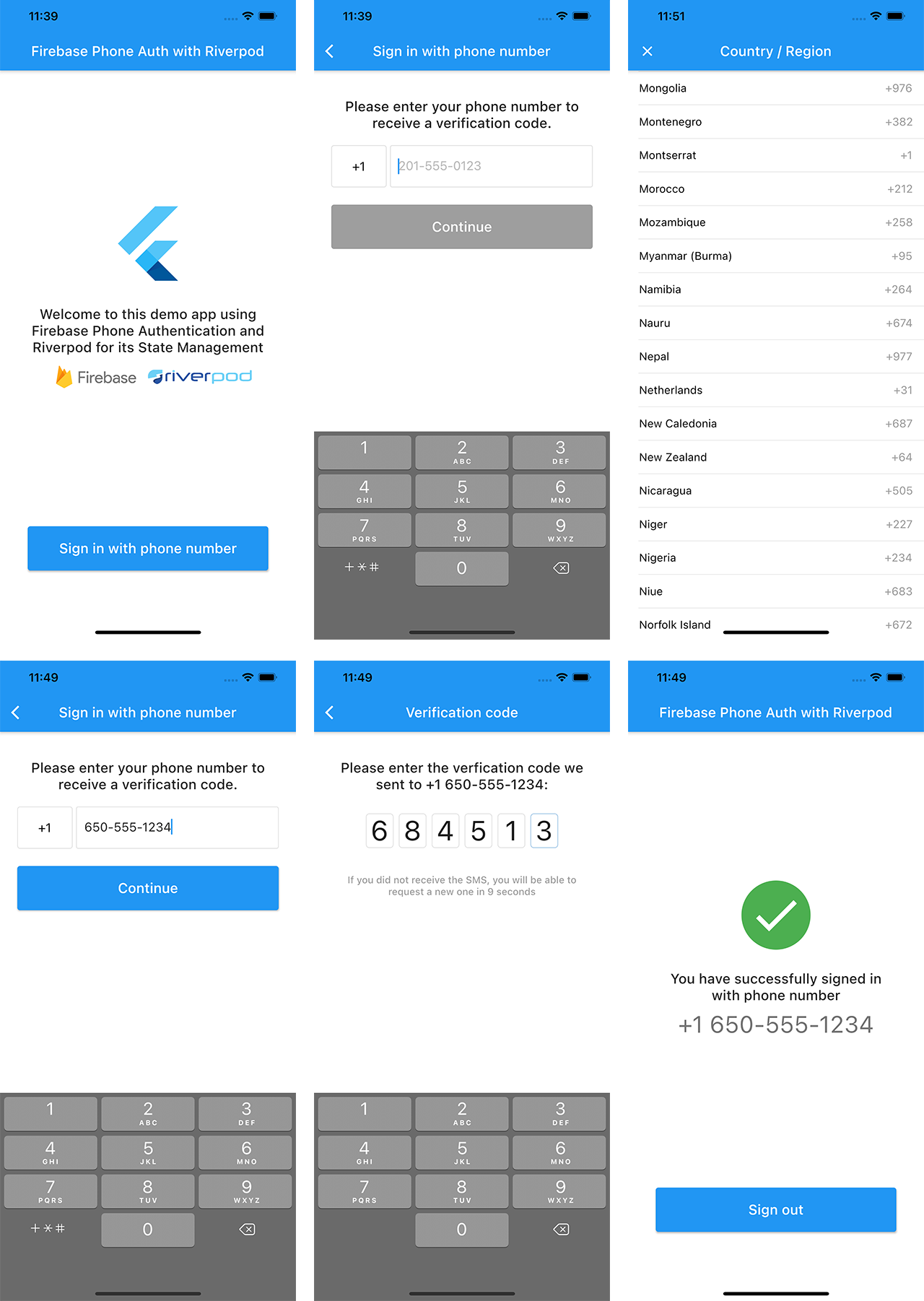
Running the app
You will need to setup Firebase and add the GoogleService-Info.plist to the iOS project and google-services.json to the Android project. Don't forget to enable Phone Authentication on your Firebase project.
This app uses Freezed, a package which generates some code. In order to generate it, just type this command in your Terminal:
flutter pub run build_runner build --delete-conflicting-outputs
App Overview
The app displays a landing screen when the user is not authenticated.
Then the user can move to a sign-in flow with phone authentication, where he can select his country to get the right phone code.
When the verification code is sent, the user is moved to a new screen requesting the verification code.
A countdown is displayed before the user can make a new verification code request, to avoid excessive requests.
When the verification code is approved, the user is moved to a home page with a logout button.
Phone number request
On this screen, the user is asked to type his phone number. His country has been automatically detected by the app but he can change it by typing the country code, which open a new screen with all the countries available and their phone code.
The phone number is automatically formatted and verified as it is entered, filling spaces and dashes when needed. An error is displayed if the phone number is not a mobile number.
When the phone number is detected as valid, the "Continue" button is enabled.
Verification code request
This screen displays a TextField where the user is asked to type the verification code. Since we know that Firebase verification codes is 6-digit, the TextField is formatted to fit this structure.
There is no validation button on this screen because the TextField autovalidates the code when it reaches the 6th number.
The user can request a new verification code on this screen, but only after a delay, to avoid repeated requests.
Third party librairies
This app uses some external librairies:
- [x] Flutter_libphonenumber to manage country codes and phone number formatting
- [x] Riverpod for the state management
- [x] Freezed for building immutable state classes
- [x] Pinput for the verification code TextField
App Structure
The project is structured like this:
/app
  /common_widgets
  /home
  /routing
  /sign_in
/services
/state
lib folder only contains main.dart which the first screen and global_providers.dart which contain the providers accessible from everywhere in the app.
Then inside lib you will find:
statewhich contains our "freezed" state filesserviceswith contains the AuthService classappwith all the app stuff, with more details below.
All widgets which are used more than once are stored in app/common_widgets, for example the blue ElevatedButton.
All routes of the app are stored in app/routing.
Every single part of the app has its own folder, for this very simple app, it only has two: app/home and app/sign_in.
app/sign_in contains the sign in screens but also what we could call the view models.
About Riverpod
The main goal of this sample project is to learn how to use Riverpod for this kind of authentication.
I used several of the providers available in the Riverpod package because I know that the large number of providers available tends to confuse a bit the Riverpod novices.
In global_providers.dart you can find three providers:
final authServiceProvider = Provider<AuthService>((ref) => AuthService());

final authStateProvider = StateNotifierProvider<AuthService, AuthState>((ref) {
  final authService = ref.watch(authServiceProvider);
  return authService;
});

final authStateChangesProvider = StreamProvider<User>(
    (ref) => ref.watch(authServiceProvider).authStateChanges());
authServiceProvideruses a simple Provider because its goal is to access theAuthServicemethods from everywhere, it is not intended to observe the state ofAuthService.authStateProvideris intended to observe the state ofAuthService, this is why we use here a StateNotifierProvider.authStateChangesProvideruses a StreamProvider because it observes theUserchanges from FirebaseAuth which is a Stream.
In app/sign_in/sign_in_phone_page.dart you can find two providers:
final signInPhoneModelProvider = StateNotifierProvider.autoDispose<SignInPhoneModel, SignInState>((ref) {
  final authService = ref.watch(authServiceProvider);
  return SignInPhoneModel(
    authService: authService,
  );
});

final selectedCountryProvider = Provider.autoDispose<CountryWithPhoneCode>((ref) {
  final authState = ref.watch(authStateProvider.state);
  return authState.maybeWhen(
    ready: (selectedCountry) => selectedCountry,
    orElse: () => null,
  );
});
signInPhoneModelProvideruses a StateNotifierProvider because we observe the state ofSignInPhoneModel(which returns aSignInState)selectedCountryProvideruses a Provider because it's just here to provider a value ofCountryWithPhoneCodeobtained in the state ofAuthService.
In app/sign_in/sign_in_verification_page.dart you can find two providers:
final signInVerificationModelProvider =
    StateNotifierProvider.autoDispose<SignInVerificationModel, SignInState>((ref) {
  final authService = ref.watch(authServiceProvider);
  return SignInVerificationModel(
    authService: authService,
  );
});

final countdownProvider = StreamProvider.autoDispose<int>((ref) {
  final signInVerificationModel = ref.watch(signInVerificationModelProvider);
  return signInVerificationModel.countdown.stream;
});
signInVerificationModelProvideruses a StateNotifierProvider for the same reasons assignInPhoneModelProvider.countdownProvideruses a StreamProvider because it observes a countdown which is updated from a StreamController inside theSignInVerificationModel.
In app/home/home_page.dart you can find one provider:
final phoneNumberProvider = Provider.autoDispose<String>((ref) {
  final authService = ref.watch(authServiceProvider);
  return authService.formattedPhoneNumber;
});
phoneNumberProvideruses a Provider because it's just here to provider string value obtained from the instance ofAuthService.
Credits
This sample app is an extract from Beebop, an app that I'm currently writing and that will be available in the next months on the App Store and Google Play.
If you have questions, feel free to ask on Twitter.
LICENSE: MIT

Julien Le Bren ↗
使用している依存関係
依存関係一覧 12 件
- flutter
{"sdk":"flutter"} - firebase_auth
^3.3.19 - firebase_core
^1.17.1 - flutter_libphonenumber
1.1.0 - flutter_riverpod
^1.0.3 - freezed_annotation
^2.0.3 - pinput
^2.2.9 - cupertino_icons
^1.0.4 - flutter_test開発用
{"sdk":"flutter"} - build_runner開発用
^2.1.11 - flutter_lints開発用
^1.0.0 - freezed開発用
^2.0.3+1
ランキング
プロジェクトに合うリポジトリを選ぶには?
用途で絞り込み、開発状況を比較し、採用前に元のリポジトリで要件を確認しましょう。
- 名前・作者・説明で検索し、技術トピックで絞り込みます。
- スター、フォーク、最近のプッシュを比較します。スターは関心の目安であり、品質の保証ではありません。
- 利用前に GitHub で README、ライセンス、Issues を確認します。
情報源と管理
“A repository is the most basic element of GitHub.”
GitHub Docs — About repositories ↗