v1.0.1
flutter_sensors
기기의 사용 가능한 센서에 액세스하는 데 사용할 수 있는 플러터 플러그인입니다.
43좋아요 12430일 다운로드130Pub 점수
AndroidiOS
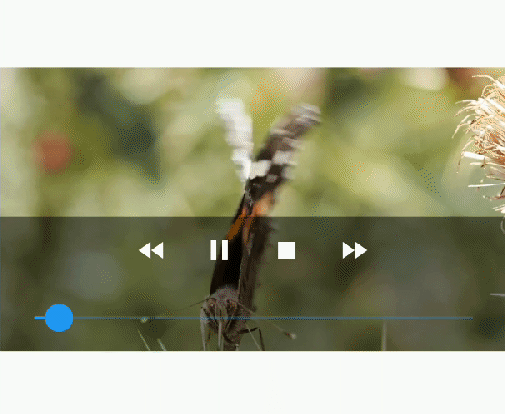
플랫폼의 네이티브 플레이어(안드로이드의 VideoView 및 iOS의 AVPlayer)를 사용하여 표시되는 비디오 플레이어 위젯입니다.

아래는 영문 원문 스냅샷입니다. 최신 내용은 GitHub에서 확인하세요.
A video player widget displayed using the platform native player (VideoView in Android and AVPlayer in iOS).
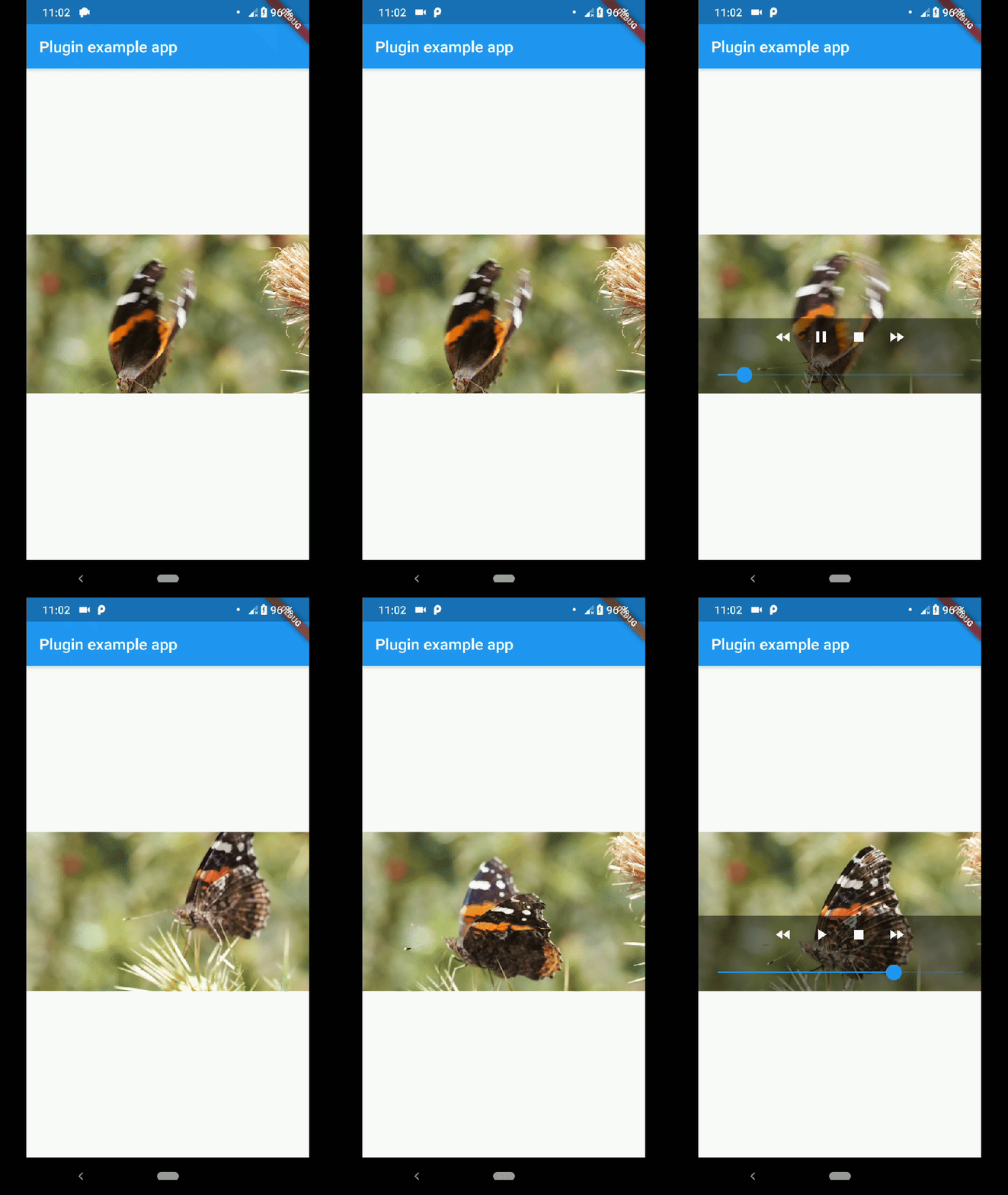
This plugin uses VideoView because in some devices the ExoPlayer plugin is not working correctly (due to decoders or something) and VideoView is a reasonable alternative. In iOS is sorta similar to Google's video_player so you should use their plugin if you want a player for iOS only.
First you need to add the dependency in your pubspec.yaml.
native_video_view: ^0.3.0
Then import the plugin in the .dart file you want to use it.
import 'package:native_video_view/native_video_view.dart';
You need to add the necessary permissions to play the videos. If
you are playing videos from the internet, you need to add the internet
permissions in your AndroidManifest.xml located in the android
folder in your project.
<uses-permission android:name="android.permission.INTERNET" />
If you are going to play videos from the device storage, you need to add the storage permissions.
<uses-permission android:name="android.permission.READ_EXTERNAL_STORAGE" />
In this platform you need to configure some options in your
Info.plist file. This file is located in <project-root>/ios/Runner/ Info.plist.
First add the embedded views configuration.
<key>io.flutter.embedded_views_preview</key>
<true/>
If you want to play videos from the internet add the following.
<key>NSAppTransportSecurity</key>
<dict>
  <key>NSAllowsArbitraryLoads</key>
  <true/>
</dict>
This plugin has a widget to use in your dart files. Example:
@override
Widget build(BuildContext context) {
return Scaffold(
    appBar: AppBar(
    title: const Text('Plugin example app'),
    ),
    body: Container(
    alignment: Alignment.center,
    child: NativeVideoView(
        keepAspectRatio: true,
        showMediaController: true,
        onCreated: (controller) {
          controller.setVideoSource(
            'assets/example.mp4',
            sourceType: VideoSourceType.asset,
          );
        },
        onPrepared: (controller, info) {
          controller.play();
        },
        onError: (controller, what, extra, message) {
          print('Player Error ($what | $extra | $message)');
        },
        onCompletion: (controller) {
          print('Video completed');
        },
        onProgress: (progress, duration) {
          print('$progress | $duration');
        },
      ),
    ),
  );
}
keepAspectRatio: Wraps the video player in a AspectRatio widget.
The aspect ratio is calculated once the video is loaded. By default the
aspect ratio is 4/3.
showMediaController: Shows a default media controller overlay in the video player widget.
enableVolumeControl: Adds an option in the MediaController to control the volume of the playback.
useExoPlayer: Use ExoPlayer as the underlying player. Android Only.
autoHide: Automatically hides the media controller after
a few seconds of no use. Default is true.
autoHideTime: The time after which the controller is hidden.
Default is 2 seconds.
onCreated: (required) Callback called when the PlatformView is finished creating.
onPrepared: (required) Callback called when the player has finished loading the video.
onCompletion: (required) Callback called when the video reached the end.
onError: Callback called if an error occurs in the player.
onProgress: Callback used to notify progress in the video playback.
To make the player get the audio focus of the system you just have to use the setting requestAudioFocus when setting the video source. See the example below.
@override
Widget build(BuildContext context) {
    return NativeVideoView(
       onCreated: (controller) {
         controller.setVideoSource(
             'assets/example.mp4',
             requestAudioFocus: true,
             sourceType: VideoSourceType.asset,
         );
       },
    );
}
의존성 목록 5 개
{"sdk":"flutter"}^2.0.8^2.0.5{"sdk":"flutter"}any사용 목적에 따라 검색하고 개발 활동을 비교한 뒤 원본 저장소에서 요구 사항을 확인하세요.
“A repository is the most basic element of GitHub.”
GitHub Docs — About repositories ↗