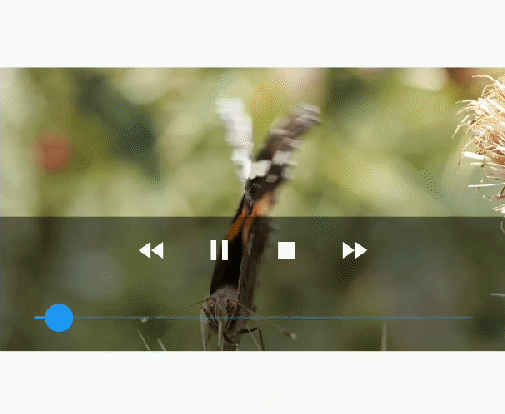
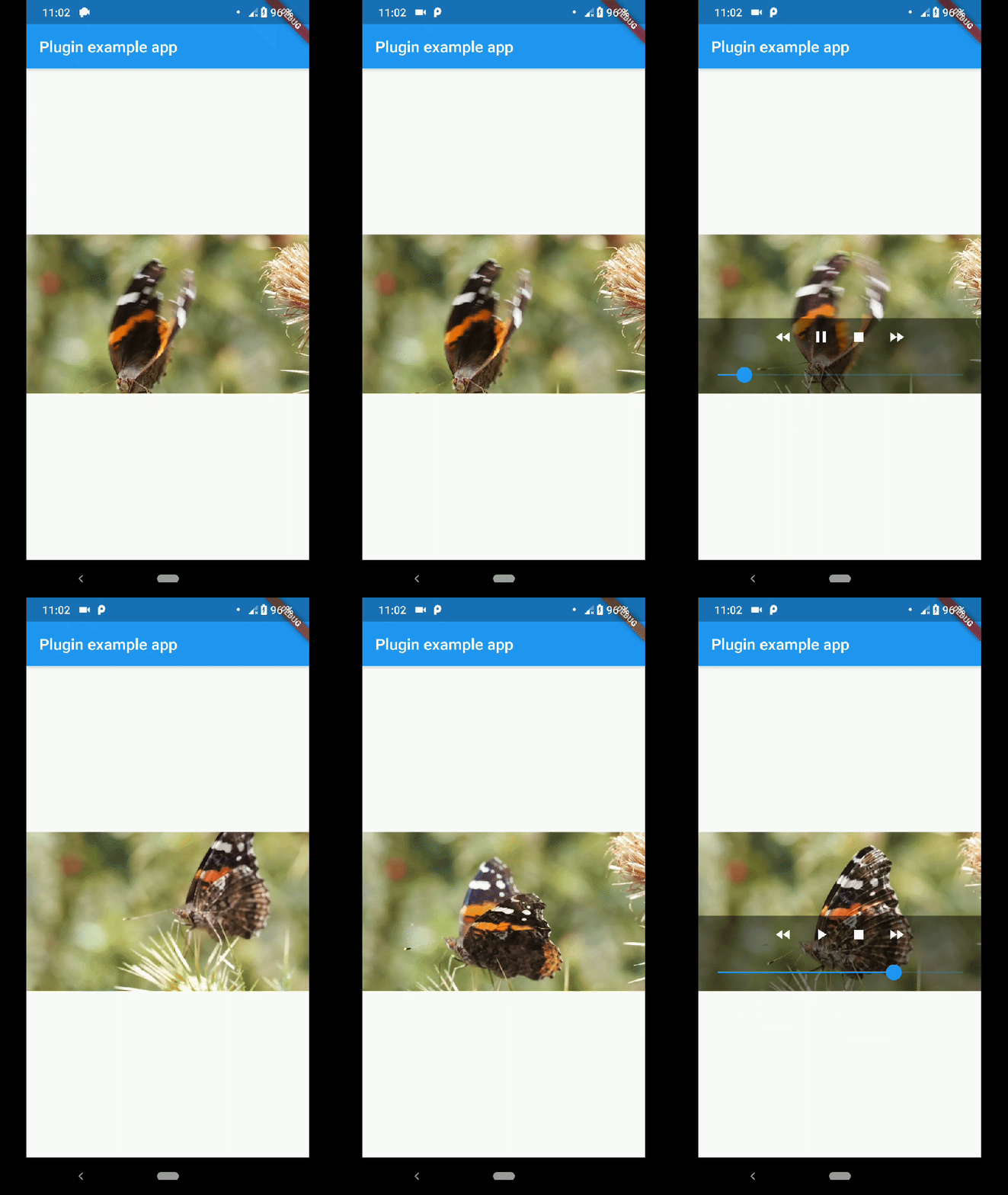
안드로이드의 VideoView와 iOS의 AVPlayer를 사용하여 플랫폼 네이티브 동영상 재생을 통합하는 플러터 패키지입니다. 소프트웨어 기반 솔루션 대신 네이티브 컴포넌트를 활용함으로써 부드럽고 고성능의 동영상 렌더링을 제공합니다. 다양한 동영상 형식과 하드웨어 가속 기능과의 호환성이 향상됩니다. 이 위젯은 안드로이드 및 iOS 플랫폼에서 최적의 동영상 재생 품질과 성능을 원하는 개발자를 위한 것입니다.
사용 사례
하드웨어 가속을 사용하여 비디오 재생
네이티브 비디오 컨트롤과의 통합
복잡한 비디오 형식 지원
미디어 집약형 애플리케이션 빌드
저지연 재생 보장
주요 기능
Android 및 iOS에서 네이티브 비디오 플레이어 사용
하드웨어 가속 비디오 렌더링
최소한의 플러터 오버헤드
크로스 플랫폼 일관성
전체 화면 및 백그라운드 재생 지원
적합한 대상
고성능이 필요한 미디어 앱
풍부한 비디오 콘텐츠를 포함한 앱
개발자들은 네이티브 재생 품질을 우선시합니다
최소한의 사용자 정의 비디오 논리를 필요로 하는 프로젝트
고려 사항
순수한 플러터 위젯에 비해 사용자 정의가 제한적입니다
고급 기능을 사용하려면 플랫폼별 구성이 필요합니다
모든 비디오 코덱을 기본적으로 지원하지 않을 수 있습니다
네이티브 플랫폼 업데이트에 의존합니다
사용자 정의 구현보다 UI 요소에 대한 제어가 적음
원본 README
연결된 소스 저장소의 README 원문 스냅샷입니다. 최신 내용은 저장소에서 확인하세요.
native_video_view
A video player widget displayed using the platform native player
(VideoView in Android and AVPlayer in iOS).
Disclaimer
This plugin uses VideoView because in some devices the ExoPlayer plugin
is not working correctly (due to decoders or something) and VideoView is
a reasonable alternative. In iOS is sorta similar to Google's
video_player so you should use
their plugin if you want a player for iOS only.
Installation
First you need to add the dependency in your pubspec.yaml.
native_video_view:^0.3.0
Then import the plugin in the .dart file you want to use it.
You need to add the necessary permissions to play the videos. If
you are playing videos from the internet, you need to add the internet
permissions in your AndroidManifest.xml located in the android
folder in your project.
keepAspectRatio: Wraps the video player in a AspectRatio widget.
The aspect ratio is calculated once the video is loaded. By default the
aspect ratio is 4/3.
showMediaController: Shows a default media controller overlay
in the video player widget.
enableVolumeControl: Adds an option in the MediaController to control the volume of the
playback.
useExoPlayer: Use ExoPlayer as the underlying player.
Android Only.
autoHide: Automatically hides the media controller after
a few seconds of no use. Default is true.
autoHideTime: The time after which the controller is hidden.
Default is 2 seconds.
onCreated: (required) Callback called when the PlatformView is
finished creating.
onPrepared: (required) Callback called when the player has
finished loading the video.
onCompletion: (required) Callback called when the video reached
the end.
onError: Callback called if an error occurs in the player.
onProgress: Callback used to notify progress in the video
playback.
AudioFocus
To make the player get the audio focus of the system you just have to use the setting
requestAudioFocus when setting the video source. See the example below.