

 v1.3.0
animated_reorderable_list
간단한 구현과 부드러운 전환을 갖춘 Flutter 재정렬 애니메이션 목록입니다.
195좋아요 3.7만30일 다운로드150Pub 점수
AndroidiOSWebmacOSWindowsLinux
간단한 구현과 부드러운 전환을 갖춘 Flutter 재정렬 애니메이션 목록입니다.

아래는 영문 원문 스냅샷입니다. 최신 내용은 GitHub에서 확인하세요.
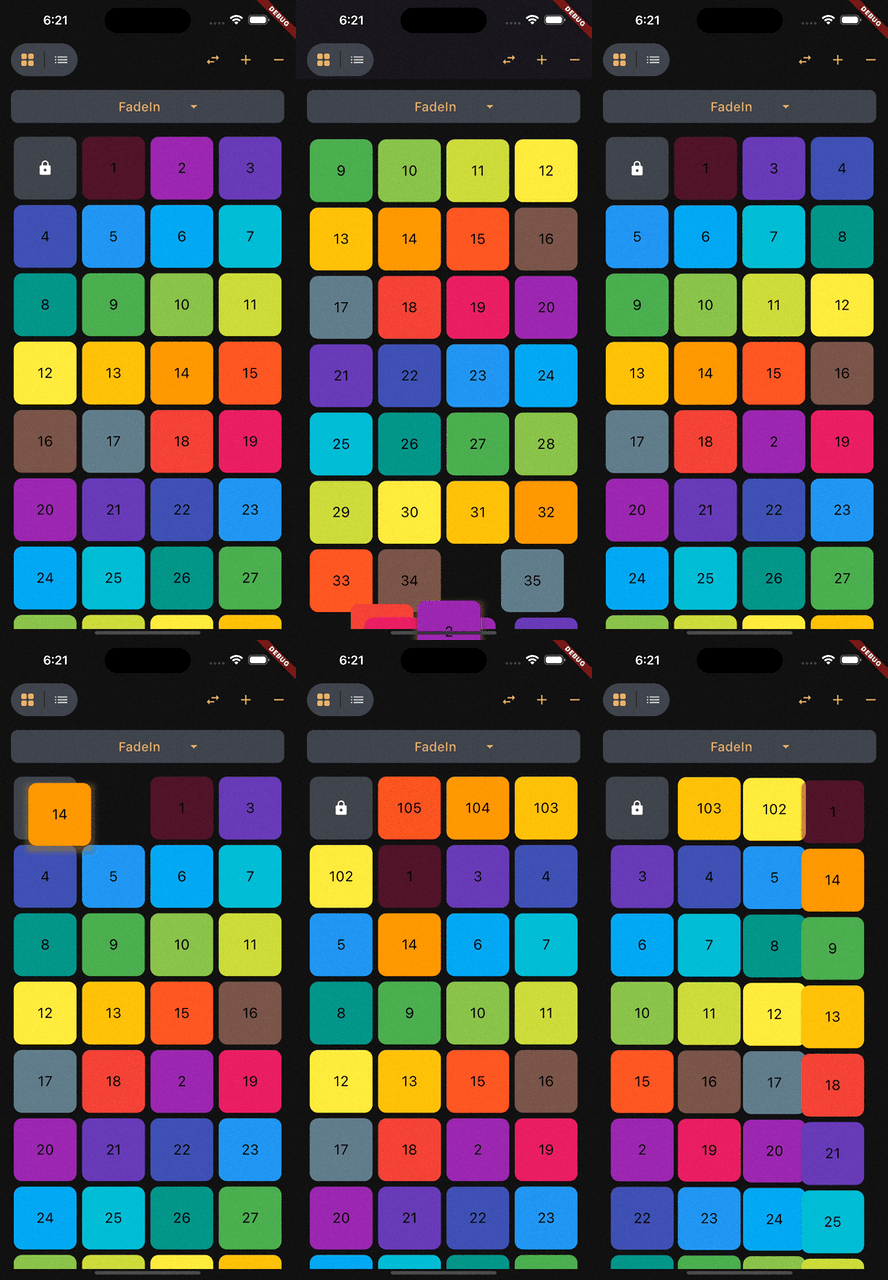
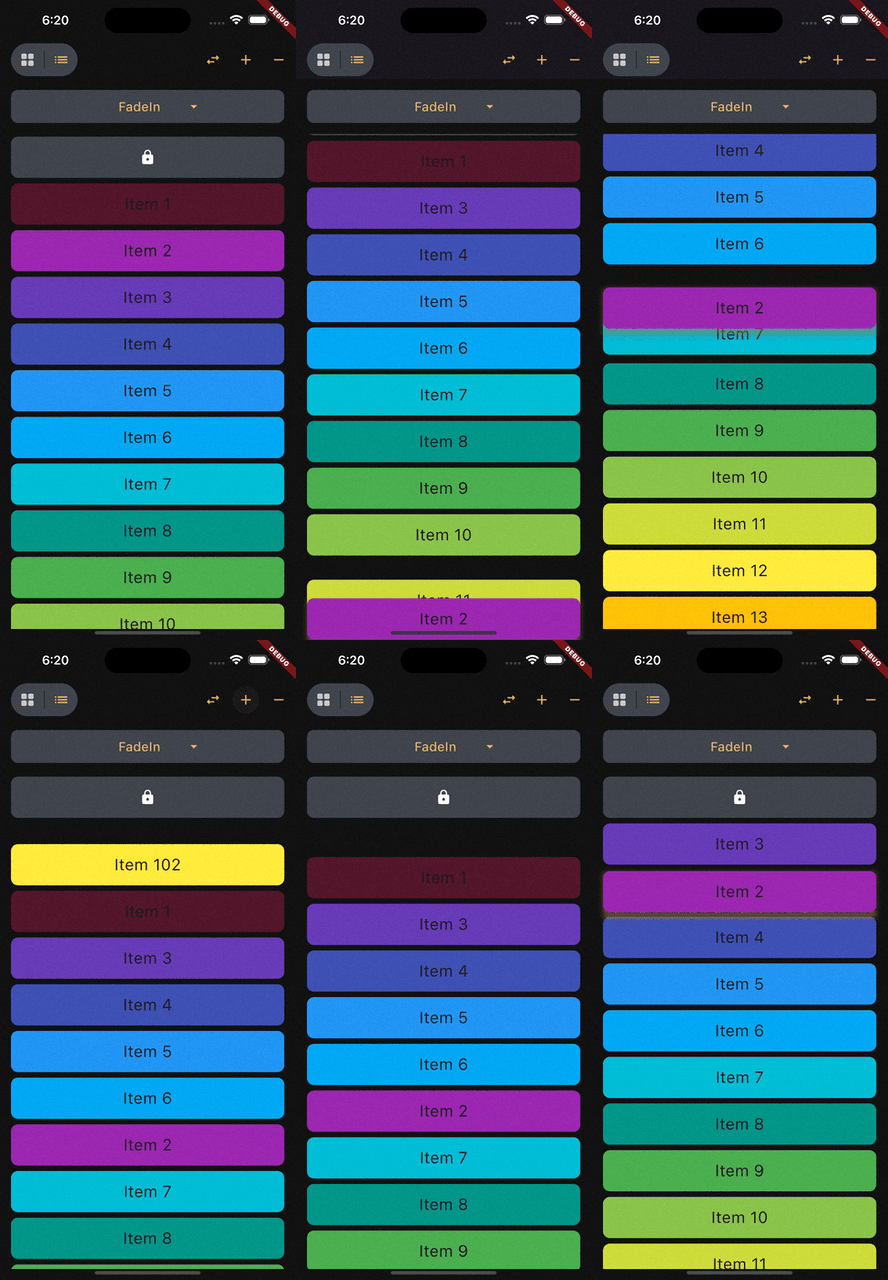
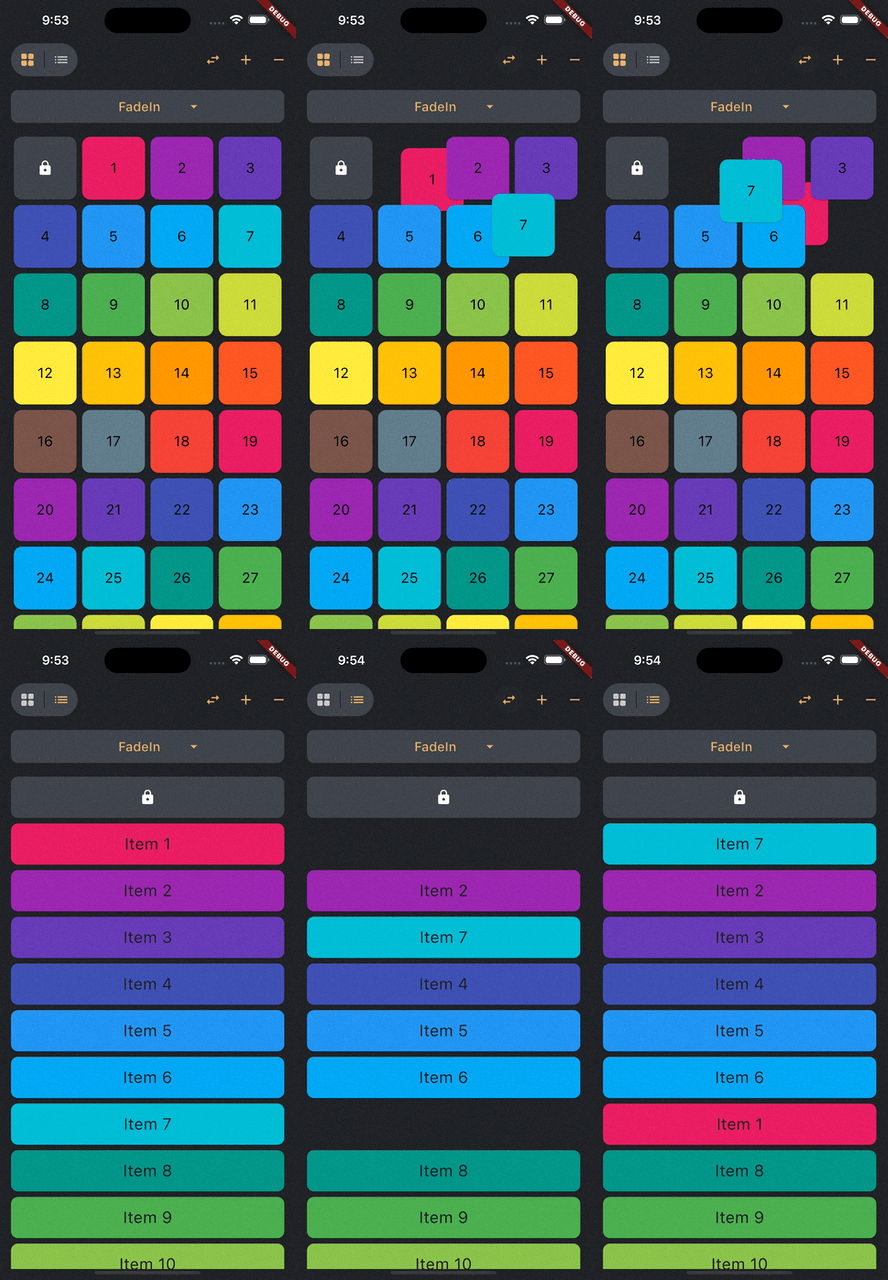
This library is a powerful and easy-to-use solution for implementing animated list and grid with drag-and-drop functionality in Flutter.
 |
 |
 |
|---|---|---|
| ReorderableGridView | ReorderableListView | Swap Animation |
Add this to your package's pubspec.yaml file:
dependencies:
  animated_reorderable_list: <latest_version>
You can install packages from the command line:
with pub:
$ pub get
with Flutter:
$ flutter pub get
Now in your Dart code, you can use:
import 'package:animated_reorderable_list/animated_reorderable_list.dart';
Sample app demonstrates how simple the usage of the library actually is.
A AnimatedGridView with built-in support for drag and drop functionality.
AnimatedReorderableGridView(
  items: list,
  itemBuilder: (BuildContext context, int index) {
    final user = list[index];
    return ItemCard(
      key: ValueKey(user.id),
      id: user.id,
    );
  },
  sliverGridDelegate:
      SliverReorderableGridDelegateWithFixedCrossAxisCount(
          crossAxisCount: 4),
  enterTransition: [FlipInX(), ScaleIn()],
  exitTransition: [SlideInLeft()],
  insertDuration: const Duration(milliseconds: 300),
  removeDuration: const Duration(milliseconds: 300),
  onReorder: (int oldIndex, int newIndex) {
    setState(() {
      final User user = list.removeAt(oldIndex);
      list.insert(newIndex, user);
    });
  },
  dragStartDelay: const Duration(milliseconds: 300),
  isSameItem: (a, b) => a.id == b.id,
)
A AnimatedListView with built-in support for drag-and-drop functionality.
 AnimatedReorderableListView(
  items: list,
  itemBuilder: (BuildContext context, int index) {
    final user = list[index];
    return ItemTile(
      key: ValueKey(user.id),
      id: user.id,
    );
  },
  enterTransition: [SlideInDown()],
  exitTransition: [SlideInUp()],
  insertDuration: const Duration(milliseconds: 300),
  removeDuration: const Duration(milliseconds: 300),
  dragStartDelay: const Duration(milliseconds: 300),
  onReorder: (int oldIndex, int newIndex) {
    setState(() {
      final User user = list.removeAt(oldIndex);
      list.insert(newIndex, user);
    });
  },
  isSameItem: (a, b) => a.id == b.id
)
A AnimatedListView that animates insertion and removal of the item. Use this widget when you don't
need drag-and-drop functionality.
AnimatedListView(
  items: list,
  itemBuilder: (context, index) {
    final user = list[index];
    return ItemTile(
      key: ValueKey(user.id),
      id: user.id,
    );
  },
  enterTransition: [FadeIn(), ScaleIn()]
  exitTransition: [SlideInUp()],
  isSameItem: (a, b) => a.id == b.id,
)
A AnimatedGridView that animates insertion and removal of the item. Use this widget when you don't
need drag-and-drop functionality.
AnimatedGridView(
  items: list,
  itemBuilder: (context, index) {
    final user = list[index];
    return ItemCard(
      key: ValueKey(user.id),
      id: user.id,
    );
  },
  sliverGridDelegate:
      SliverReorderableGridDelegateWithFixedCrossAxisCount(
          crossAxisCount: 4),
  enterTransition: [FadeIn(), ScaleIn()],
  exitTransition: [SlideInDown()],
  isSameItem: (a, b) => a.id == b.id),
//optional
insertDuration: const Duration(milliseconds: 300),
removeDuration: const Duration(milliseconds:300),
The duration for item insertion and removal animation. If not specified, the default duration is
Duration(milliseconds: 300).
To apply animation, while inserting or removing item, specify a list of animation:
//optional
    enterTransition: [FadeIn(), ScaleIn()],
    exitTransition:  [SlideIn()],
If not specified, then default FadeIn() animation will be applied.
Animation have optional delay, duration, begin, end and curve parameters. Animations run
in parallel, but you can use a delay to run them sequentially:
//optional
 enterTransition: [
     FadeIn(
        duration: const Duration(milliseconds: 300),
        delay: const Duration(milliseconds: 100)),
     ScaleIn(
        duration: const Duration(milliseconds: 500),
        curve: Curves.bounceInOut)
    ],
If a specific duration is provided for the animation, it will run for that specified duration.
However, if insertDuration or removeDuration are specified, it will override specific item
duration.
//optional
insertItemBuilder: (Widget child, Animation<double> animation){
      return ScaleTransition(
         scale: animation,
         child: child,
     );
  }

removeItemBuilder: (Widget child, Animation<double> animation){
       return ScaleTransition(
          scale: animation,
          child: child,
      );
    }
You can use custom insertItemBuilder or removeItemBuilder if you wish to implement your own
customized animations instead of relying on the built-in animations provided by the library.
In these custom builder functions, the child parameter represents the widget returned by the
itemBuilder callback, and the animation parameter provides the animation control.
If a custom insertItemBuilder is provided, it will override the enterTransition. Similarly, if
removeItemBuilder is provided, then it will override exitTransition.
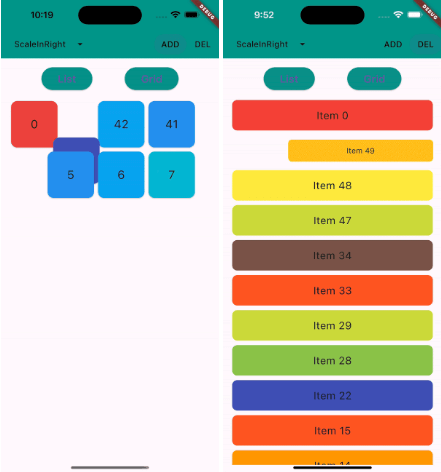
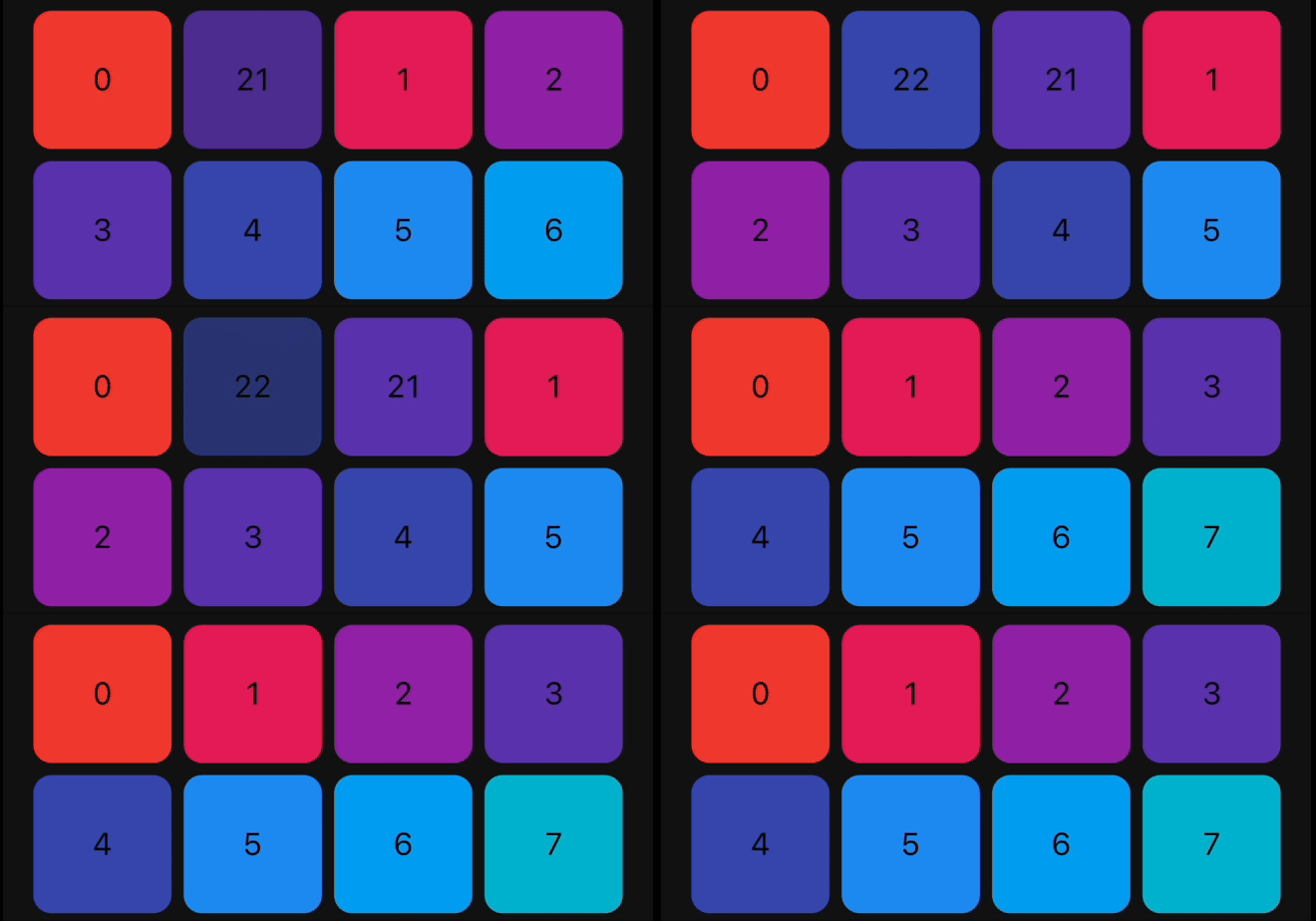
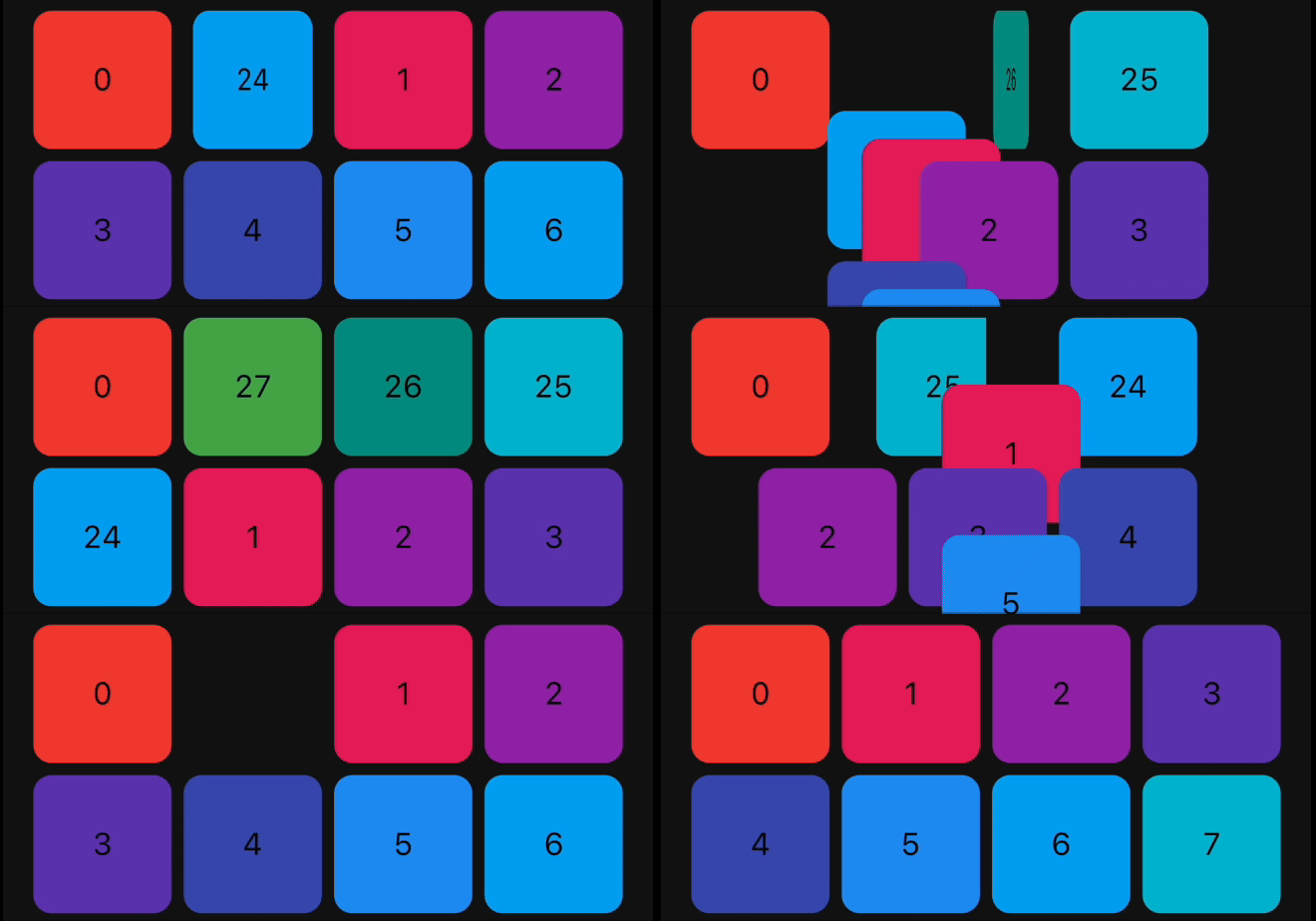
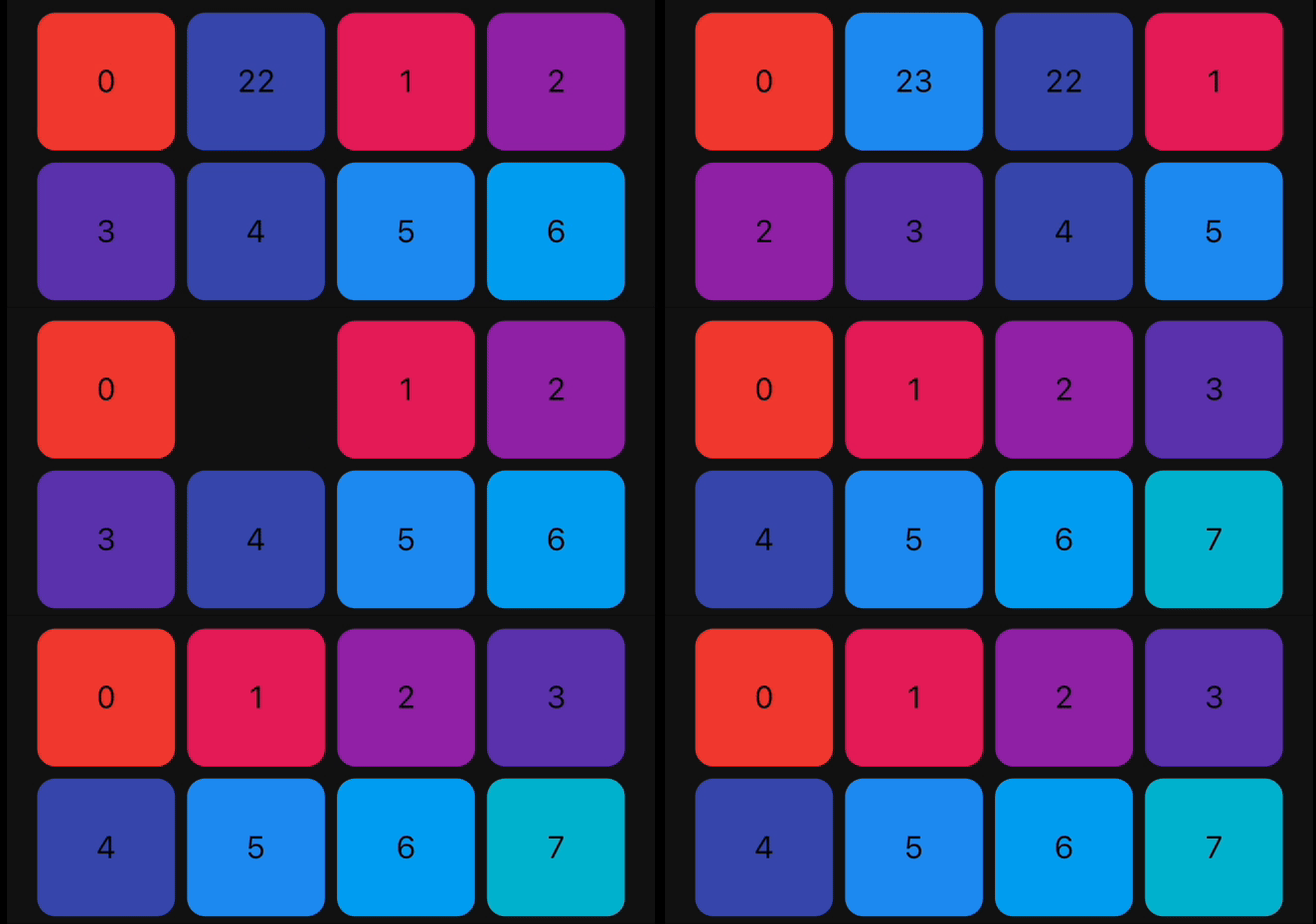
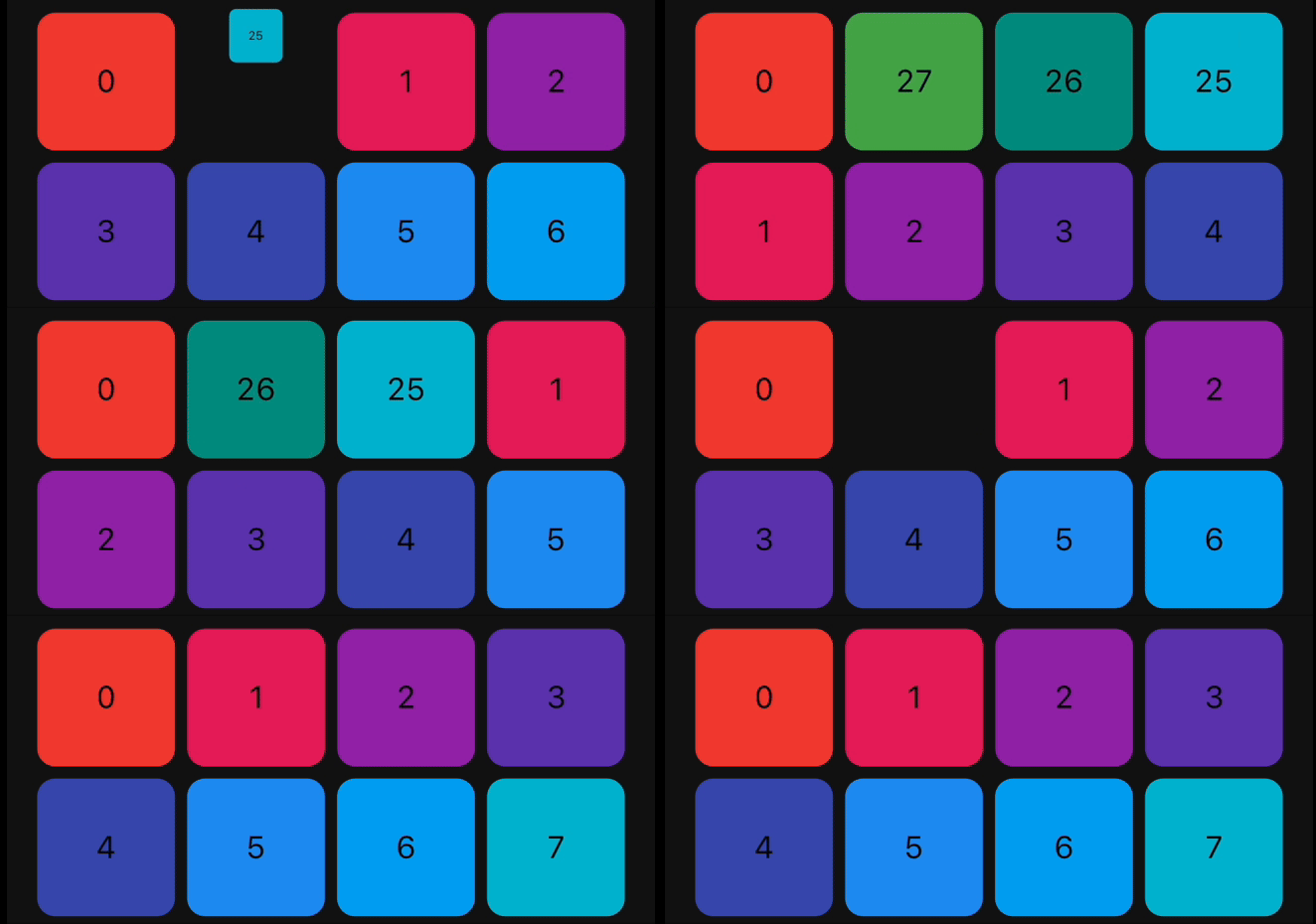
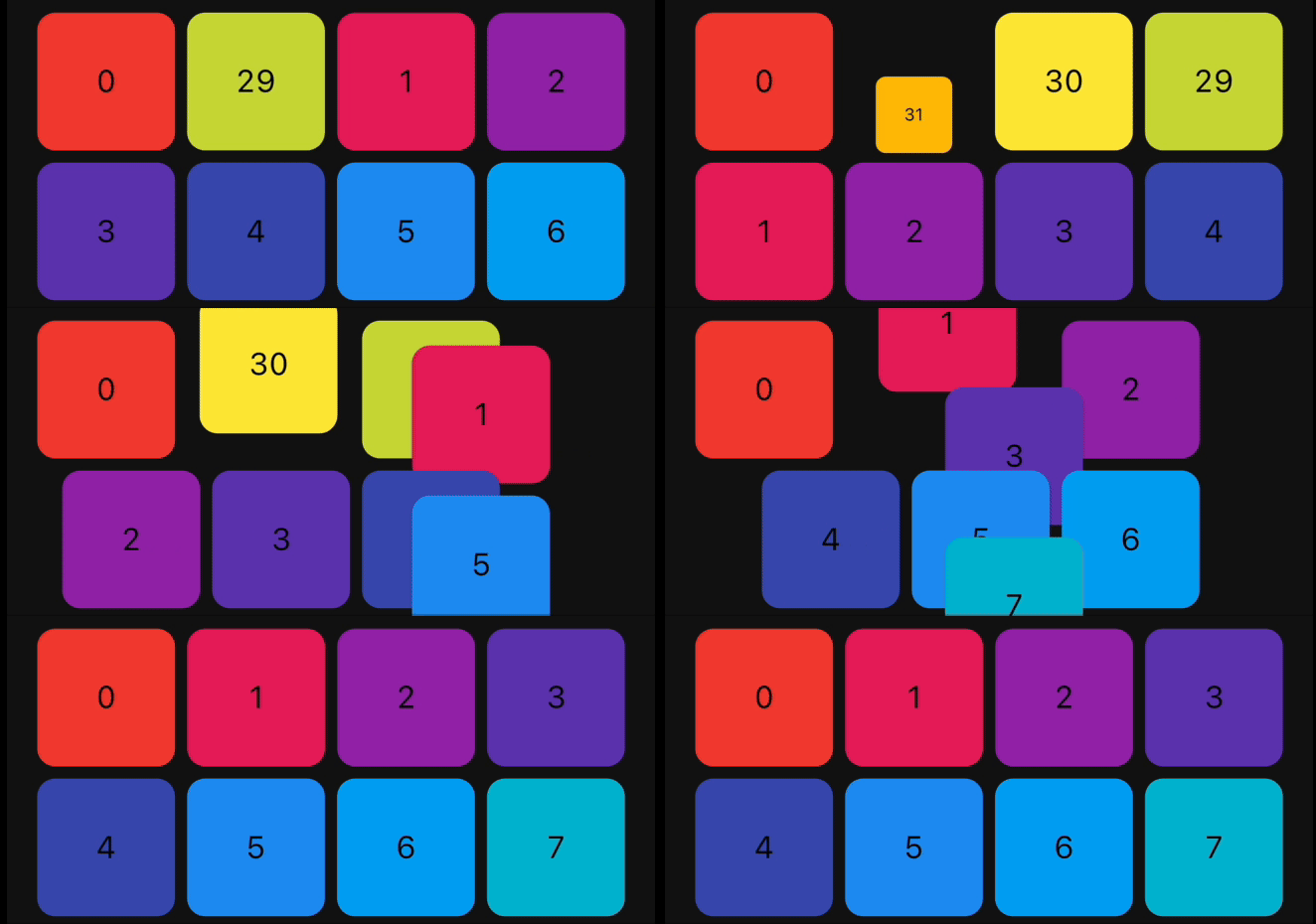
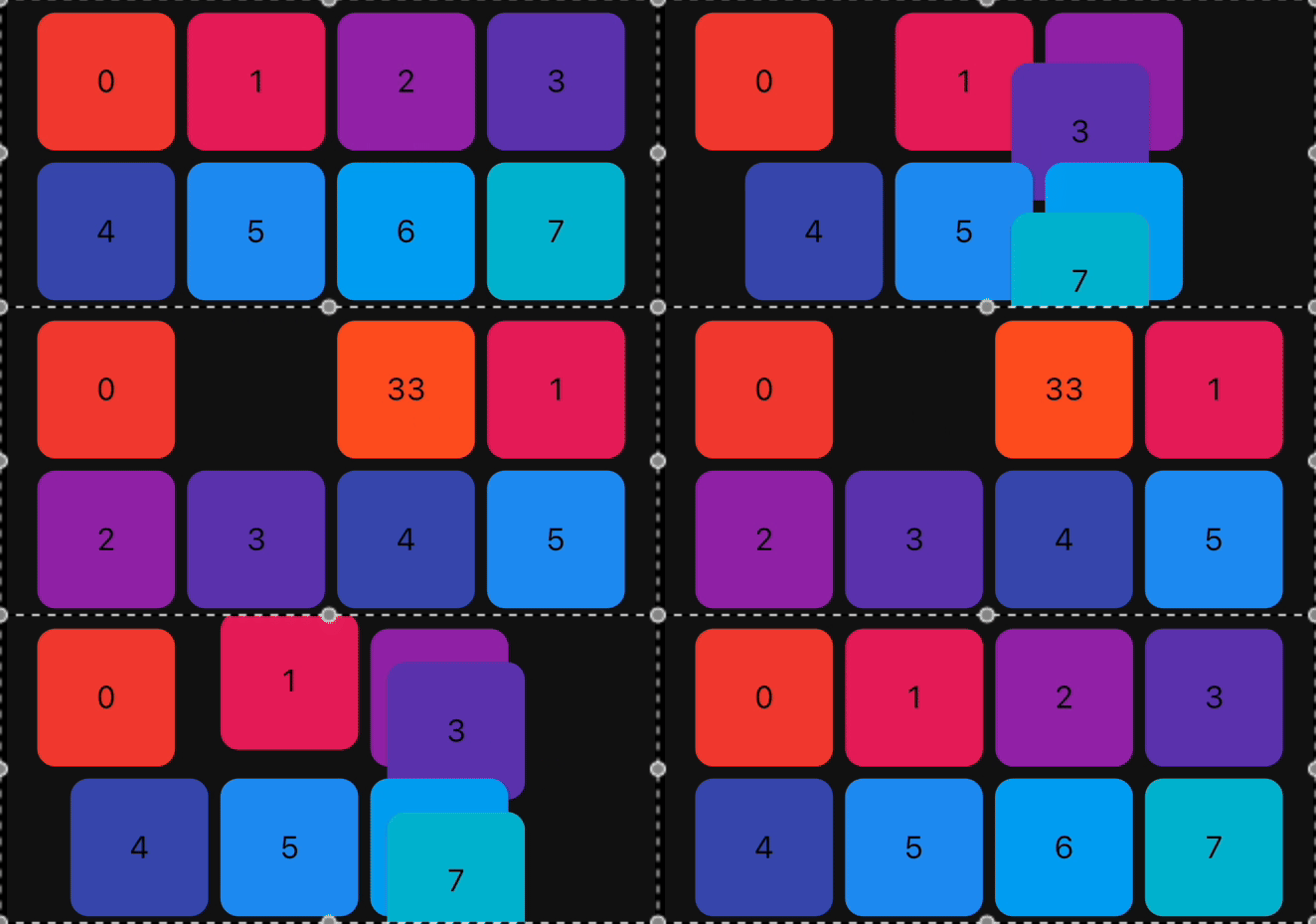
The library provides a set of pre-built animations that can be used for item insertion and removal. You can use multiple animations at the same time by providing a list of animations.
The following animations are available:
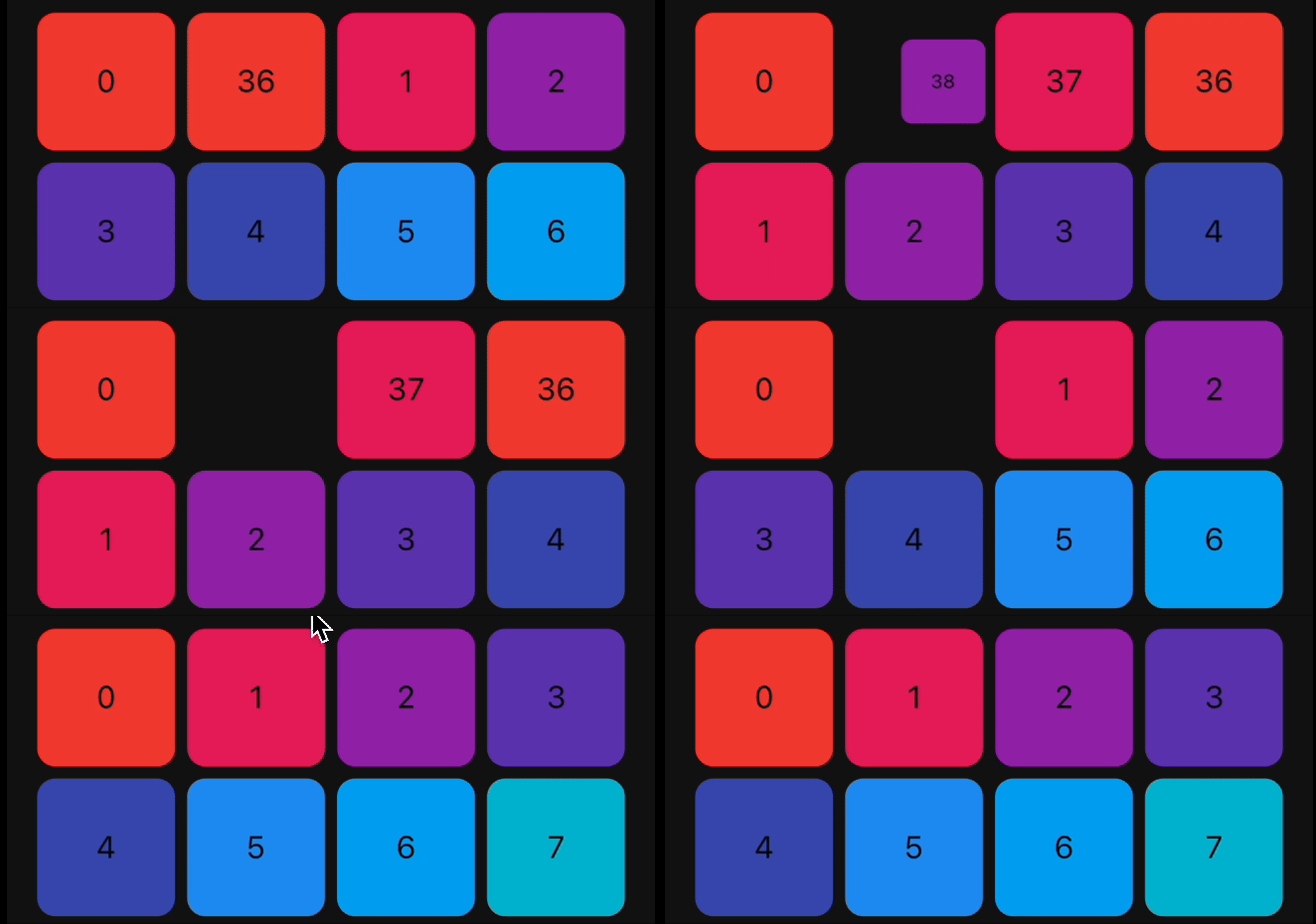
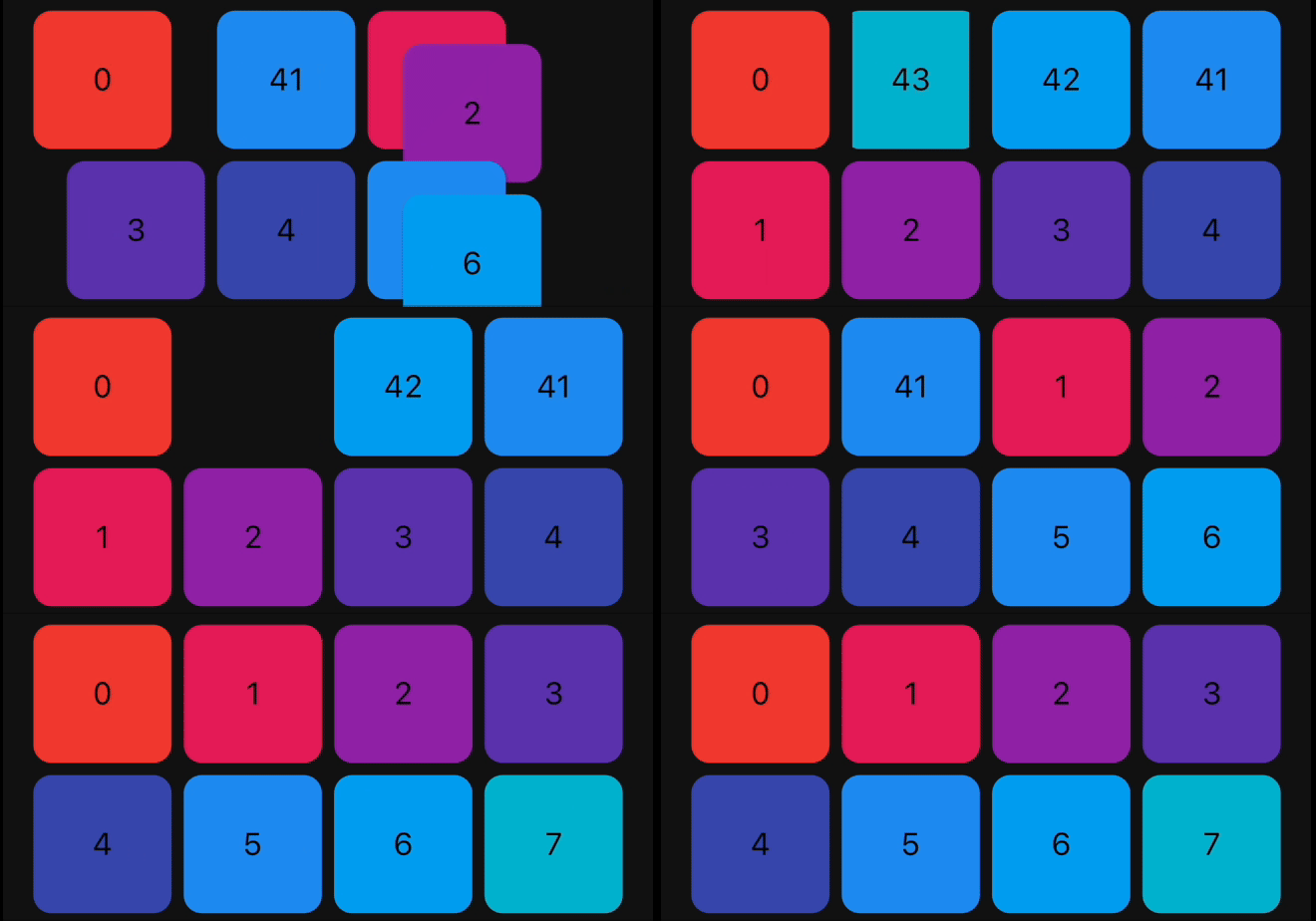
| Animation Type | ListView Example | GridView Example |
|---|---|---|
| FadeIn | 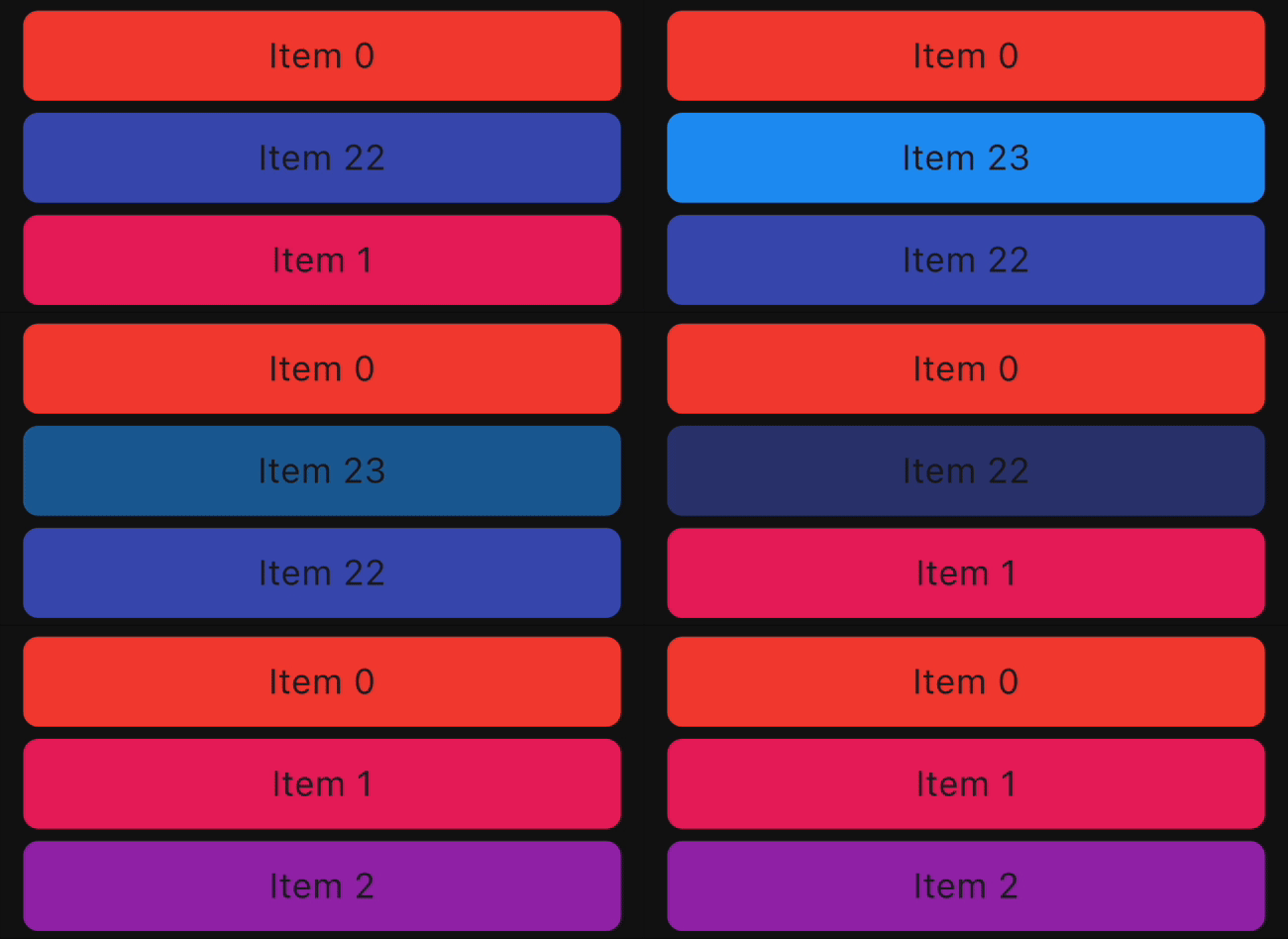 |
 |
| FlipInY | 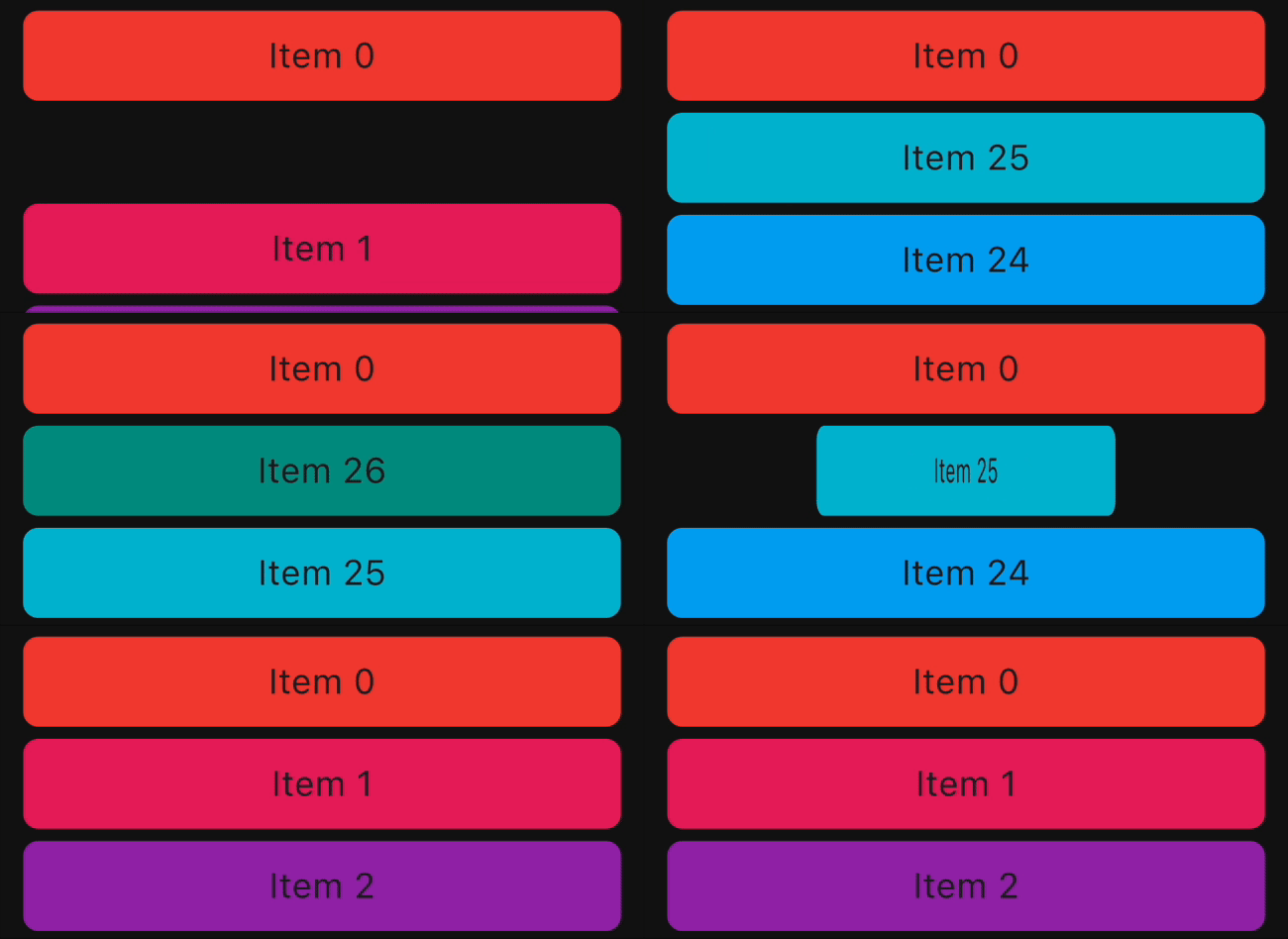 |
 |
| FlipInX | 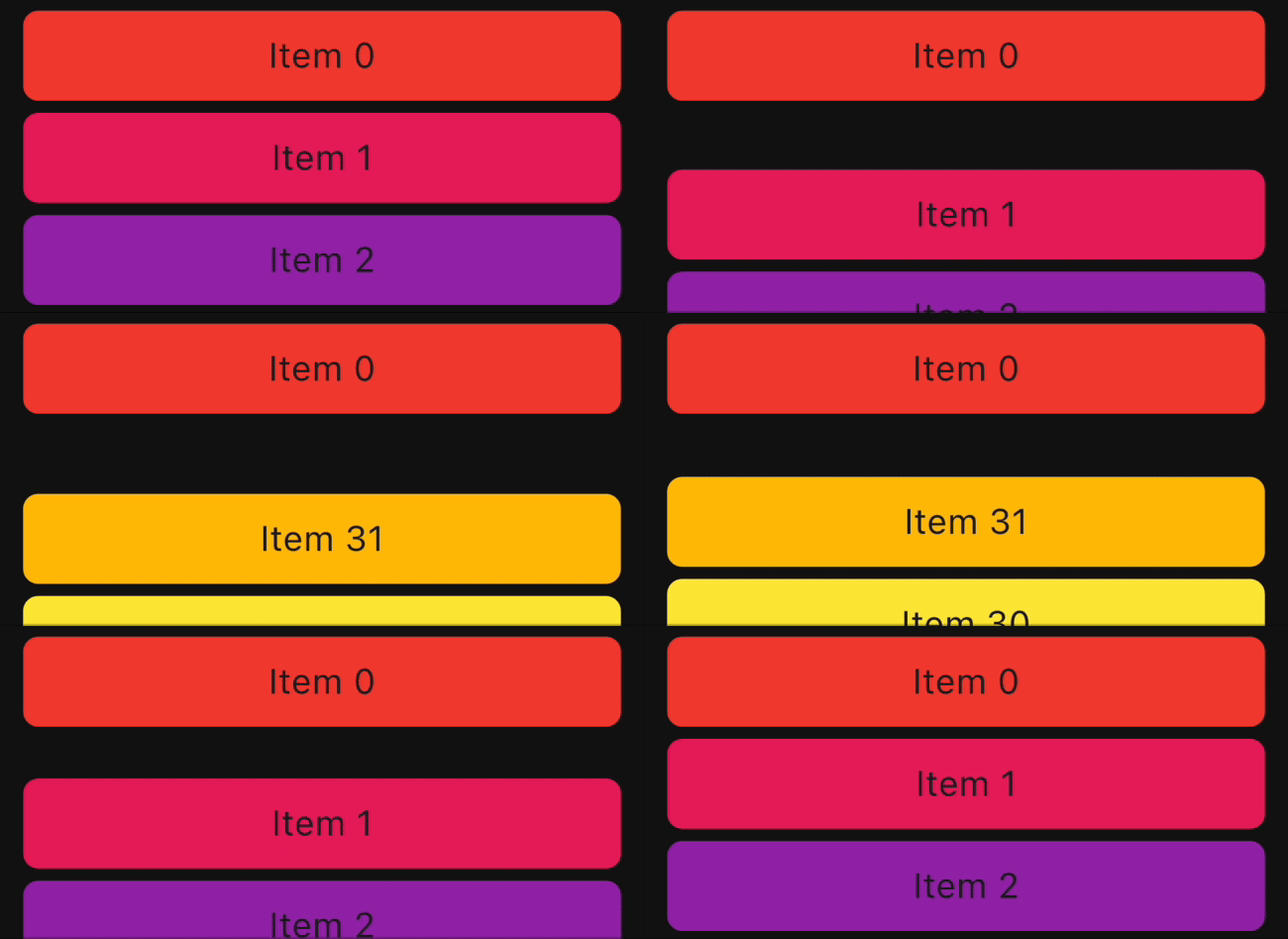 |
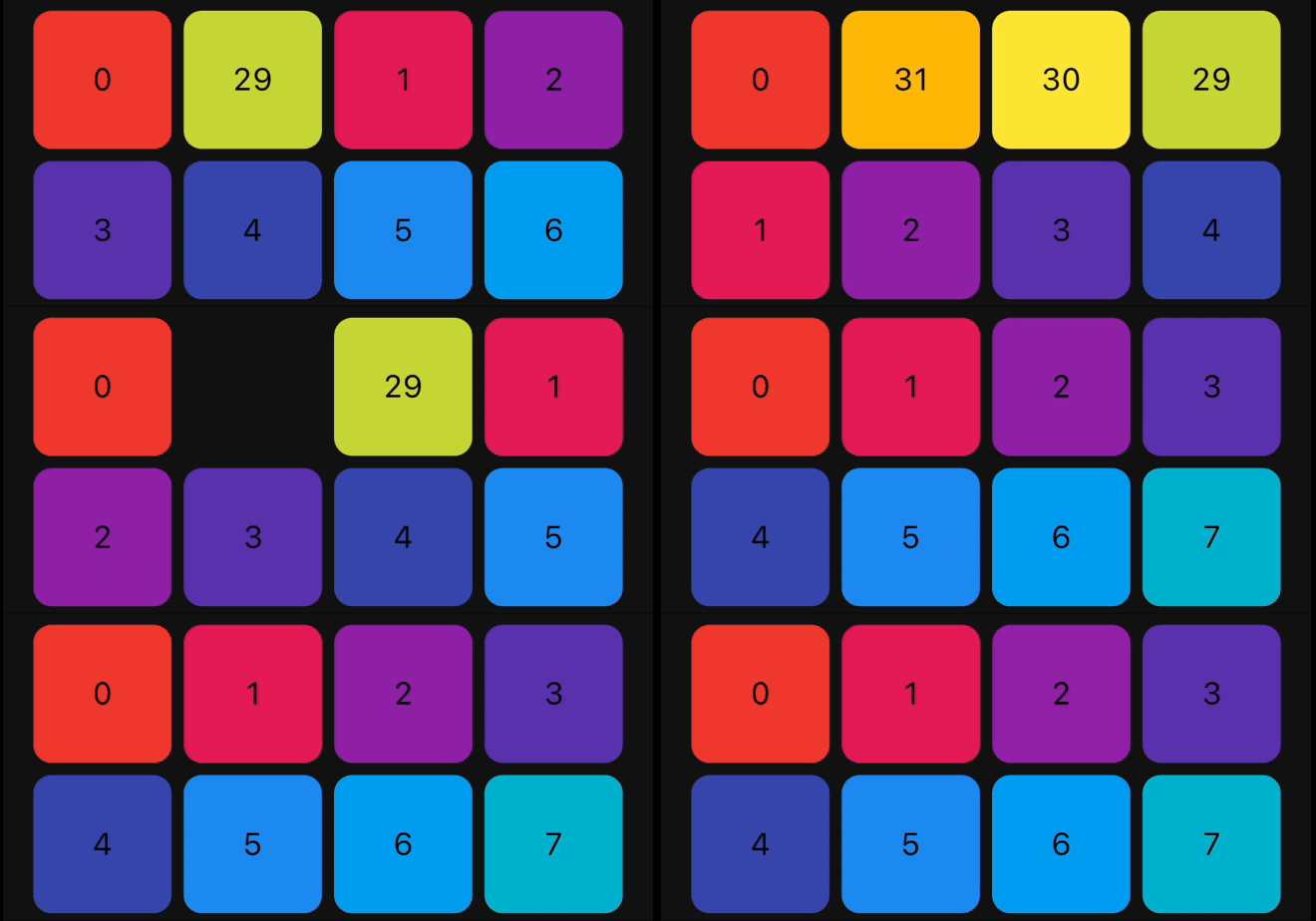 |
| Landing | 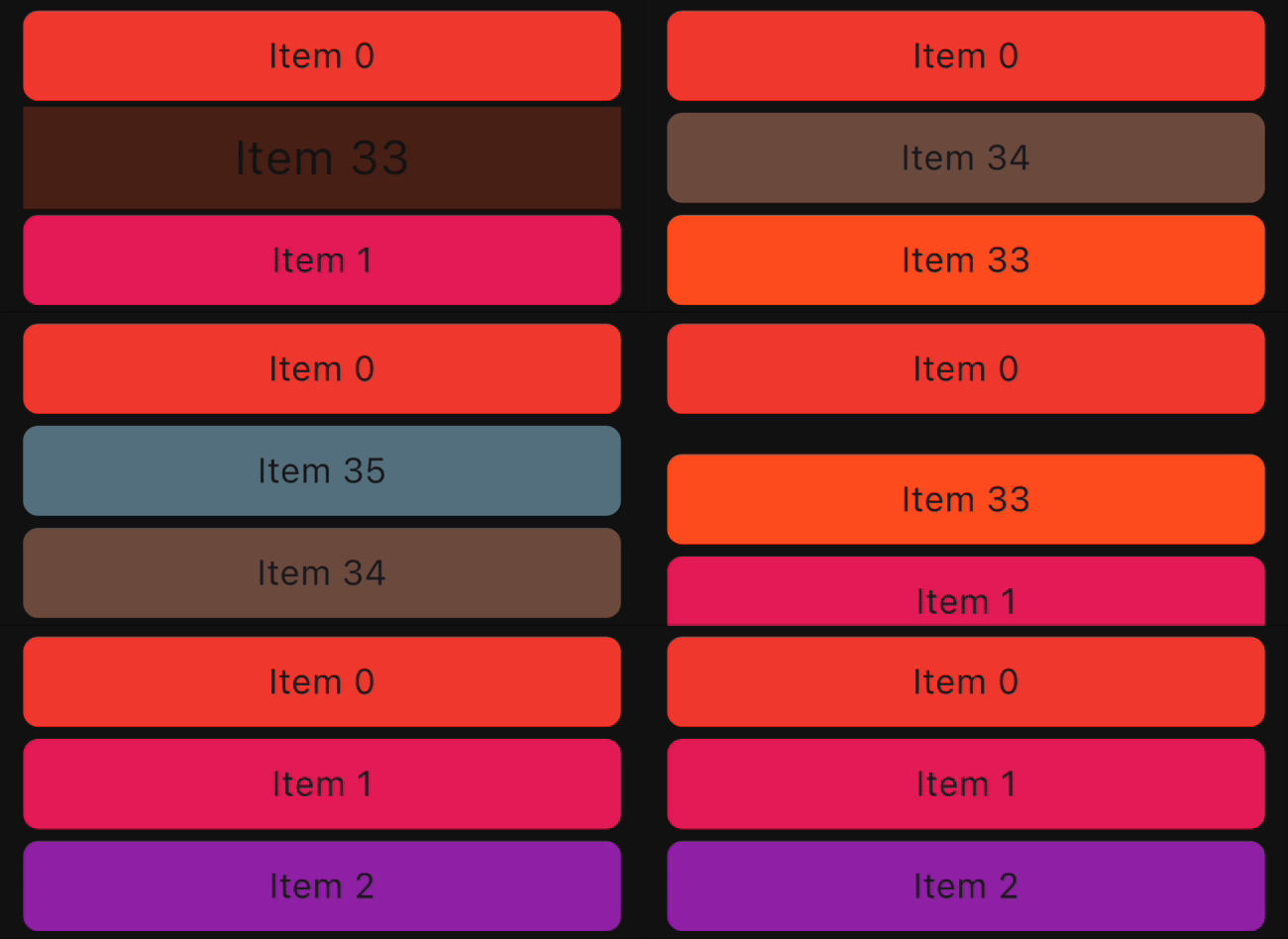 |
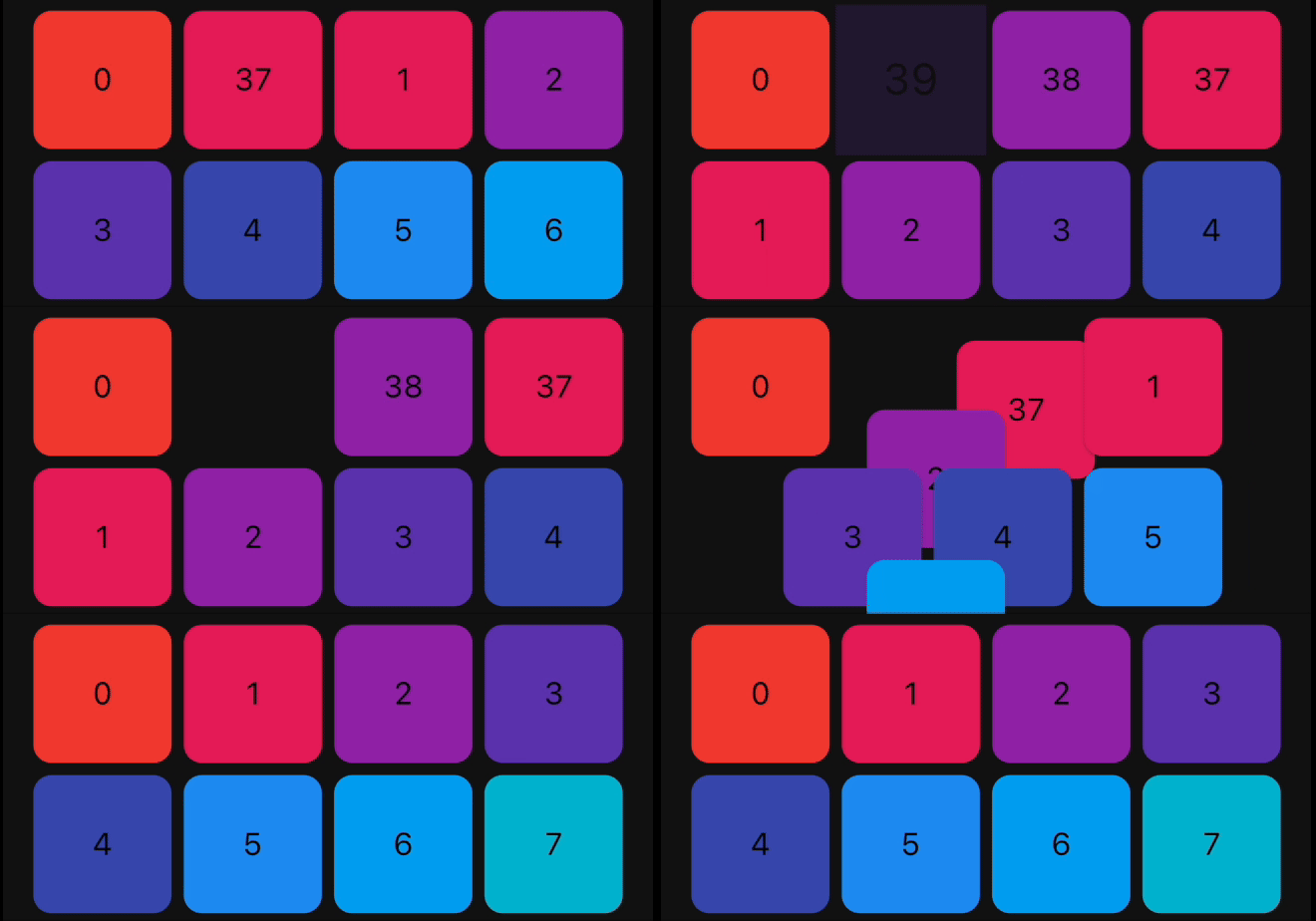 |
| ScaleIn | 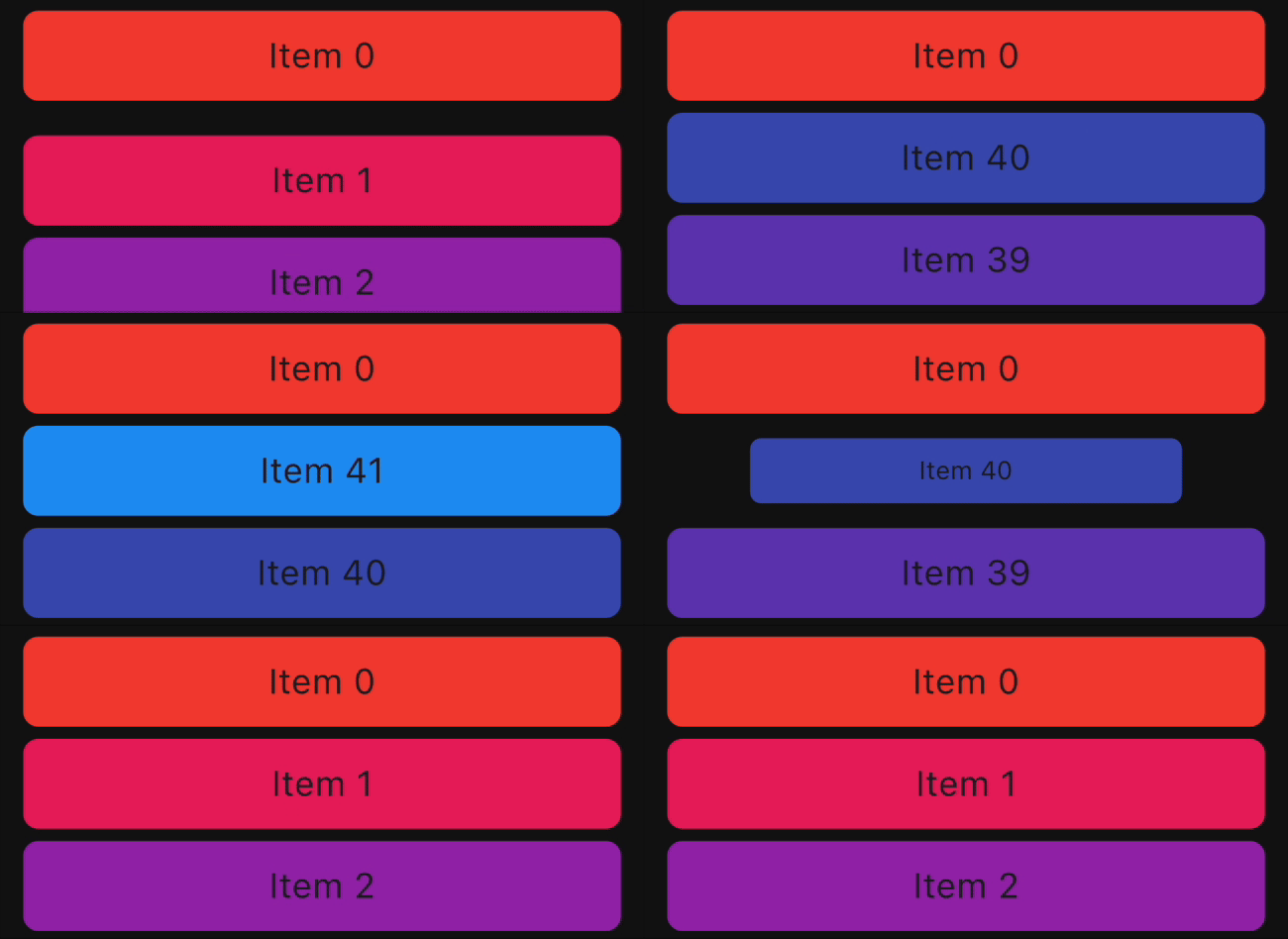 |
 |
| ScaleInTop | 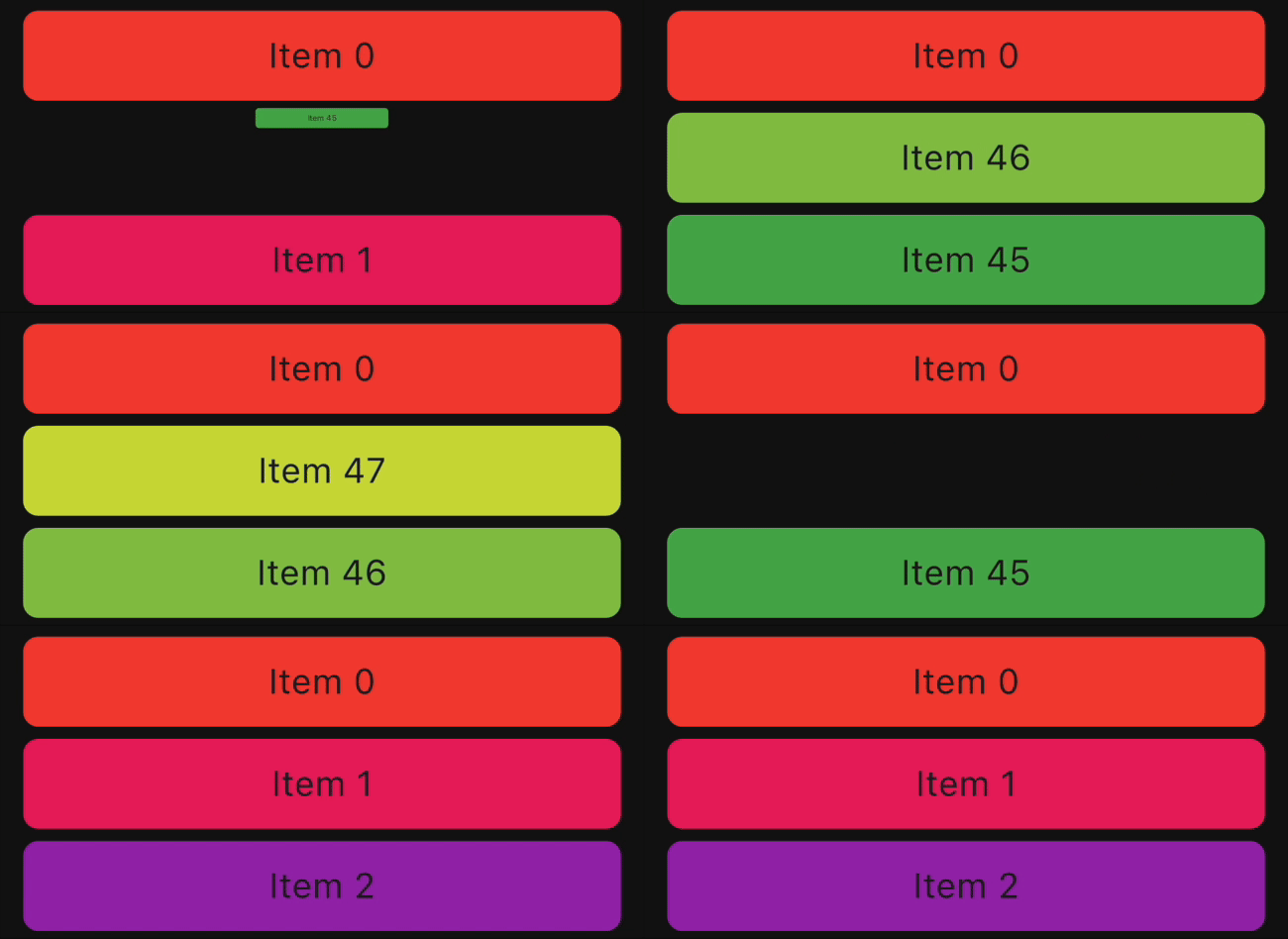 |
 |
| ScaleInBottom | 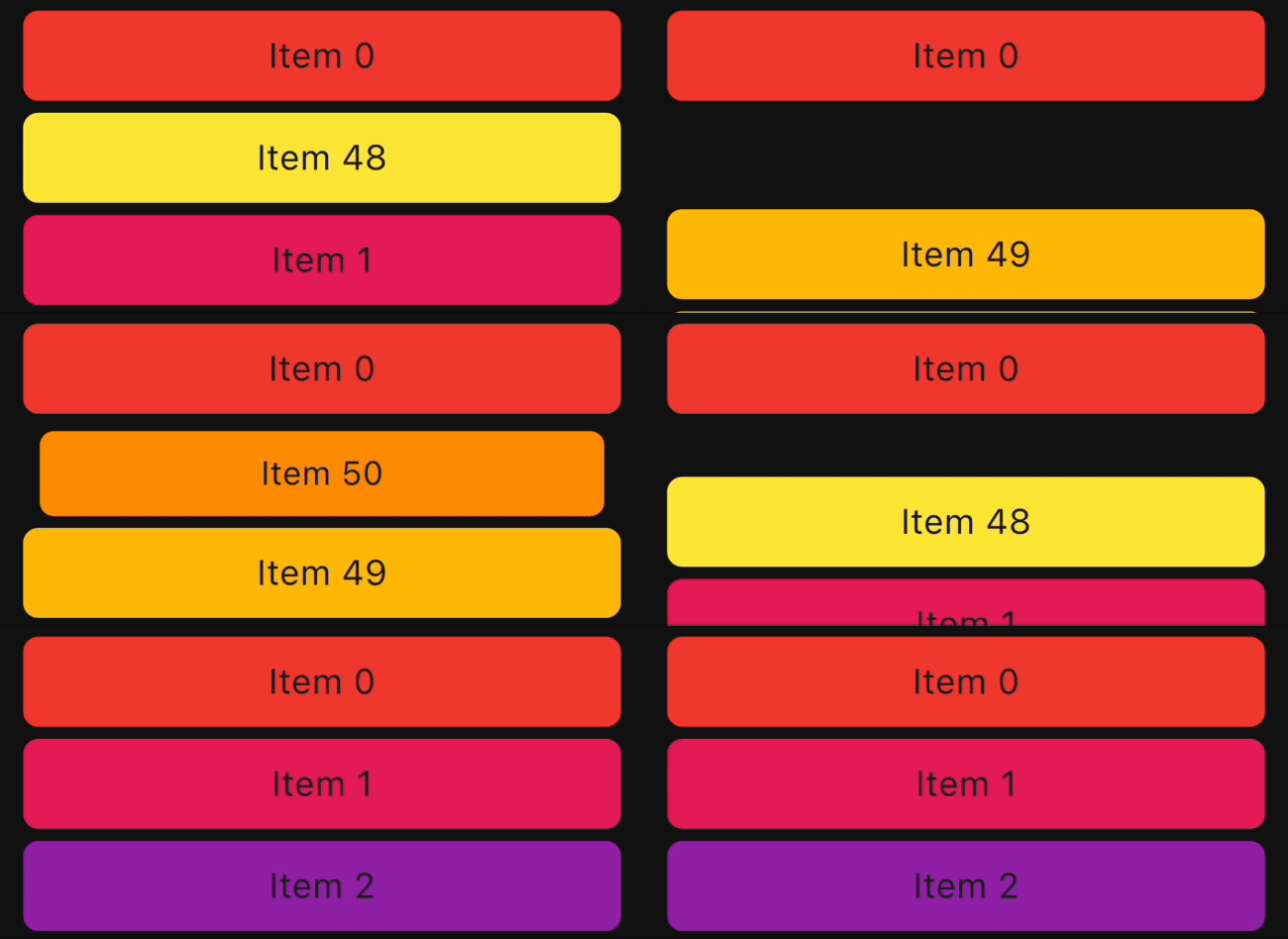 |
 |
| ScaleInLeft | 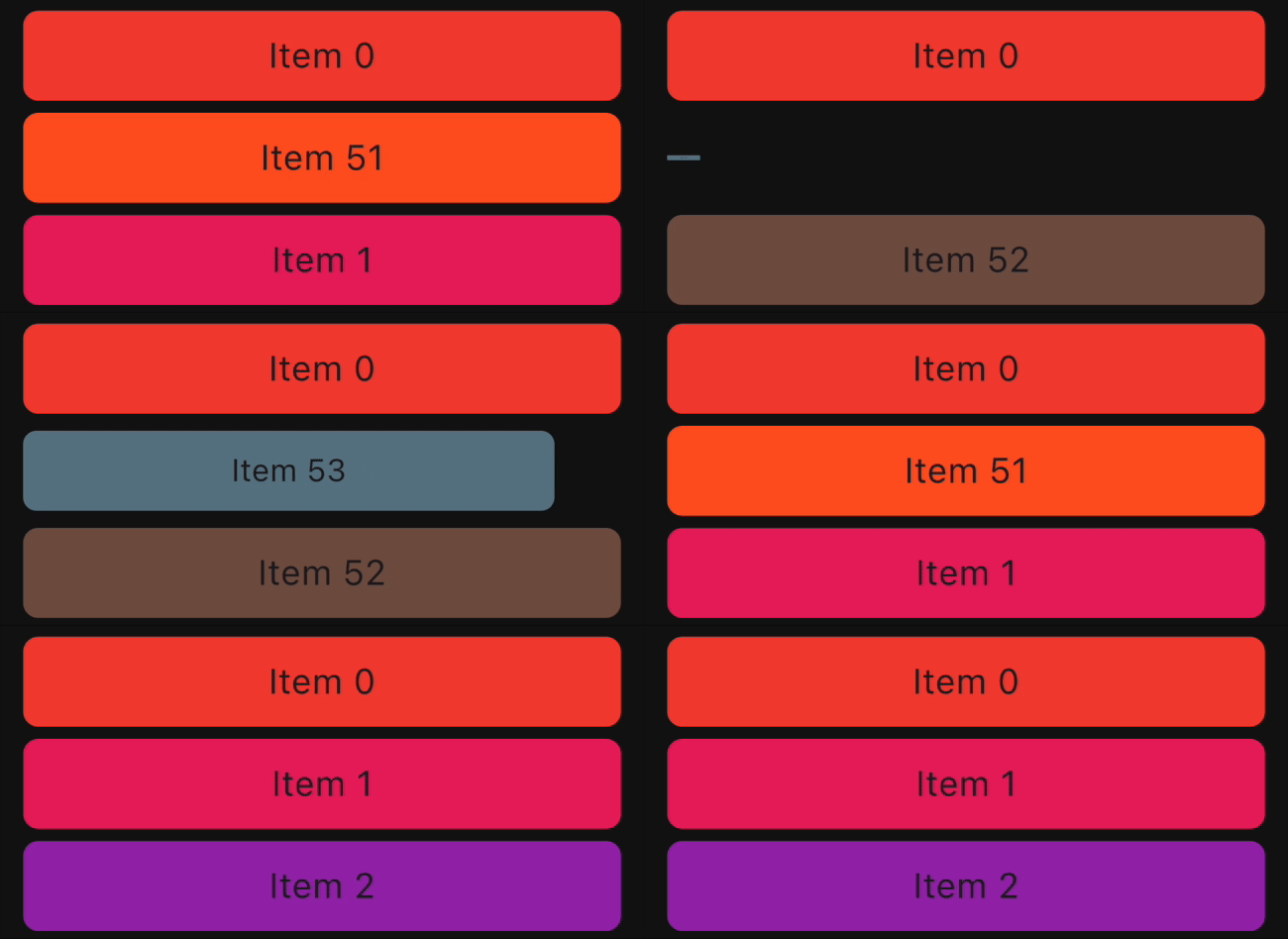 |
 |
| ScaleInRight | 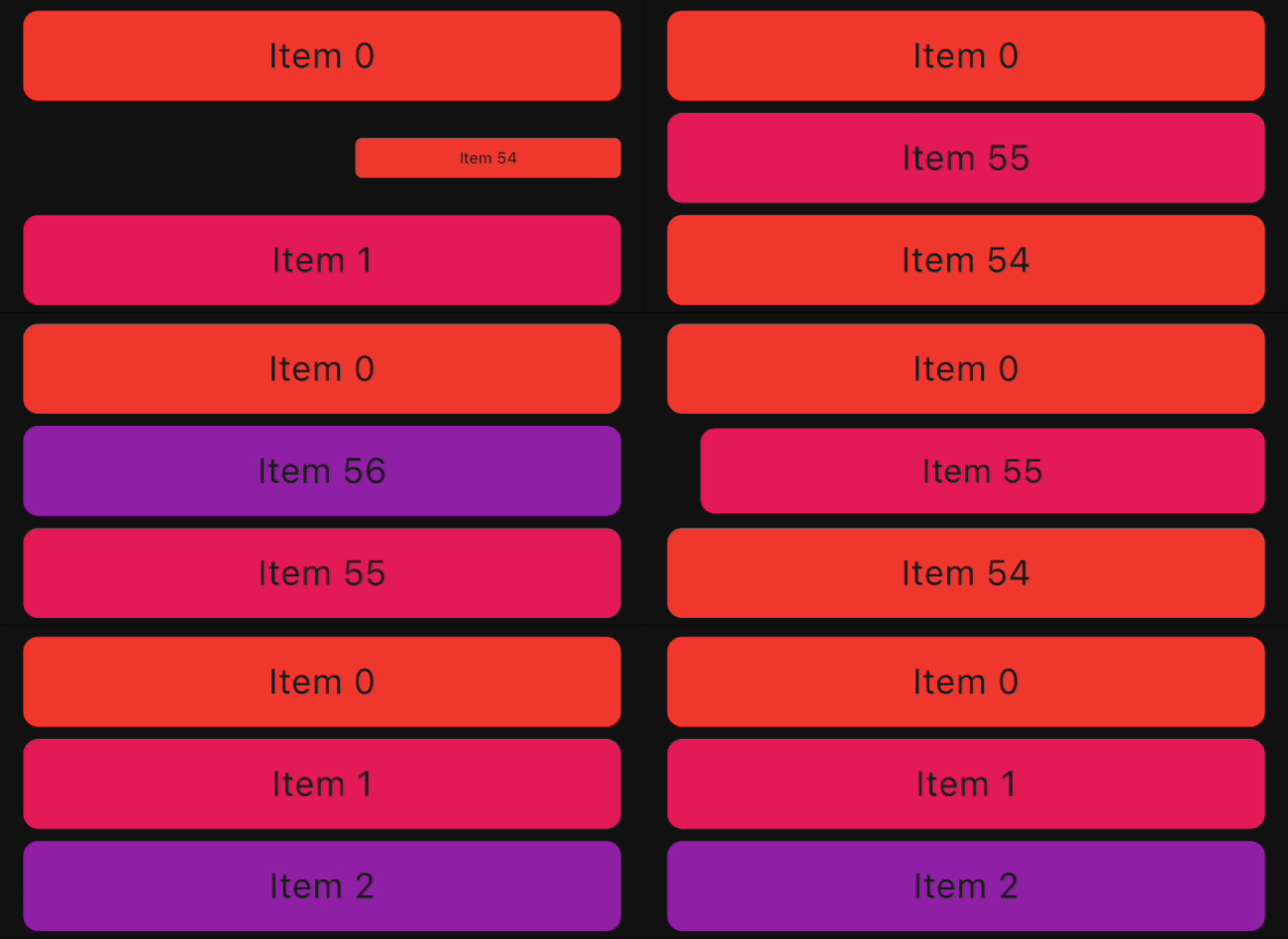 |
 |
| Size | 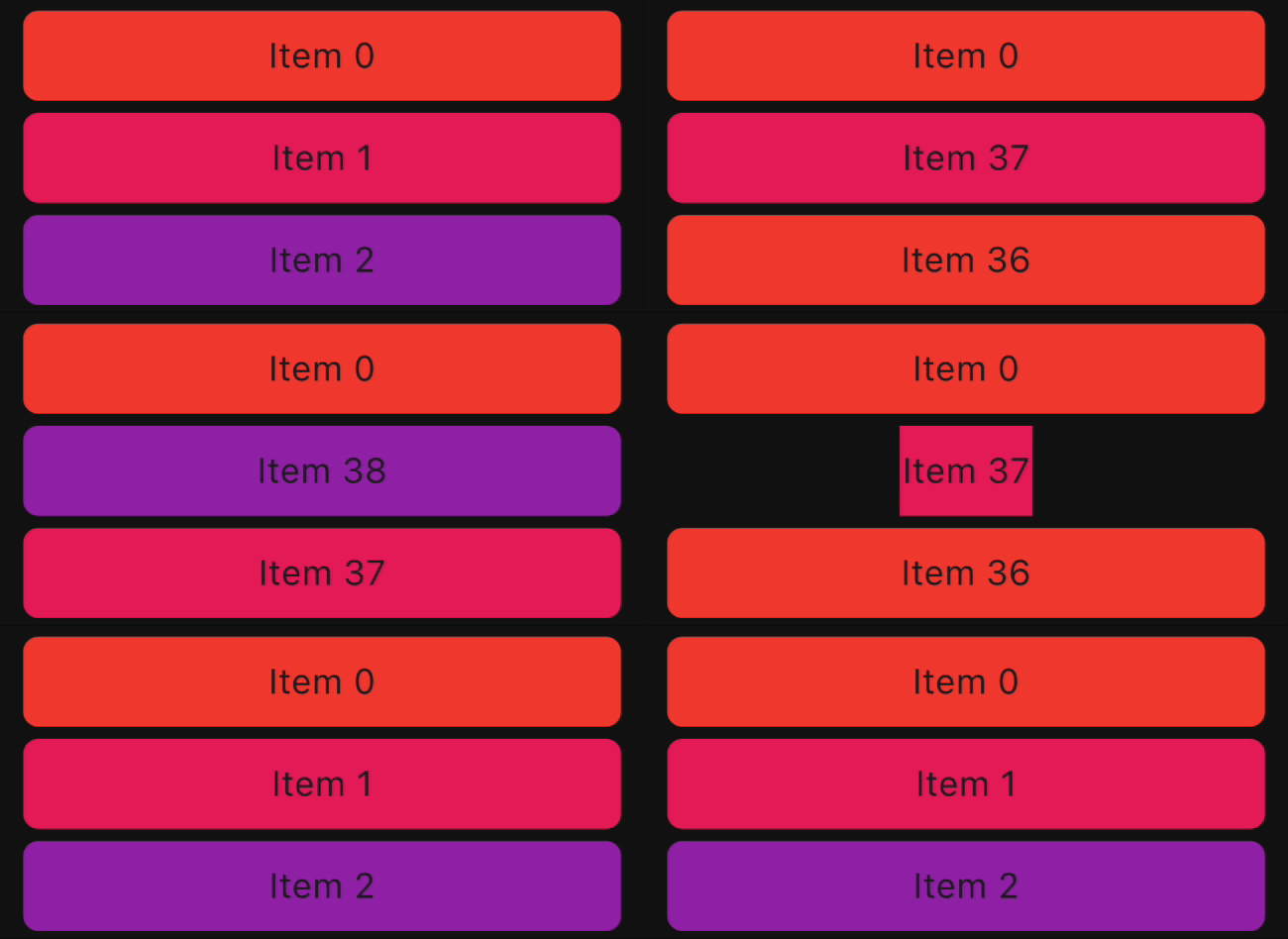 |
 |
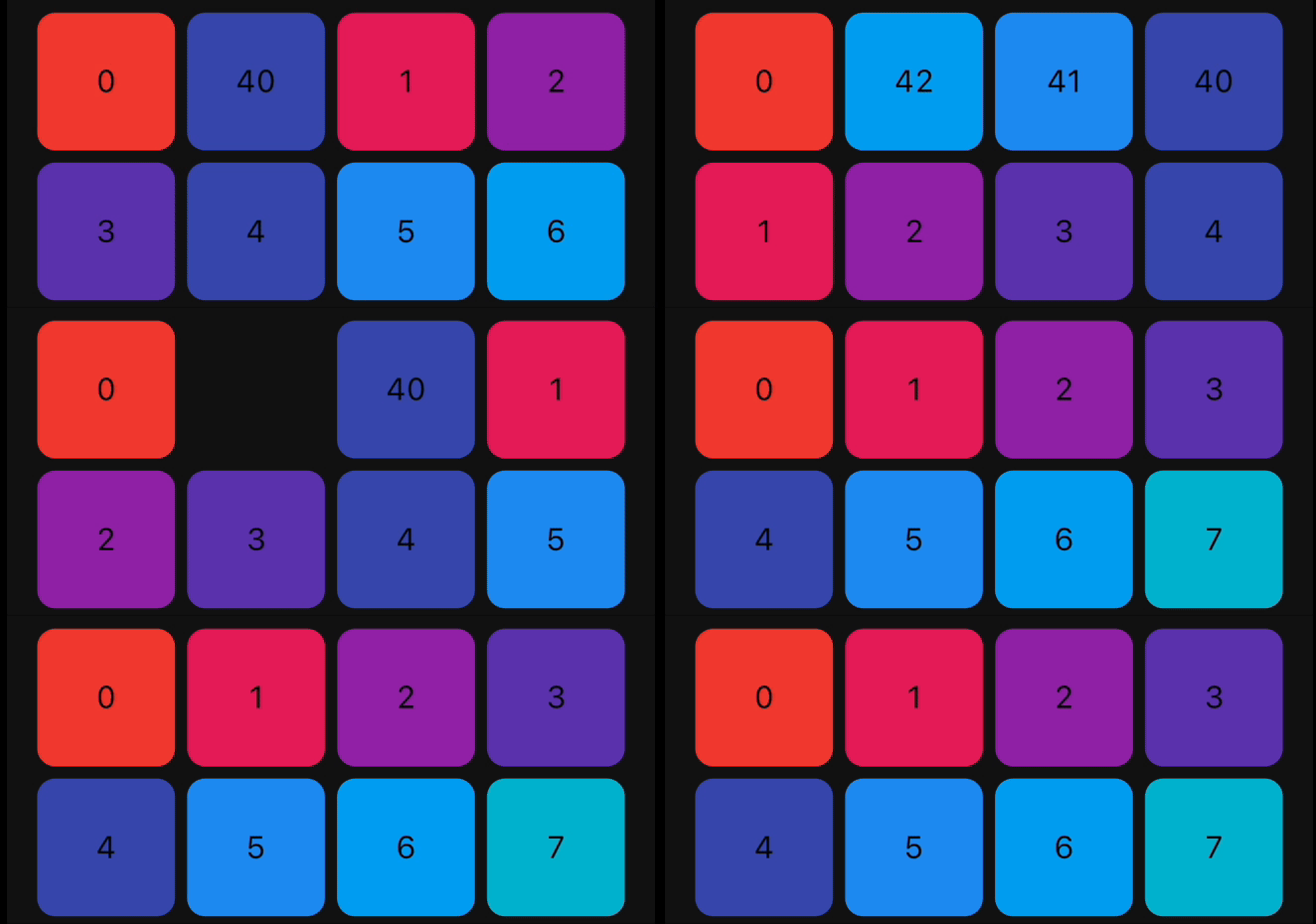
| SlideInLeft | 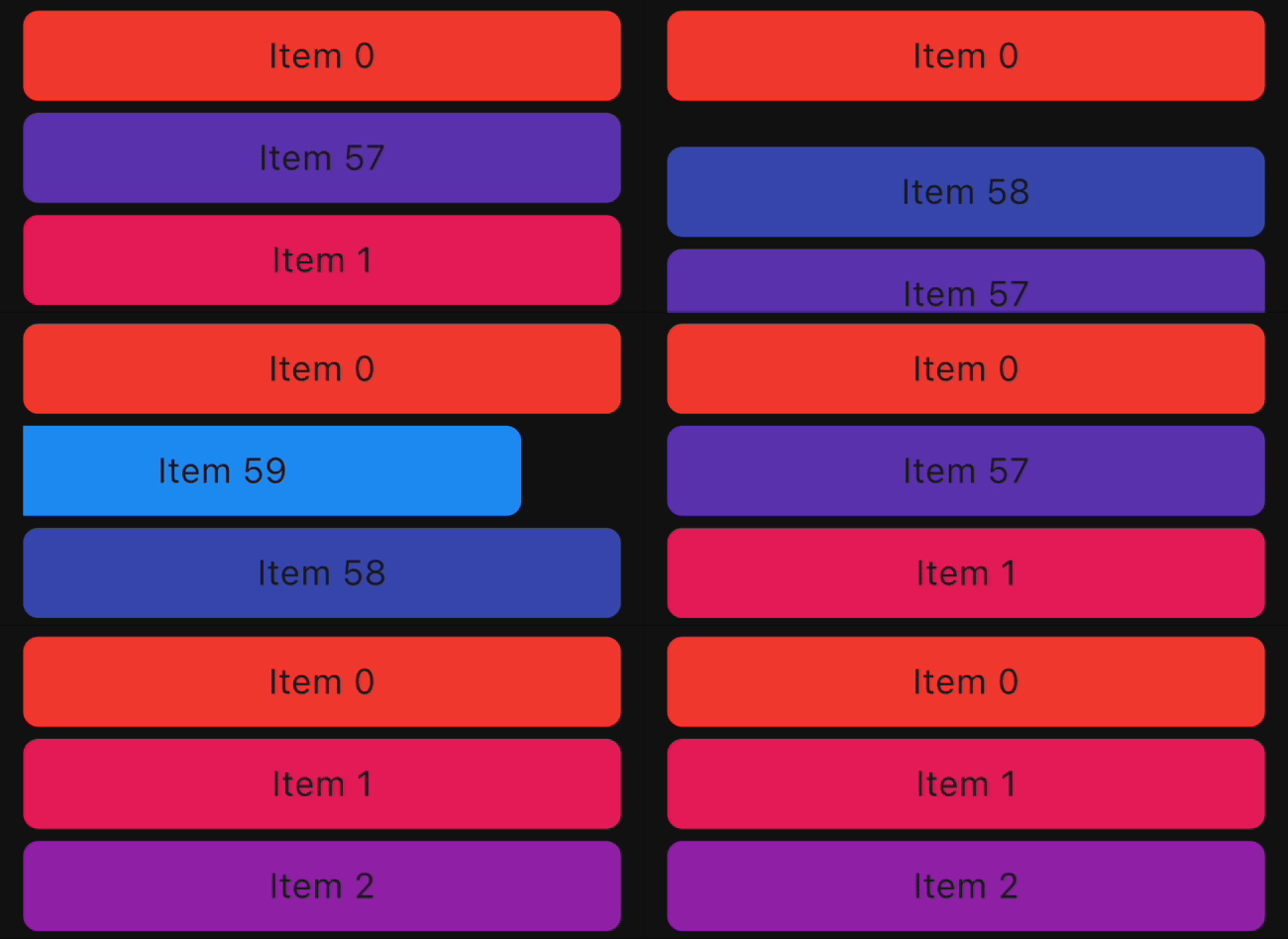 |
 |
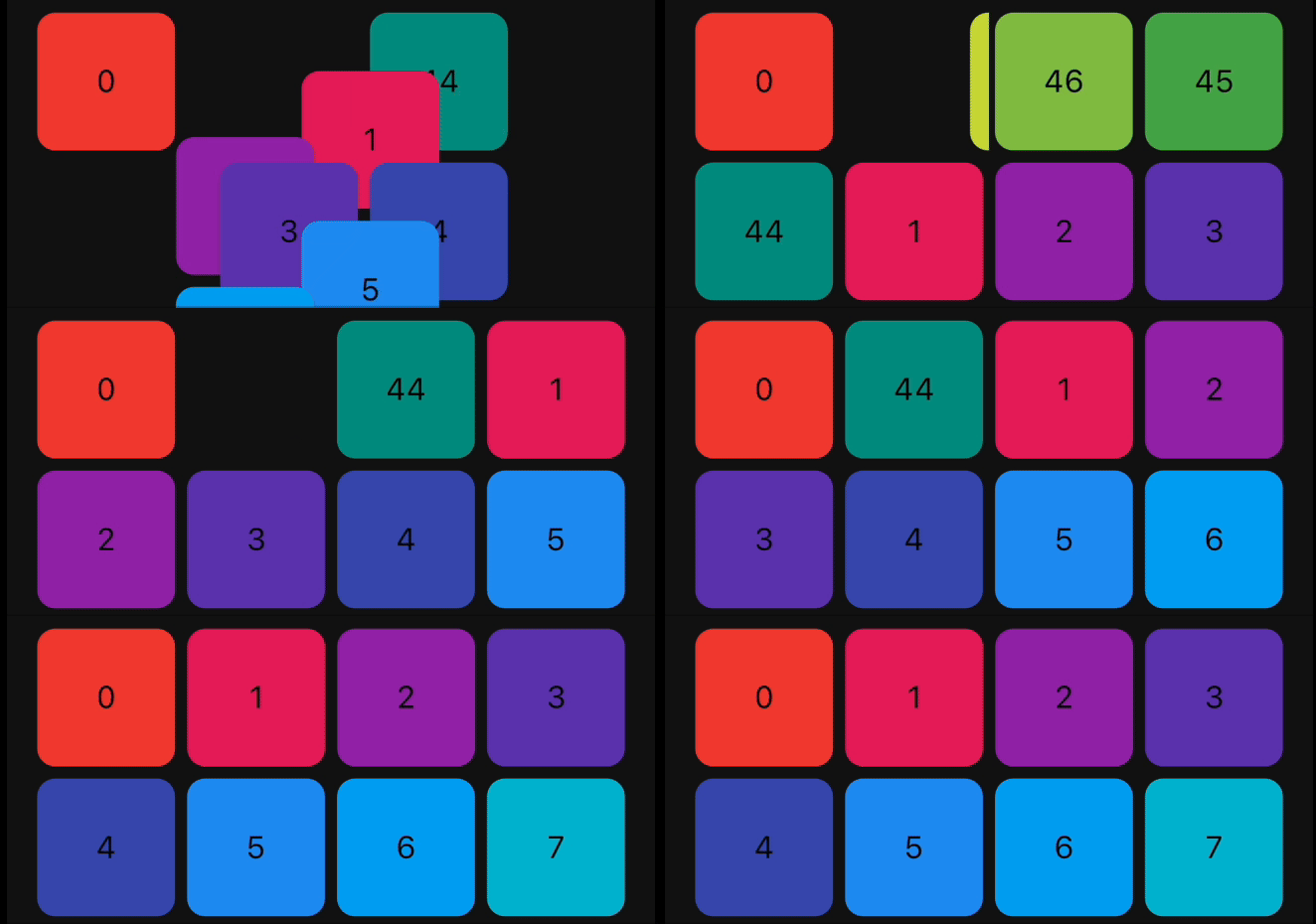
| SlideInRight | 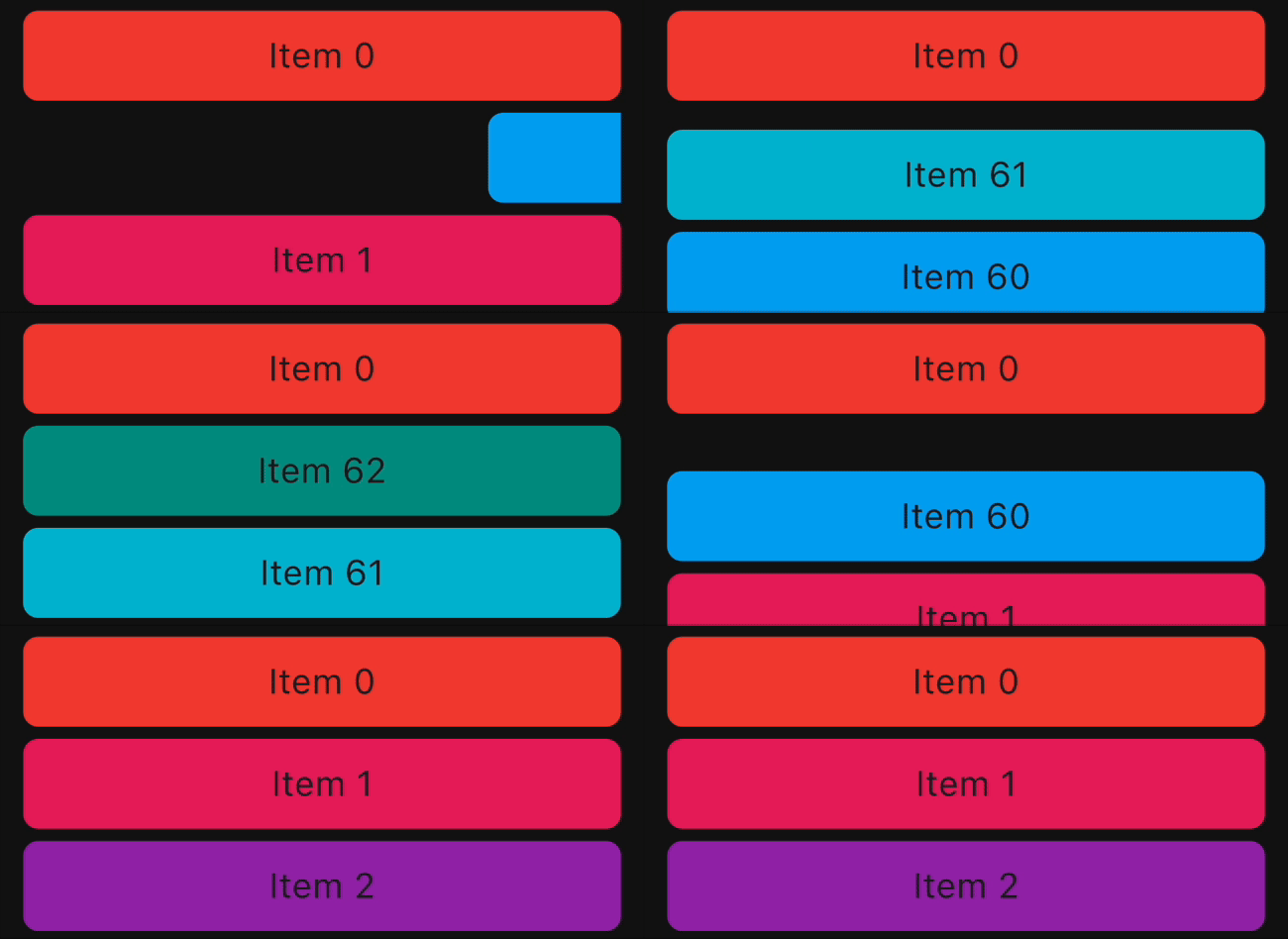 |
 |
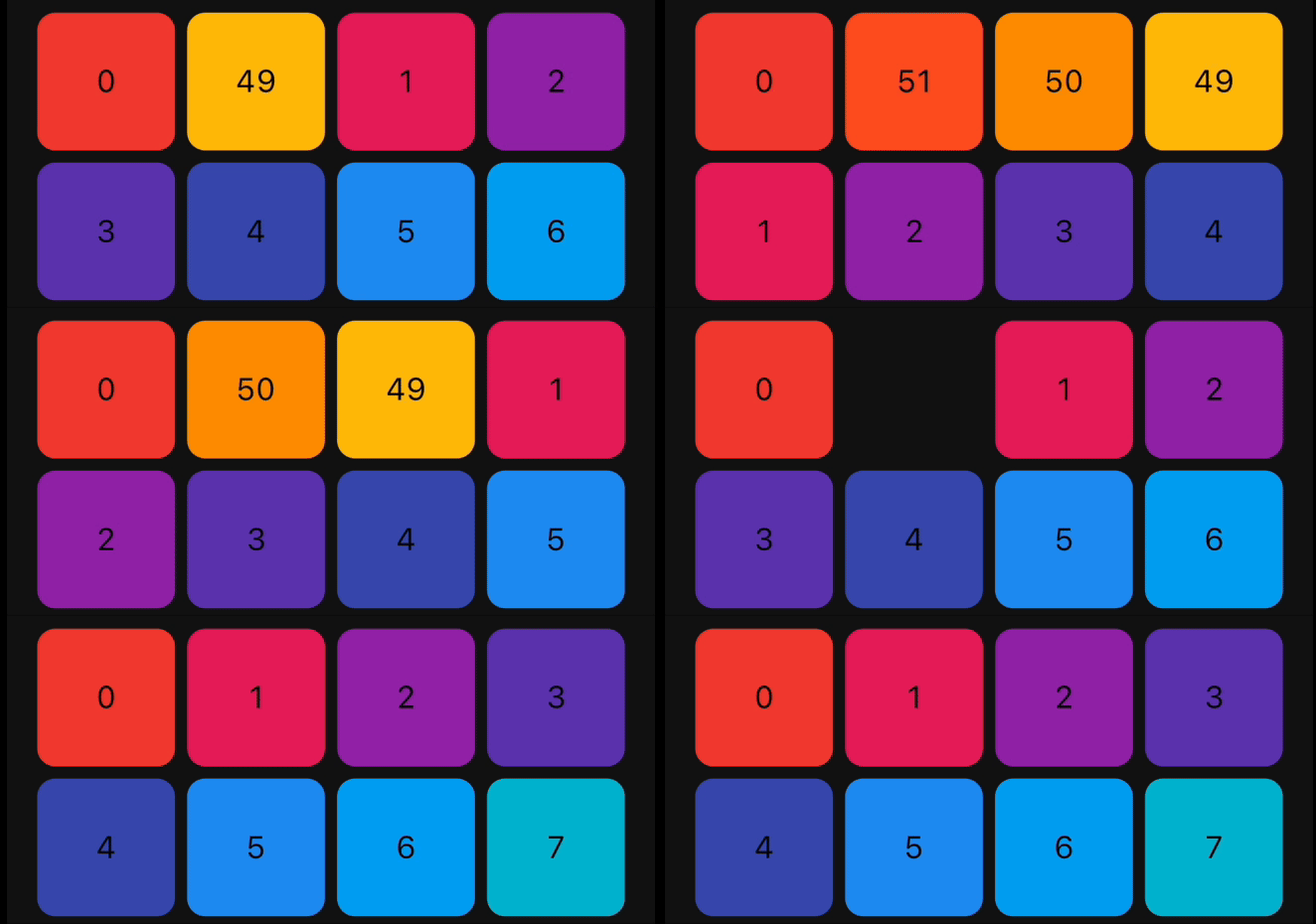
| SlideInDown | 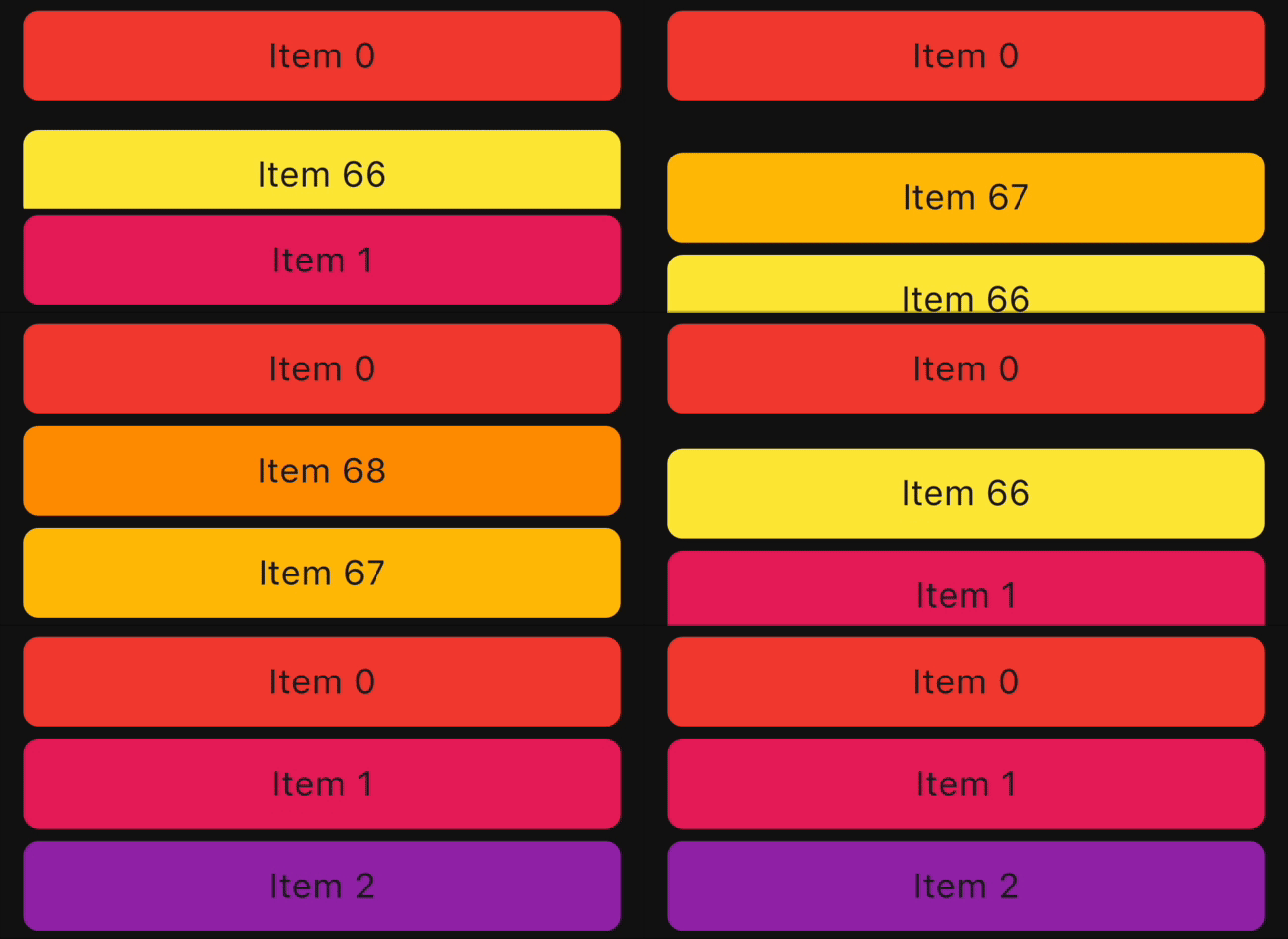 |
 |
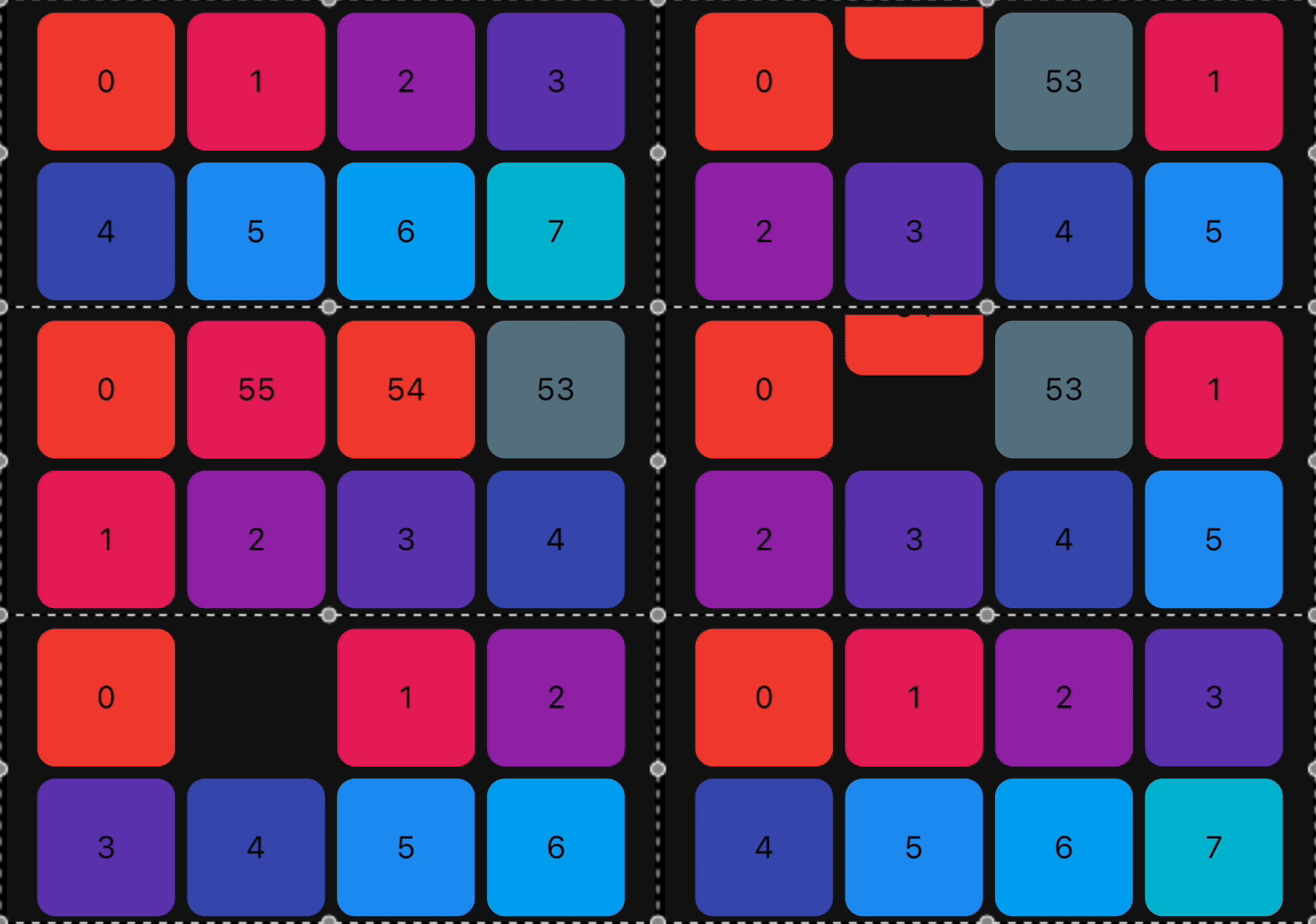
| SlideInUp | 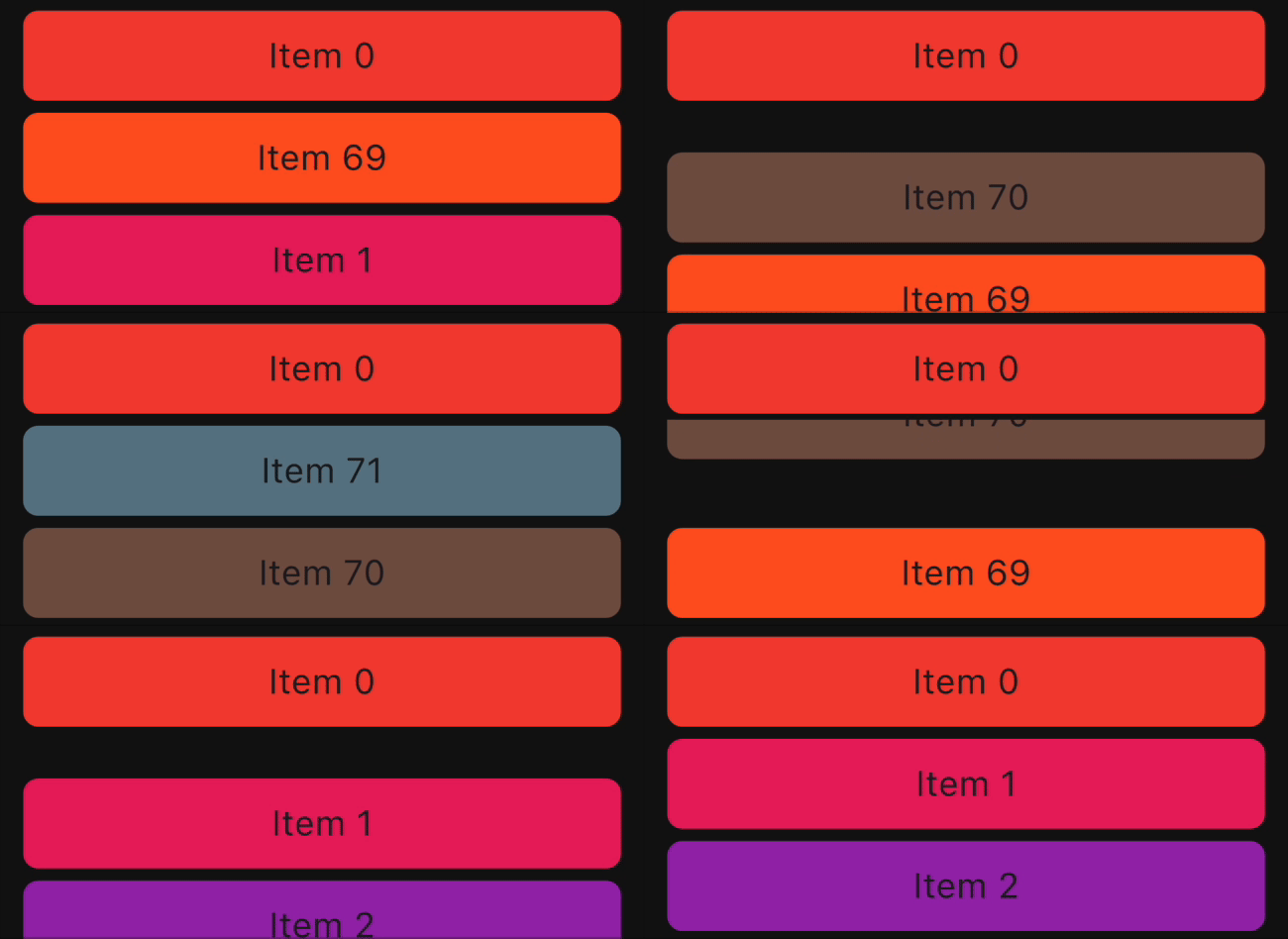 |
 |
We welcome and appreciate any suggestions you may have for improvement. For bugs, questions, and discussions please use the Github Issues.
This library builds upon the foundation laid by the incredible work of the Flutter team.
The core logic for animated list and drag-and-drop functionality are derived from Flutter's native
widgets, specifically AnimatedList and ReorderableListView.
The Canopas team enthusiastically welcomes contributions and project participation! There are a bunch of things you can do if you want to contribute! The Contributor Guide has all the information you need for everything from reporting bugs to contributing entire new features. Please don't hesitate to jump in if you'd like to, or even ask us questions if something isn't clear.
animated_reorderable_list is owned and maintained by the Canopas team. You can follow them on Twitter at @canopassoftware for project updates and releases.
Inspired by recyclerview-animators in Android.
의존성 목록 3 개
{"sdk":"flutter"}{"sdk":"flutter"}^2.0.0사용 목적에 따라 검색하고 개발 활동을 비교한 뒤 원본 저장소에서 요구 사항을 확인하세요.
“A repository is the most basic element of GitHub.”
GitHub Docs — About repositories ↗