
 v0.1.0
draggable_float_widget
이것은 스크롤뷰의 스크롤 이벤트를 통해 표시 여부를 제어할 수 있는 드래그 가능한 플로팅 Flutter 위젯입니다.
116좋아요 30.1만30일 다운로드150Pub 점수
AndroidiOSWebmacOSWindowsLinux
이것은 스크롤뷰의 스크롤 이벤트를 통해 표시 여부를 제어할 수 있는 드래그 가능한 플로팅 Flutter 위젯입니다.

{"sdk":"flutter"}{"sdk":"flutter"}아래는 영문 원문 스냅샷입니다. 최신 내용은 GitHub에서 확인하세요.
This is a draggable and floating Flutter widget, which can control its visibility through the scrolling event of ScrollView.
To use this plugin, add draggable_float_widget as a dependency in your pubspec.yaml file.
the constructor of component
DraggableFloatWidget({
  Key? key,
  this.width = defaultWidgetWidth,
  this.height = defaultWidgetHeight,
  this.eventStreamController,
  this.config = const DraggableFloatWidgetBaseConfig(),
  required this.child,
  this.onTap,
}) : super(key: key);
special field instructions
| property | description | default |
|---|---|---|
| eventStreamController | The [StreamController] of [OperateEvent] | null |
| config | the base config of [DraggableFloatWidget] | DraggableFloatWidgetBaseConfig() |
the base config of component
DraggableFloatWidgetBaseConfig({
  this.isFullScreen = true,
  this.appBarHeight = kToolbarHeight,
  this.initPositionXInLeft = true,
  this.initPositionYInTop = true,
  this.initPositionYMarginBorder = 0,
  this.borderLeft = defaultBorderWidth,
  this.borderRight = defaultBorderWidth,
  this.borderTop = defaultBorderWidth,
  this.borderTopContainTopBar = false,
  this.borderBottom = defaultBorderWidth,
  this.exposedPartWidthWhenHidden = defaultExposedPartWidthWhenHidden,
  this.animDuration = const Duration(milliseconds: 300),
  this.delayShowDuration = const Duration(milliseconds: 500),
  this.debug = false,
});
the first, add scroll listener
⚠️Ignore this step if the component is not affected by ScrollView scrolling, and you don't need to pass an StreamController instance into the instance.
NotificationListener(
  onNotification: (notification) {
    if (notification is ScrollStartNotification) {
      eventStreamController.add(OperateEvent.OPERATE_HIDE);
    } else if (notification is ScrollEndNotification) {
      eventStreamController.add(OperateEvent.OPERATE_SHOW);
    }
    return true;
  },
  child: ListView(...),
)
the first way: stack mode
Stack(
  children: [
    listView,
    DraggableFloatWidget(
      child: child,
      eventStreamController: eventStreamController,
      config: DraggableFloatWidgetBaseConfig(
        isFullScreen: false,
        initPositionYInTop: false,
        initPositionYMarginBorder: 50,
        borderBottom: navigatorBarHeight + defaultBorderWidth,
      ),
      onTap: () => print("Drag onTap!"),
    )
  ],
)
stack mode
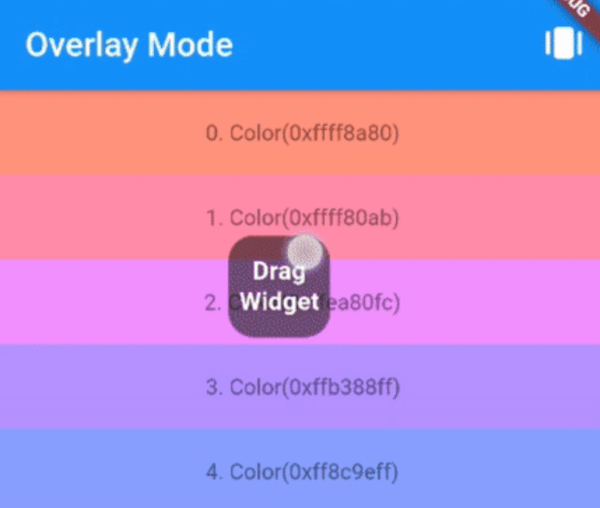
the second way: overlay mode
_overlayEntry = OverlayEntry(builder: (context) {
  return DraggableFloatWidget(
    child: widget.child,
    eventStreamController: widget.eventStreamController,
    config: DraggableFloatWidgetBaseConfig(
      initPositionYInTop: false,
      initPositionYMarginBorder: 50,
      borderTopContainTopBar: true,
      borderBottom: widget.navigatorBarHeight + defaultBorderWidth,
    ),
    onTap: () => print("Drag onTap!"),
  );
});

/// Warning: context cannot be the context of MaterialApp
Overlay.of(context)?.insert(_overlayEntry!);
overlay mode
If you encounter any problem or the library is missing a feature feel free to open an issue. Feel free to fork, improve the package and make pull request.