
 v2.0.0
christian_picker_image
Android 및 iOS 이미지 라이브러리에서 이미지를 선택하고 카메라로 새 사진을 촬영할 수 있는 Flutter 플러그인입니다.
44좋아요 6230일 다운로드140Pub 점수
AndroidiOS
Flutter용 이미지 및 카메라 선택 플러그인

{"sdk":"flutter"}{"sdk":"flutter"}아래는 영문 원문 스냅샷입니다. 최신 내용은 GitHub에서 확인하세요.
Flutter plugin that allows you to upload multi image picker on iOS & Android.
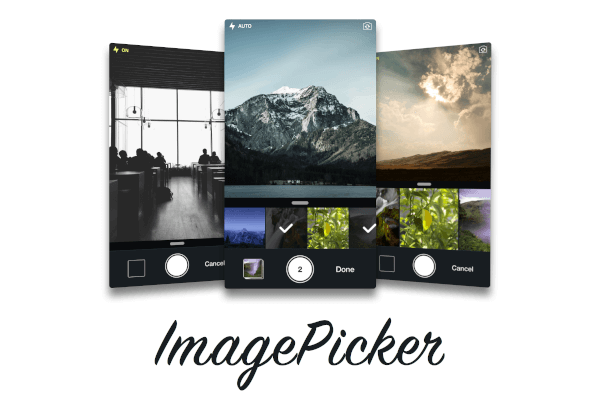
ChristianImagePicker is an all-in-one camera solution for your iOS app. It lets your users select images from the library and take pictures at the same time. As a developer you get notified of all the user interactions and get the beautiful UI for free, out of the box, it's just that simple.
ImagePicker has been optimized to give a great user experience, it passes around referenced images instead of the image itself which makes it less memory consuming. This is what makes it smooth as butter.
Demo
Add the following keys to your Info.plist file, located in <project root>/ios/Runner/Info.plist:
NSPhotoLibraryUsageDescription - describe why your app needs permission for the photo library. This is called Privacy - Photo Library Usage Description in the visual editor.NSCameraUsageDescription - describe why your app needs access to the camera. This is called Privacy - Camera Usage Description in the visual editor. visual editor.import 'package:christian_picker_image/christian_picker_image.dart';
class MyHomePage extends StatefulWidget {
@override
_MyHomePageState createState() => _MyHomePageState();
}
class _MyHomePageState extends State<MyHomePage> {
void takeImage(BuildContext context) async {
List<File> images = await ChristianPickerImage.pickImages(maxImages: 5);
print(images);
Navigator.of(context).pop();
}
Future _pickImage(BuildContext context) async {
showDialog<Null>(
context: context,
barrierDismissible: false,
builder: (BuildContext context) {
takeImage(context);
return Center();
});
}
@override
Widget build(BuildContext context) {
return MaterialApp(
home: Scaffold(
appBar: AppBar(
title: const Text('Plugin example app'),
),
body: Text("Christian Picker Image Demo"),
floatingActionButton: Column(
mainAxisAlignment: MainAxisAlignment.end,
children: <Widget>[
Padding(
padding: const EdgeInsets.only(top: 16.0),
child: FloatingActionButton(
onPressed: () {
_pickImage(context);
},
tooltip: 'Take a Photo',
child: const Icon(Icons.photo_library),
),
),
],
)
),
);
}
}