


 v3.1.1
assets_audio_player
Flutter 및 네트워크, 라디오, 라이브 스트리밍, 로컬 파일에서 자산 파일에 저장된 음악/오디오를 직접 재생합니다. Android, iOS, 웹, macOS와 호환됩니다.
1.2천좋아요 2.2천30일 다운로드110Pub 점수
AndroidiOSWebmacOS
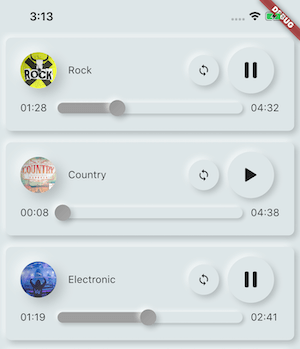
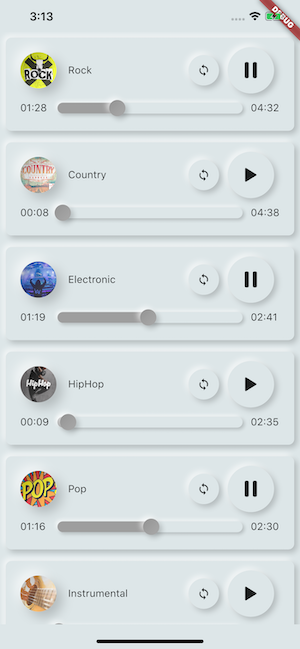
Flutter에서 assets/network/file에서 오디오/음악을 동시에 직접 재생할 수 있으며, Android/iOS/Web/MacOS와 호환되며 알림을 표시합니다.

아래는 영문 원문 스냅샷입니다. 최신 내용은 GitHub에서 확인하세요.


Play music/audio stored in assets files (simultaneously) directly from Flutter (android / ios / web / macos).
You can also use play audio files from network using their url, radios/livestream and local files
Notification can be displayed on Android & iOS, and bluetooth actions are handled
flutter:
  assets:
    - assets/audios/
AssetsAudioPlayer.newPlayer().open(
    Audio("assets/audios/song1.mp3"),
    autoStart: true,
    showNotification: true,
);
dependencies:
  assets_audio_player: ^3.0.8
Works with flutter: ">=3.3.0", be sure to upgrade your sdk
You like the package ? buy me a kofi :)

| Audio Source | Android | iOS | Web | MacOS |
|---|---|---|---|---|
| 🗄️ Asset file (asset path) | ✅ | ✅ | ✅ | ✅ |
| 🌐 Network file (url) | ✅ | ✅ | ✅ | ✅ |
| 📁 Local file (path) | ✅ | ✅ | ✅ | ✅ |
| 📻 Network LiveStream / radio (url) (Default, HLS, Dash, SmoothStream) |
✅ | ✅ | ✅ | ✅ |
| Feature | Android | iOS | Web | MacOS |
|---|---|---|---|---|
| 🎶 Multiple players | ✅ | ✅ | ✅ | ✅ |
| 💽 Open Playlist | ✅ | ✅ | ✅ | ✅ |
| 💬System notification | ✅ | ✅ | 🚫 | 🚫 |
| 🎧 Bluetooth actions | ✅ | ✅ | 🚫 | 🚫 |
| 🔕 Respect System silent mode | ✅ | ✅ | 🚫 | 🚫 |
| 📞 Pause on phone call | ✅ | ✅ | 🚫 | 🚫 |
| Commands | Android | iOS | Web | MacOS |
|---|---|---|---|---|
| ▶ Play | ✅ | ✅ | ✅ | ✅ |
| ⏸ Pause | ✅ | ✅ | ✅ | ✅ |
| ⏹ Stop | ✅ | ✅ | ✅ | ✅ |
| ⏩ Seek(position) | ✅ | ✅ | ✅ | ✅ |
| ⏪⏩ SeekBy(position) | ✅ | ✅ | ✅ | ✅ |
| ⏩ Forward(speed) | ✅ | ✅ | ✅ | ✅ |
| ⏪ Rewind(speed) | ✅ | ✅ | ✅ | ✅ |
| ⏭ Next | ✅ | ✅ | ✅ | ✅ |
| ⏮ Prev | ✅ | ✅ | ✅ | ✅ |
| Widgets | Android | iOS | Web | MacOS |
|---|---|---|---|---|
| 🐦 Audio Widget | ✅ | ✅ | ✅ | ✅ |
| 🐦 Widget Builders | ✅ | ✅ | ✅ | ✅ |
| 🐦 AudioPlayer Builders Extension | ✅ | ✅ | ✅ | ✅ |
| Properties | Android | iOS | Web | MacOS |
|---|---|---|---|---|
| 🔁 Loop | ✅ | ✅ | ✅ | ✅ |
| 🔀 Shuffle | ✅ | ✅ | ✅ | ✅ |
| 🔊 get/set Volume | ✅ | ✅ | ✅ | ✅ |
| ⏩ get/set Play Speed | ✅ | ✅ | ✅ | ✅ |
| ⏩ get/set Pitch | ✅ | 🚫 | 🚫 | 🚫 |
| Listeners | Android | iOS | Web | MacOS |
|---|---|---|---|---|
| 🦻 Listener onReady(completeDuration) | ✅ | ✅ | ✅ | ✅ |
| 🦻 Listener currentPosition | ✅ | ✅ | ✅ | ✅ |
| 🦻 Listener finished | ✅ | ✅ | ✅ | ✅ |
| 🦻 Listener buffering | ✅ | ✅ | ✅ | ✅ |
| 🦻 Listener volume | ✅ | ✅ | ✅ | ✅ |
| 🦻Listener Play Speed | ✅ | ✅ | ✅ | ✅ |
| 🦻Listener Pitch | ✅ | 🚫 | 🚫 | 🚫 |
No needed to copy songs to a media cache, with assets_audio_player you can open them directly from the assets.
flutter:
  assets:
    - assets/audios/
final assetsAudioPlayer = AssetsAudioPlayer();

assetsAudioPlayer.open(
    Audio("assets/audios/song1.mp3"),
);
You can also play network songs from url
final assetsAudioPlayer = AssetsAudioPlayer();

try {
    await assetsAudioPlayer.open(
        Audio.network("http://www.mysite.com/myMp3file.mp3"),
    );
} catch (t) {
    //mp3 unreachable
}
LiveStream / Radio from url
The main difference with network, if you pause/play, on livestream it will resume to present duration
final assetsAudioPlayer = AssetsAudioPlayer();

try {
    await assetsAudioPlayer.open(
        Audio.liveStream(MY_LIVESTREAM_URL),
    );
} catch (t) {
    //stream unreachable
}
And play songs from file
//create a new player
final assetsAudioPlayer = AssetsAudioPlayer();

assetsAudioPlayer.open(
    Audio.file(FILE_URI),
);
for file uri, please look at https://pub.dev/packages/path_provider
assetsAudioPlayer.playOrPause();
assetsAudioPlayer.play();
assetsAudioPlayer.pause();
assetsAudioPlayer.seek(Duration to);
assetsAudioPlayer.seekBy(Duration by);
assetsAudioPlayer.forwardRewind(double speed);
//if positive, forward, if negative, rewind
assetsAudioPlayer.stop();
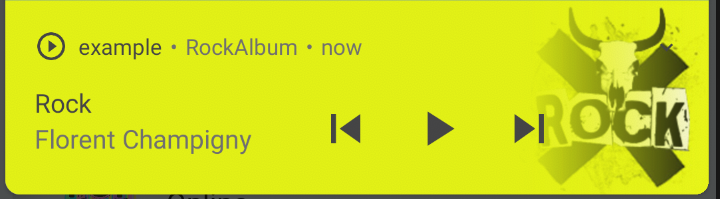
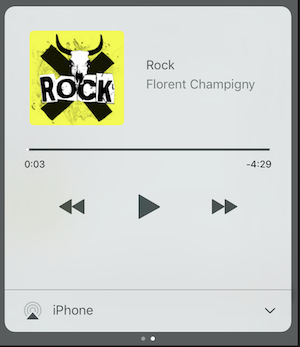
on iOS, it will use MPNowPlayingInfoCenter
final audio = Audio.network("/assets/audio/country.mp3",
    metas: Metas(
            title:  "Country",
            artist: "Florent Champigny",
            album: "CountryAlbum",
            image: MetasImage.asset("assets/images/country.jpg"), //can be MetasImage.network
          ),
   );
showNotification: true_player.open(audio, showNotification: true)
Custom icon (android only)
Make sure you added those icons inside your android/res/drawable !!! not on flutter assets !!!!
await _assetsAudioPlayer.open(
        myAudio,
        showNotification: true,
        notificationSettings: NotificationSettings(
            customStopIcon: AndroidResDrawable(name: "ic_stop_custom"),
            customPauseIcon: AndroidResDrawable(name:"ic_pause_custom"),
            customPlayIcon: AndroidResDrawable(name:"ic_play_custom"),
            customPrevIcon: AndroidResDrawable(name:"ic_prev_custom"),
            customNextIcon: AndroidResDrawable(name:"ic_next_custom"),
        )
And don't forget tell proguard to keep those resources for release mode
(part Keeping Resources)
https://sites.google.com/a/android.com/tools/tech-docs/new-build-system/resource-shrinking
<?xml version="1.0" encoding="utf-8"?>
<resources xmlns:tools="http://schemas.android.com/tools"
tools:keep="@drawable/ic_next_custom, @drawable/ic_prev_custom, @drawable/ic_pause_custom, @drawable/ic_play_custom, @drawable/ic_stop_custom"/>
Add your icon into your android's res folder (android/app/src/main/res)
Reference this icon into your AndroidManifest (android/app/src/main/AndroidManifest.xml)
<meta-data
     android:name="assets.audio.player.notification.icon"
     android:resource="@drawable/ic_music_custom"/>
You can also change actions icons
<meta-data
    android:name="assets.audio.player.notification.icon.play"
    android:resource="@drawable/ic_play_custom"/>
<meta-data
    android:name="assets.audio.player.notification.icon.pause"
    android:resource="@drawable/ic_pause_custom"/>
<meta-data
    android:name="assets.audio.player.notification.icon.stop"
    android:resource="@drawable/ic_stop_custom"/>
<meta-data
    android:name="assets.audio.player.notification.icon.next"
    android:resource="@drawable/ic_next_custom"/>
<meta-data
    android:name="assets.audio.player.notification.icon.prev"
    android:resource="@drawable/ic_prev_custom"/>
Add in main
AssetsAudioPlayer.setupNotificationsOpenAction((notification) {
    //custom action
    return true; //true : handled, does not notify others listeners
                 //false : enable others listeners to handle it
});
Then if you want a custom action on widget
AssetsAudioPlayer.addNotificationOpenAction((notification) {
   //custom action
   return false; //true : handled, does not notify others listeners
                 //false : enable others listeners to handle it
});
You can enable/disable a notification action
open(AUDIO,
   showNotification: true,
   notificationSettings: NotificationSettings(
       prevEnabled: false, //disable the previous button

       //and have a custom next action (will disable the default action)
       customNextAction: (player) {
         print("next");
       }
   )

)
After your audio creation, just call
audio.updateMetas(
       player: _assetsAudioPlayer, //add the player if the audio is actually played
       title: "My new title",
       artist: "My new artist",
       //if I not provide a new album, it keep the old one
       image: MetasImage.network(
         //my new image url
       ),
);
You have to enable notification to make them work
Available remote commands :
(Only for Android for now)
while opening a song/playlist, add a strategy
assetsAudioPlayer.open(
   ...
  headPhoneStrategy: HeadPhoneStrategy.pauseOnUnplug,
  //headPhoneStrategy: HeadPhoneStrategy.none, //default
  //headPhoneStrategy: HeadPhoneStrategy.pauseOnUnplugPlayOnPlug,
)
If you want to make it work on bluetooth too, you'll have to add the BLUETOOTH permission inside your AndroidManifest.xml
<uses-permission android:name="android.permission.BLUETOOTH" />
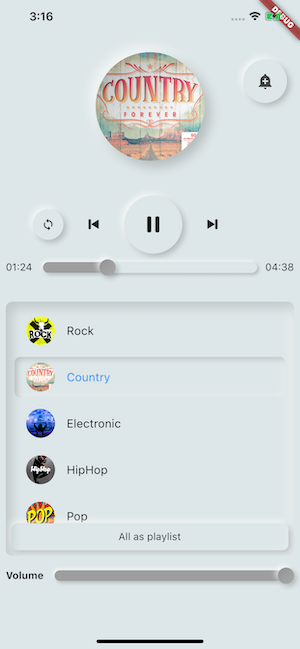
You can create new AssetsAudioPlayer using AssetsAudioPlayer.newPlayer(), which will play songs in a different native Media Player
This will enable to play two songs simultaneously
You can have as many player as you want !
///play 3 songs in parallel
AssetsAudioPlayer.newPlayer().open(
    Audio("assets/audios/song1.mp3")
);
AssetsAudioPlayer.newPlayer().open(
    Audio("assets/audios/song2.mp3")
);

//another way, with create, open, play & dispose the player on finish
AssetsAudioPlayer.playAndForget(
    Audio("assets/audios/song3.mp3")
);
Each player has an unique generated id, you can retrieve or create them manually using
final player = AssetsAudioPlayer.withId(id: "MY_UNIQUE_ID");
assetsAudioPlayer.open(
  Playlist(
    audios: [
      Audio("assets/audios/song1.mp3"),
      Audio("assets/audios/song2.mp3")
    ]
  ),
  loopMode: LoopMode.playlist //loop the full playlist
);

assetsAudioPlayer.next();
assetsAudioPlayer.prev();
assetsAudioPlayer.playlistPlayAtIndex(1);
If you want a more flutter way to play audio, try the AudioWidget !
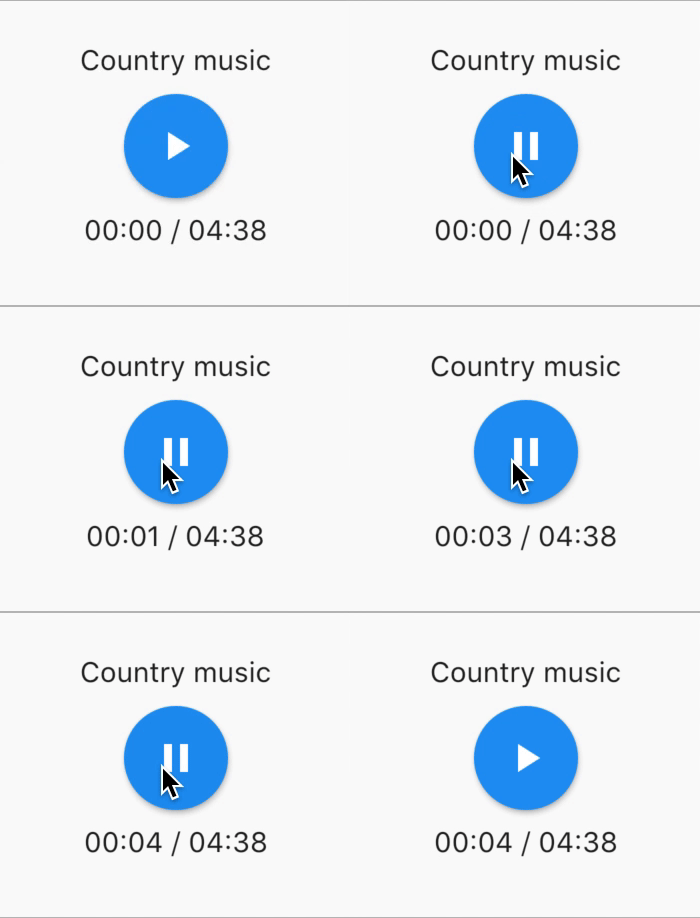
//inside a stateful widget

bool _play = false;

@override
Widget build(BuildContext context) {
  return AudioWidget.assets(
     path: "assets/audios/country.mp3",
     play: _play,
     child: RaisedButton(
           child: Text(
               _play ? "pause" : "play",
           ),
           onPressed: () {
               setState(() {
                 _play = !_play;
               });
           }
      ),
      onReadyToPlay: (duration) {
          //onReadyToPlay
      },
      onPositionChanged: (current, duration) {
          //onPositionChanged
      },
  );
}
How to 🛑 stop 🛑 the AudioWidget ?
Just remove the Audio from the tree !
Or simply keep play: false
All listeners exposes Streams Using RxDart, AssetsAudioPlayer exposes some listeners as ValueObservable (Observable that provides synchronous access to the last emitted item);
//The current playing audio, filled with the total song duration
assetsAudioPlayer.current //ValueObservable<PlayingAudio>

//Retrieve directly the current played asset
final PlayingAudio playing = assetsAudioPlayer.current.value;

//Listen to the current playing song
assetsAudioPlayer.current.listen((playingAudio){
    final asset = playingAudio.assetAudio;
    final songDuration = playingAudio.duration;
})
//Listen to the current playing song
final duration = assetsAudioPlayer.current.value.duration;
assetsAudioPlayer.currentPosition //ValueObservable<Duration>

//retrieve directly the current song position
final Duration position = assetsAudioPlayer.currentPosition.value;

return StreamBuilder(
    stream: assetsAudioPlayer.currentPosition,
    builder: (context, asyncSnapshot) {
        final Duration duration = asyncSnapshot.data;
        return Text(duration.toString());
    }),
or use a PlayerBuilder !
PlayerBuilder.currentPosition(
     player: _assetsAudioPlayer,
     builder: (context, duration) {
       return Text(duration.toString());
     }
)
or Player Builder Extension
_assetsAudioPlayer.builderCurrentPosition(
     builder: (context, duration) {
       return Text(duration.toString());
     }
)
boolean observable representing the current mediaplayer playing state
assetsAudioPlayer.isPlaying // ValueObservable<bool>

//retrieve directly the current player state
final bool playing = assetsAudioPlayer.isPlaying.value;

//will follow the AssetsAudioPlayer playing state
return StreamBuilder(
    stream: assetsAudioPlayer.isPlaying,
    builder: (context, asyncSnapshot) {
        final bool isPlaying = asyncSnapshot.data;
        return Text(isPlaying ? "Pause" : "Play");
    }),
or use a PlayerBuilder !
PlayerBuilder.isPlaying(
     player: _assetsAudioPlayer,
     builder: (context, isPlaying) {
       return Text(isPlaying ? "Pause" : "Play");
     }
)
or Player Builder Extension
_assetsAudioPlayer.builderIsPlaying(
     builder: (context, isPlaying) {
       return Text(isPlaying ? "Pause" : "Play");
     }
)
Change the volume (between 0.0 & 1.0)
assetsAudioPlayer.setVolume(0.5);
The media player can follow the system "volume mode" (vibrate, muted, normal)
Simply set the respectSilentMode optional parameter as true
_player.open(PLAYABLE, respectSilentMode: true);
https://developer.android.com/reference/android/media/AudioManager.html?hl=fr#getRingerMode()
https://developer.apple.com/documentation/avfoundation/avaudiosessioncategorysoloambient
Listen the volume
return StreamBuilder(
    stream: assetsAudioPlayer.volume,
    builder: (context, asyncSnapshot) {
        final double volume = asyncSnapshot.data;
        return Text("volume : $volume");
    }),
or use a PlayerBuilder !
PlayerBuilder.volume(
     player: _assetsAudioPlayer,
     builder: (context, volume) {
       return Text("volume : $volume");
     }
)
Called when the current song has finished to play,
it gives the Playing audio that just finished
assetsAudioPlayer.playlistAudioFinished //ValueObservable<Playing>

assetsAudioPlayer.playlistAudioFinished.listen((Playing playing){

})
Called when the complete playlist has finished to play
assetsAudioPlayer.playlistFinished //ValueObservable<bool>

assetsAudioPlayer.playlistFinished.listen((finished){

})
final LoopMode loopMode = assetsAudioPlayer.loop;
// possible values
// LoopMode.none : not looping
// LoopMode.single : looping a single audio
// LoopMode.playlist : looping the fyll playlist

assetsAudioPlayer.setLoopMode(LoopMode.single);

assetsAudioPlayer.loopMode.listen((loopMode){
    //listen to loop
})

assetsAudioPlayer.toggleLoop(); //toggle the value of looping
assetsAudioPlayer.setPlaySpeed(1.5);

assetsAudioPlayer.playSpeed.listen((playSpeed){
    //listen to playSpeed
})

//change play speed for a particular Audio

Audio audio = Audio.network(
    url,
    playSpeed: 1.5
);
assetsAudioPlayer.open(audio);
assetsAudioPlayer.setPitch(1.2);

assetsAudioPlayer.pitch.listen((pitch){
    //listen to pitch
})

//change pitch for a particular Audio

Audio audio = Audio.network(
    url,
    pitch: 1.2
);
assetsAudioPlayer.open(audio);
By default, on playing error, it stop the audio
BUT you can add a custom behavior
_player.onErrorDo = (handler){
  handler.player.stop();
};
Open another audio
_player.onErrorDo = (handler){
  handler.player.open(ANOTHER_AUDIO);
};
Try to open again on same position
_player.onErrorDo = (handler){
  handler.player.open(
      handler.playlist.copyWith(
        startIndex: handler.playlistIndex
      ),
      seek: handler.currentPosition
  );
};
Android only allow HTTPS calls, you will have an error if you're using HTTP,
don't forget to add INTERNET permission and seet usesCleartextTraffic="true" in your AndroidManifest.xml
<?xml version="1.0" encoding="utf-8"?>
<manifest ...>
    <uses-permission android:name="android.permission.INTERNET" />
    <application
        ...
        android:usesCleartextTraffic="true"
        ...>
        ...
    </application>
</manifest>
iOS only allow HTTPS calls, you will have an error if you're using HTTP,
don't forget to edit your info.plist and set NSAppTransportSecurity to NSAllowsArbitraryLoads
<key>NSAppTransportSecurity</key>
<dict>
    <key>NSAllowsArbitraryLoads</key>
    <true/>
</dict>
To enable http calls on macOs, you have to add input/output calls capabilities into info.plist
<key>NSAppTransportSecurity</key>
<dict>
    <key>NSAllowsArbitraryLoads</key>
    <true/>
</dict>
<key>UIBackgroundModes</key>
<array>
    <string>audio</string>
    <string>fetch</string>
</array>
<key>com.apple.security.network.client</key>
<true/>
and in your
Runner/DebugProfile.entitlements
add
<key>com.apple.security.network.client</key>
<true/>
Complete Runner/DebugProfile.entitlements
<?xml version="1.0" encoding="UTF-8"?>
<!DOCTYPE plist PUBLIC "-//Apple//DTD PLIST 1.0//EN" "http://www.apple.com/DTDs/PropertyList-1.0.dtd">
<plist version="1.0">
<dict>
	<key>com.apple.security.app-sandbox</key>
	<true/>
	<key>com.apple.security.cs.allow-jit</key>
	<true/>
	<key>com.apple.security.network.server</key>
	<true/>
	<key>com.apple.security.network.client</key>
	<true/>
</dict>
</plist>
All musics used in the samples came from https://www.freemusicarchive.org/
Flutter 및 네트워크, 라디오, 라이브 스트리밍, 로컬 파일에서 자산 파일에 저장된 음악/오디오를 직접 재생합니다. Android, iOS, 웹, macOS와 호환됩니다.
assets_audio_player용 웹 플러그인. Flutter에서 자산 파일에 저장된 음악/오디오를 직접 재생합니다.
의존성 목록 7 개
{"sdk":"flutter"}^0.27.7>=3.0.7 <5.0.0>=0.13.0 <2.0.0^2.0.8{"sdk":"flutter"}^2.0.2사용 목적에 따라 검색하고 개발 활동을 비교한 뒤 원본 저장소에서 요구 사항을 확인하세요.
“A repository is the most basic element of GitHub.”
GitHub Docs — About repositories ↗
