


 v7.1.2
carousel_slider_plus
무한 스크롤과 사용자 정의 자식 위젯을 지원하는 카루셀 슬라이더 위젯입니다.
97좋아요 4.3만30일 다운로드160Pub 점수
AndroidiOSWebmacOSWindowsLinux
무한 스크롤을 지원하는 플러터 카루셀 위젯이며, 사용자 정의 자식 위젯도 지원합니다.

아래는 영문 원문 스냅샷입니다. 최신 내용은 GitHub에서 확인하세요.
A carousel slider widget.
This package is fork of carousel_slider which is not actively maintained.



In this fork some of the namings are changed. So follow this below guides to migrate over this new package.
import "package:carousel_slider/carousel_slider.dart;
import 'package:carousel_slider_plus/carousel_slider_plus.dart';
CarouselSlider is now changed to controller from carouselController.CarouselSlider(
carouselController: _controller,
// Rest of the code
),
CarouselSlider(
  controller: _controller,
  // Rest of the code
),
https://kishan-dhankecha.github.io/carousel-slider-plus-gh-pages/
Note: this page is built with flutter-web. For a better user experience, please use a mobile device to open this link.
Add latest version of carousel_slider_plus to your pubspec.yaml dependencies. And import it:
import 'package:carousel_slider_plus/carousel_slider_plus.dart';
Simply create a CarouselSlider widget, and pass the required params:
CarouselSlider(
  options: CarouselOptions(height: 400.0),
  items: [1,2,3,4,5].map((i) {
    return Builder(
      builder: (BuildContext context) {
        return Container(
          width: MediaQuery.of(context).size.width,
          margin: EdgeInsets.symmetric(horizontal: 5.0),
          decoration: BoxDecoration(
            color: Colors.amber
          ),
          child: Text('text $i', style: TextStyle(fontSize: 16.0),)
        );
      },
    );
  }).toList(),
)
CarouselSlider(
  items: items,
  options: CarouselOptions(
    height: 400,
    aspectRatio: 16/9,
    viewportFraction: 0.8,
    initialPage: 0,
    enableInfiniteScroll: true,
    reverse: false,
    autoPlay: true,
    autoPlayInterval: Duration(seconds: 3),
    autoPlayAnimationDuration: Duration(milliseconds: 800),
    autoPlayCurve: Curves.fastOutSlowIn,
    enlargeCenterPage: true,
    enlargeFactor: 0.3,
    onPageChanged: callbackFunction,
    scrollDirection: Axis.horizontal,
  )
)
If you pass the height parameter, the aspectRatio parameter will be ignored.
This method will save memory by building items once it becomes necessary. This way they won't be built if they're not currently meant to be visible on screen. It can be used to build different child item widgets related to content or by item index.
CarouselSlider.builder(
  itemCount: 15,
  itemBuilder: (BuildContext context, int itemIndex, int pageViewIndex) {
    return Container(
      child: Text(itemIndex.toString()),
    );
  }
)
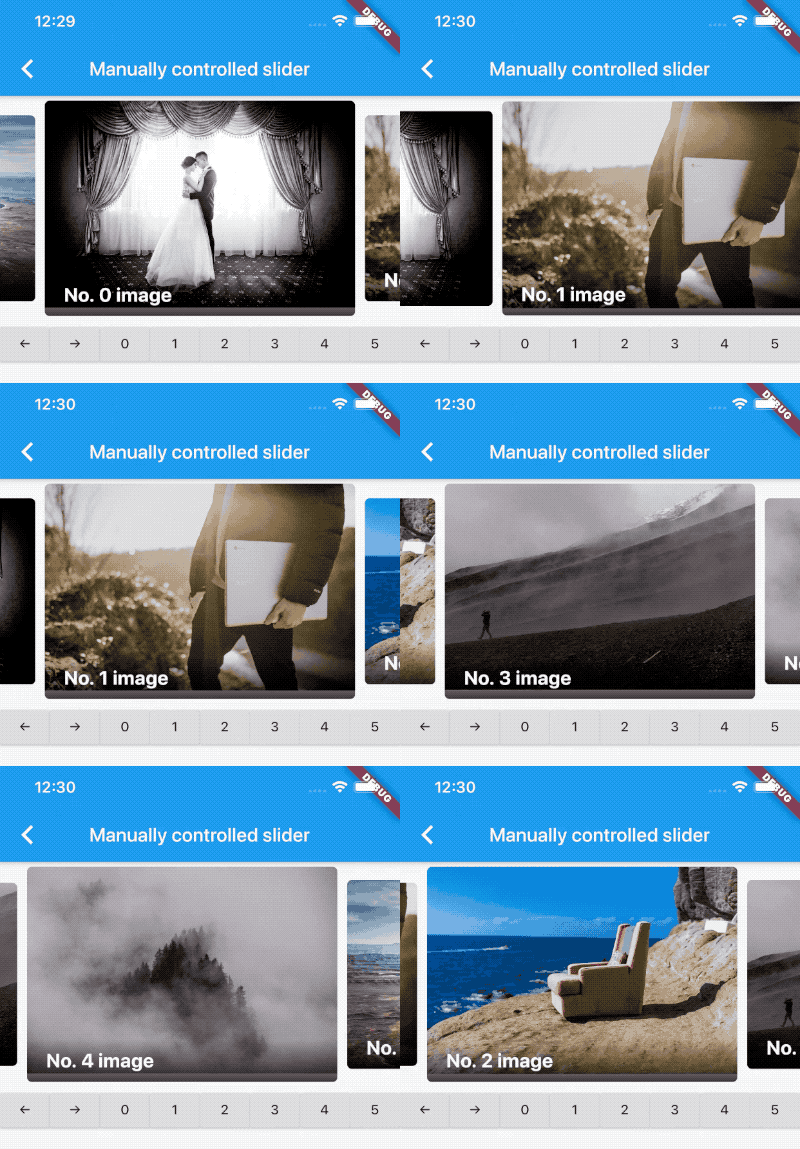
In order to manually control the PageView's position, you can create your own CarouselSliderController, and pass it to CarouselSlider. Then you can use the CarouselSliderController instance to manipulate the position.
class CarouselDemo extends StatelessWidget {
  CarouselSliderController buttonCarouselController = CarouselSliderController();

  @override
  Widget build(BuildContext context) => Column(
    children: <Widget>[
      CarouselSlider(
        items: child,
        controller: buttonCarouselController,
        options: CarouselOptions(
          autoPlay: false,
          enlargeCenterPage: true,
          viewportFraction: 0.9,
          aspectRatio: 2.0,
          initialPage: 2,
        ),
      ),
      RaisedButton(
        onPressed: () => buttonCarouselController.nextPage(
            duration: Duration(milliseconds: 300), curve: Curves.linear),
        child: Text('→'),
      )
    ]
  );
}
CarouselSliderController methods/// Animate to the next page
controller.nextPage({Duration duration, Curve curve});
/// Animate to the previous page
controller.previousPage({Duration duration, Curve curve});
/// Jump to the given page.
controller.jumpToPage(int page);
/// Animate to the given page.
controller.animateToPage(int page, {Duration duration, Curve curve});
/// Start/Stop Auto-play (only work if `autoplay` is set to true in `CarouselOptions`)
controller.startAutoPlay();
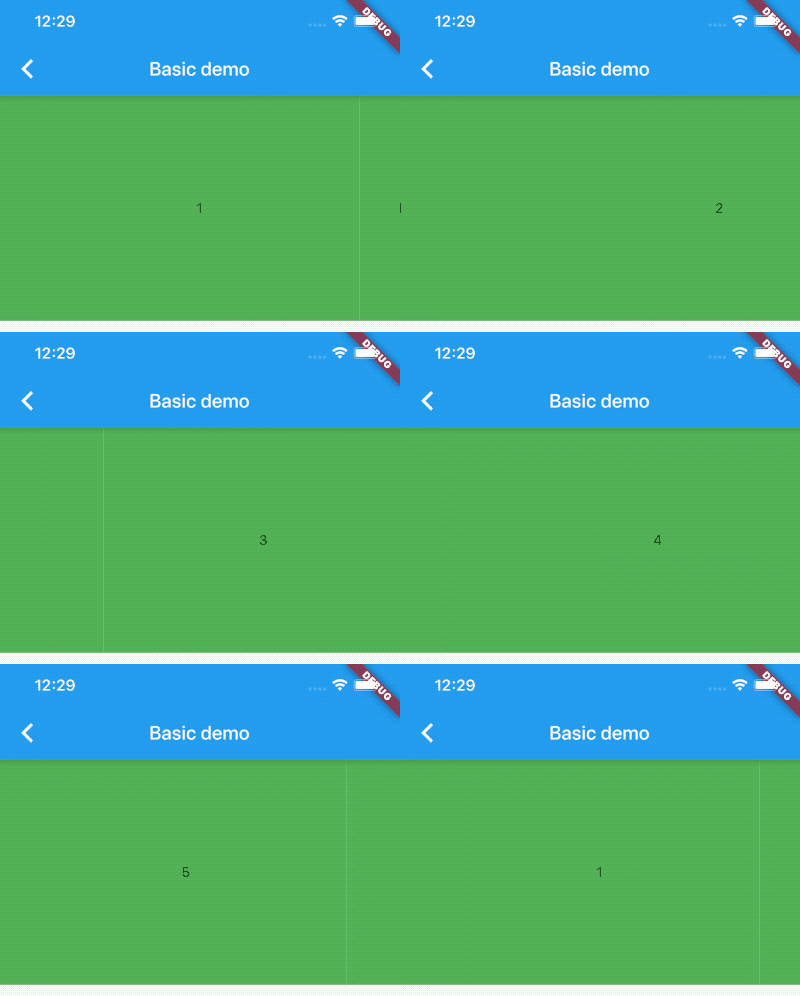
Basic text carousel slider:
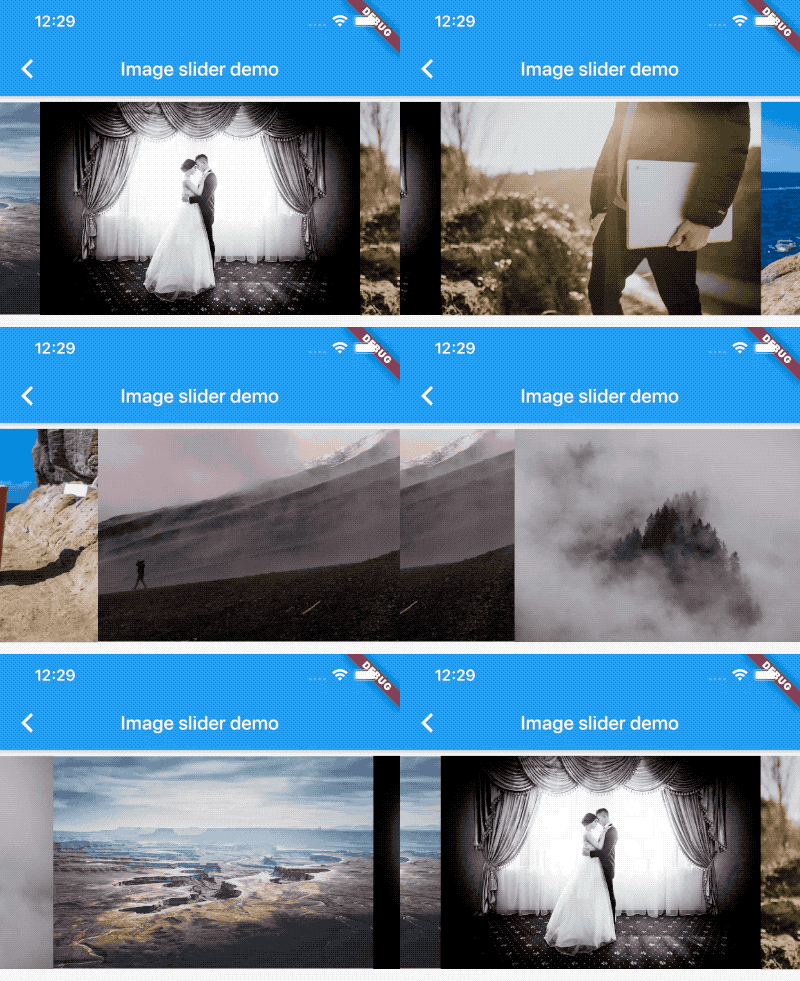
Basic image carousel slider:
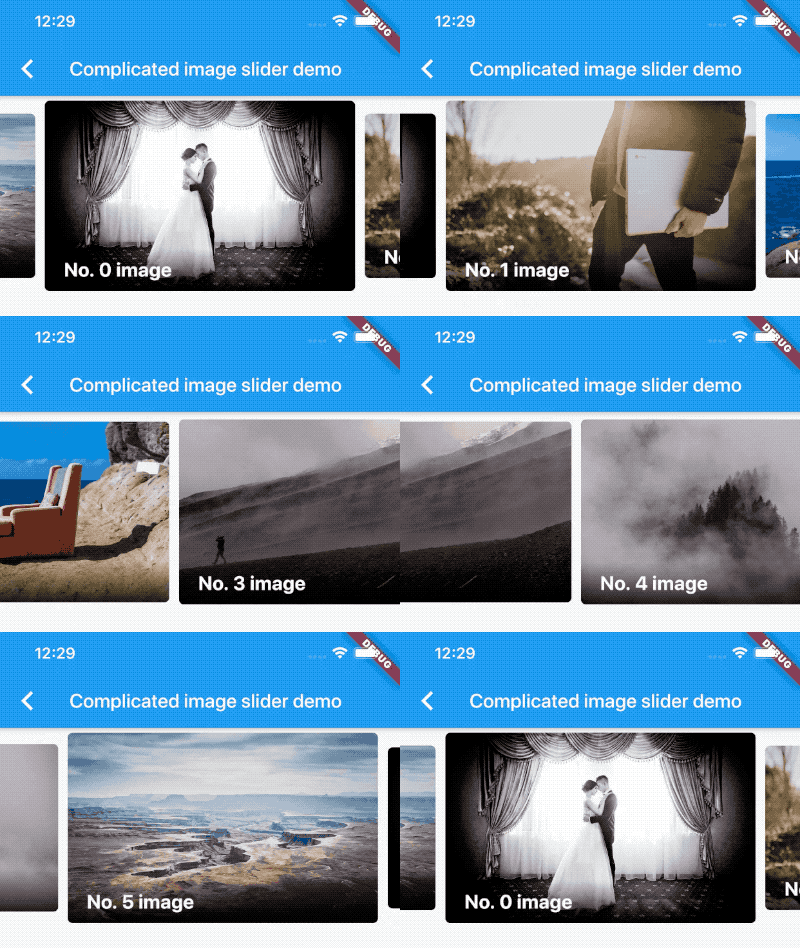
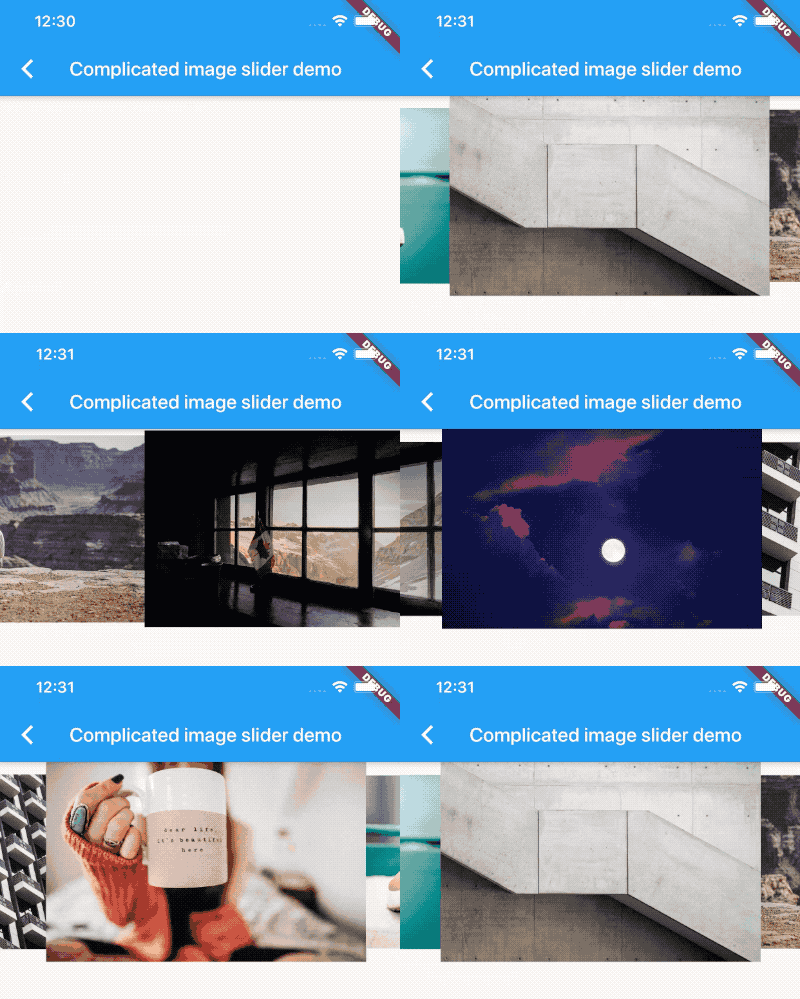
A more complicated image carousel slider:
Full Screen image carousel slider:

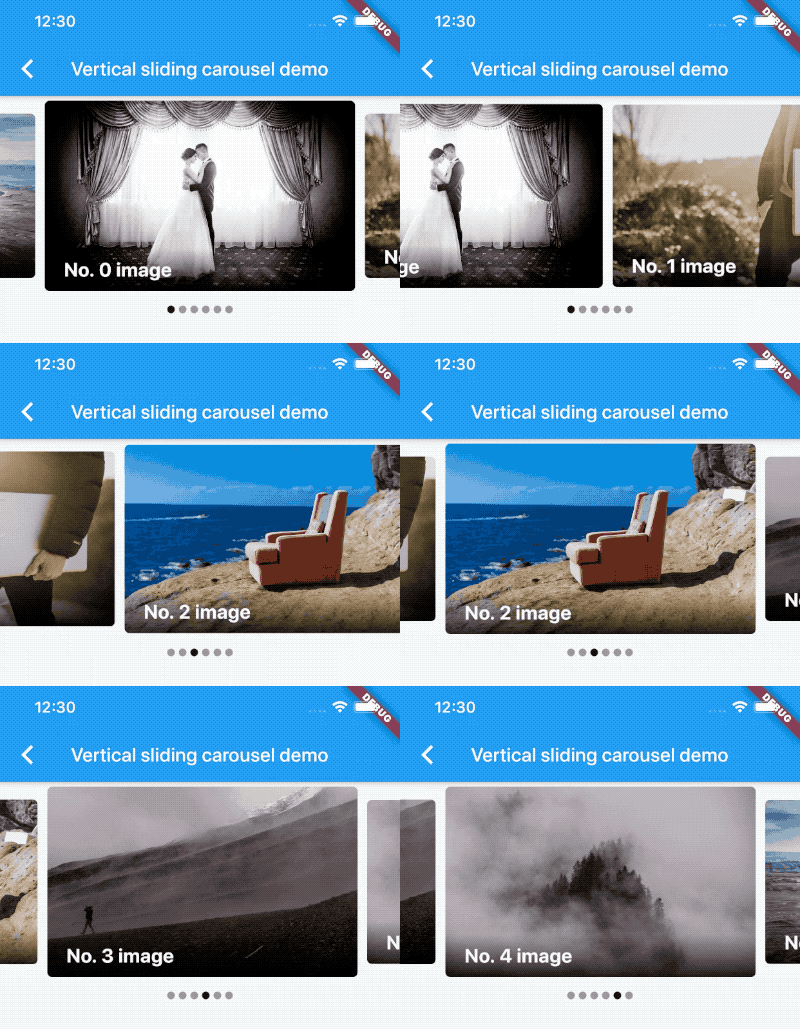
Image carousel slider with custom indicator:
Manually control the page position:
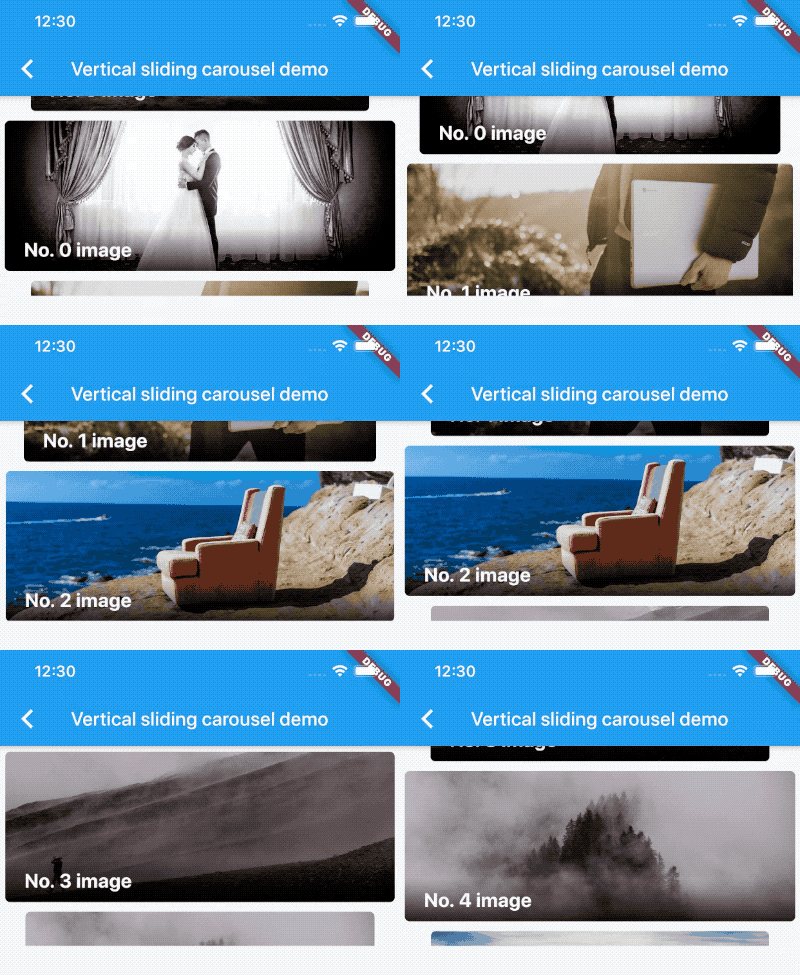
Vertical carousel slider:
Simple on-demand image carousel slider, with image auto prefetch:
No infinite scroll:

All screenshots above can be found at the example project.
MIT
의존성 목록 2 개
{"sdk":"flutter"}^6.0.0사용 목적에 따라 검색하고 개발 활동을 비교한 뒤 원본 저장소에서 요구 사항을 확인하세요.
“A repository is the most basic element of GitHub.”
GitHub Docs — About repositories ↗