
 v2.1.5
animated_appbar
페이지 탐색과 함께 높이를 동적으로 변경할 수 있는 AppBar입니다.
29좋아요 7030일 다운로드160Pub 점수
AndroidiOSWebmacOSWindowsLinux
Flutter 플러그인, 애니메이션 앱바

아래는 영문 원문 스냅샷입니다. 최신 내용은 GitHub에서 확인하세요.
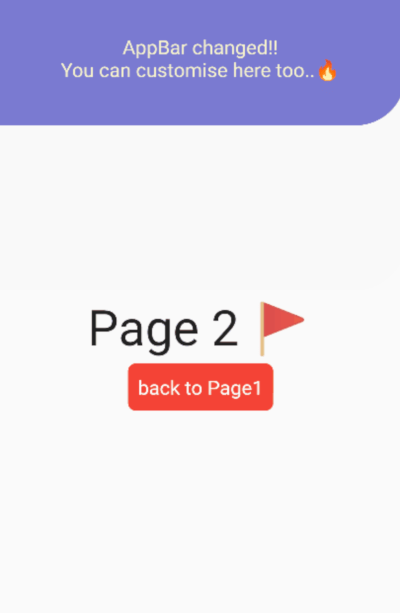
AppBar which can dynamically change height with page navigation. preview
This package is expected to be used with BaseLayout and AnimatedAppBar
// In this scenario
// we have to pages.
// In Page1, We will navigate to Page2 with dynamic animations.
// In Page2, We will back to Page1 with dynamic animations.
import 'package:flutter/material.dart';
import 'package:animated_appbar/animated_appbar.dart';

void main() {
  runApp(MyApp());
}

class MyApp extends StatefulWidget {
  @override
  _MyAppState createState() => _MyAppState();
}

class _MyAppState extends State<MyApp> with TickerProviderStateMixin{

  @override
  Widget build(BuildContext context) {

    return MaterialApp(
      debugShowCheckedModeBanner: false,
      // BaseLayout is declared in this package
      // If you wanna using AnimatedAppBar, You must use [BaseLayout]
      home: BaseLayout(
        // AnimatedAppBar is declared in this package
        appBar: AnimatedAppBar(
          initHeight: 135.0,
          backgroundColor: Color(0xff7a7ad1),
          child: Container(
            // If you want to change your appbar,
            // You must set key like this.
            // If you don't set this properties,
            // You couldn't see beautiful animation.
            key: UniqueKey(),
            child:Center(
              child: Row(
                mainAxisAlignment: MainAxisAlignment.spaceAround,
                crossAxisAlignment: CrossAxisAlignment.center,
                children: [
                  Icon(
                    Icons.apps,
                    color: Colors.white,
                    size: 20.0,
                  ),
                  Text(
                    "You can customise this Area",
                    style: TextStyle(
                      color: Colors.white,
                      fontSize: 20.0,
                    ),
                  ),
                  Icon(
                    Icons.manage_search,
                    color: Colors.white,
                    size: 20.0,
                  ),
                ],
              ),
            ),
          ),
        ),
        // Setting initial Page in here!!!!!
        scaffold: Page1(),
      ),
    );
  }
}

// When routing page with this package,
// You must write [with RoutePage] like below.
// In this class, routing methods are defined.
class Page1 extends StatelessWidget with RoutePage{
  // This variable is Page2's new AppBar widget.
  // You have not using AnimatedAppBar
  // Just use any other Widget without AnimatedAppBar
  Widget newAppBar = Container(
    // You must set key like this.
    // If you don't set this properties,
    // You couldn't see beautiful animation.
    key:UniqueKey(),
    child:Column(
      mainAxisAlignment: MainAxisAlignment.center,
      children: [
        Text(
          "AppBar changed!!",
          style: TextStyle(
            color: Color(0xfff7f4cc),
            fontSize: 20,
          ),
        ),
        Text(
          "You can customise here too..🔥",
          style: TextStyle(
            color: Color(0xfff7f4cc),
            fontSize: 20,
          ),
        ),
      ],
    ),
  );
  @override
  Widget build(BuildContext context) {
    return Scaffold(
      body:  Center(
        child:Column(
          mainAxisAlignment:MainAxisAlignment.center,
          children: [
            Text(
              "Page 1 😄",
              style:TextStyle(
                fontSize: 50,
              ),
            ),
            SizedBox(height: 5),
            Container(
              decoration:BoxDecoration(
                color: Colors.blue,
                borderRadius: BorderRadius.all(
                  Radius.circular(8)
                ),
              ),
              padding: EdgeInsets.all(10.0),
              child: TextButton(
                  // If you wanna route page, Using routePage(Widget page)!
                  // Ig you wannt route page with new appbar, Using routePageWithNewAppBar(widget page, widget appBar)
                  onPressed: ()=> routePageWithNewAppBar(Page2(),newAppBar),
                  child: Text(
                    "Click here to navigate Page2!",
                    style: TextStyle(
                      fontSize: 20,
                      color: Colors.white
                    ),
                  ),
                ),
            ),
          ],
        ),
      ),
    );
  }
}

class Page2 extends StatelessWidget with RoutePage{

  @override
  Widget build(BuildContext context) {
    return Scaffold(
      body:  Center(
        child:Column(
          mainAxisAlignment:MainAxisAlignment.center,
          children: [
            Text(
              "Page 2 🚩",
              style:TextStyle(
                fontSize: 50,
              ),
            ),
            SizedBox(height: 5),
            Container(
              decoration:BoxDecoration(
                color: Colors.red,
                borderRadius: BorderRadius.all(
                  Radius.circular(8)
                ),
              ),
              padding: EdgeInsets.all(10.0),
              child: TextButton(
                // If you wanna back to previous page, Just using [previousPage()] method.
                onPressed: () => previousPage(),
                child: Text(
                  "back to Page1",
                  style: TextStyle(
                    fontSize: 20,
                    color: Colors.white
                  ),
                ),
              ),
            ),
          ],
        ),
      ),
    );
  }
}
If you have any requests / contributes or questions, please feel free to visit github.