
 v2.2.6
cupertino_calendar_picker
이 패키지는 iOS 디자인 원칙과 시각적으로 일관되며 날짜 및 시간 선택을 원활하게 만들어주는 커피튜니 스타일의 구성 요소 세트를 포함합니다.
145좋아요 9.5천30일 다운로드150Pub 점수
AndroidiOSWebmacOSWindowsLinux
iOS 디자인 원칙과 시각적으로 일관되며 날짜 및 시간 선택을 원활하게 만들어주는 컵ertino 스타일 컴포넌트를 포함한 플러터 패키지입니다.

^1.0.8{"sdk":"flutter"}{"sdk":"flutter"}>=0.19.0 <0.21.0^5.0.0{"sdk":"flutter"}아래는 영문 원문 스냅샷입니다. 최신 내용은 GitHub에서 확인하세요.
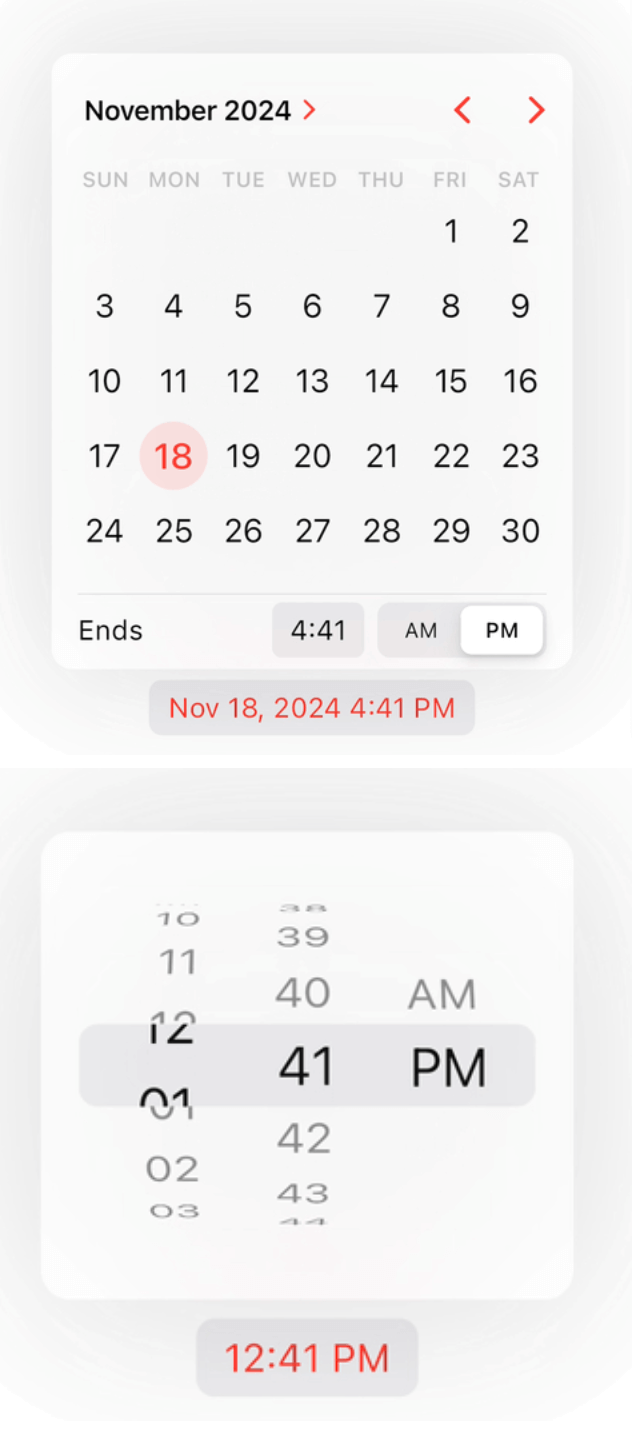
The package provides a sleek and stylish cupertino calendar widgets designed to mimic the aesthetics of iOS. With smooth animations and intuitive user interactions, it seamlessly integrates into your Flutter app to deliver a delightful user experience.
Cupertino Calendar Picker Cupertino Time Picker
In the pubspec.yaml of your flutter project, add the following dependency:
dependencies:
  cupertino_calendar_picker: ^2.2.6
Import it:
import 'package:cupertino_calendar_picker/cupertino_calendar_picker.dart';
In your CupertinoApp or MaterialApp add the localizationsDelegates
CupertinoApp(
  localizationsDelegates: const [
    GlobalMaterialLocalizations.delegate,
    GlobalWidgetsLocalizations.delegate,
    GlobalCupertinoLocalizations.delegate,
  ],
);
This package offers three convenient widgets for integrating pickers directly into your app.
CupertinoCalendar Widget.The CupertinoCalendar widget provides an inline calendar that can be displayed directly within your screen.
Cupertino Inline Calendar Light Cupertino Inline Calendar Dark
SizedBox(
  width: 350,
  child: CupertinoCalendar(
    minimumDateTime: DateTime(2024, 7, 10),
    maximumDateTime: DateTime(2025, 7, 10),
    initialDateTime: DateTime(2024, 8, 15, 9, 41),
    currentDateTime: DateTime(2024, 8, 15),
    timeLabel: 'Ends',
    mode: CupertinoCalendarMode.dateTime,
  ),
),
CupertinoCalendarPickerButton Widget.The CupertinoCalendarPickerButton widget allows users to open a cupertino calendar picker when the button is pressed.
Cupertino Time Picker Button Light Cupertino Time Picker Button Dark
CupertinoCalendarPickerButton(
  minimumDateTime: DateTime(2024, 7, 10),
  maximumDateTime: DateTime(2025, 7, 10),
  initialDateTime: DateTime(2024, 8, 15, 9, 41),
  currentDateTime: DateTime(2024, 8, 15),
  mode: CupertinoCalendarMode.dateTime,
  timeLabel: 'Ends',
  onDateTimeChanged: (date) {},
),
CupertinoTimePickerButton Widget.The CupertinoTimePickerButton widget lets users select a time via the calendar time picker that appears when the button is pressed.
Cupertino Time Picker Button Light Cupertino Time Picker Button Dark
CupertinoTimePickerButton(
  initialTime: const TimeOfDay(hour: 9, minute: 41),
  onTimeChanged: (time) {},
),
This package also includes two functions for displaying pickers from your widgets.
showCupertinoCalendarPicker function.The showCupertinoCalendarPicker function displays a calendar picker around your widget.
CupertinoCalendarMode to allow selection of both date and time.Future<DateTime?> onCalendarWidgetTap(BuildContext context) async {
final RenderBox? renderBox = context.findRenderObject() as RenderBox?;
final nowDate = DateTime.now();
return showCupertinoCalendarPicker(
context,
widgetRenderBox: renderBox,
minimumDateTime: nowDate.subtract(const Duration(days: 15)),
initialDateTime: nowDate,
maximumDateTime: nowDate.add(const Duration(days: 360)),
mode: CupertinoCalendarMode.dateTime,
timeLabel: 'Ends',
onDateTimeChanged: (dateTime) {},
);
}
You can add actions to the calendar picker by passing a list of CupertinoCalendarAction objects.
The package provides two built-in actions: CancelCupertinoCalendarAction and ConfirmCupertinoCalendarAction.
Cupertino Calendar Picker With Actions Light Cupertino Calendar Picker With Actions Dark
Future<DateTime?> onCalendarWidgetTap(BuildContext context) async {
  final RenderBox? renderBox = context.findRenderObject() as RenderBox?;
  final nowDate = DateTime.now();

  return showCupertinoCalendarPicker(
    context,
    widgetRenderBox: renderBox,
    minimumDateTime: nowDate.subtract(const Duration(days: 15)),
    initialDateTime: nowDate,
    maximumDateTime: nowDate.add(const Duration(days: 360)),
    timeLabel: 'Ends',
    actions: [
      CancelCupertinoCalendarAction(
        label: 'Cancel',
        onPressed: () {},
      ),
      ConfirmCupertinoCalendarAction(
        label: 'Done',
        isDefaultAction: true,
        onPressed: (dateTime) {},
      ),
    ],
  );
}
[!NOTE] Works only when the calendar is in the
CupertinoCalendarType.compactmode.
showCupertinoTimePicker function.The showCupertinoTimePicker function shows a time picker around your widget.
Future<TimeOfDay?> onTimeWidgetTap(BuildContext context) async {
  final RenderBox? renderBox = context.findRenderObject() as RenderBox?;

  return showCupertinoTimePicker(
    context,
    widgetRenderBox: renderBox,
    onTimeChanged: (time) {},
  );
}
Call the showCupertinoCalendarPicker passing date constrains and widget's RenderBox of the widget above/below which you wish to display the calendar.
@override
Widget build(BuildContext context) {
  return CupertinoApp(
    localizationsDelegates: const [
      GlobalMaterialLocalizations.delegate,
      GlobalWidgetsLocalizations.delegate,
      GlobalCupertinoLocalizations.delegate,
    ],
    home: CupertinoPageScaffold(
      child: Builder(
        builder: (context) {
          /// Passing exactly this `BuildContext` is mandatory here to
          /// get the `RenderBox` of the appropriate widget.
          return YourWidget(
            onTap: () => onTap(context),
          );
        },
      ),
    ),
  );
}

/// The `BuildContext` comes from the `Builder` above the widget tree.
Future<void> onTap(BuildContext context) {
  final renderBox = context.findRenderObject() as RenderBox?;
  final nowDate = DateTime.now();

  return showCupertinoCalendarPicker(
    context,
    widgetRenderBox: renderBox,
    minimumDate: nowDate.subtract(const Duration(days: 15)),
    initialDate: nowDate,
    maximumDate: nowDate.add(const Duration(days: 360)),
  );
}
RenderBox?There are 3 simple ways of how you can get the widget's render box to pass it to the showCupertinoCalendarPicker or showCupertinoTimePicker function.
You can choose any of these.
Builder widget.Builder(
builder: (context) {
return YourWidget(
onTap: () => onTap(context),
);
},
);
Future<void> onTap(BuildContext context) {
/// And here you can get the `RenderBox` of your widget
/// using the `Builder`s `BuildContext`
final renderBox = context.findRenderObject() as RenderBox?;
return showCupertinoCalendarPicker(...);
}
GlobalKey.final globalKey = GlobalKey();
@override
Widget build(BuildContext context) {
return CupertinoApp(
localizationsDelegates: const [
GlobalMaterialLocalizations.delegate,
GlobalWidgetsLocalizations.delegate,
GlobalCupertinoLocalizations.delegate,
],
home: CupertinoPageScaffold(
child: YourWidget(
key: globalKey,
onTap: onTap,
),
),
);
}
Future<void> onTap(BuildContext context) {
/// And here you can get the `RenderBox` of your widget using the `GlobalKey`.
final renderBox = globalKey.currentContext?.findRenderObject() as RenderBox?;
return showCupertinoCalendarPicker(...);
}
BuildContext directly from your widget's build method.class YourWidget extends StatelessWidget {
const YourWidget({
required this.onTap,
});
final void Function(BuildContext context) onTap;
@override
Widget build(BuildContext context) {
return GestureDetector(
onTap: () => onTap(context),
child: ...,
);
}
}
Future<void> onTap(BuildContext context) {
/// And here you can get the `RenderBox` of your widget's `build` method.
final renderBox = context.findRenderObject() as RenderBox?;
return showCupertinoCalendarPicker(...);
}