

v1.0.1
responsive_scaffold_nullsafe
모바일에서는 목록을 표시하고 세부 정보로 이동하며, 태블릿에서는 목록과 선택된 항목을 표시합니다.
23좋아요 12830일 다운로드120Pub 점수
AndroidiOSWebmacOSWindowsLinux
vanshg395/responsive_scaffold_nullsafe open-source repository details.

아래는 영문 원문 스냅샷입니다. 최신 내용은 GitHub에서 확인하세요.
Null-Safe Version of Responsive Scaffold
View the online demo here!
On mobile it shows a list and pushes to details and on tablet it shows the List and the selected item.
Online Demo: https://fluttercommunity.github.io/responsive_scaffold/
Follows Material Design Layout Docs.
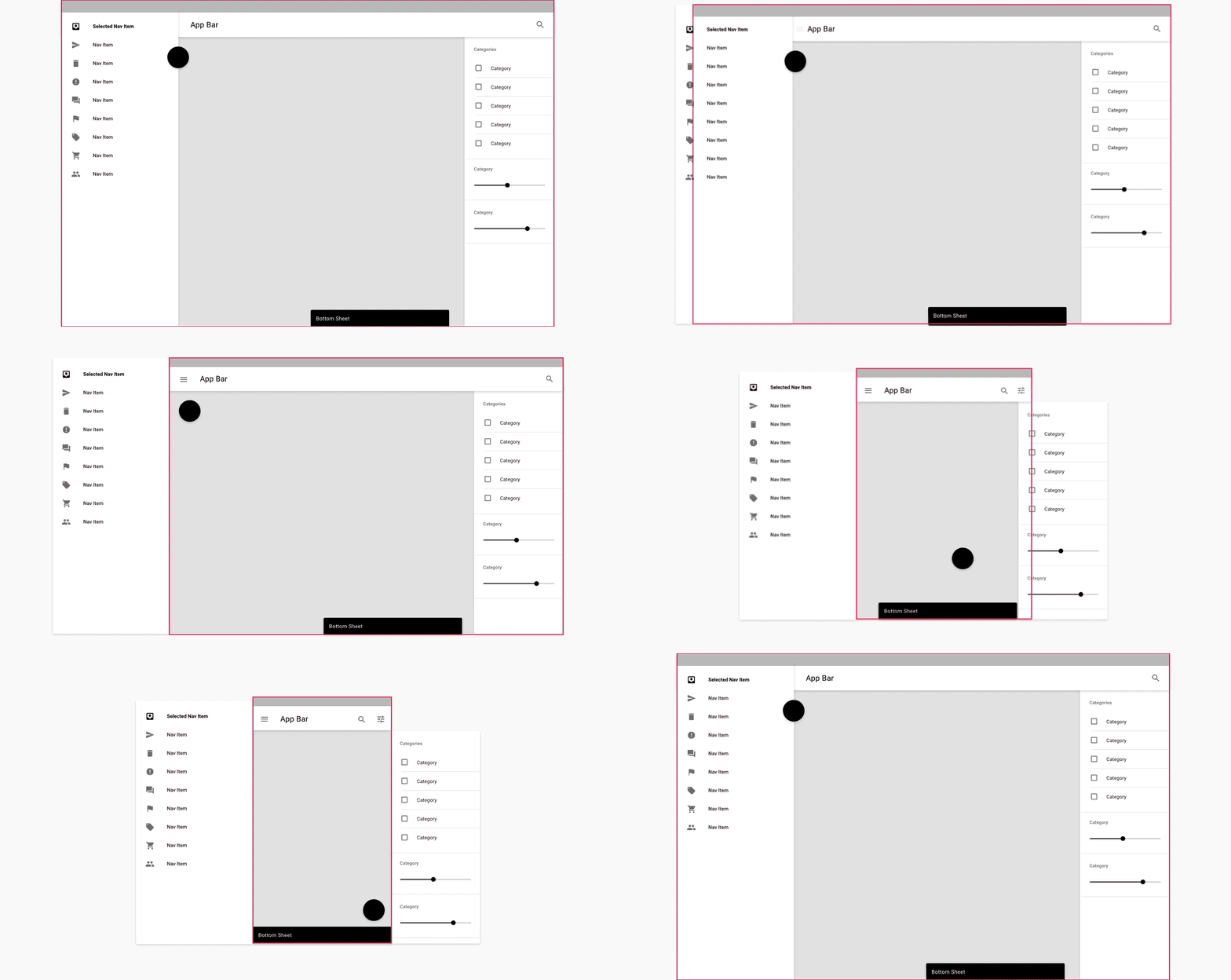
Here is a demo on various sizes.
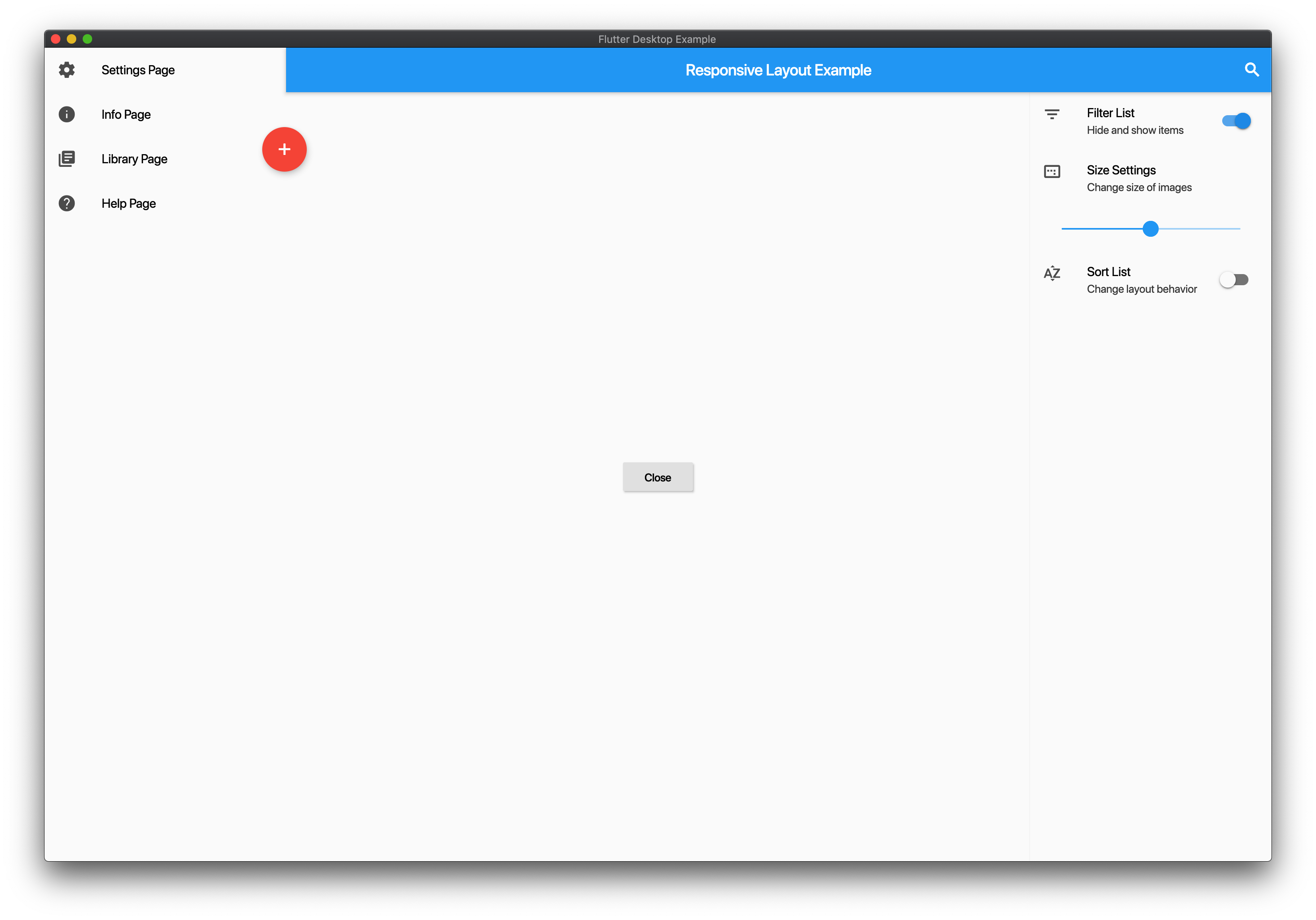
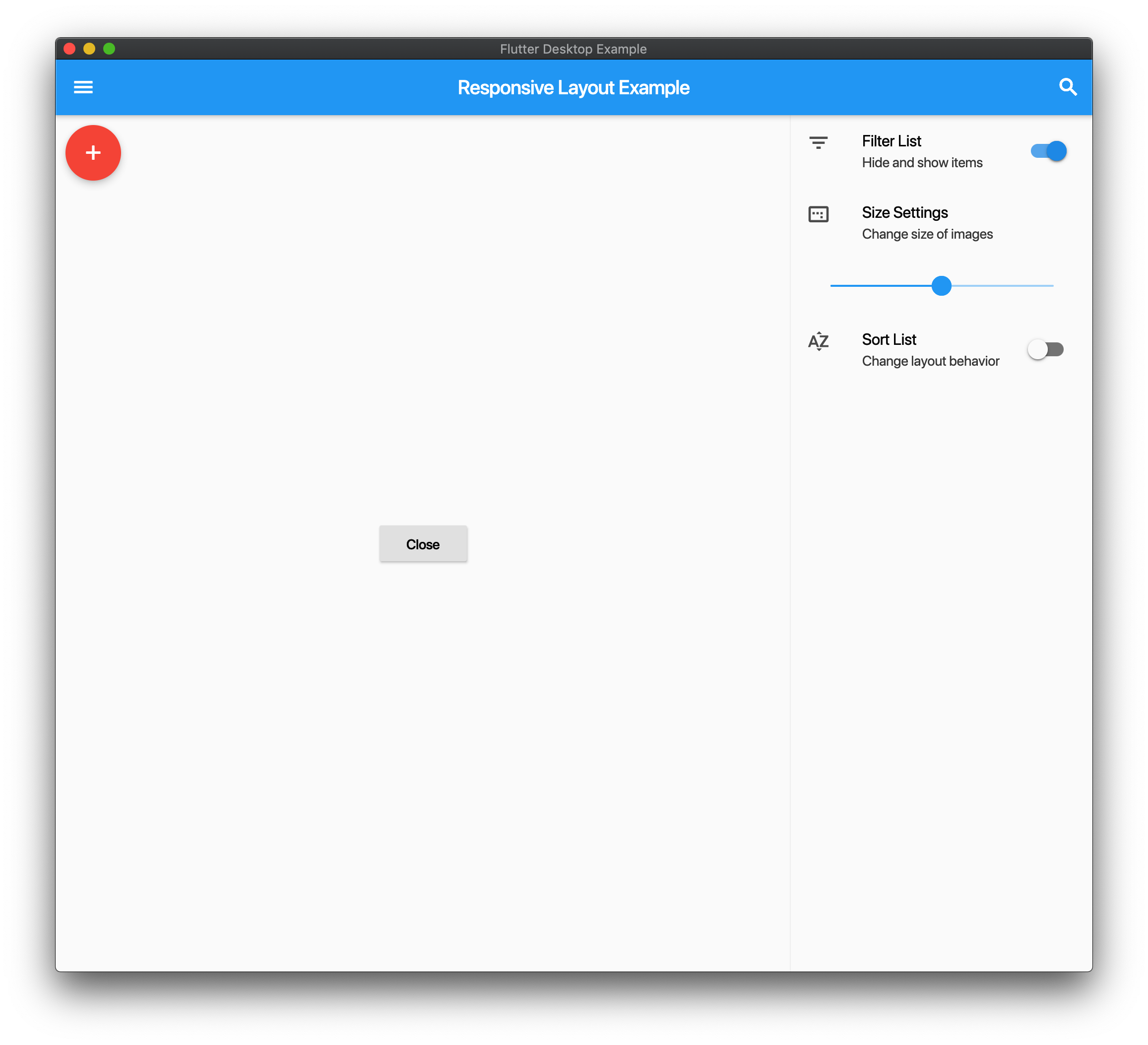
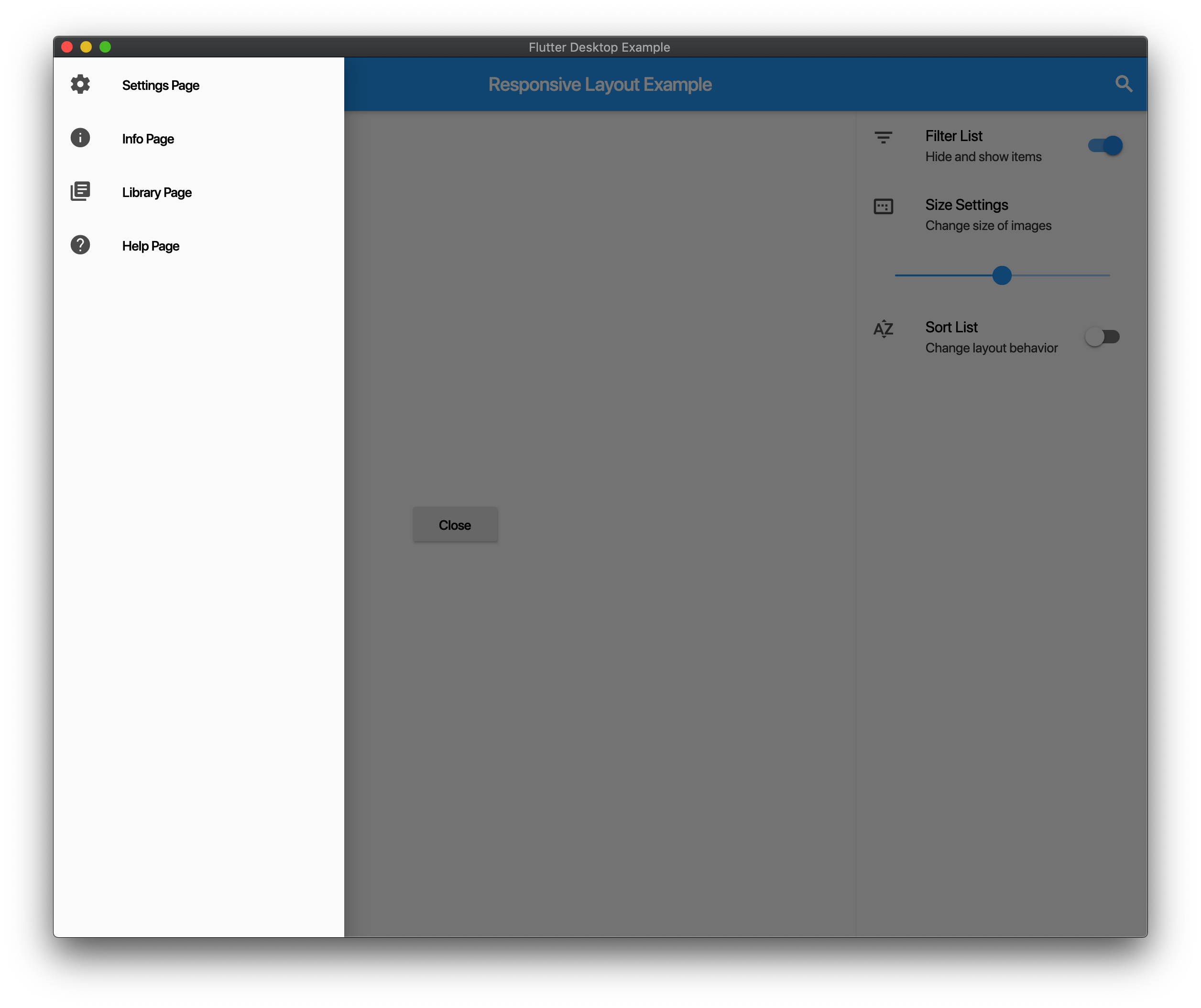
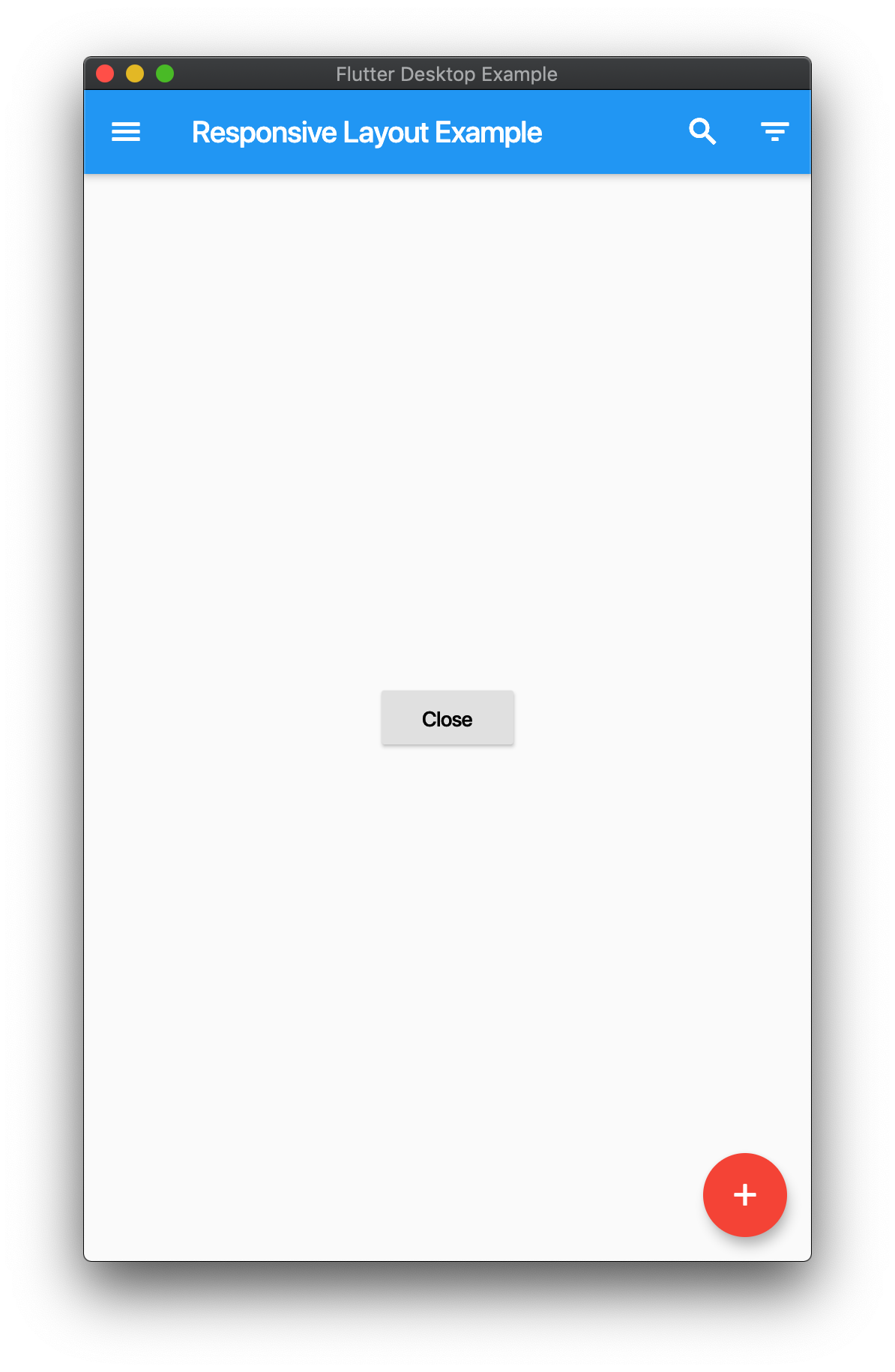
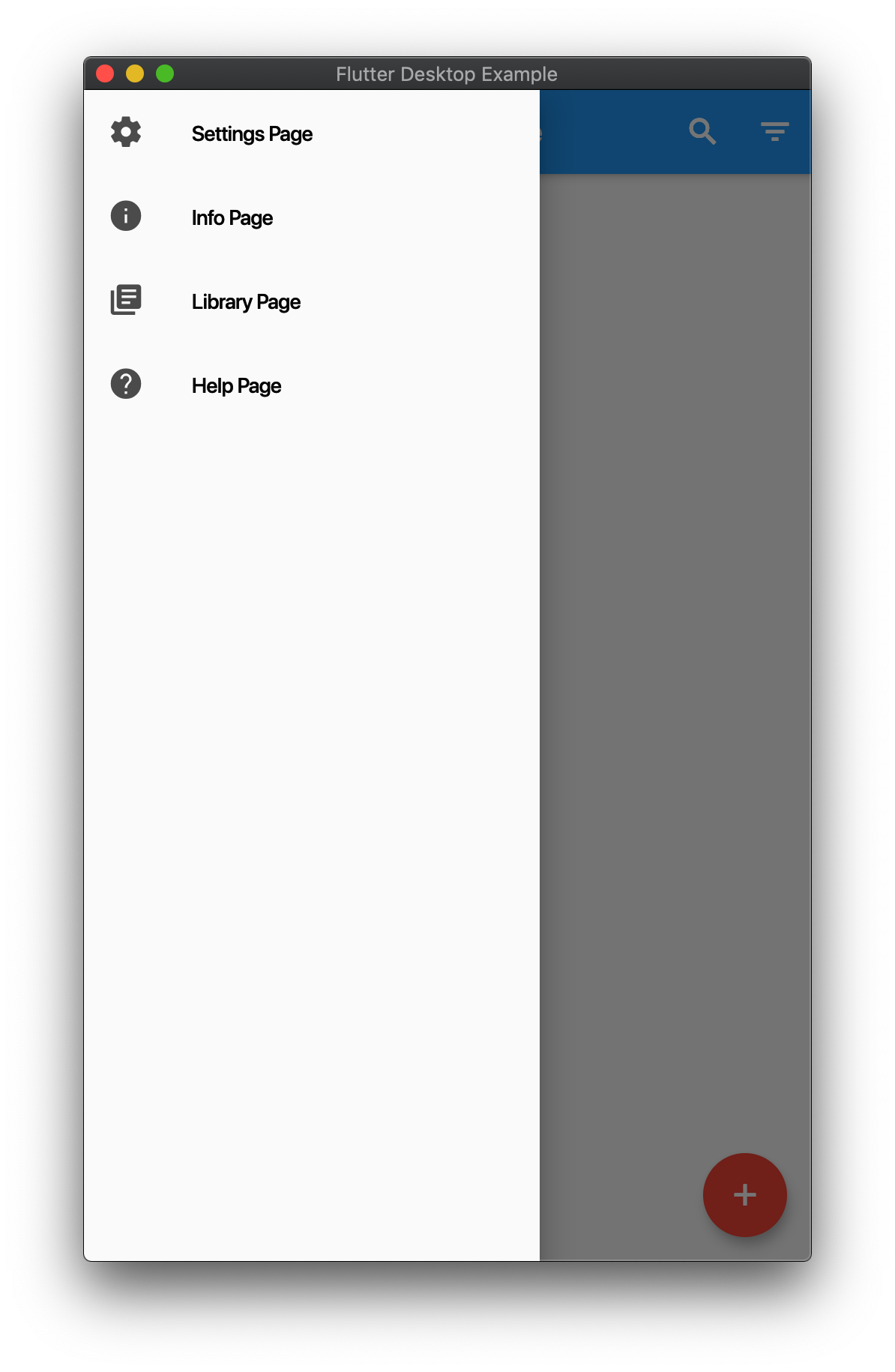
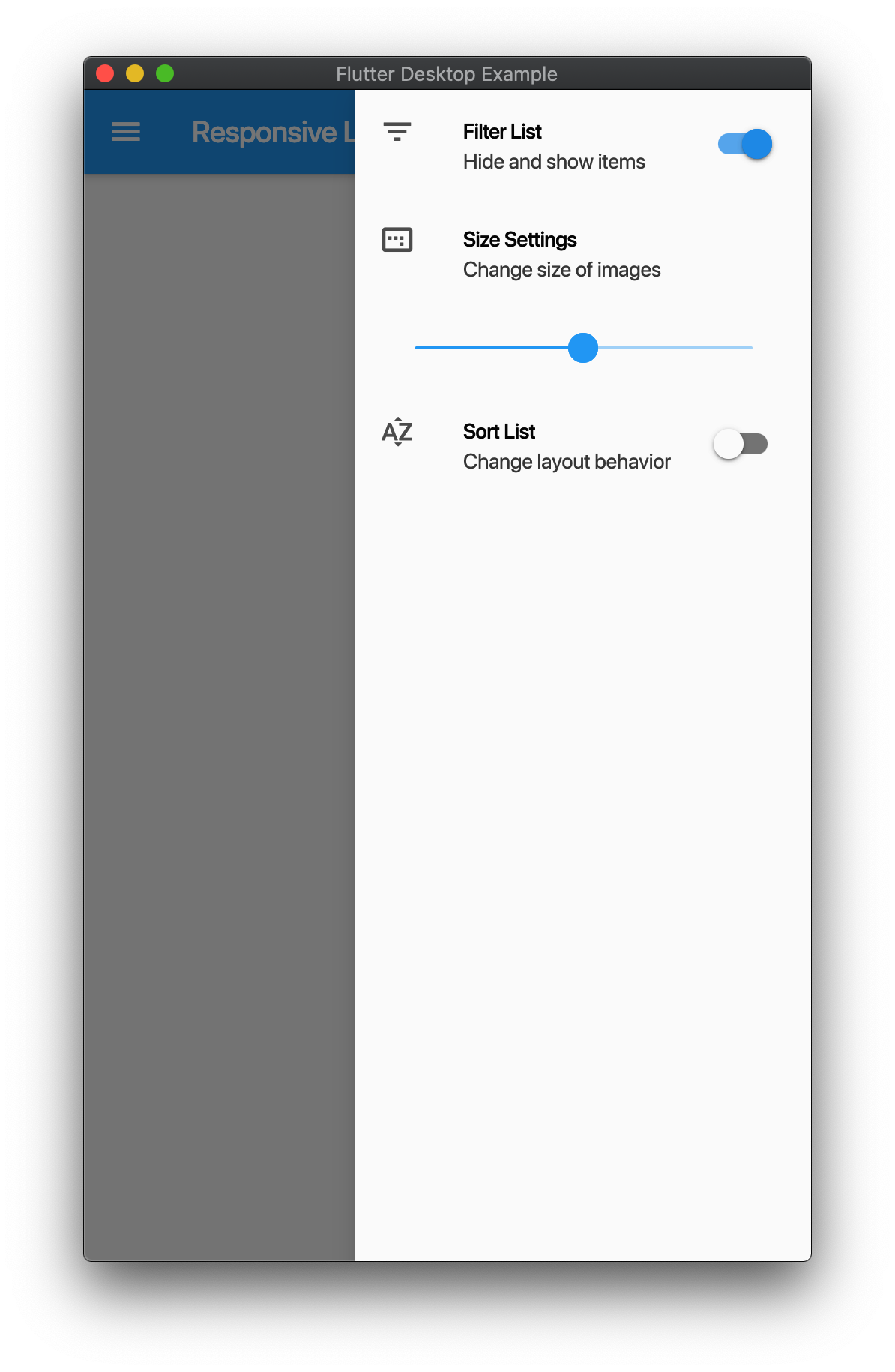
import 'package:flutter/material.dart';
import 'package:responsive_scaffold/responsive_scaffold.dart';

class LayoutExample extends StatelessWidget {
  const LayoutExample({Key? key}) : super(key: key);

  @override
  Widget build(BuildContext context) {
    return ResponsiveScaffold(
      title: const Text('Responsive Layout Example'),
      drawer: ListView(
        children: const <Widget>[
          ListTile(
            leading: Icon(Icons.settings),
            title: Text('Settings Page'),
          ),
          ListTile(
            leading: Icon(Icons.info),
            title: Text('Info Page'),
          ),
          ListTile(
            leading: Icon(Icons.library_books),
            title: Text('Library Page'),
          ),
          ListTile(
            leading: Icon(Icons.help),
            title: Text('Help Page'),
          ),
        ],
      ),
      endIcon: Icons.filter_list,
      endDrawer: ListView(
        children: <Widget>[
          ListTile(
            leading: const Icon(Icons.filter_list),
            title: const Text('Filter List'),
            subtitle: const Text('Hide and show items'),
            trailing: Switch(
              value: true,
              onChanged: (val) {},
            ),
          ),
          const ListTile(
            leading: Icon(Icons.image_aspect_ratio),
            title: Text('Size Settings'),
            subtitle: Text('Change size of images'),
          ),
          ListTile(
            title: Slider(
              value: 0.5,
              onChanged: (val) {},
            ),
          ),
          ListTile(
            leading: const Icon(Icons.sort_by_alpha),
            title: const Text('Sort List'),
            subtitle: const Text('Change layout behavior'),
            trailing: Switch(
              value: false,
              onChanged: (val) {},
            ),
          ),
        ],
      ),
      trailing: IconButton(
        icon: const Icon(Icons.search),
        onPressed: () {},
      ),
      body: Center(
        child: ElevatedButton(
          onPressed: () {
            Navigator.pop(context);
          },
          child: const Text('Close'),
        ),
      ),
      floatingActionButton: FloatingActionButton(
        backgroundColor: Theme.of(context).accentColor,
        onPressed: () {},
        child: const Icon(Icons.add),
      ),
    );
  }
}
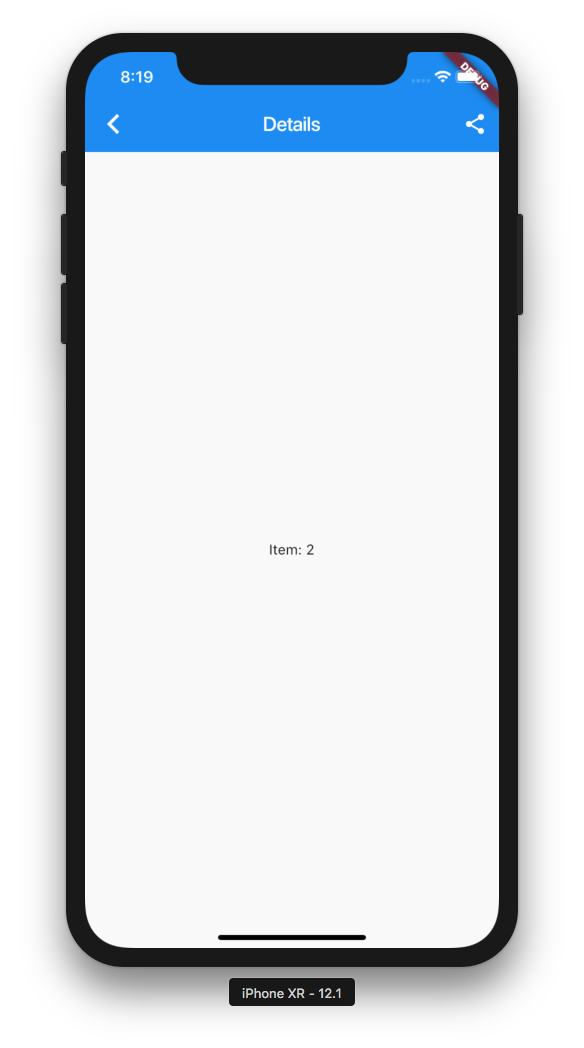
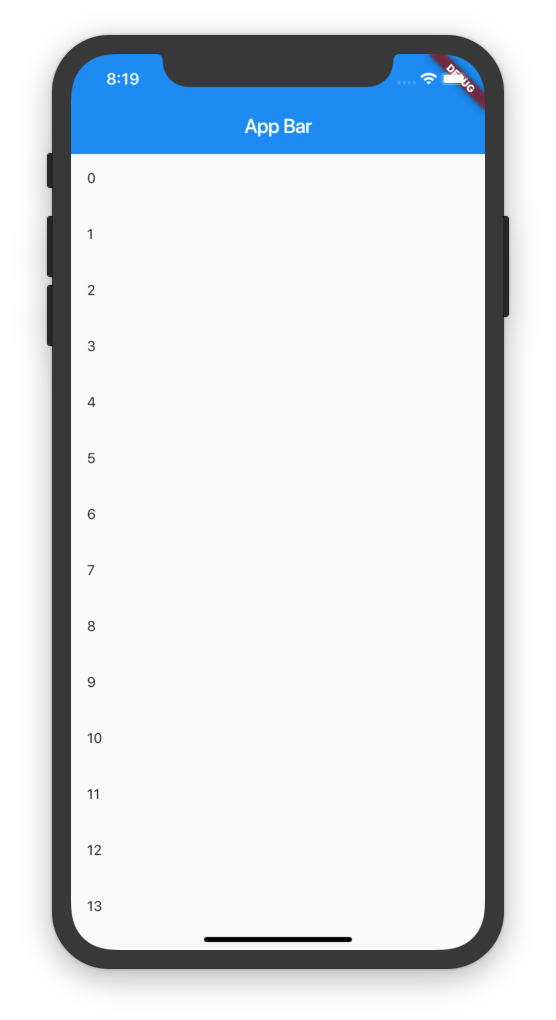
ResponsiveListScaffold and ResponsiveListScaffold.builder.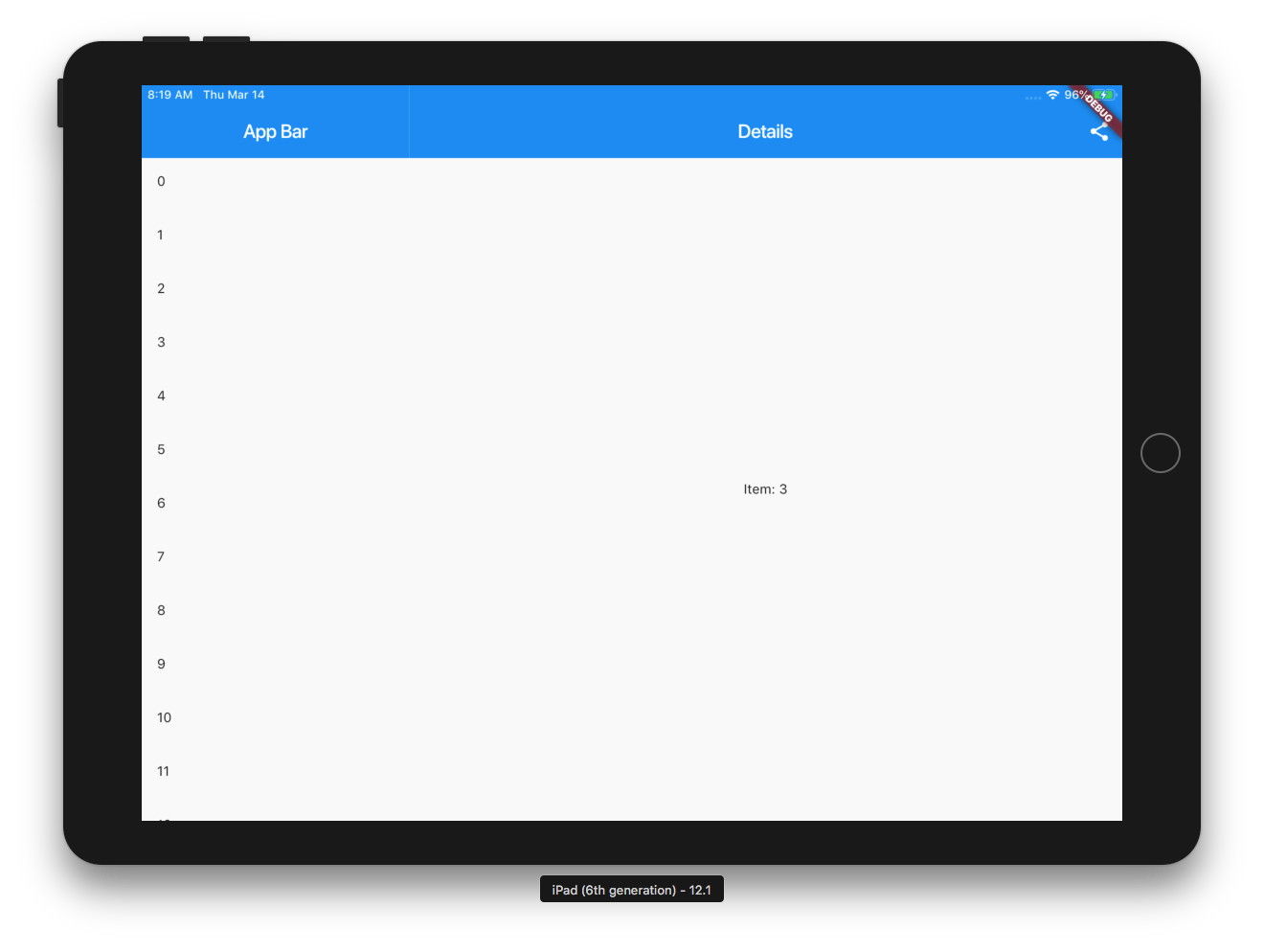
import 'package:flutter/material.dart';
import 'package:responsive_scaffold/responsive_scaffold.dart';

class ListExample extends StatefulWidget {
  const ListExample({Key? key}) : super(key: key);

  @override
  _ListExampleState createState() => _ListExampleState();
}

class _ListExampleState extends State<ListExample> {
  final _scaffoldKey = GlobalKey<ScaffoldState>();

  late List<String> _items;

  @override
  void initState() {
    _items = List.generate(20, (int index) => "test_$index");
    super.initState();
  }

  @override
  Widget build(BuildContext context) {
    return ResponsiveListScaffold.builder(
      scaffoldKey: _scaffoldKey,
      detailBuilder: (BuildContext context, int? index, bool tablet) {
        final i = _items[index!];
        return DetailsScreen(
          body: ExampleDetailsScreen(
            items: _items,
            row: i,
            tablet: tablet,
            onDelete: () {
              setState(() {
                _items.removeAt(index);
              });
              if (!tablet) Navigator.of(context).pop();
            },
            onChanged: (String value) {
              setState(() {
                _items[index] = value;
              });
            },
          ),
        );
      },
      nullItems: const Center(child: CircularProgressIndicator()),
      emptyItems: const Center(child: Text("No Items Found")),
      slivers: const <Widget>[
        SliverAppBar(
          title: Text("App Bar"),
        ),
      ],
      itemCount: _items.length,
      itemBuilder: (BuildContext context, int index) {
        final i = _items[index];
        return ListTile(
          leading: Text(i),
        );
      },
      bottomNavigationBar: BottomAppBar(
        elevation: 0.0,
        child: IconButton(
          icon: const Icon(Icons.share),
          onPressed: () {},
        ),
      ),
      floatingActionButton: FloatingActionButton(
        onPressed: () {
          ScaffoldMessenger.of(context).showSnackBar(
            const SnackBar(
              content: Text("Snackbar!"),
            ),
          );
        },
        child: const Icon(Icons.add),
      ),
    );
  }
}

class ExampleDetailsScreen extends StatelessWidget {
  const ExampleDetailsScreen({
    Key? key,
    required List<String> items,
    required this.row,
    required this.tablet,
    required this.onDelete,
    required this.onChanged,
  })   : _items = items,
        super(key: key);

  final List<String> _items;
  final String row;
  final bool tablet;
  final VoidCallback onDelete;
  final ValueChanged<String> onChanged;

  @override
  Widget build(BuildContext context) {
    return Scaffold(
      appBar: AppBar(
        elevation: 0.0,
        automaticallyImplyLeading: !tablet,
        title: const Text("Details"),
        actions: [
          IconButton(
            icon: const Icon(Icons.share),
            onPressed: () {
              onChanged("$row ${DateTime.now().toString()}");
            },
          ),
          IconButton(
            icon: const Icon(Icons.delete),
            onPressed: onDelete,
          ),
        ],
      ),
      bottomNavigationBar: BottomAppBar(
        elevation: 0.0,
        child: IconButton(
          icon: const Icon(Icons.share),
          onPressed: () {},
        ),
      ),
      body: Center(
        child: Text("Item: $row"),
      ),
    );
  }
}
의존성 목록 4 개
{"sdk":"flutter"}^2.0.0{"sdk":"flutter"}^1.5.3사용 목적에 따라 검색하고 개발 활동을 비교한 뒤 원본 저장소에서 요구 사항을 확인하세요.
“A repository is the most basic element of GitHub.”
GitHub Docs — About repositories ↗