

 v0.6.0
patterns_canvas
Desenhe padrões como listras ou pontos em elementos ou widgets do canvas.
116Curtidas 23,4 milDownloads em 30 dias160Pontos Pub
AndroidiOSWebmacOSWindowsLinux
Um pacote Flutter que permite desenhar padrões como listras ou pontos em elementos de canvas.

Texto original em inglês. Visite o GitHub para a versão atual.


Inside your CustomPainter class's paint method, create a Pattern class with background (bgColor) and foreground (fgColor) colors and use one of its paintOn methods:
class MyPainter extends CustomPainter {
  @override
  void paint(Canvas canvas, Size size) {

    // Prepare a rectangle shape to draw the pattern on.
    final rect = Rect.fromLTWH(80, 50, 200, 100);

    // Create a Pattern object of diagonal stripes with the colors we want.
    final Pattern pattern = DiagonalStripesThick(bgColor: Colors.lightGreenAccent, fgColor: Colors.black);

    // Paint the pattern on the rectangle.
    pattern.paintOnRect(canvas, size, rect);

  }
}
Results in this pattern drawn:

Pattern constructors and types:You can construct a Pattern with three different ways:
Pattern type constructor:final Pattern p1 = DiagonalStripesLight(bgColor: Colors.yellowAccent, fgColor: Colors.black);
Pattern.fromValues factory constructor:final Pattern p2 = Pattern.fromValues(patternType: PatternType.diagonalLight, bgColor: Colors.yellowAccent, fgColor: Colors.black);
patternType_backgroundHex_foregroundHex:final Pattern p3 = Pattern.fromString("diagonalLight_ffff00_000000");
Canvas shape:Canvas element inside the paint function of your CustomPaint.Pattern object with the desired type and colors.// In the build method of your screen:
...
body: Center(
child: CustomPaint(
size: const Size(double.infinity, double.infinity),
painter: MyPainter(),
),
),
...
// In your CustomPainter:
class MyPainter extends CustomPainter {
@override
void paint(Canvas canvas, Size size) {
final rect = Rect.fromLTWH(80, 50, 200, 100);
DiagonalStripesLight(bgColor: Colors.lightGreenAccent, fgColor: Colors.black).paintOnRect(canvas, size, rect);
final path = Path();
path.moveTo(120, 200);
path.lineTo(300, 280);
path.quadraticBezierTo(20, 400, 40, 300);
path.close();
Crosshatch(bgColor: Colors.yellow, fgColor: Colors.black).paintOnPath(canvas, size, path);
}
}
You can use the below methods to draw on Canvas shapes:
pattern.paintOnPath(canvas, size, path);
pattern.paintOnRect(canvas, size, rect);
pattern.paintOnRRect(canvas, size, rRect);
pattern.paintOnCircle(canvas, size, center, radius);
Check the Scale behavior setting section for more info on how the Pattern can be drawn.
Canvas:As above, but you can use the paintOnCanvas method to draw the pattern on the whole Canvas:
TexturePattern(bgColor: Colors.white, fgColor: Colors.blueGrey).paintOnCanvas(canvas, size);
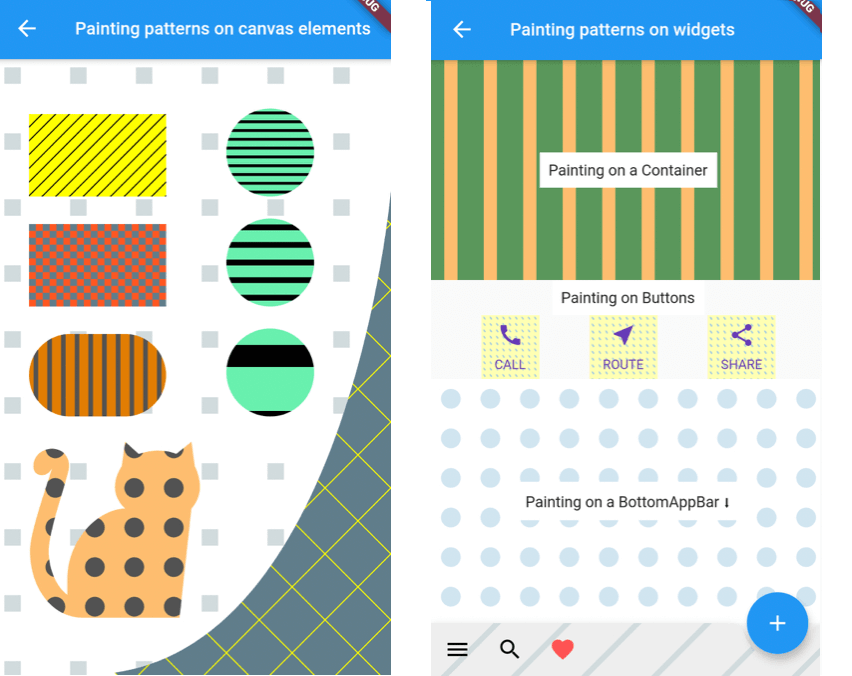
The result of the above paints:

To draw patterns on a Widget, you need to:
CustomPaint:CustomPaint(
painter: ContainerPatternPainter(),
child: Container(
width: 600,
height: 200,
child: Center(
child: Text("Painting on a Container"),
),
),
),
CustomPainter, create a Pattern and use its paintOnWidget method to paint with it:class ContainerPatternPainter extends CustomPainter {
@override
void paint(Canvas canvas, Size size) {
VerticalStripesThick(bgColor: Color(0xff0509050), fgColor: Color(0xfffdbf6f)).paintOnWidget(canvas, size);
}
@override
bool shouldRepaint(CustomPainter oldDelegate) => true;
}
Rectangular widgets, like Containers, Rows, Columns, IconButtons, etc. can be painted directly with the above method. For widgets that have a custom shape, like a BottomAppbar, you need to provide a different clipBehavior property, e.g. Clip.antiAlias, to make sure the pattern is clipped to the special shape. Check the second screen in the example app for more.
All Patterns require a background and foreground color on instantiation. The currently available patterns are:
| Description | Class | PatternType enum |
|---|---|---|
| Horizontal Stripes Light | HorizontalStripesLight(Color bgColor, Color fgColor) |
PatternType.horizontalLight |
| Horizontal Stripes Thick | HorizontalStripesThick(Color bgColor, Color fgColor) |
PatternType.horizontalThick |
| Vertical Stripes Light | VerticalStripesLight(Color bgColor, Color fgColor) |
PatternType.verticalLight |
| Vertical Stripes Thick | VerticalStripesThick(Color bgColor, Color fgColor) |
PatternType.verticalThick |
| Diagonal Stripes Light | DiagonalStripesLight(Color bgColor, Color fgColor) |
PatternType.diagonalLight |
| Diagonal Stripes Thick | DiagonalStripesThick(Color bgColor, Color fgColor) |
PatternType.diagonalThick |
| Checkers | Checkers(Color bgColor, Color fgColor) |
PatternType.checkers |
| Crosshatch | Crosshatch(Color bgColor, Color fgColor) |
PatternType.crosshatch |
| Dots | Dots(Color bgColor, Color fgColor) |
PatternType.dots |
| Raindrops | Raindrops(Color bgColor, Color fgColor) |
PatternType.raindrops |
| Subtle Patch | SubtlePatch(Color bgColor, Color fgColor) |
PatternType.subtlepatch |
| Texture | TexturePattern(Color bgColor, Color fgColor) |
PatternType.texture |
You can pass a featuresCount argument when creating a Pattern, to set how many features, e.g. how many stripes, you want to be drawn.
DiagonalStripesThick(bgColor: bgColor, fgColor: fgColor, featuresCount: 40).paintOnRect(canvas, size, rect1);
Dots(bgColor: bgColor, fgColor: fgColor, featuresCount: 5).paintOnRect(canvas, size, rect2);
All patterns are by default scaled to their container (patternScaleBehavior = PatternScaleBehavior.container). This means that, regardless of its size, a Rectangle will contain 15 diagonal stripes or 10 dots.
DiagonalStripesThick(bgColor: bgColor, fgColor: fgColor).paintOnRect(canvas, size, rect1);
Dots(bgColor: bgColor, fgColor: fgColor).paintOnRect(canvas, size, rect2);

You can change this behavior by providing a different argument to the paintOn method:
Pass patternScaleBehavior: PatternScaleBehavior.canvas to scale the pattern to the whole Canvas area. Now the Canvas will contain 15 diagonal stripes or 10 dots, so, a Rectangle will contain as many dots or stripes as it can fit:
DiagonalStripesThick(bgColor: bgColor, fgColor: fgColor).paintOnRect(canvas, size, rect1, patternScaleBehavior: PatternScaleBehavior.canvas);
Dots(bgColor: bgColor, fgColor: fgColor).paintOnRect(canvas, size, rect2, patternScaleBehavior: PatternScaleBehavior.canvas);

Pass patternScaleBehavior: PatternScaleBehavior.customRect and a customRect (e.g. a Rectangle with half the Canvas height) to further customize the Pattern size:
final Rect halfCanvas = Rect.fromLTWH(0, size.height / 2, size.width, size.height / 2); // a Rectangle with half the Canvas height.
DiagonalStripesThick(bgColor: bgColor, fgColor: fgColor).paintOnRect(canvas, size, rect1, patternScaleBehavior: PatternScaleBehavior.customRect, customRect: halfCanvas );
Dots(bgColor: bgColor, fgColor: fgColor).paintOnRect(canvas, size, rect2, patternScaleBehavior: PatternScaleBehavior.customRect, customRect: halfCanvas );


Lista de dependências 3 itens
{"sdk":"flutter"}{"sdk":"flutter"}^6.1.0Filtre pelo caso de uso, compare a atividade e confira o projeto original antes de adotá-lo.
“A repository is the most basic element of GitHub.”
GitHub Docs — About repositories ↗