

v0.0.3
flutter_time_range
一個完全可自訂的 Flutter 小部件,允許使用者選擇時間範圍(從 - 到)
24喜歡 45近 30 天下載140Pub 分數
AndroidiOSWebmacOSWindowsLinux
一個允許使用者選擇時間範圍(從 - 到)的 Flutter 小部件

以下為英文專案原文快照,最新內容請造訪 GitHub。

A fully customizable flutter widget that allowing users to choose time range (from - to)
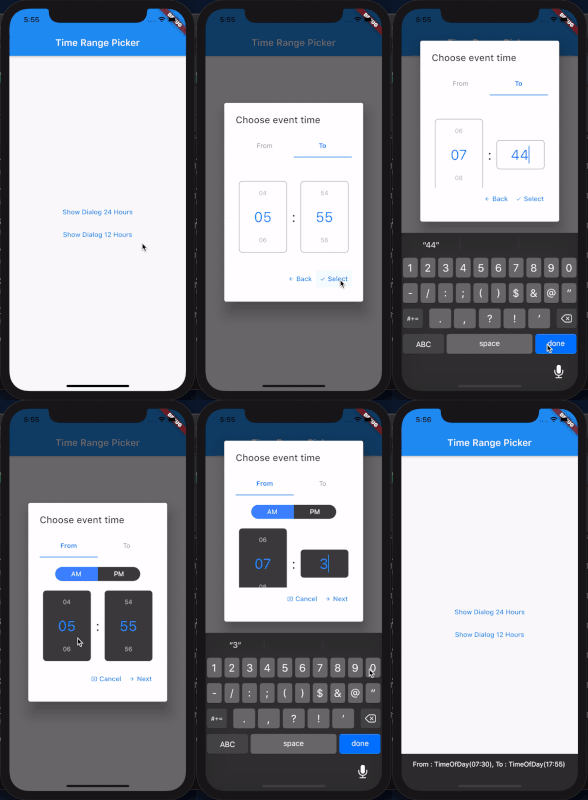
(See example for more detail)
  @override
  Widget build(BuildContext context) {
    return MaterialApp(
        navigatorKey: _navigatorKey,
        scaffoldMessengerKey: _messangerKey,
        title: 'Test Time Range Picker',
        home: Scaffold(
          appBar: AppBar(
            title: Text("Time Range Picker"),
          ),
          body: TextButton(
            child: Text("Show Dialog"),
            onPressed: () {
              showTimeRangePicker(_navigatorKey.currentState.overlay.context);
            },
          ),
        ));
  }

  // 24 Hour Format
  Future<void> showTimeRangePicker(BuildContext context) {
    return showDialog(
        context: context,
        builder: (BuildContext context) {
          return AlertDialog(
            title: Text("Choose event time"),
            content: TimeRangePicker(
              initialFromHour: DateTime.now().hour,
              initialFromMinutes: DateTime.now().minute,
              initialToHour: DateTime.now().hour,
              initialToMinutes: DateTime.now().minute,
              backText: "Back",
              nextText: "Next",
              cancelText: "Cancel",
              selectText: "Select",
              editable: true,
              is24Format: true,
              disableTabInteraction: true,
              iconCancel: Icon(Icons.cancel_presentation, size: 12),
              iconNext: Icon(Icons.arrow_forward, size: 12),
              iconBack: Icon(Icons.arrow_back, size: 12),
              iconSelect: Icon(Icons.check, size: 12),
              separatorStyle: TextStyle(color: Colors.grey[900], fontSize: 30),
              onSelect: (from, to) {
                _messangerKey.currentState.showSnackBar(
                    SnackBar(content: Text("From : $from, To : $to")));
                Navigator.pop(context);
              },
              onCancel: () => Navigator.pop(context),
            ),
          );
        });
  }

  // 12 Hour Format and custom style
  Future<void> showTimeRangePicker12Hour(BuildContext context) {
    return showDialog(
        context: context,
        builder: (BuildContext context) {
          return AlertDialog(
            title: Text("Choose event time"),
            content: TimeRangePicker(
              initialFromHour: DateTime.now().hour,
              initialFromMinutes: DateTime.now().minute,
              initialToHour: DateTime.now().hour,
              initialToMinutes: DateTime.now().minute,
              backText: "Back",
              nextText: "Next",
              cancelText: "Cancel",
              selectText: "Select",
              editable: true,
              is24Format: false,
              disableTabInteraction: true,
              iconCancel: Icon(Icons.cancel_presentation, size: 12),
              iconNext: Icon(Icons.arrow_forward, size: 12),
              iconBack: Icon(Icons.arrow_back, size: 12),
              iconSelect: Icon(Icons.check, size: 12),
              inactiveBgColor: Colors.grey[800],
              timeContainerStyle: BoxDecoration(
                  color: Colors.grey[800],
                  borderRadius: BorderRadius.circular(7)),
              separatorStyle: TextStyle(color: Colors.grey[900], fontSize: 30),
              onSelect: (from, to) {
                _messangerKey.currentState.showSnackBar(
                    SnackBar(content: Text("From : $from, To : $to")));
                Navigator.pop(context);
              },
              onCancel: () => Navigator.pop(context),
            ),
          );
        });
  }
need feedback
依賴清單 4 項
{"sdk":"flutter"}^2.1.1^0.1.9{"sdk":"flutter"}先依使用情境篩選,再比較專案活躍情況,最後到原始儲存庫確認使用要求。
“A repository is the most basic element of GitHub.”
GitHub Docs — About repositories ↗