
 v0.0.20
place_picker_google
一個完全以 Dart 編寫的 Google 地圖 API 地點選擇器套件,適用於 Flutter。
70喜歡 1280近 30 天下載140Pub 分數
AndroidiOS
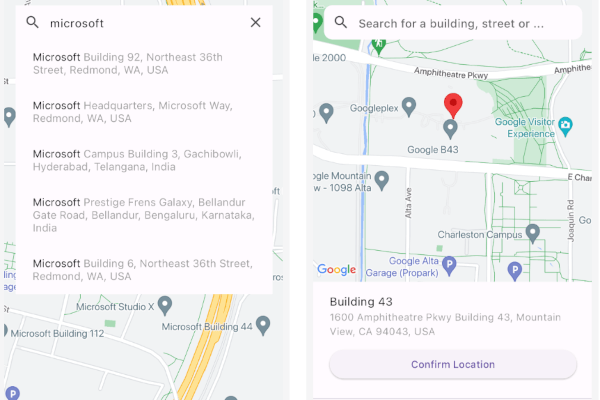
一個用於在 Google 地圖上搜尋和選擇位置的 Flutter 位置選擇器。

{"sdk":"flutter"}^1.5.0^2.12.3^14.0.2^4.0.0{"sdk":"flutter"}^3.0.0以下為英文專案原文快照,最新內容請造訪 GitHub。
A comprehensive, cross-platform google maps place picker library for Flutter.
The package provides common operations for Place picking,
Places autocomplete, My Location, and Nearby places from google maps given you have enabled
Places API, Maps SDK for Android, Maps SDK for iOS and Geocoding API for your API key.
| iOS basic | Android basic |
|---|
| https://github.com/joafc96/place_picker_google/raw/main/assets/iOS_place_picker_google_autocomplete.png | https://github.com/joafc96/place_picker_google/raw/main/assets/iOS_place_picker_google_nearby_places.png |
|---|
| https://github.com/joafc96/place_picker_google/raw/main/assets/iOS_place_picker_google_my_location.png | https://github.com/joafc96/place_picker_google/raw/main/assets/place_picker_google.gif |
|---|
Get an API key at https://cloud.google.com/maps-platform/.
Enable Google Map SDK for each platform.
You can also find detailed steps to get started with Google Maps Platform here.
Specify your API key in the application manifest android/app/src/main/AndroidManifest.xml:
minSdkVersion in android/app/build.gradle:android {
defaultConfig {
minSdkVersion 21
}
}
This means that app will only be available for users that run Android SDK - 21 or higher.
android/app/src/main/AndroidManifest.xml:<manifest ...
<application ...
<!-- TODO: Add your Google Maps API key here -->
<meta-data android:name="com.google.android.geo.API_KEY"
android:value="YOUR ANDROID KEY HERE"/>
<activity ..../>
</application>
</manifest>
The following permissions are not required to use Google Maps Android API v2, but are recommended.
android.permission.ACCESS_COARSE_LOCATION Allows the API to use WiFi or mobile cell data (or both) to determine the
device's location. The API returns the location with an accuracy approximately equivalent to a city block.
android.permission.ACCESS_FINE_LOCATION Allows the API to determine as precise a location as possible from the
available location providers, including the Global Positioning System (GPS) as well as WiFi and mobile cell data.
<uses-permission android:name="android.permission.ACCESS_COARSE_LOCATION"/>
<uses-permission android:name="android.permission.ACCESS_FINE_LOCATION"/>
Specify your API key in the application delegate ios/Runner/AppDelegate.m:
#include "AppDelegate.h"
#include "GeneratedPluginRegistrant.h"
#import "GoogleMaps/GoogleMaps.h"
@implementation AppDelegate
- (BOOL)application:(UIApplication *)application
    didFinishLaunchingWithOptions:(NSDictionary *)launchOptions {
  // TODO: Add your Google Maps API key
  [GMSServices provideAPIKey:@"YOUR KEY HERE"];
  [GeneratedPluginRegistrant registerWithRegistry:self];
  return [super application:application didFinishLaunchingWithOptions:launchOptions];
}
@end
Or in your swift code, specify your API key in the application delegate ios/Runner/AppDelegate.swift:
import UIKit
import Flutter
import GoogleMaps
@UIApplicationMain
@objc class AppDelegate: FlutterAppDelegate {
  override func application(
    _ application: UIApplication,
    didFinishLaunchingWithOptions launchOptions: [UIApplication.LaunchOptionsKey: Any]?
  ) -> Bool {
    // TODO: Add your Google Maps API key
    GMSServices.provideAPIKey("YOUR KEY HERE")
    GeneratedPluginRegistrant.register(with: self)
    return super.application(application, didFinishLaunchingWithOptions: launchOptions)
  }
}
On iOS you'll need to add the following entries to your Info.plist file (located under ios/Runner) in order to access the device's location.
Simply open your Info.plist file and add the following:
<key>NSLocationWhenInUseUsageDescription</key>
<string>This app needs access to location when open.</string>
<key>NSLocationAlwaysUsageDescription</key>
<string>This app needs access to location when in the background.</string>
<key>NSLocationAlwaysAndWhenInUseUsageDescription</key>
<string>This app needs access to location when open and in the background.</string>
You'll need to modify the web/index.html file of your Flutter Web application to include the Google Maps JS SDK.
Get an API Key for Google Maps JavaScript API. Get started here.
Modify the <head> tag of your web/index.html to load the Google Maps JavaScript API, like so:
<head>
    <!-- // Other stuff -->
  <!-- TODO: Add your Google Maps API key -->
    <script src="https://maps.googleapis.com/maps/api/js?key=YOUR_API_KEY"></script>
</head>
Check the google_maps_flutter_web README
for the latest information on how to prepare your App to use Google Maps on the
web.
Browser-based apps can't use dart:io library for the Platform API.
Only servers, command-line scripts, and Flutter mobile apps can import and use dart:io.
A native solution to switch between the platforms would be to use the flutter/foundation library.
import 'package:flutter/foundation.dart';

if (kIsWeb) {
/// Web specific code
}
else if (defaultTargetPlatform == TargetPlatform.iOS || defaultTargetPlatform == TargetPlatform.android) {
/// Android/iOS specific code
}
CORS. So we can't make a request from client-side.
And As the PlacesAutocomplete widget makes http request to the Google places API like this:"https://maps.googleapis.com/maps/api/place/autocomplete/json?input=${Search-Query}&key=${API-Key}"
This client-side request will be prevented. The Google API was not made to be call from browser. You need to use a proxy server that add the CORS to your request. e.g cors-anywhere.
Deploy the proxy server in Heroku or Vercel. You'll get a URL after deployment. After that you need to add the URL before your API endpoint while making the calls. i.e "proxy_server_url/google_api_endpoint". The proxy server will add the necessary headers.
For example with the proxy server it would look like
"https://cors-anywhere.herokuapp.com/https://maps.googleapis.com/maps/api/place/autocomplete/json?input=${Search-Query}&key=${API-Key}"
Therefore set the web baseUrl as
"https://cors-anywhere.herokuapp.com/https://maps.googleapis.com/maps/api/"
Add this to your package's pubspec.yaml file:
dependencies:
  place_picker_google: <latest_version>
Now in your Dart code, you can use:
import 'package:place_picker_google/place_picker_google.dart';
You can use PlacePicker by pushing to a new page using Navigator, OR put as a child of any widget.
When the user picks a place on the map, it will return result to onPlacePicked with LocationResult type.
Alternatively, you can build your own way with selectedPlaceWidgetBuilder and fetch result from it (See the instruction below).
PlacePicker(
        apiKey: Platform.isAndroid
            ? 'GOOGLE_MAPS_API_KEY_ANDROID'
            : 'GOOGLE_MAPS_API_KEY_IOS',
        onPlacePicked: (LocationResult result) {
          debugPrint("Place picked: ${result.formattedAddress}");
        },
        initialLocation: const LatLng(
          29.378586,
          47.990341,
        ),
        searchInputConfig: const SearchInputConfig(
          padding: EdgeInsets.symmetric(
            horizontal: 16.0,
            vertical: 8.0,
          ),
          autofocus: false,
          textDirection: TextDirection.ltr,
        ),
        searchInputDecorationConfig: const SearchInputDecorationConfig(
          hintText: "Search for a building, street or ...",
        ),
    ),
If you do want to fetch places from a custom location or refresh them when the user moves the map, you must enable /nearbysearch queries in Place Picker.
To do that, enable enableNearbyPlaces flag in the package.
By default, when a user selects a place by using auto complete search or dragging/tapping the map, we display the information at the bottom of the map.
However, if you don't like this UI/UX, simply override the builder using selectedPlaceWidgetBuilder.
Note that using this customization WILL NOT INVOKE onPlacePicked callback
This package supports free geocoding using the geocoding package, which leverages the device’s native geocoding capabilities on iOS and Android.
Set useFreeGeocoding in PlacePicker as true to access geocoding API's.
Below are the information about the packages used.
| PACKAGE | INFO |
|---|---|
| http | To consume HTTP resources |
| geolocator | Access to location services |
| google_maps_flutter | Access to Google Maps widget |
| geocoding | Access to free Geocoding services |
Please file feature requests and bugs at the issue tracker.
Issues and PRs welcome. Unless otherwise specified, all contributions to this lib will be under MIT license.