

 v10.0.2
fluttertoast
Flutter 的 Toast 程式庫,輕鬆以單行代碼建立吐司訊息
4140喜歡 64.2萬近 30 天下載140Pub 分數
AndroidiOSWeb
Flutter 的 Toast 插件

以下為英文專案原文快照,最新內容請造訪 GitHub。
Toast Library for Flutter

Now this toast library supports two kinds of toast messages one which requires BuildContext other with No BuildContext
Supported Platforms
- Android
- IOS
- Web (Uses Toastify-JS)
This one has limited features and no control over UI
Supported Platforms
- ALL
# add this line to your dependencies
fluttertoast: ^10.0.0
import 'package:fluttertoast/fluttertoast.dart';
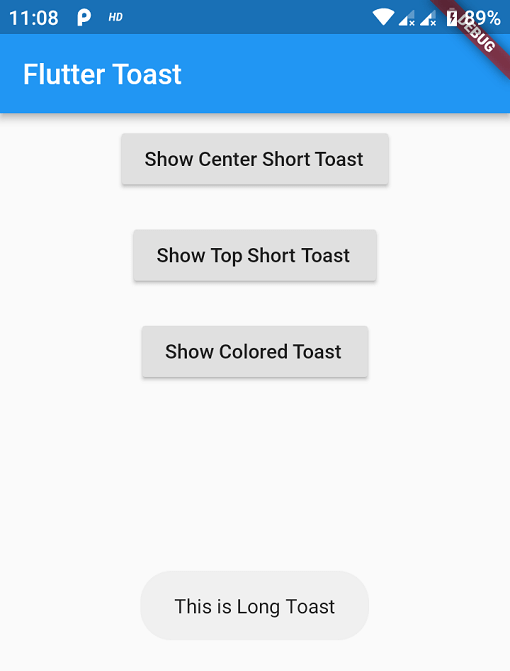
Fluttertoast.showToast(
        msg: "This is Center Short Toast",
        toastLength: Toast.LENGTH_SHORT,
        gravity: ToastGravity.CENTER,
        timeInSecForIosWeb: 1,
        backgroundColor: Colors.red,
        textColor: Colors.white,
        fontSize: 16.0
    );
| property | description | default |
|---|---|---|
| msg | String (Not Null)(required) | required |
| toastLength | Toast.LENGTH_SHORT or Toast.LENGTH_LONG (optional) | Toast.LENGTH_SHORT |
| gravity | ToastGravity.TOP (or) ToastGravity.CENTER (or) ToastGravity.BOTTOM (Web Only supports top, bottom) | ToastGravity.BOTTOM |
| timeInSecForIosWeb | int (for ios & web) | 1 (sec) |
| backgroundColor | Colors.red | null |
| textcolor | Colors.white | null |
| fontSize | 16.0 (float) | null |
| fontAsset | Path to a font file in the Flutter app assets folder, e.g. 'assets/path/to/some-font.ttf' (String) | null |
| webShowClose | false (bool) | false |
| webBgColor | String (hex Color) | linear-gradient(to right, #00b09b, #96c93d) |
| webPosition | String (left, center or right) |
right |
Fluttertoast.cancel()
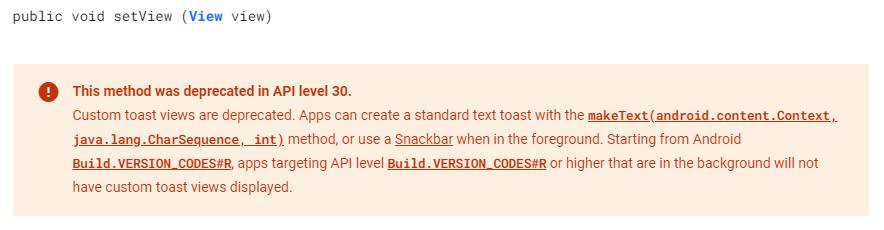
Custom Toast will not work on android 11 and above, it will only use msg and toastLength remaining all properties are ignored
Create a file named toast_custom.xml in your project app/res/layout folder and do custom styling
<?xml version="1.0" encoding="utf-8"?>
<FrameLayout xmlns:android="http://schemas.android.com/apk/res/android"
    xmlns:tools="http://schemas.android.com/tools"
    android:layout_width="wrap_content"
    android:layout_height="wrap_content"
    android:layout_gravity="center_horizontal"
    android:layout_marginStart="50dp"
    android:background="@drawable/corner"
    android:layout_marginEnd="50dp">

    <TextView
        android:id="@+id/text"
        android:layout_width="wrap_content"
        android:layout_height="wrap_content"
        android:background="#CC000000"
        android:paddingStart="16dp"
        android:paddingTop="10dp"
        android:paddingEnd="16dp"
        android:paddingBottom="10dp"
        android:textStyle="bold"
        android:textColor="#FFFFFF"
        tools:text="Toast should be short." />
</FrameLayout>
Update your MaterialApp with builder like below for the use of Context globally check doc section Use NavigatorKey for Context(to access context globally)
MaterialApp(
    builder: FToastBuilder(),
    home: MyApp(),
    navigatorKey: navigatorKey,
),
FToast fToast;

@override
void initState() {
    super.initState();
    fToast = FToast();
    // if you want to use context from globally instead of content we need to pass navigatorKey.currentContext!
    fToast.init(context);
}

_showToast() {
    Widget toast = Container(
        padding: const EdgeInsets.symmetric(horizontal: 24.0, vertical: 12.0),
        decoration: BoxDecoration(
        borderRadius: BorderRadius.circular(25.0),
        color: Colors.greenAccent,
        ),
        child: Row(
        mainAxisSize: MainAxisSize.min,
        children: [
            Icon(Icons.check),
            SizedBox(
            width: 12.0,
            ),
            Text("This is a Custom Toast"),
        ],
        ),
    );


    fToast.showToast(
        child: toast,
        gravity: ToastGravity.BOTTOM,
        toastDuration: Duration(seconds: 2),
    );

    // Custom Toast Position
    fToast.showToast(
        child: toast,
        toastDuration: Duration(seconds: 2),
        positionedToastBuilder: (context, child) {
          return Positioned(
            child: child,
            top: 16.0,
            left: 16.0,
          );
        });
}
Now Call _showToast()
For more details check example project
| property | description | default |
|---|---|---|
| child | Widget (Not Null)(required) | required |
| toastDuration | Duration (optional) | |
| gravity | ToastGravity.* | |
| positionedToastBuilder | PositionedToastBuilder | |
| fadeDuration | Duration | Duration(milliseconds: 350) |
| ignorePointer | boolean | false |
| isDismissible | boolean | false |
To use NavigatorKey for Context first define the GlobalKey<NavigatorState> at top level in your main.dart file
GlobalKey<NavigatorState> navigatorKey = GlobalKey<NavigatorState>();
At the time of initializing the FToast we need to use context from globally defined GlobalKey<NavigatorState>
FToast fToast = FToast();
fToast.init(yourNavKey.currentContext!);
// To remove present shwoing toast
fToast.removeCustomToast()

// To clear the queue
fToast.removeQueuedCustomToasts();
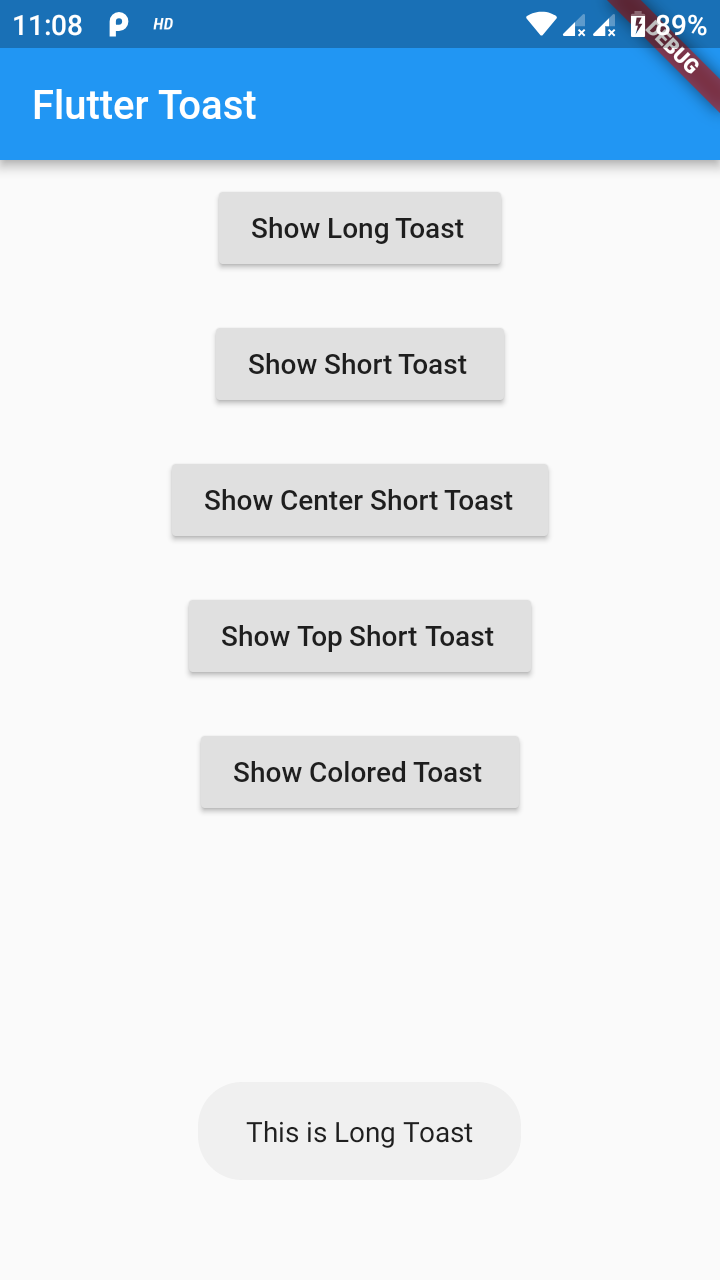
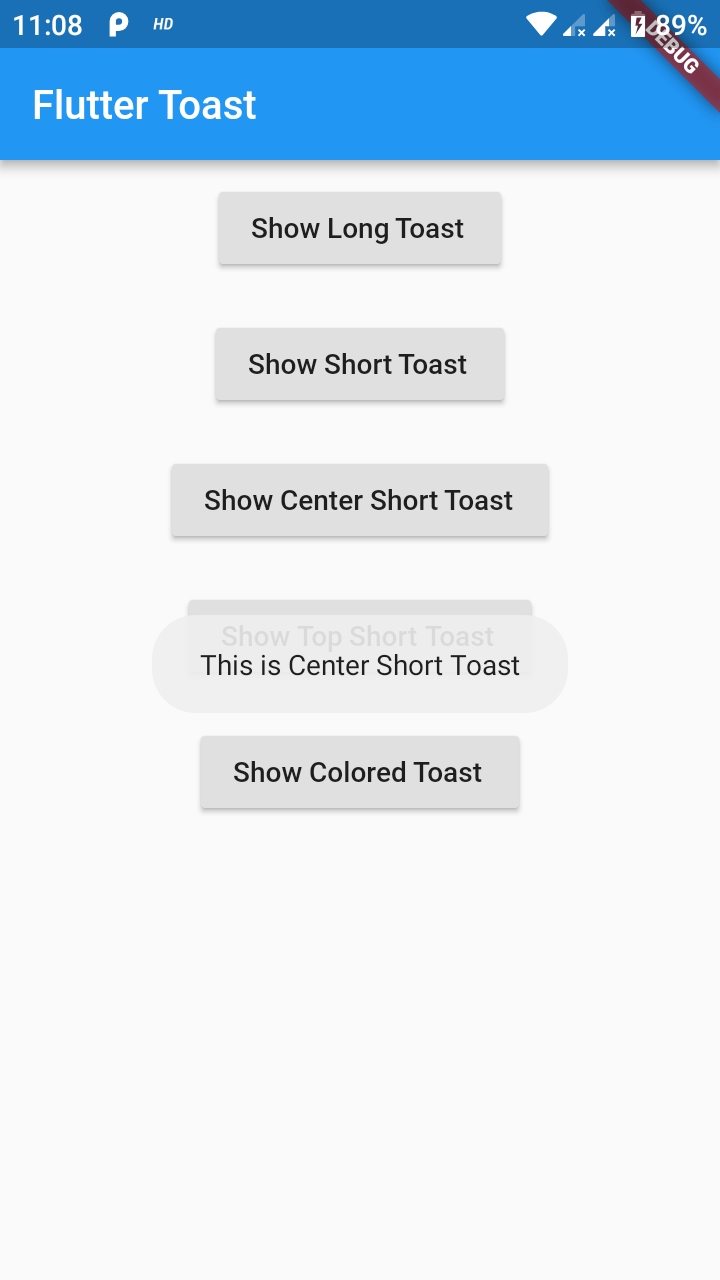
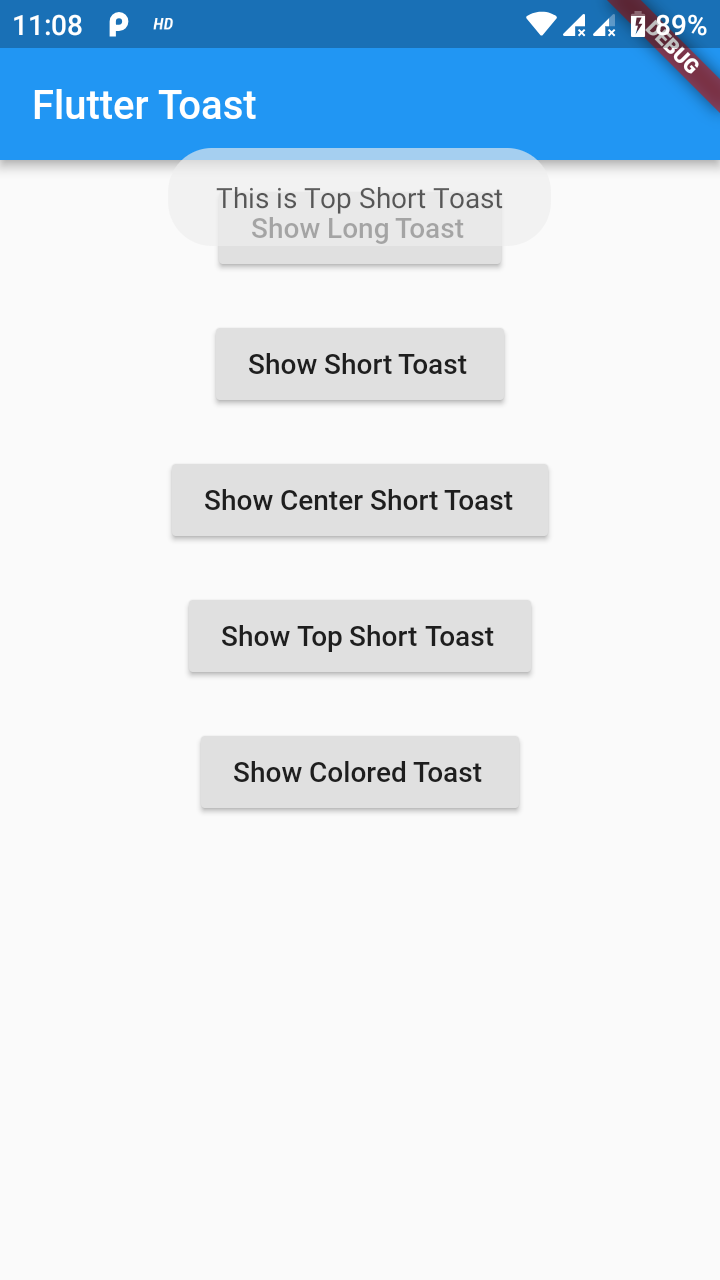
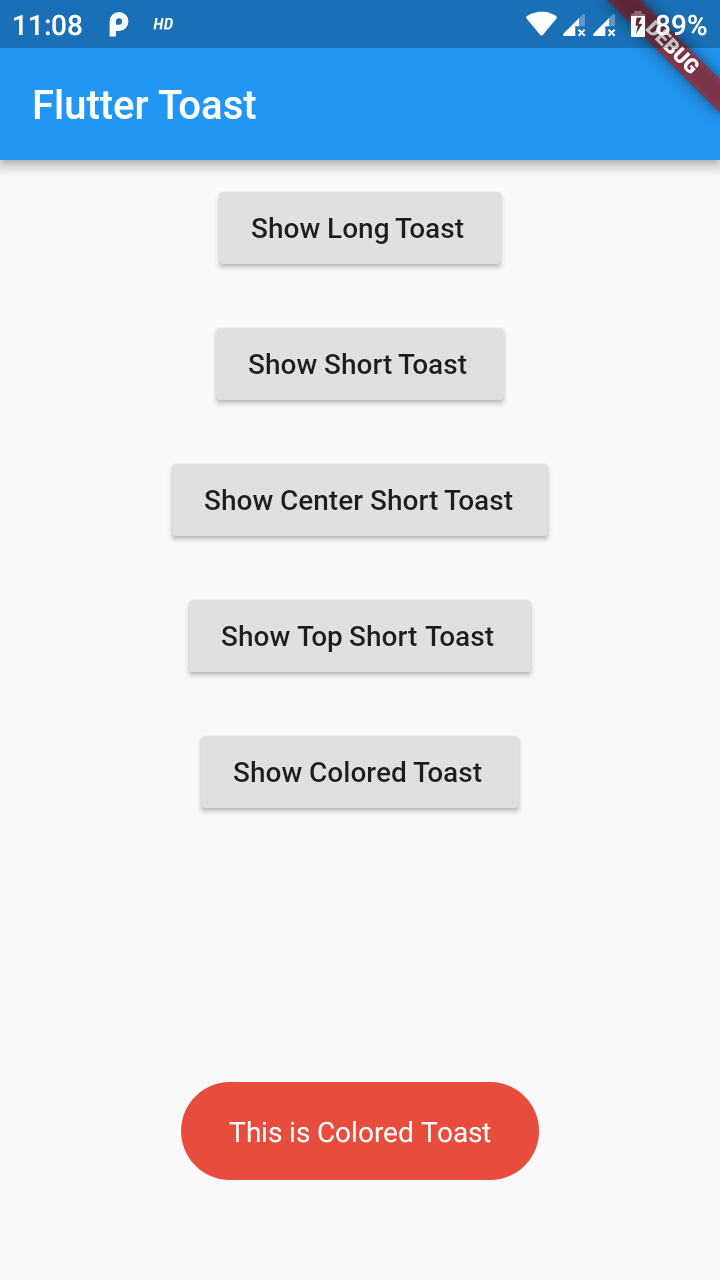
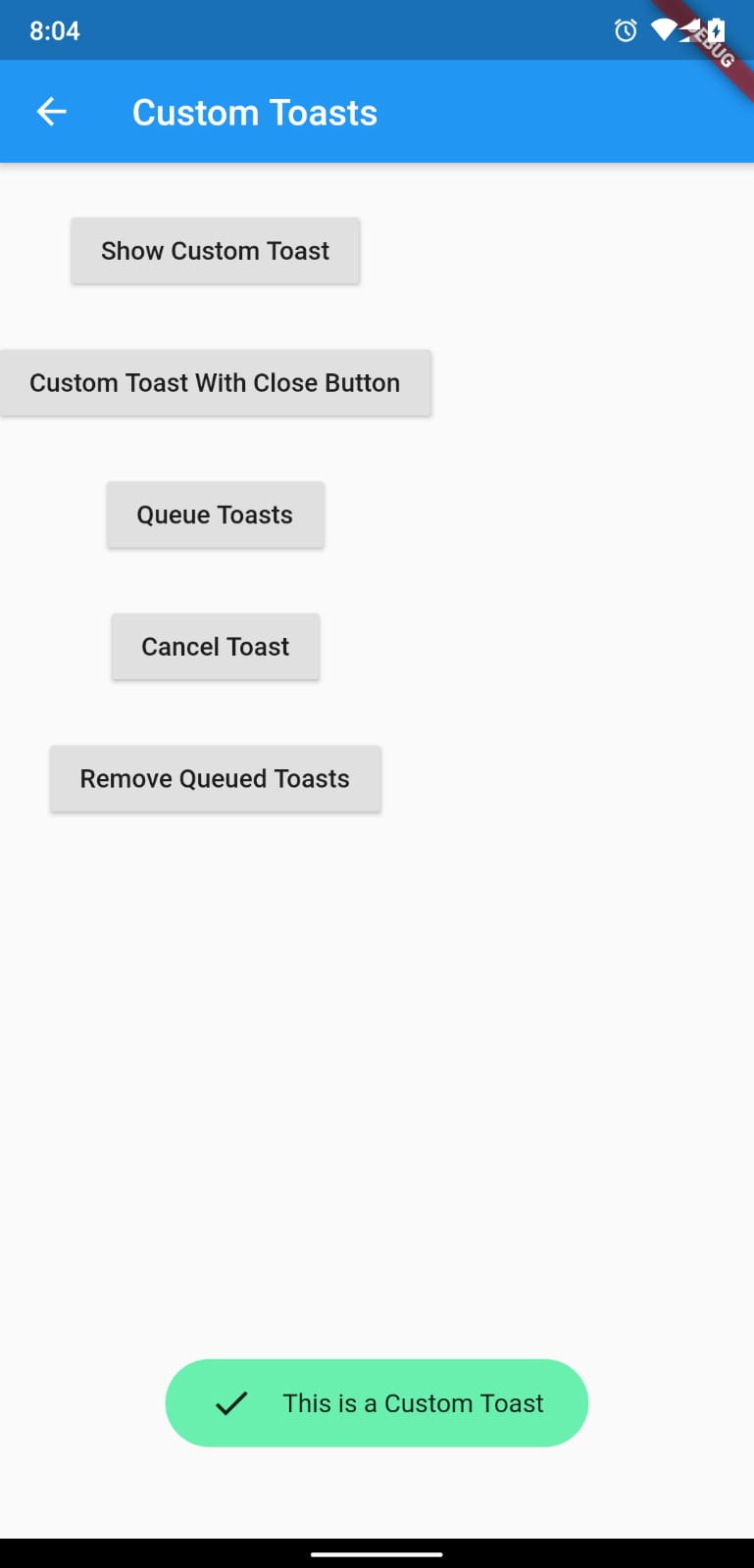
...

依賴清單 3 項
{"sdk":"flutter"}{"sdk":"flutter"}>=1.0.0 <2.0.0先依使用情境篩選,再比較專案活躍情況,最後到原始儲存庫確認使用要求。
“A repository is the most basic element of GitHub.”
GitHub Docs — About repositories ↗