
v2.0.5
nfc_in_flutter
适用于 Android 和 iOS 的 Flutter 插件,用于读取和写入 NFC 标签。目前仅支持读取 NDEF 格式的标签。
107喜欢 99近 30 天下载40Pub 分数
平台暂无数据
用于读取和写入NFC标签的跨平台Flutter插件。不再维护——不寻找新维护者,建议自行分叉。
以下为英文项目原文快照,最新内容请访问 GitHub。
NFC in Flutter is a plugin for reading and writing NFC tags in Flutter. It works on both Android and iOS with a simple stream interface.
⚠️ Currently only NDEF formatted tags are supported.
// NFC.readNDEF returns a stream of NDEFMessage
Stream<NDEFMessage> stream = NFC.readNDEF();

stream.listen((NDEFMessage message) {
    print("records: ${message.records.length}");
});
NDEFMessage message = await NFC.readNDEF(once: true).first;
print("payload: ${message.payload}");
// once: true` only scans one tag!
You can access a message's NFC tag using the NDEFMessage's .tag property. The tag has a .write method, which allows you to write a NDEF message to the tag.
Note that the read stream must still be open when the .write method is called. This means that the once argument in .readNDEF() cannot be used.
Stream<NDEFMessage> stream = NFC.readNDEF();

stream.listen((NDEFMessage message) {
    NDEFMessage newMessage = NDEFMessage.withRecords(
        NDEFRecord.mime("text/plain", "hello world")
    );
    message.tag.write(newMessage);
});
You can also use the NFC.writeNDEF(NDEFMessage) method, which wraps the code above with support for the once argument.
NDEFMessage newMessage = NDEFMessage.withRecords(
    NDEFRecord.mime("text/plain", "hello world")
);
Stream<NDEFTag> stream = NFC.writeNDEF(newMessage);

stream.listen((NDEFTag tag) {
    print("wrote to tag");
});
If you only want to write to one tag, you can set the once argument to true.
NDEFMessage newMessage = NDEFMessage.withRecords(
    NDEFRecord.mime("text/plain", "hello world")
);
Stream<NDEFTag> stream = NFC.writeNDEF(newMessage, once: true);

stream.listen((NDEFTag tag) {
    print("only wrote to one tag!");
});
And if you would rather use a Future based API, you can await the returned stream's .first method.
NDEFMessage newMessage = NDEFMessage.withRecords(
    NDEFRecord.type("text/plain", "hello world")
);

await NFC.writeNDEF(newMessage, once: true).first;
import 'package:nfc_in_flutter/nfc_in_flutter.dart';

class NFCReader extends StatefulWidget {
    @override
    _NFCReaderState createState() => _NFCReaderState();
}

class _NFCReaderState extends State {
    bool _supportsNFC = false;
    bool _reading = false;
    StreamSubscription<NDEFMessage> _stream;

    @override
    void initState() {
        super.initState();
        // Check if the device supports NFC reading
        NFC.isNDEFSupported
            .then((bool isSupported) {
                setState(() {
                    _supportsNFC = isSupported;
                });
            });
    }

    @override
    Widget build(BuildContext context) {
        if (!_supportsNFC) {
            return RaisedButton(
                child: const Text("You device does not support NFC"),
                onPressed: null,
            );
        }

        return RaisedButton(
            child: Text(_reading ? "Stop reading" : "Start reading"),
            onPressed: () {
                if (_reading) {
                    _stream?.cancel();
                    setState(() {
                        _reading = false;
                    });
                } else {
                    setState(() {
                        _reading = true;
                        // Start reading using NFC.readNDEF()
                        _stream = NFC.readNDEF(
                            once: true,
                            throwOnUserCancel: false,
                        ).listen((NDEFMessage message) {
                            print("read NDEF message: ${message.payload}"),
                        }, onError: (e) {
                            // Check error handling guide below
                        });
                    });
                }
            }
        );
    }
}
Full example in example directory
Add nfc_in_flutter to your pubspec.yaml
dependencies:
    nfc_in_flutter: 2.0.5
On iOS you must add turn on the Near Field Communication capability, add a NFC usage description and a NFC entitlement.
Open your iOS project in Xcode, find your project's target and navigate to Capabilities. Scroll down to 'Near Field Communication Tag Reading' and turn it on.
Turning on 'Near Field Communication Tag reading'
from developer.apple.com: Building an NFC Tag-Reader app
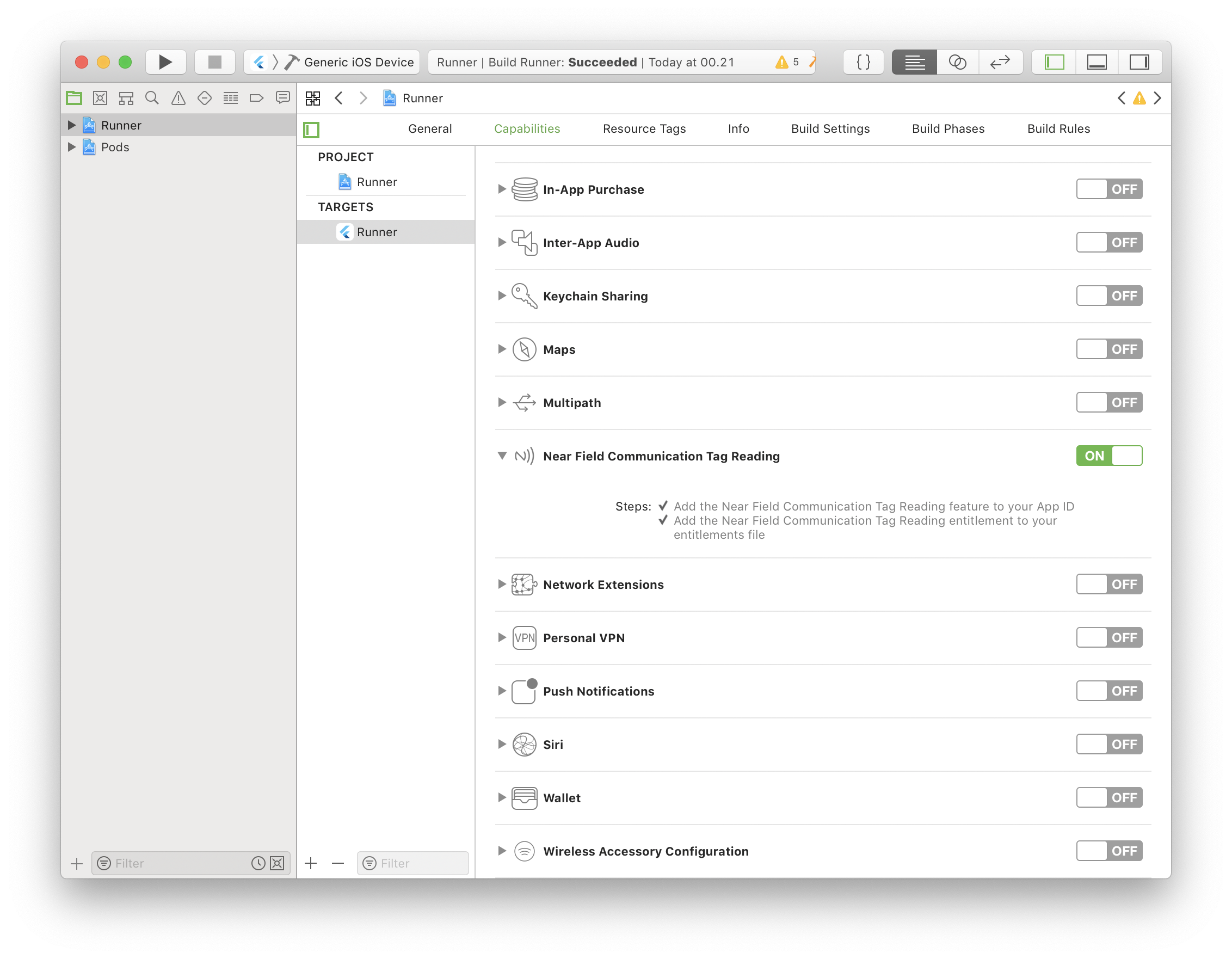
Open your ios/Runner/Info.plist file and add a new NFCReaderUsageDescription key. It's value should be a description of what you plan on using NFC for.
<key>NFCReaderUsageDescription</key>
<string>...</string>
Add the following to your app's AndroidManifest.xml file:
<uses-permission android:name="android.permission.NFC" />
If your app requires NFC, you can add the following to only allow it to be downloaded on devices that supports NFC:
<uses-feature android:name="android.hardware.nfc" android:required="true" />
If you're new to NFC you may come to expect a lot of readNFC() calls, but instead you see readNDEF() and NDEFMessage. NDEF is just a formatting standard the tags can be encoded in. There are other encodings than NDEF, but NDEF is the most common one. Currently NFC in Flutter only supports NDEF formatted tags.
NFC in Flutter supports reading from emulated host cards*.
To read from emulated host cards, you need to do a few things.
readNDEF() with the readerMode argument set to an instance of NFCDispatchReaderMode.<intent-filter /> in your AndroidManifest.xml activity:<intent-filter>
<action android:name="android.nfc.action.NDEF_DISCOVERED" />
<category android:name="android.intent.category.DEFAULT" />
</intent-filter>
If you start a readNDEF() stream with the reader mode set to an instance of NFCDispatchReaderMode, while another stream is active with the NFCNormalReaderMode, it will throw a NFCMultipleReaderModesException.
When you call readNDEF() on iOS, Core NFC (the iOS framework that allows NFC reading) opens a little window. On Android it just starts listening for NFC tag reads in the background.

image from developer.apple.com: Near Field Communication
⚠️ This will also freeze Flutter while open. Please send a Pull Request if you can fix this.
Errors are no exception to NFC in Flutter (hah, get it). The stream returned by NFC.readNDEF() can send 7 different exceptions, and even worse: they are different for each platform!
See the full example in the example directory for an example on how to check for errors.
NDEFReadingUnsupportedExceptionThrown when a reading session is started, but not actually supported.
NFCUserCanceledSessionExceptionThrown when the user clicks Cancel/Done core NFC popup. If you don't need to know if the user canceled the session you can start reading with the throwOnUserCancel argument set to false like so: readNDEF(throwOnUserCancel: false)
NFCSessionTimeoutExceptionCore NFC limits NFC reading sessions to 60 seconds. NFCSessionTimeoutException is thrown when the session has been active for 60 seconds.
NFCSessionTerminatedUnexpectedlyExceptionThrown when the reading session terminates unexpectedly.
NFCSystemIsBusyExceptionThrow when the reading session fails because the system is too busy.
NFCIOExceptionThrown when a I/O exception occurs. Will for example happen if a tag is lost while being read or a tag could not be connected to.
NDEFBadFormatExceptionThrown when the tag is expected to NDEF formatted, but it is incorrectly formatted.

依赖清单 2 项
{"sdk":"flutter"}{"sdk":"flutter"}先按使用场景筛选,再比较项目活跃情况,最后到原始仓库核对使用要求。
“A repository is the most basic element of GitHub.”
GitHub Docs — About repositories ↗