

 v1.4.1
animated_bottom_navigation_bar
https://dribbble.com/shots/7134849-Simple-Tab-Bar-Animation से प्रेरित एनीमेटेड बॉटम नेविगेशन बार विजेट का कार्यान्वयन
1.5 हज़ारलाइक 19.3 हज़ार30-दिन डाउनलोड150Pub अंक
AndroidiOSWebmacOSWindowsLinux
AnimatedBottomNavigationBar एक कस्टमाइज़ करने योग्य विजेट है जिसका प्रेरणा

यह अंग्रेज़ी मूल स्नैपशॉट है। नवीनतम सामग्री GitHub पर देखें।

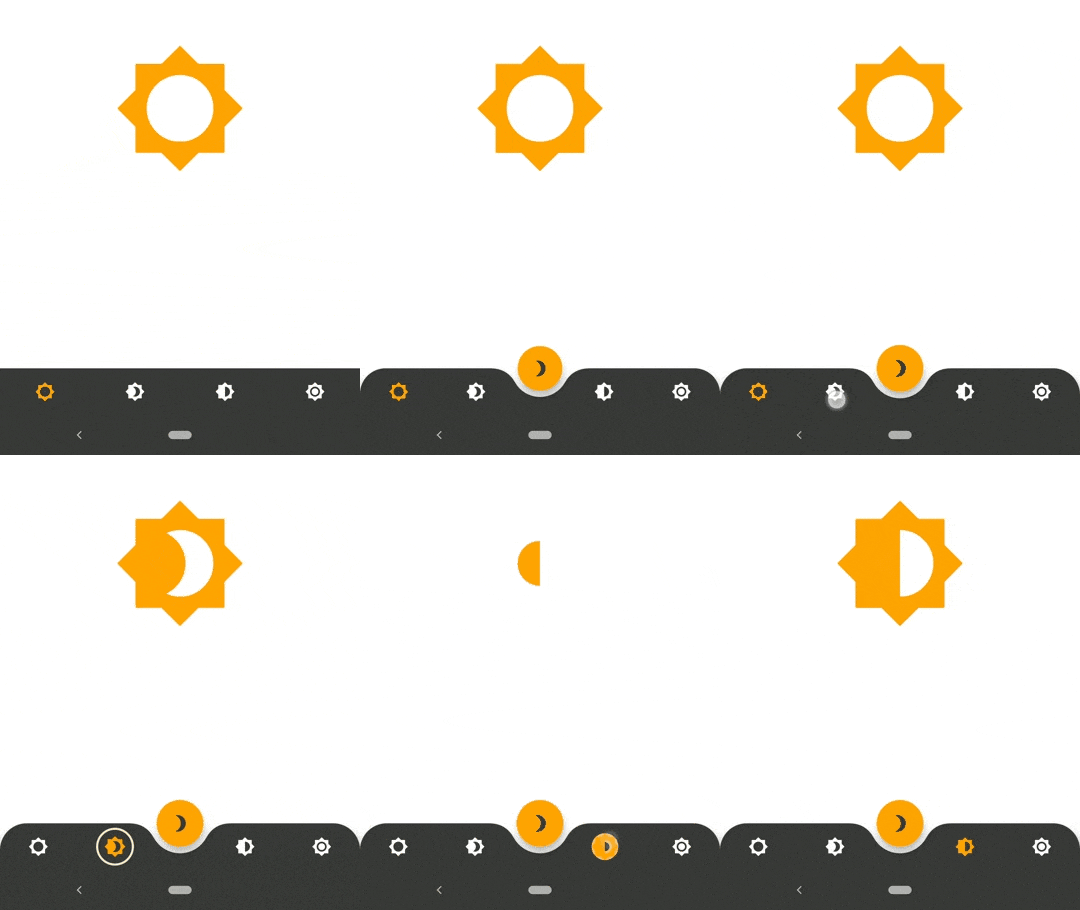
AnimatedBottomNavigationBar is a customizable widget inspired by dribble shot.


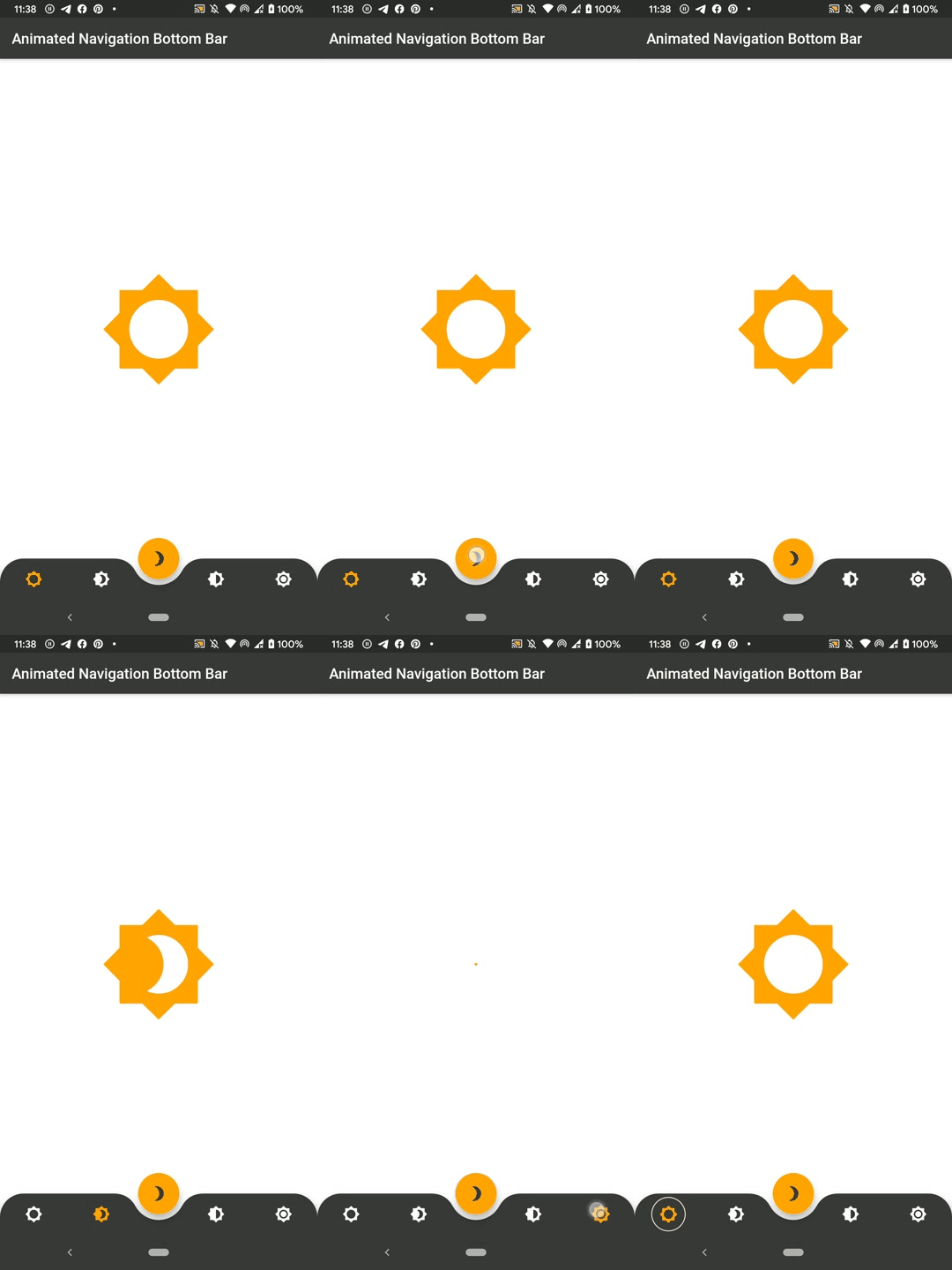
With AnimatedBottomNavigationBar.builder you are able to customize tab view however you need. In this case you are responsible to handle an active(inactive) state of tabs.
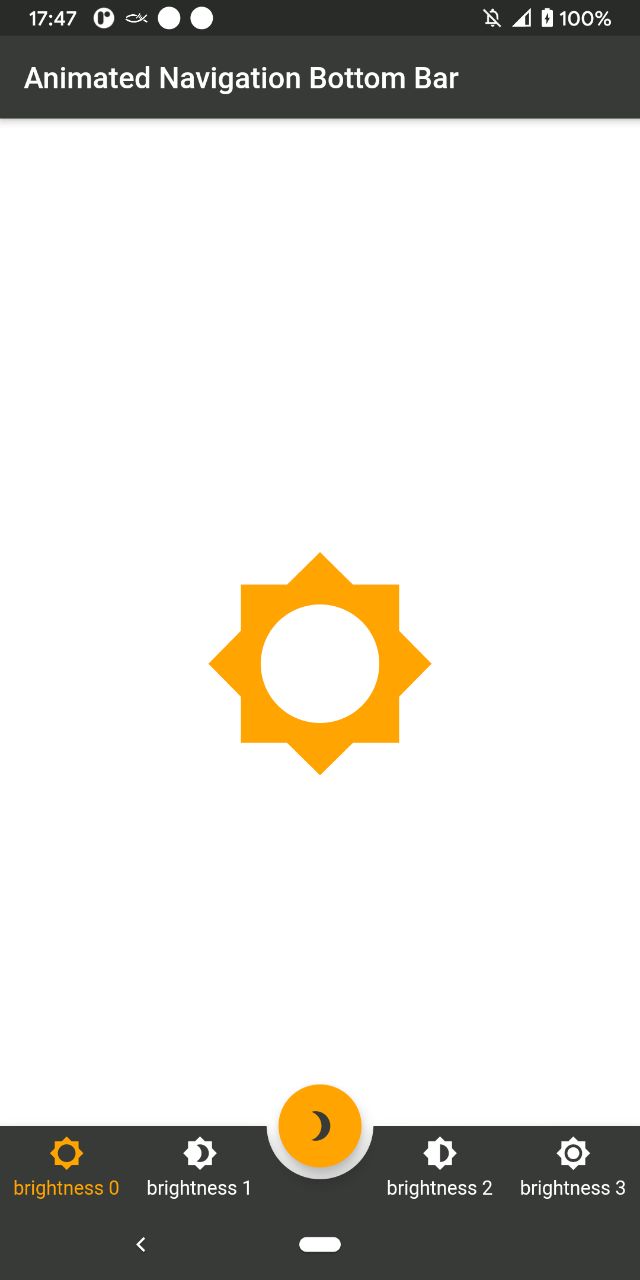
To get started, place your AnimatedBottomNavigationBar or AnimatedBottomNavigationBar.builder in the bottomNavigationBar slot of a Scaffold.
The AnimatedBottomNavigationBar respects FloatingActionButton location.
For example:
Scaffold(
   body: Container(), //destination screen
   floatingActionButton: FloatingActionButton(
      //params
   ),
   floatingActionButtonLocation: FloatingActionButtonLocation.centerDocked,
   bottomNavigationBar: AnimatedBottomNavigationBar(
      icons: iconList,
      activeIndex: _bottomNavIndex,
      gapLocation: GapLocation.center,
      notchSmoothness: NotchSmoothness.verySmoothEdge,
      leftCornerRadius: 32,
      rightCornerRadius: 32,
      onTap: (index) => setState(() => _bottomNavIndex = index),
      //other params
   ),
);
There is also a more flexible way to build bottomNavigationBar with Builder (see example for more insights):
Scaffold(
   body: Container(), //destination screen
   floatingActionButton: FloatingActionButton(
      //params
   ),
   floatingActionButtonLocation: FloatingActionButtonLocation.centerDocked,
   bottomNavigationBar: AnimatedBottomNavigationBar.builder(
      itemCount: iconList.length,
      tabBuilder: (int index, bool isActive) {
        return Icon(
          iconList[index],
          size: 24,
          color: isActive ? colors.activeNavigationBarColor : colors.notActiveNavigationBarColor,
        );
      activeIndex: _bottomNavIndex,
      gapLocation: GapLocation.center,
      notchSmoothness: NotchSmoothness.verySmoothEdge,
      leftCornerRadius: 32,
      rightCornerRadius: 32,
      onTap: (index) => setState(() => _bottomNavIndex = index),
      //other params
   ),
);
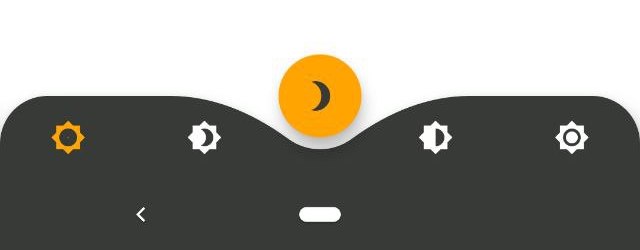
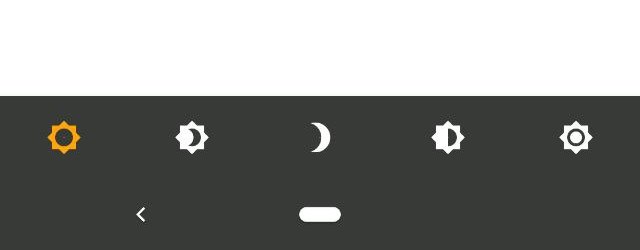
AnimatedBottomNavigationBar is customizable and works with 2, 3, 4, or 5 navigation elements.
Scaffold(
   bottomNavigationBar: AnimatedBottomNavigationBar(
      icons: iconList,
      activeIndex: _bottomNavIndex,
      onTap: (index) => setState(() => _bottomNavIndex = index),
      //other params
   ),
);
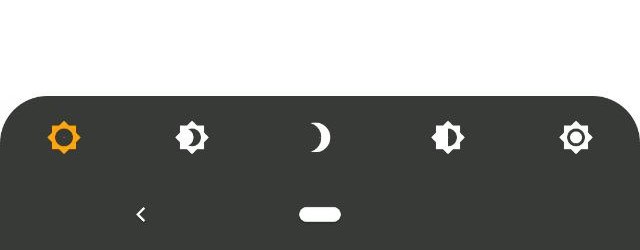
Scaffold(
   bottomNavigationBar: AnimatedBottomNavigationBar(
      icons: iconList,
      activeIndex: _bottomNavIndex,
      leftCornerRadius: 32,
      rightCornerRadius: 32,
      onTap: (index) => setState(() => _bottomNavIndex = index),
      //other params
   ),
);
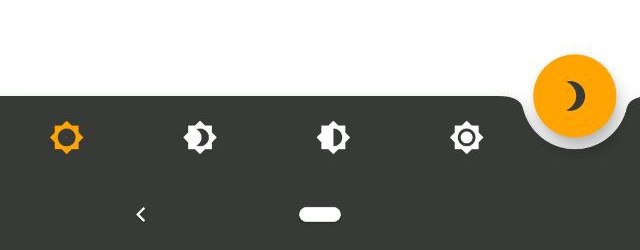
Scaffold(
   floatingActionButton: FloatingActionButton(
      //params
   ),
   floatingActionButtonLocation: FloatingActionButtonLocation.endDocked,
   bottomNavigationBar: AnimatedBottomNavigationBar(
      icons: iconList,
      activeIndex: _bottomNavIndex,
      gapLocation: GapLocation.end,
      notchSmoothness: NotchSmoothness.defaultEdge,
      onTap: (index) => setState(() => _bottomNavIndex = index),
      //other params
   ),
);
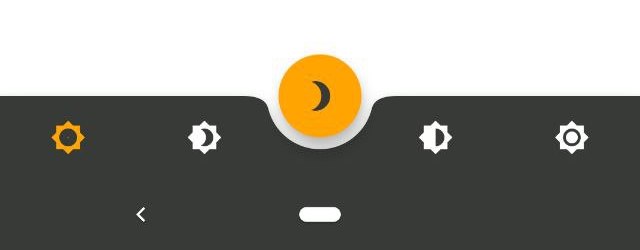
Scaffold(
   floatingActionButton: FloatingActionButton(
      //params
   ),
   floatingActionButtonLocation: FloatingActionButtonLocation.centerDocked,
   bottomNavigationBar: AnimatedBottomNavigationBar(
      icons: iconList,
      activeIndex: _bottomNavIndex,
      gapLocation: GapLocation.center,
      notchSmoothness: NotchSmoothness.defaultEdge,
      onTap: (index) => setState(() => _bottomNavIndex = index),
      //other params
   ),
);
Scaffold(
   floatingActionButton: FloatingActionButton(
      //params
   ),
   floatingActionButtonLocation: FloatingActionButtonLocation.centerDocked,
   bottomNavigationBar: AnimatedBottomNavigationBar(
      icons: iconList,
      activeIndex: _bottomNavIndex,
      gapLocation: GapLocation.center,
      notchSmoothness: NotchSmoothness.softEdge,
      onTap: (index) => setState(() => _bottomNavIndex = index),
      //other params
   ),
);
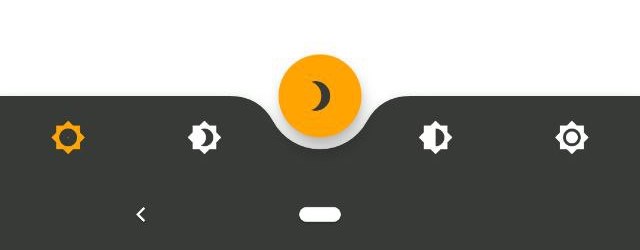
Scaffold(
   floatingActionButton: FloatingActionButton(
      //params
   ),
   floatingActionButtonLocation: FloatingActionButtonLocation.centerDocked,
   bottomNavigationBar: AnimatedBottomNavigationBar(
      icons: iconList,
      activeIndex: _bottomNavIndex,
      gapLocation: GapLocation.center,
      notchSmoothness: NotchSmoothness.smoothEdge,
      onTap: (index) => setState(() => _bottomNavIndex = index),
      //other params
   ),
);
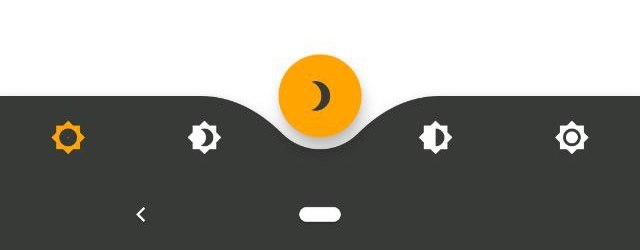
Scaffold(
   floatingActionButton: FloatingActionButton(
      //params
   ),
   floatingActionButtonLocation: FloatingActionButtonLocation.centerDocked,
   bottomNavigationBar: AnimatedBottomNavigationBar(
      icons: iconList,
      activeIndex: _bottomNavIndex,
      gapLocation: GapLocation.center,
      notchSmoothness: NotchSmoothness.verySmoothEdge,
      onTap: (index) => setState(() => _bottomNavIndex = index),
      //other params
   ),
);
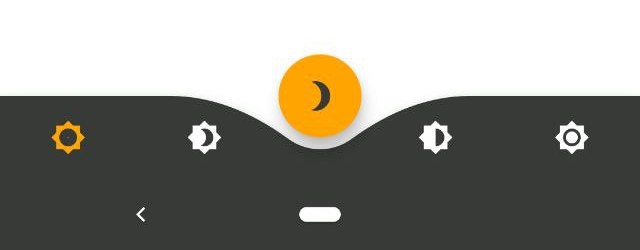
You have to change the active navigation bar tab programmatically by passing a new activeIndex to the AnimatedBottomNavigationBar widget.
class _MyAppState extends State<MyApp> {
  int activeIndex;

  /// Handler for when you want to programmatically change
  /// the active index. Calling `setState()` here causes
  /// Flutter to re-render the tree, which `AnimatedBottomNavigationBar`
  /// responds to by running its normal animation.
  void _onTap(int index) {
    setState((){
      activeIndex = index;
    });
  }

  Widget build(BuildContext context) {
    return AnimatedBottomNavigationBar(
      activeIndex: activeIndex,
      onTap: _onTap,
      //other params
    );
  }
}
निर्भरता सूची 3 आइटम
{"sdk":"flutter"}{"sdk":"flutter"}^6.0.0उपयोग के अनुसार छाँटें, गतिविधि की तुलना करें और अपनाने से पहले मूल प्रोजेक्ट की आवश्यकताएँ जाँचें।
“A repository is the most basic element of GitHub.”
GitHub Docs — About repositories ↗