
 v0.4.0
sweetsheet
すばやく簡単に、確認ダイアログとして美しいボトムシートを表示します。
231いいね 4430日間ダウンロード140Pub ポイント
AndroidiOSWebmacOSWindowsLinux
すばやく簡単に、確認ダイアログとして美しいボトムシートを表示します。

{"sdk":"flutter"}{"sdk":"flutter"}以下は英語原文のスナップショットです。最新版は GitHub をご覧ください。
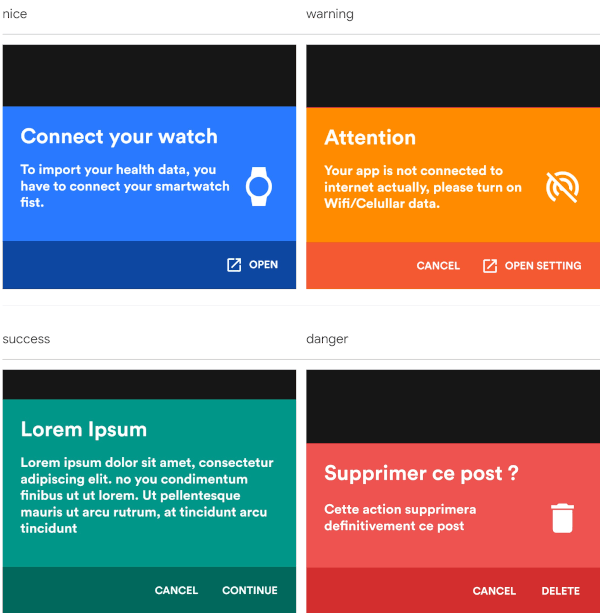
Show beautiful bottom sheet as confirmation dialog quickly and easily.
| nice | warning |
|---|---|
| nice | warning |
| success | danger |
|---|---|
| success | danger |
and since version 0.2.0 , it is fully customizable.
| custom dark | custom light |
|---|---|
| success | danger |
With increasingly large smartphones, it has become almost impossible to have good ergonomics in an application using confirmation dialogs. The SweetSheet package allows you to show beautiful bottoms sheets to replace your confirmation dialogs and maintain a good user experience.
Add this to your package's pubspec.yaml file:
dependencies:
  sweetsheet: ^0.4.0
And import it:
import 'package:sweetsheet/sweetsheet.dart';
to start using the sheets, you have to create the instance of the
SweetSheet class first.
final SweetSheet _sweetSheet = SweetSheet();
Now you can show the bottom sheet by calling the method show() on the instance.
This is the signature of the show method
  show({
    required BuildContext context,
    Text? title,
    required Text description,
    required CustomSheetColor color,
    required SweetSheetAction positive,
    EdgeInsets? contentPadding = const EdgeInsets.symmetric(horizontal: 24.0, vertical: 24.0),
    EdgeInsets? actionPadding = const EdgeInsets.all(8.0),
    SweetSheetAction? negative,
    IconData? icon,
    bool useRootNavigator = false,
    bool isDismissible = true,
  }) {}
This is the signature of the SweetSheetAction widget.
class SweetSheetAction extends StatelessWidget {
  final String title;
  final VoidCallback onPressed;
  final IconData icon;
  final Color color;

  SweetSheetAction({
    @required this.title,
    @required this.onPressed,
    this.icon,
    this.color = Colors.white,
  });
}
Attention : At least one action is required and the icons are IconData for uniformity purpose.
The SweetSheetColor is a class which have four static values and it determine the color of the sheet by creating a CustomSheetColor:
To customise, create a new instance of CustomSheetColor and pass it to the argument color when calling the method show.
signature of CustomSheetColor:
class CustomSheetColor {
  Color main;
  Color accent;
  Color icon;

  CustomSheetColor({@required this.main, @required this.accent, this.icon});
}
To customise the action, pass a new color to color argument of SweetSheetAction.
_sweetSheet.show(
    context: context,
    title: Text("Attention"),
    description: Text(
        'Your app is not connected to internet actually, please turn on Wifi/Celullar data.'),
    color: SweetSheetColor.WARNING,
    icon: Icons.portable_wifi_off,
    positive: SweetSheetAction(
      onPressed: () {
        Navigator.of(context).pop();
      },
      title: 'OPEN SETTING',
      icon: Icons.open_in_new,
    ),
    negative: SweetSheetAction(
      onPressed: () {
        Navigator.of(context).pop();
      },
      title: 'CANCEL',
    ),
);
_sweetSheet.show(
    context: context,
    description: Text(
      'Place your order. Please confirm the placement of your order : Iphone X 128GB',
      style: TextStyle(color: Color(0xff2D3748)),
    ),
    color: CustomSheetColor(
      main: Colors.white,
      accent: Color(0xff5A67D8),
      icon: Color(0xff5A67D8),
    ),
    icon: Icons.local_shipping,
    positive: SweetSheetAction(
      onPressed: () {
        Navigator.of(context).pop();
      },
      title: 'CONTINUE',
    ),
    negative: SweetSheetAction(
      onPressed: () {
        Navigator.of(context).pop();
      },
      title: 'CANCEL',
  ),
);