

 v2.0.0
debug_overlay
アプリの中央オーバーレイを介してデバッグ情報を表示し、設定を変更します。
28いいね 76730日間ダウンロード160Pub ポイント
AndroidiOS
🐛 アプリの中央オーバーレイを介してデバッグ情報を表示し、設定を変更します。

以下は英語原文のスナップショットです。最新版は GitHub をご覧ください。
🐛 View debug infos and change settings via a central overlay for your app.

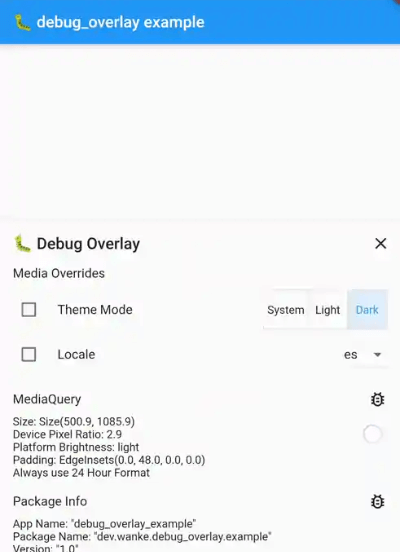
To add a debug overlay to your app, pass DebugOverlay.builder() to MaterialApp/CupertinoApp/WidgetsApp.builder:
MaterialApp(
  builder: DebugOverlay.builder(),
  // And other customization...
)
The debug overlay only works in debug mode and is not included in your widget tree in profile or release mode unless you pass
enableOnlyInDebugMode: false.
To open the overlay, call DebugOverlay.show().
By default, this overlay includes MediaQueryDebugHelper, PackageInfoDebugHelper, and DeviceInfoDebugHelper.
To add a debug helper, you have to register it by calling either of the following two (which accept any sliver widget):
DebugOverlay.prependHelper(myDebugHelper) to add it to the front of the listDebugOverlay.appendHelper(myDebugHelper) to add it to the end of the listOr, if you want to override all currently registered overlays, set DebugOverlay.helpers.value to a list of sliver widget.
DeviceInfoDebugHelper
Displays information obtained from device_info_plus.
MediaQueryDebugHelper
Displays information obtained from MediaQuery.
LogsDebugHelper
Displays logs generated by your app. To use it, follow these steps:
Store its mutable state, e.g., in a global variable:
final logs = LogCollection(
  // Default values:
  maximumSize: 500,
  onlyStoreLogsInDebugMode: true,
);
Register the helper and supply its state, e.g., in main():
void main() {
  if (kDebugMode) {
    DebugOverlay.appendHelper(LogsDebugHelper(logs));
  }

  runApp(MyApp());
}
When you generate logs, add them to the collection.
Except for message, all parameters are optional:
logs.add(Log(
  level: DiagnosticLevel.info,
  timestamp: DateTime.now(),
  message: 'My message',
  error: myException,
  stackTrace: myStackTrace,
));
The error field can also hold data for non-error logs.
If it stores JSON data (on an object with a toJson() method), the data can be inspected using json_view.
MediaOverridesDebugHelper
This allows you to override the theme mode and locale of your app. To use it, follow these steps:
Store its mutable state, e.g., in a global variable:
final mediaOverrideState = ValueNotifier(MediaOverrideState());
Register the helper and supply its state, e.g., in main():
void main() {
  if (kDebugMode) {
    DebugOverlay.prependHelper(MediaOverrideDebugHelper(
      mediaOverrideState,
      // To support overriding locales, this value must be set and should
      // contain the same locales as passed to [MaterialApp.supportedLocales],
      // [CupertinoApp.supportedLocales] or [WidgetsApp.supportedLocales].
      supportedLocales: supportedLocales,
    ));
  }

  runApp(MyApp());
}
When building your MaterialApp/CupertinoApp/WidgetsApp, wrap it in a ValueListenableBuilder that uses the state from step 1:
ValueListenableBuilder<MediaOverrideState>(
  valueListenable: mediaOverrideState,
  builder: (context, overrideState, child) {
    return MaterialApp(
      // You can access overridden values via [overrideState]:
      themeMode: overrideState.themeMode,
      locale: overrideState.locale,

      builder: DebugOverlay.builder(),
      supportedLocales: supportedLocales,

      // And your other customizations...
    );
  },
);
PackageInfoDebugHelper
Displays information obtained from package_info_plus.
To implement your own debug helper, you can use the provided DebugHelper class for the layout.
If your information can be represented with Flutter's DiagnosticsNode, you can use DiagnosticsBasedDebugHelper which automatically provides filtering.
This is also used internally by DeviceInfoDebugHelper, MediaQueryDebugHelper, and PackageInfoDebugHelper.
依存関係一覧 11 件
^1.0.3^1.15.0^0.2.0^13.0.0{"sdk":"flutter"}^2.3.0^0.4.2^1.3.0^10.0.0^0.2.12{"git":{"url":"https://github.com/JonasWanke/supernova.git","path":"supernova_lints","ref":"88ffdb5c434ea2d1012c0f98f478b9240c2aedbf"}}用途で絞り込み、開発状況を比較し、採用前に元のリポジトリで要件を確認しましょう。
“A repository is the most basic element of GitHub.”
GitHub Docs — About repositories ↗