

 v1.4.1
animated_bottom_navigation_bar
https://dribbble.com/shots/7134849-Simple-Tab-Bar-Animation にインスパイアされたアニメーション付きボトムナビゲーションバーのウィジェット実装
1450いいね 1.8万30日間ダウンロード150Pub ポイント
AndroidiOSWebmacOSWindowsLinux
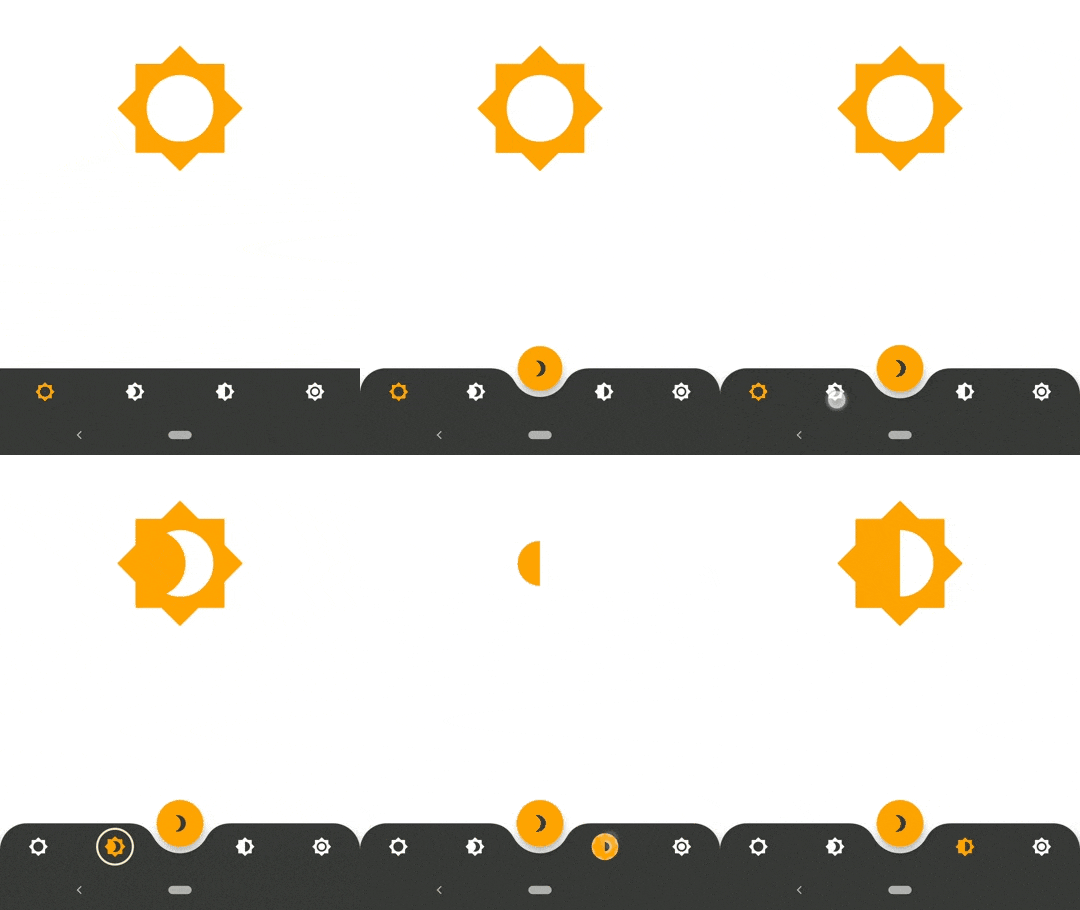
AnimatedBottomNavigationBar は、以下のものからインスパイアされたカスタマイズ可能なウィジェットです

以下は英語原文のスナップショットです。最新版は GitHub をご覧ください。

AnimatedBottomNavigationBar is a customizable widget inspired by dribble shot.


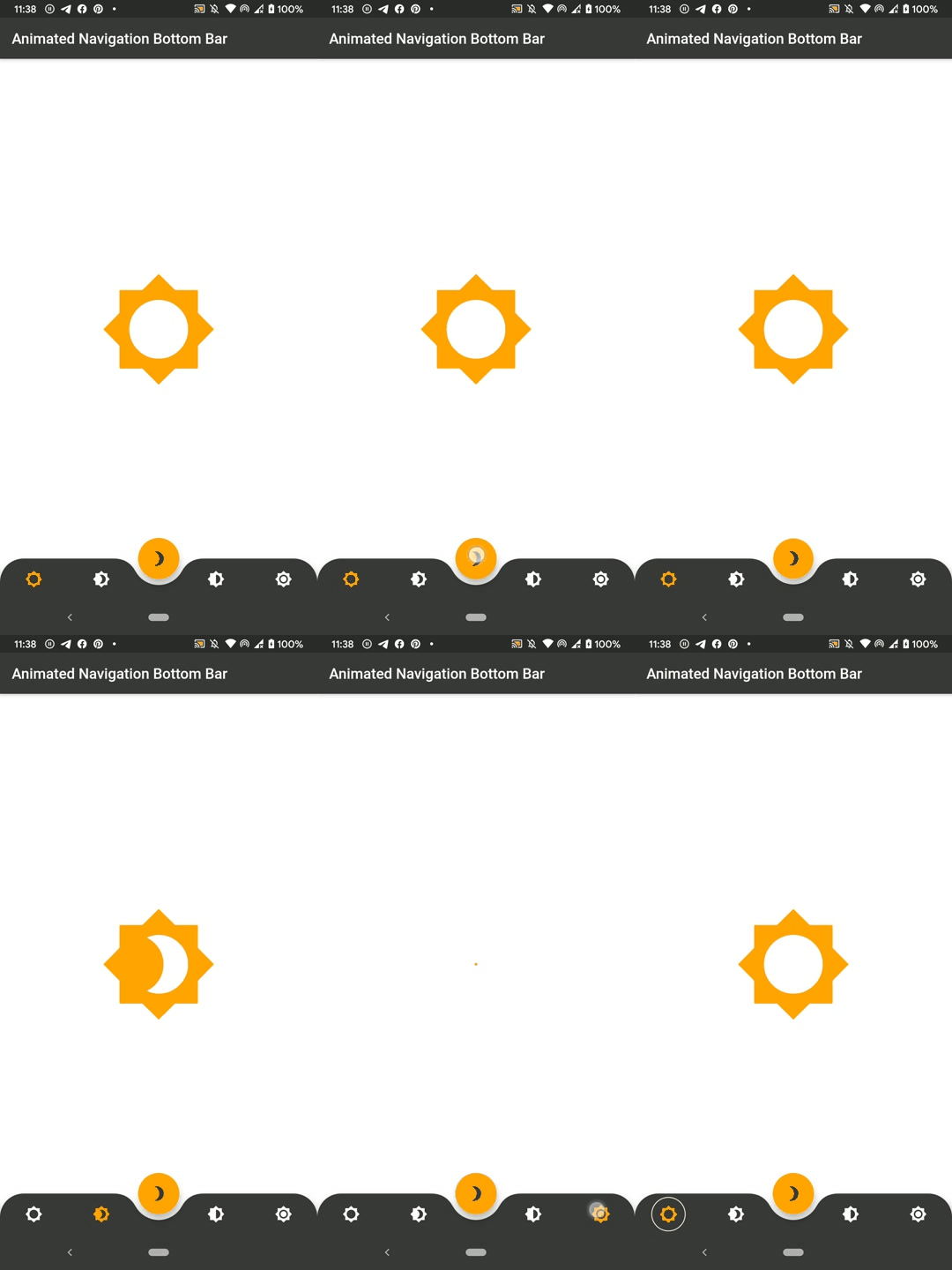
With AnimatedBottomNavigationBar.builder you are able to customize tab view however you need. In this case you are responsible to handle an active(inactive) state of tabs.
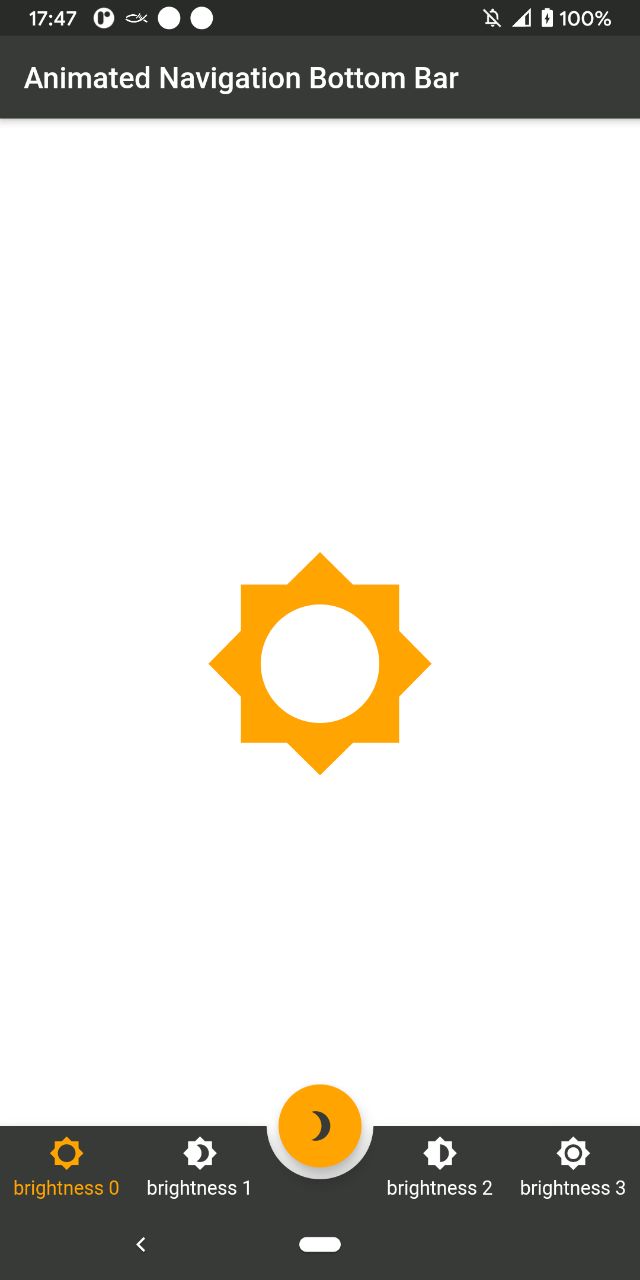
To get started, place your AnimatedBottomNavigationBar or AnimatedBottomNavigationBar.builder in the bottomNavigationBar slot of a Scaffold.
The AnimatedBottomNavigationBar respects FloatingActionButton location.
For example:
Scaffold(
   body: Container(), //destination screen
   floatingActionButton: FloatingActionButton(
      //params
   ),
   floatingActionButtonLocation: FloatingActionButtonLocation.centerDocked,
   bottomNavigationBar: AnimatedBottomNavigationBar(
      icons: iconList,
      activeIndex: _bottomNavIndex,
      gapLocation: GapLocation.center,
      notchSmoothness: NotchSmoothness.verySmoothEdge,
      leftCornerRadius: 32,
      rightCornerRadius: 32,
      onTap: (index) => setState(() => _bottomNavIndex = index),
      //other params
   ),
);
There is also a more flexible way to build bottomNavigationBar with Builder (see example for more insights):
Scaffold(
   body: Container(), //destination screen
   floatingActionButton: FloatingActionButton(
      //params
   ),
   floatingActionButtonLocation: FloatingActionButtonLocation.centerDocked,
   bottomNavigationBar: AnimatedBottomNavigationBar.builder(
      itemCount: iconList.length,
      tabBuilder: (int index, bool isActive) {
        return Icon(
          iconList[index],
          size: 24,
          color: isActive ? colors.activeNavigationBarColor : colors.notActiveNavigationBarColor,
        );
      activeIndex: _bottomNavIndex,
      gapLocation: GapLocation.center,
      notchSmoothness: NotchSmoothness.verySmoothEdge,
      leftCornerRadius: 32,
      rightCornerRadius: 32,
      onTap: (index) => setState(() => _bottomNavIndex = index),
      //other params
   ),
);
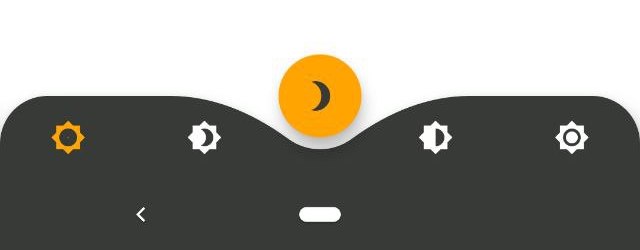
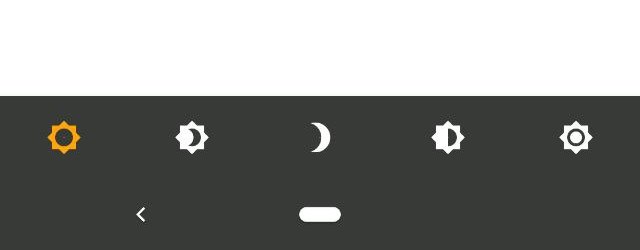
AnimatedBottomNavigationBar is customizable and works with 2, 3, 4, or 5 navigation elements.
Scaffold(
   bottomNavigationBar: AnimatedBottomNavigationBar(
      icons: iconList,
      activeIndex: _bottomNavIndex,
      onTap: (index) => setState(() => _bottomNavIndex = index),
      //other params
   ),
);
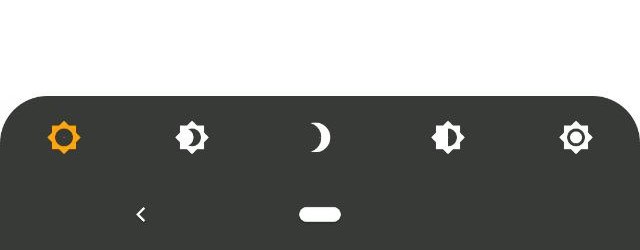
Scaffold(
   bottomNavigationBar: AnimatedBottomNavigationBar(
      icons: iconList,
      activeIndex: _bottomNavIndex,
      leftCornerRadius: 32,
      rightCornerRadius: 32,
      onTap: (index) => setState(() => _bottomNavIndex = index),
      //other params
   ),
);
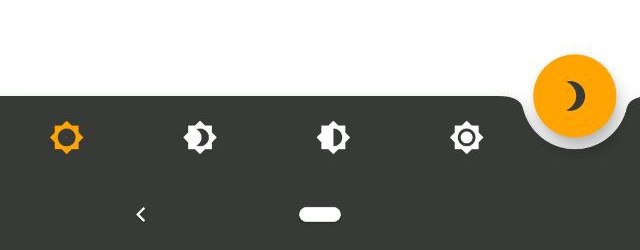
Scaffold(
   floatingActionButton: FloatingActionButton(
      //params
   ),
   floatingActionButtonLocation: FloatingActionButtonLocation.endDocked,
   bottomNavigationBar: AnimatedBottomNavigationBar(
      icons: iconList,
      activeIndex: _bottomNavIndex,
      gapLocation: GapLocation.end,
      notchSmoothness: NotchSmoothness.defaultEdge,
      onTap: (index) => setState(() => _bottomNavIndex = index),
      //other params
   ),
);
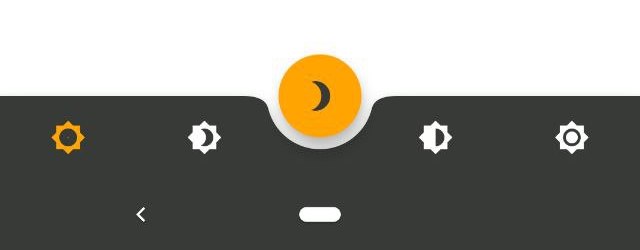
Scaffold(
   floatingActionButton: FloatingActionButton(
      //params
   ),
   floatingActionButtonLocation: FloatingActionButtonLocation.centerDocked,
   bottomNavigationBar: AnimatedBottomNavigationBar(
      icons: iconList,
      activeIndex: _bottomNavIndex,
      gapLocation: GapLocation.center,
      notchSmoothness: NotchSmoothness.defaultEdge,
      onTap: (index) => setState(() => _bottomNavIndex = index),
      //other params
   ),
);
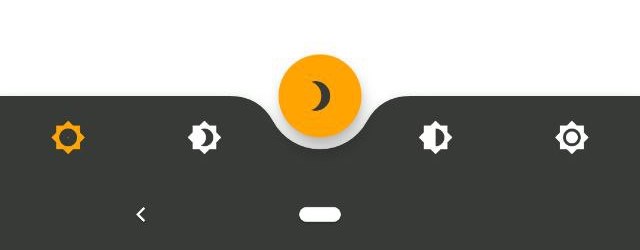
Scaffold(
   floatingActionButton: FloatingActionButton(
      //params
   ),
   floatingActionButtonLocation: FloatingActionButtonLocation.centerDocked,
   bottomNavigationBar: AnimatedBottomNavigationBar(
      icons: iconList,
      activeIndex: _bottomNavIndex,
      gapLocation: GapLocation.center,
      notchSmoothness: NotchSmoothness.softEdge,
      onTap: (index) => setState(() => _bottomNavIndex = index),
      //other params
   ),
);
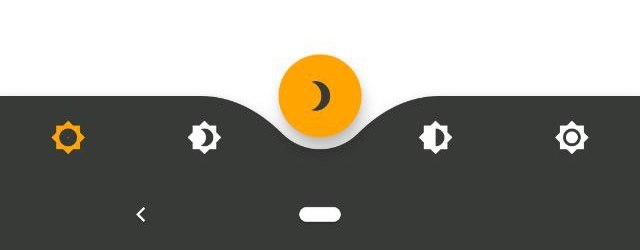
Scaffold(
   floatingActionButton: FloatingActionButton(
      //params
   ),
   floatingActionButtonLocation: FloatingActionButtonLocation.centerDocked,
   bottomNavigationBar: AnimatedBottomNavigationBar(
      icons: iconList,
      activeIndex: _bottomNavIndex,
      gapLocation: GapLocation.center,
      notchSmoothness: NotchSmoothness.smoothEdge,
      onTap: (index) => setState(() => _bottomNavIndex = index),
      //other params
   ),
);
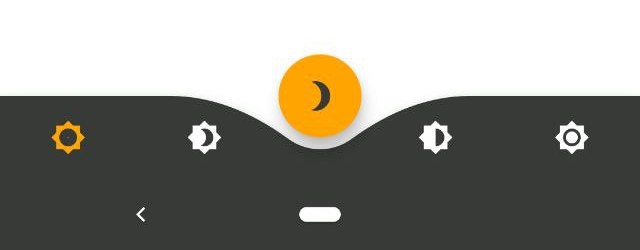
Scaffold(
   floatingActionButton: FloatingActionButton(
      //params
   ),
   floatingActionButtonLocation: FloatingActionButtonLocation.centerDocked,
   bottomNavigationBar: AnimatedBottomNavigationBar(
      icons: iconList,
      activeIndex: _bottomNavIndex,
      gapLocation: GapLocation.center,
      notchSmoothness: NotchSmoothness.verySmoothEdge,
      onTap: (index) => setState(() => _bottomNavIndex = index),
      //other params
   ),
);
You have to change the active navigation bar tab programmatically by passing a new activeIndex to the AnimatedBottomNavigationBar widget.
class _MyAppState extends State<MyApp> {
  int activeIndex;

  /// Handler for when you want to programmatically change
  /// the active index. Calling `setState()` here causes
  /// Flutter to re-render the tree, which `AnimatedBottomNavigationBar`
  /// responds to by running its normal animation.
  void _onTap(int index) {
    setState((){
      activeIndex = index;
    });
  }

  Widget build(BuildContext context) {
    return AnimatedBottomNavigationBar(
      activeIndex: activeIndex,
      onTap: _onTap,
      //other params
    );
  }
}
依存関係一覧 3 件
{"sdk":"flutter"}{"sdk":"flutter"}^6.0.0用途で絞り込み、開発状況を比較し、採用前に元のリポジトリで要件を確認しましょう。
“A repository is the most basic element of GitHub.”
GitHub Docs — About repositories ↗